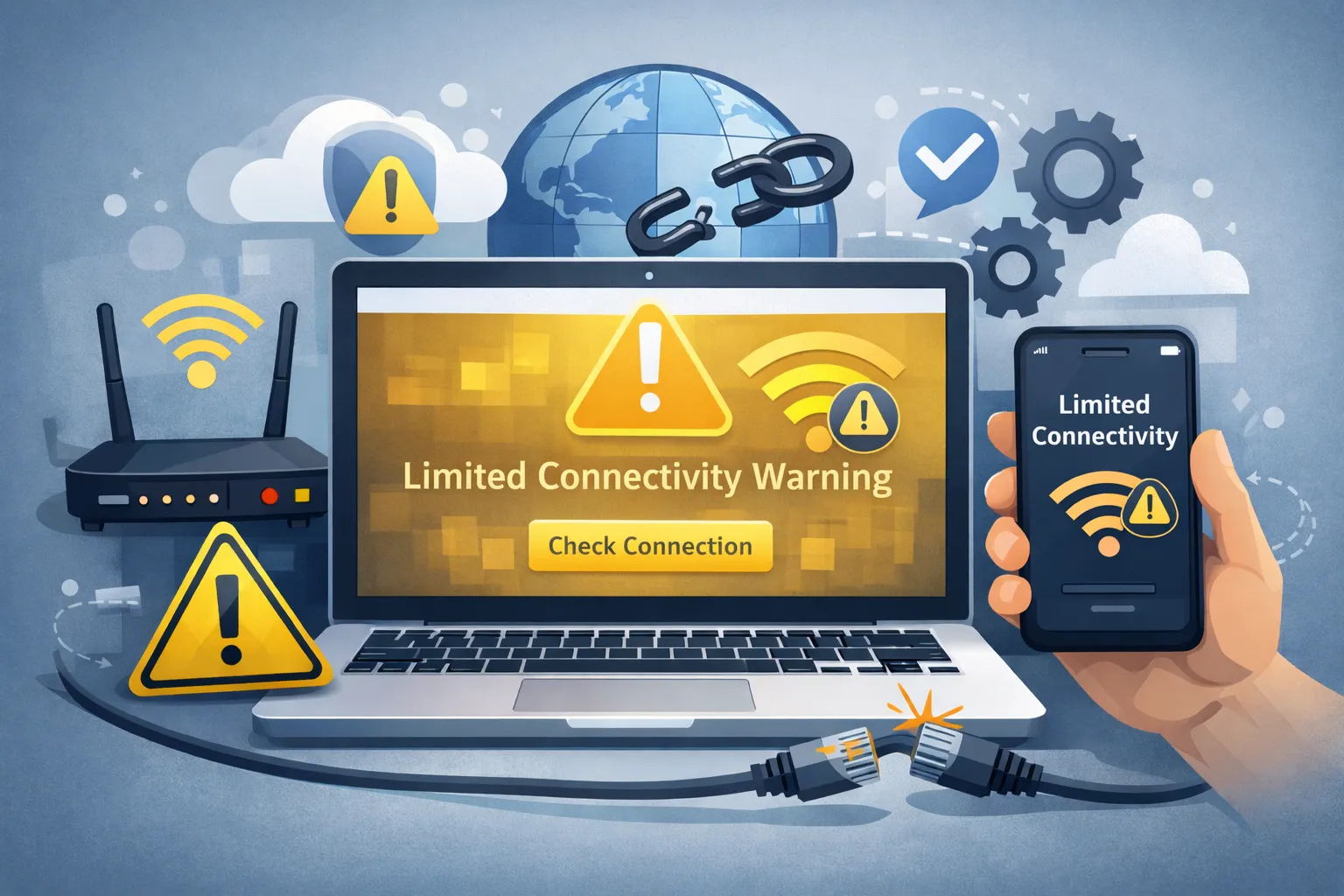
The limited connectivity warning is a digital limbo: you are technically connected to your equipment, but meaningful data transfer is blocked. Usually appearing as a yellow triangle with an exclamation mark over your WiFi or network icon, this error signals that your computer has successfully linked to the router but failed to get a valid IP address or handshake with the web, causing the limited connectivity warning. Whether it is a “Limited Access” notification in Windows or a connection that drops every five minutes, this guide forces your network adapter to renegotiate a working link.
Quick Fix (1 minute)
- Toggle WiFi: Turn WiFi off, wait 10 seconds, turn back on.
- Reboot Router: The classic “turn it off and on again” works wonders.
- Network Troubleshooter: Right-click the network icon > Troubleshoot.
- Unplug Ethernet: Physical cables can loosen; reseat them firmly.
Symptoms Checklist
- Yellow triangle warning on the network system tray icon.
- Status message says “Limited” or “No Internet Access.”
- You can access the router login page (192.168.1.1) but not Google.
- Windows reports “Unidentified Network” in adapter settings.
- Limited connectivity warning appears despite successful WiFi connection.
Troubleshooting Summary (Fast Diagnosis)
| Symptom | Likely Cause | Best Fix |
|---|---|---|
| “Limited” on all networks | Corrupt Network Drivers | Reinstall Drivers (Method 3) |
| “Limited” on home WiFi only | Router allocation error | Assign Static IP (Method 4) |
| Yellow Triangle Icon | IP Address Conflict | Renew IP (Method 1) |
| Drops intermittently | Power Saving Mode | Adjust Power Settings (Method 2) |
Why This Happens
The limited connectivity warning usually happens when the Dynamic Host Configuration Protocol (DHCP) fails. Normally, your router acts as a traffic controller, assigning a unique IP address to every phone and laptop. If the router runs out of addresses, or if your laptop holds onto an old, expired address from a coffee shop you visited yesterday, the handshake fails. The router sees your device but refuses to route traffic to it because its ID tag is invalid, triggering the limited connectivity warning.
Fix Method 1: Release and Renew IP Address
What this fixes
This command manually discards the “bad” IP address your computer is clinging to and politely requests a fresh, valid one from the router, resolving the limited connectivity warning.
- Press
Win + Xand select Terminal (Admin) or Command Prompt. - Type
ipconfig /releaseand press Enter. (Your internet will cut out completely). - Type
ipconfig /flushdnsand press Enter. - Type
ipconfig /renewand press Enter. - Wait for a line confirming a new IPv4 Address (e.g., 192.168.x.x).
How to verify it worked
The yellow triangle icon disappears from the taskbar.
If it still fails
If you get an error saying “Unable to contact your DHCP server,” the issue is the router, not your PC. Restart the router.
Fix Method 2: Disable Power Saving for Adapter
What this fixes
Windows aggressively tries to save battery by putting the WiFi card to “sleep” during milliseconds of inactivity. This often causes the card to wake up groggy and fail to maintain the handshake, leading to a limited connectivity warning.
- Right-click the Start button and choose Device Manager.
- Expand Network adapters.
- Right-click your WiFi or Ethernet adapter/controller.
- Select Properties.
- Go to the Power Management tab.
- Uncheck “Allow the computer to turn off this device to save power.”
- Click OK and restart your PC.
How to verify it worked
The connection remains stable without dropping to “Limited” status after idle time.
If it still fails
Check if your laptop is in “Eco” or “Battery Saver” mode and switch it to “High Performance.”
Fix Method 3: Roll Back or Update Network Drivers
What this fixes
A recent Windows Update might have installed a generic driver that isn’t perfectly compatible with your specific network card, causing a limited connectivity warning.
- Open Device Manager again.
- Right-click your network adapter and select Update driver.
- Choose Browse my computer for drivers.
- Select Let me pick from a list of available drivers….
- If you see multiple options, choose an older version (usually one with a Microsoft brand) or the specific Manufacturer one.
- Click Next to install.
How to verify it worked
The driver refreshes, the connection resets, and the limited connectivity warning triangle is gone.
If it still fails
Visit the laptop manufacturer’s site to download the official “Network Driver” installer.
Fix Method 4: Assign a Static IP Address
What this fixes
If the router’s automatic assignment (DHCP) keeps failing, you can force a manual, permanent address that the router cannot mess up, eliminating the limited connectivity warning.
- Open Settings > Network & internet > Wi-Fi.
- Click Hardware properties.
- Click Edit next to “IP assignment.”
- Switch from Automatic (DHCP) to Manual.
- Turn on IPv4.
- Set IP address:
192.168.1.150(Check your Gateway first; if it is 192.168.0.1, use 192.168.0.150). - Subnet mask:
255.255.255.0. - Gateway:
192.168.1.1(or your specific router IP). - DNS:
8.8.8.8. - Save.
How to verify it worked
The status changes to “Connected, Secured.”
If it still fails
Revert to Automatic IP immediately if you lose connectivity entirely.
Fix Method 5: Reset TCP/IP Stack
What this fixes
Over time, network settings in the Windows Registry can get corrupted. This command rewrites the entire protocol registry keys to factory default and can resolve persistent limited connectivity warning issues.
- Open Command Prompt as Administrator.
- Type
netsh int ip resetand press Enter. - Type
netsh winsock resetand press Enter. - Crucial: You must restart your computer for this to take effect.
How to verify it worked
After reboot, Windows treats the network as new and usually connects successfully.
If it still fails
Your antivirus firewall might be blocking the connection. Temporarily disable your firewall.
Understanding Limited Connectivity Warning Causes
The limited connectivity warning stems from multiple potential issues that prevent proper network communication. IP address conflicts occur when two devices claim the same address, DHCP server failures prevent automatic IP assignment, outdated or corrupted network drivers disrupt the connection handshake, and power management settings cause adapters to disconnect unexpectedly. Router firmware bugs, DNS resolution problems, and network profile corruption also trigger the limited connectivity warning. Identifying which specific cause applies to your situation allows you to apply the most effective fix rather than trying solutions randomly.
Prevent This From Happening Again
- Regular Reboots: Restart your router once a month to clear its DHCP table and prevent limited connectivity warning.
- Update Windows: While updates cause bugs, they also fix driver incompatibilities.
- Separate Bands: If possible, split your router to show diverse 2.4GHz and 5GHz networks to reduce congestion.
- Keep Drivers Updated: Visit manufacturer websites quarterly to download latest network adapter drivers.
- Disable Power Saving: Turn off aggressive power management for network adapters permanently.
- Monitor IP Conflicts: Use static IP assignments for devices that frequently trigger warnings.
FAQ
What is a “Winsock reset”?
Winsock (Windows Sockets) dictates how programs access the network. A reset repairs the files that handle these requests, often fixing “Limited” errors caused by malware or bad uninstalls.
Why does it say “Unidentified Network”?
This means the computer can talk to a device (the router) but cannot identify it or get a valid IP. It defaults to a “Public” profile with restricted access for safety.
Is this a virus?
Unlikely, but possible. Some malware hijacks network traffic. If the netsh winsock reset fixes it temporarily but it comes back, run a deep antivirus scan.
Can a bad cable cause “Limited Connectivity”?
Yes. If you are on Ethernet and the cable is damaged, it might carry enough signal to detect a pulse (connected) but not enough quality to transmit data packets (limited).
Should I trust the Windows Troubleshooter?
Believe it or not, yes. For “Limited Connectivity” specifically, the built-in troubleshooter is excellent at resetting the adapter and clearing the cache automatically.
Official References
- Microsoft: Reset network settings in Windows 11
- Intel: Recommended Settings for Wireless Connectivity
Conclusion
The limited connectivity warning is annoying because it taunts you with a connection that doesn’t work. The vast majority of cases are simple IP handshake failures. By releasing your bad IP address, flushing the DNS, and preventing your WiFi card from sleeping on the job, you can turn that yellow triangle back into a healthy, solid connection icon.
Visit https://truefixguides.com/ for more.
