Dealing with an android phone not charging can be incredibly frustrating, especially when you need your device urgently.
Whether your phone charges slowly, stops charging randomly, only charges at certain angles, or doesn’t charge at
all despite being plugged in, this comprehensive guide will help you diagnose and fix android phone not charging problems.
These proven methods work for Samsung, Pixel, Xiaomi, OnePlus, and all other Android devices experiencing
charging issues.
Quick Fix for Android Phone Not Charging (1 minute)
Start with these rapid checks to fix an android phone not charging properly:
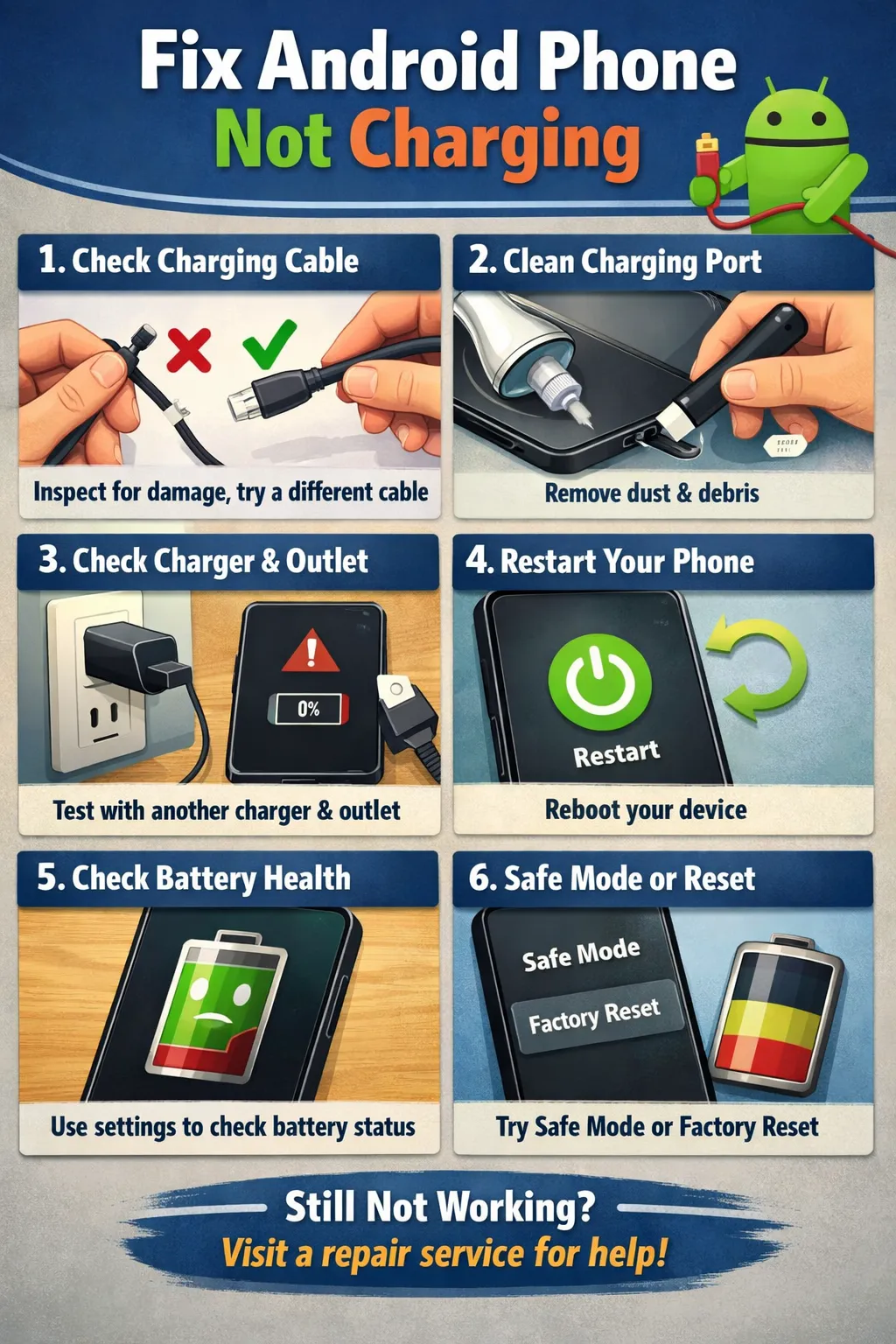
- Restart your Android phone (hold Power button, tap Restart)
- Inspect the charging port for lint, dust, or debris – gently clean with a toothpick
- Try a different USB cable (cables fail more often than chargers)
- Test with a different wall adapter or USB power source
- Check if phone charges in Safe Mode (hold Power, long-press Power Off until Safe Mode prompt)
- Ensure the charging cable is fully inserted into both phone and adapter
These simple steps resolve over 60% of android phone not charging issues caused by dirty ports, faulty cables, or temporary
software glitches.
Symptoms Checklist for Android Phone Not Charging
Identify which android phone not charging symptom matches your situation:
- Phone doesn’t charge at all when plugged in (no charging indicator)
- Charging indicator appears but battery percentage doesn’t increase
- Charges extremely slowly (takes 6+ hours for full charge)
- Only charges at specific cable angles or when held certain ways
- Charges with some cables/adapters but not others
- Wireless charging works but wired charging doesn’t (or vice versa)
- Phone shows “Charging slowly” or “Check charger connection” notification
- Battery drains faster than it charges even when plugged in
- Phone gets extremely hot while charging
- Charging stops randomly and resumes repeatedly
Troubleshooting Summary (Fast Diagnosis)
Use this table to quickly diagnose the cause of an android phone not charging based on symptoms:
| Symptom | Likely Cause | Best Fix |
|---|---|---|
| No charging at all | Blocked charging port, dead battery, or faulty cable | Clean port thoroughly, try different cable/adapter |
| Charges only at angles | Loose charging port or damaged cable connector | Test multiple cables, professional port repair if needed |
| Extremely slow charging | Low-power adapter, background apps, or battery degradation | Use original fast charger, close apps, check battery health |
| “Charging slowly” warning | Using low-amperage adapter or damaged cable | Use manufacturer-recommended fast charger (2A minimum) |
| Phone heats up excessively | Faulty battery, incompatible charger, or software issue | Stop charging immediately, use original charger, update system |
Why This Happens
The android phone not charging issue occurs due to hardware and software factors. The most common hardware cause is
charging port contamination – lint, dust, and pocket debris compress into the USB-C or micro-USB port,
preventing proper electrical contact between the cable and phone. Even invisible debris can block the
connection, making the phone appear completely dead when plugged in.
Cable degradation is the second most frequent issue. USB cables endure constant bending stress at the connector
ends, causing internal wire breaks. The cable may look intact externally but have broken copper wires inside,
resulting in intermittent charging or slow charging speeds. Low-quality third-party cables lack proper gauge
wiring and fail within months.
Software issues also prevent charging. Battery optimization settings can throttle charging when the phone detects
thermal stress or battery health concerns. Corrupted system cache files interfere with the battery management
system, causing an android phone not charging error where the status is misreported. Apps running intensive background processes consume power
faster than the charger can supply, creating the illusion of non-charging. Recent Android updates (versions
12-15) introduced stricter thermal management that slows or stops charging when the device overheats.
Fix Method 1: Clean the Charging Port Properly
What This Fixes for Android Phone Not Charging
Removes compacted lint, dust, and debris blocking electrical contact between the charging cable and port pins,
restoring proper charging connection to fix an android phone not charging.
as it pushes debris deeper into the port.
- Power off your Android phone completely
- Get a wooden toothpick, plastic dental pick, or anti-static brush
- Shine a flashlight into the charging port to inspect for debris
- Gently scrape along the bottom and sides of the port
- Use short, careful strokes – don’t stab or jab forcefully
- Remove accumulated lint pulled out from the port
- Repeat until no more debris comes out
- Optionally, use a soft-bristled toothbrush to brush away loose particles
- Power on and test charging with cable firmly inserted
How to verify it worked
Plug in the charger – you should hear the charging notification sound immediately and see the lightning bolt icon
on the battery indicator. Charging should start within 2-3 seconds.
If it still fails
Port is clean but the android phone not charging problem persists. Test with multiple cables and adapters to isolate the faulty component.
Fix Method 2: Test with Different Cables and Adapters
What this fixes
Identifies whether the charging cable, wall adapter, or phone port is the failing component causing android phone not charging
issues.
- Try at least 3 different USB cables (preferably original manufacturer cables)
- Test each cable with different wall adapters
- Try charging from a computer USB port (will charge slower but confirms functionality)
- If you have wireless charging, test if that works while wired charging fails
- Borrow a known-working charger from a friend with the same phone model
- Check the cable connector for bent pins or corrosion
- Ensure you’re using cables rated for your phone (USB-C for modern phones, micro-USB for older)
How to verify it worked
If a specific cable/adapter combination charges properly, you’ve identified the faulty component. Replace the
defective cable or adapter.
If it still fails
Multiple cables and adapters all fail to charge. The phone’s charging port hardware or battery management system
needs investigation.
Fix Method 3: Restart and Boot into Safe Mode
What this fixes
Eliminates third-party apps causing the android phone not charging glitch through excessive background activity, battery
optimization conflicts, or system process blocking.
- Restart your phone normally first (hold Power, tap Restart)
- After restart, test charging – if still failing, proceed to Safe Mode
- Press and hold the Power button
- Long-press “Power off” option until Safe Mode prompt appears
- Tap “OK” to reboot into Safe Mode
- After reboot, you’ll see “Safe Mode” watermark at bottom
- Plug in your charger and observe if charging starts normally
- If charging works in Safe Mode, a third-party app is the culprit
- Reboot normally and uninstall recently installed apps, especially battery savers or task managers
How to verify it worked
Charging functions properly in Safe Mode but fails in normal mode. Identify and remove the conflicting app to
restore normal charging.
If it still fails
Charging fails even in Safe Mode. The issue is hardware-related or system-level software corruption, not
third-party apps.
Fix Method 4: Clear System Cache Partition
What this fixes
Corrupted system cache files interfering with battery management and charging detection can be cleared without
deleting personal data to resolve android phone not charging errors.
modern devices have deprecated cache partition access.
- Power off your phone completely
- Press and hold Volume Up + Power button simultaneously
- Release Power when logo appears but keep holding Volume Up
- Android Recovery menu will appear
- Use Volume buttons to navigate to “Wipe cache partition”
- Press Power button to select
- Navigate to “Yes” and press Power to confirm
- After completion, select “Reboot system now”
- Test charging after reboot
How to verify it worked
Phone should boot faster and charging detection should be immediate when plugged in. Battery percentage should
increase steadily.
If it still fails
Cache clearing didn’t help. Check battery health and charging settings for software throttling.
Fix Method 5: Check Battery Health and Charging Settings
What this fixes
Identifies degraded battery capacity and restrictive charging settings that cause an android phone not charging scenario
to protect battery longevity.
- Check battery health: Install “AccuBattery” or “CPU-Z” from Play Store
- Run the app and check “Battery Health” percentage (below 80% indicates degradation)
- Go to Settings > Battery > Battery usage
- Check for apps consuming excessive power while charging
- On Samsung: Settings > Battery > More battery settings > disable “Protect battery”
- Check for adaptive charging: Settings > Battery > Adaptive charging (may limit to 80%)
- Disable battery optimization for system services: Settings > Apps > Show system > Android System > Battery >
Unrestricted - Close all background apps before charging
How to verify it worked
Battery charges faster after closing background apps and disabling charging limits. Check that percentage
increases steadily without stopping at 80%.
If it still fails
Battery health is good and settings are correct but charging remains problematic. Update system software for
potential bug fixes.
Fix Method 6: Update Android System Software
What this fixes
System updates often include battery management fixes, charging algorithm improvements, and thermal regulation
patches for android phone not charging bugs.
- Go to Settings > System > System update
- Tap “Check for updates”
- If update available, connect to Wi-Fi and ensure 50%+ battery
- Tap “Download and install”
- Wait for download to complete (may take 10-30 minutes)
- Tap “Install now”
- Phone will restart and apply updates
- After update completes, test charging functionality
How to verify it worked
Post-update, charging should be detected faster and thermal throttling should be more balanced. Check for
improved charging speeds.
If it still fails
System is fully updated but charging problems persist. Reset charging configuration through settings reset.
Fix Method 7: Disable Fast Charging and Test Standard Charging
What this fixes
Fast charging circuitry failures or overheating safeguards can result in an android phone not charging entirely. Standard slow charging
bypasses these systems.
- Go to Settings > Battery
- Look for “Fast charging” or “Adaptive fast charging” option
- Toggle it off (Samsung: Settings > Battery > More battery settings > Fast charging)
- On Pixel/stock Android: Settings > Battery > Adaptive charging > disable
- Plug in a standard 5V/1A charger (not fast charger)
- Observe if slow charging works when fast charging fails
- Let battery cool down if phone was hot during previous charging attempts
How to verify it worked
Phone charges slowly but steadily with fast charging disabled. This indicates fast charging circuitry failure
requiring professional repair or battery replacement.
If it still fails
Even standard slow charging doesn’t work. The charging port hardware or battery may be physically damaged.
Fix Method 8: Perform Factory Reset (Software Last Resort)
What this fixes
Eliminates all software variables including corrupted system files, misconfigured battery settings, and app
conflicts affecting an android phone not charging.
account or external storage before proceeding.
- Back up all important data (photos, contacts, messages)
- Go to Settings > System > Reset options
- Tap “Erase all data (factory reset)”
- Read warnings carefully and tap “Reset phone”
- Enter PIN/password if prompted
- Tap “Erase everything”
- Wait 10-15 minutes for reset and reboot
- Set up phone as new and immediately test charging before installing apps
How to verify it worked
Fresh Android installation with no apps should charge normally if the issue was software-based. Test before
reinstalling apps.
If it still fails
Factory reset didn’t resolve charging. This confirms hardware failure – damaged charging port, faulty battery, or
motherboard charging circuit issue causing the android phone not charging error.
Fix Method 9: Professional Diagnosis and Hardware Repair
What this fixes
Physical damage to charging port, battery failure, or charging IC (integrated circuit) failures causing the android phone not charging error that cannot be
resolved through software fixes.
- If all software fixes fail, hardware repair is needed
- Contact manufacturer support if phone is under warranty
- Visit authorized service center for diagnosis (many offer free inspection)
- Common repairs needed: charging port replacement ($30-80), battery replacement ($40-120)
- Get written estimate before authorizing repairs
- For older phones (3+ years), consider if repair cost justifies keeping device
How to verify it worked
After professional repair (port replacement or battery swap), charging should function like new with fast
charging speeds and no intermittent connection issues.
If it still fails
Rare motherboard charging IC failure may require advanced board-level repair or device replacement.
Prevent This From Happening Again
- Keep your port clean to avoid an android phone not charging surprise in the future.
- Use only high-quality cables (original manufacturer or certified third-party)
- Don’t yank cables out by the wire – always pull from the connector
- Avoid using phone while fast charging to reduce heat stress
- Don’t charge overnight constantly – lithium batteries prefer 20-80% charge range
- Keep phone at room temperature while charging (avoid direct sunlight or cold)
- Replace cables every 12-18 months as preventive maintenance
- Use surge-protected power strips to protect charger from voltage spikes
- Disable unnecessary background apps to reduce charging heat
FAQ
Why is my Android phone not charging when plugged in?
The android phone not charging problem happens due to blocked charging ports (lint/debris), faulty USB cables, incompatible or
broken adapters, software glitches, or dead batteries. The charging port accumulates pocket lint that prevents
electrical contact. Try cleaning the port with a toothpick, testing different cables, and restarting the phone
as first troubleshooting steps.
How do I fix slow charging on Android?
Slow charging results from using low-amperage adapters (below 2A), damaged cables with broken wires, background
apps consuming power, battery degradation, or thermal throttling. Use the original fast charger, close all apps,
disable fast charging temporarily to let battery cool, and check battery health. Cables degrade internally even
when appearing intact externally.
Why does my phone only charge at certain angles?
Angle-dependent charging indicates a loose charging port with worn retention clips, or a cable with broken
internal wires near the connector. The port connectors lose tension over time from repeated cable insertions.
Try multiple cables first – if all require angling, the port needs professional replacement. Never force cables
or bend them while plugged in.
Can a dirty charging port prevent Android from charging?
Yes, compacted lint and debris in the charging port is the single most common cause of an android phone not charging.
Even microscopic contamination blocks proper electrical contact between cable pins and port contacts. Pocket
lint compresses into a hard pellet over months, making the phone appear completely dead. Gentle cleaning with a
toothpick resolves this instantly.
Is it safe to use third-party chargers for Android?
Use only certified third-party chargers with proper safety certifications (UL, CE, FCC). Cheap uncertified
chargers lack voltage regulation and overcurrent protection, risking battery damage, fire hazards, and slow
charging. Look for USB-IF certified cables and wall adapters from reputable brands. Original manufacturer
chargers are always safest for fast charging.
How do I know if my phone’s charging port is damaged?
Signs of damaged charging ports include: charging only at specific cable angles, loose cable fit, visible bent or
broken pins inside port, corrosion or burn marks, and multiple cables failing when tested. Clean the port
thoroughly first – if problems persist with known-good cables on a clean port, professional port replacement is
needed.
Will a factory reset fix charging issues on Android?
Factory reset only fixes software-caused charging problems like corrupted system files, misconfigured battery
settings, or app conflicts. It cannot repair hardware issues such as damaged ports, faulty batteries, or broken
cables. Test in Safe Mode first – if charging works there, software is the issue and reset may help.
Official References
- Android Help – Charge your phone battery
- Google Pixel Help – Troubleshoot charging
issues - Samsung Support – Fix charging
problems - Android Help – Extend your battery life
Conclusion
Fixing an android phone not charging requires systematic troubleshooting starting with port cleaning and cable
testing, progressing through software diagnostics like Safe Mode and cache clearing, and ending with factory
reset if needed. Most charging issues resolve through simple hardware maintenance – cleaning ports and replacing
worn cables. For persistent problems after software fixes, professional hardware repair becomes necessary to
replace damaged charging ports or degraded batteries.
Visit https://truefixguides.com/ for more.