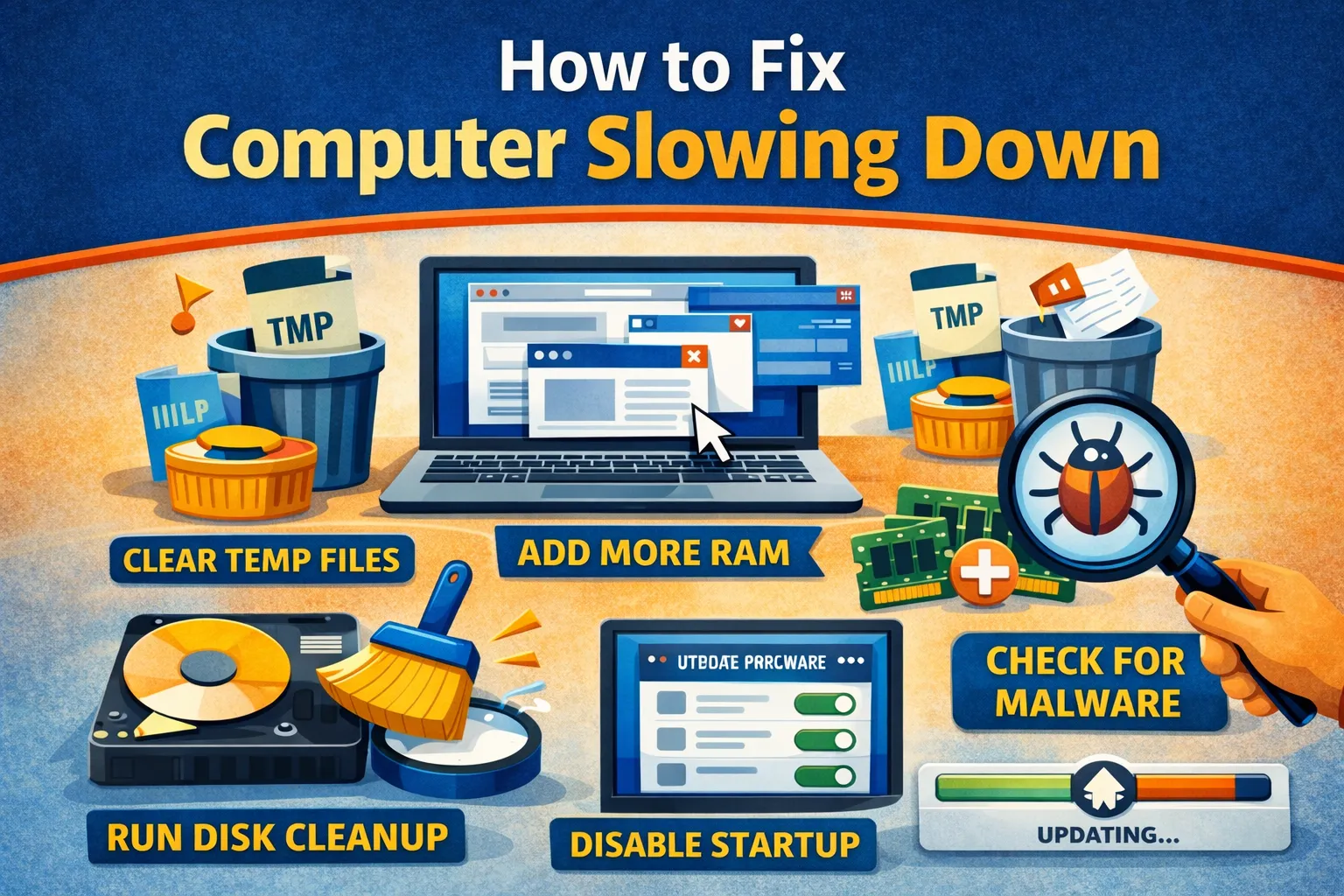
fix computer slowing down: You click on your browser, and wait. And wait. A computer slowing down is the modern equivalent of a car engine sputtering—it still runs, but every task feels like dragging a heavy anchor. Whether it’s a 3-second delay when typing or a 5-minute boot time, performance degradation is rarely a sign that your hardware is “too old.” In 90% of cases, it is a solvable traffic jam caused by startup bloatware, thermal throttling, or a dying hard drive. This guide explains exactly how to fix a computer slowing down by identifying the bottleneck and clearing it using professional optimization techniques.
Quick Fix (1 minute) for fix computer slowing down
Instantly reclaim speed with these rapid cleanup steps:
- Disable Startup Apps: Press Ctrl + Shift + Esc to open Task Manager. Click the “Startup” tab. Disable anything high-impact like Spotify, Steam, or Microsoft Teams. This is a fast win for fix computer slowing down on Windows boot.
- Best Performance Mode: Click the Battery icon in the taskbar. Drag the slider to the far right (“Best Performance”). Laptops often throttle speed to save power by default.
- Restart (Don’t Shutdown): In Windows 10/11, “Shutdown” actually hibernates the kernel. A “Restart” is the only way to fully flush the RAM and clear memory leaks.
- Check for Updates: Go to Settings > Update & Security. A stuck background update often hogs 100% of the CPU until it finishes installing.
- Unplug Peripherals: Disconnect USB drives and secondary monitors. A faulty driver for a webcam can cause system-wide “interrupt” lag.
If these tweaks don’t restore your snap, the issue is likely a hardware bottleneck (Heat or Storage) and you will need a deeper fix computer slowing down workflow.
Symptoms Checklist
Identify if this is a software lag or a hardware failure before you fix computer slowing down:
- Mouse cursor stutters or freezes while moving across the screen.
- Typing in Word has a visible delay (letters appear 1 second late).
- Fans are spinning loudly even when no apps are open.
- Disk usage in Task Manager sits at 100% permanently.
- Opening a simple folder takes more than 3 seconds.
- Video playback creates audio buzzing or robotic distortion.
Troubleshooting Summary (Fast Diagnosis)
Use Task Manager numbers to pinpoint the culprit and fix computer slowing down decisively:
| Symptom | Likely Cause | Best Fix |
|---|---|---|
| 100% CPU Usage | Background Process / Virus | End Task / Malware Scan |
| 100% Disk Usage | Dying HDD / Indexing Search | Replace with SSD / Disable Search |
| High Memory (RAM) | Chrome / Memory Leak | Close Tabs / Add RAM stick |
| High GPU (Desktop) | Driver Conflict / Mining Virus | DDU Driver Reinstall |
| System halts then catches up | Thermal Throttling | Clean Dust / Repaste CPU |
Why This Happens
A computer slows down for one of three physical reasons. First is Resource Exhaustion: If you have 8GB of RAM and open 20 tabs, the PC starts using your slow hard drive as “fake RAM” (paging), which cripples speed. Second is Thermal Throttling: If dust clogs your fans, the CPU hits 90°C and intentionally slows down to 800MHz to prevent melting. Third is Entropy: Over years, Windows accumulates thousands of registry keys, temporary files, and leftover drivers from uninstalled apps, creating a database that takes longer to read. To fix computer slowing down, you target whichever of these pillars is creating the bottleneck.

Fix Method 1: The “Clean Boot” Isolation
What this fixes for fix computer slowing down
This disables all third-party software (Antivirus, RGB software, Updaters) to verify if a program is slowing you down. It is the fastest way to fix computer slowing down caused by background bloat.
- Press Win + R, type
msconfig, and press Enter. - Go to the Services tab.
- Check the box “Hide all Microsoft services” (Crucial step!).
- Click Disable All.
- Go to the Startup tab and open Task Manager. Disable all startup items.
- Restart the PC.
How to verify it worked
If the PC is suddenly fast, one of your installed apps is the culprit. Re-enable them one by one to find the vampire.
If it still fails
If it is still slow in Clean Boot, the issue is Windows itself or Hardware.
Fix Method 2: Check for Thermal Throttling
What this fixes
A computer clogged with dust cannot run at full speed. It downclocks to protect itself. This is a core fix computer slowing down move when fans are loud and performance collapses under load.
- Download HWMonitor (Free).
- Run it and look at the “CPU” temperatures under the “Value” and “Max” columns.
- Idle Temp: Should be 30°C – 50°C. If it’s 70°C+ at idle, you have a problem.
- Load Temp: Open a game/app. If it hits 95°C – 100°C instantly, you are throttling.
- The Fix: Shut down using ESD safety. Open the case. Use compressed air to blow out the heatsink radiator. If using a laptop, ensure the intake vents on the bottom are not blocked by blankets.
Fix Method 3: The SSD Upgrade (The Holy Grail)
What this fixes
Replacing a mechanical Hard Disk Drive (HDD) with a Solid State Drive (SSD) is the single most effective repair for speed. For fix computer slowing down scenarios with 100% disk usage, this is usually the knockout punch.
- Open Task Manager > Performance > Disk 0.
- If it says “HDD” and hits 100% active time constantly, this is your bottleneck.
- Buy a 2.5-inch SATA SSD (cheap) or NVMe SSD (fast).
- Clone your old drive to the new one using Macrium Reflect (Free Trial).
- Swap the drives physically.
- Boot up. Boot times will drop from 2 minutes to 15 seconds.
Fix Method 4: Scan for “Resource Mining” Malware
What this fixes
Modern viruses don’t delete files; they steal your CPU power to mine cryptocurrency, making your PC sluggish. This fix computer slowing down step is mandatory when CPU/GPU usage is high at idle.
- Download Malwarebytes (Free version).
- Disconnect from the Internet (unplug Ethernet/WiFi). This stops the virus from receiving “pause” commands.
- Run a Custom Scan > Select C: Drive > Scan for Rootkits.
- Quarantine any threats found.
- Restart.
Fix Method 5: Expand Virtual Memory (Pagefile)
What this fixes
If you have low RAM (8GB or less), increasing the Pagefile gives you more breathing room before crashing. It can stabilize fix computer slowing down symptoms when memory pressure is the trigger.
- Press Win + S, search for “Advanced System Settings.”
- Click the Advanced tab > Performance Settings.
- Click Advanced tab > Virtual Memory Change.
- Uncheck “Automatically manage.”
- Select C: Drive > Custom Size.
- Set Initial and Max size to 16000 (16GB).
- Click Set > OK > Restart.
Fix Method 6: Run DISM and SFC Repair
What this fixes
Repairs corrupted Windows system files that cause explorer.exe to hang or lag. This fix computer slowing down option is ideal when glitches persist even after cleanup.
- Open Command Prompt as Administrator.
- Type:
DISM /Online /Cleanup-Image /RestoreHealthand press Enter. Wait for 100%. - Type:
sfc /scannowand press Enter. - If it says “Windows Resource Protection found corrupt files and successfully repaired them,” your lag might be solved.
Fix Method 7: The “Reset this PC” Option
What this fixes
Wipes away years of software rot and driver conflicts without deleting your personal photos/docs. Use this to fix computer slowing down when system entropy is the root cause.
- Go to Settings > Update & Security > Recovery.
- Under “Reset this PC,” click Get Started.
- Choose “Keep my files.”
- Select “Local Reinstall.”
- Let the process run (30-60 mins).
- You will land on a fresh desktop that runs at factory speed.
Prevent This From Happening Again
- Don’t Install “Speed Up” Tools: Apps like CCleaner or Driver Booster often cause more issues than they solve. Windows 10/11 maintains itself well enough.
- Restart Weekly: Don’t leave your PC on for months. Weekly restarts clear the kernel RAM cache.
- Keep 20% Storage Free: SSDs slow down drastically when full. If you have a 500GB drive, keep 100GB free.
- Audit Browser Extensions: Each extension (Grammarly, AdBlock, Honey) uses RAM for every single open tab. Remove the ones you don’t use.
FAQ
Does adding more RAM make a computer faster?
Yes, but only if you are running out of it. If you have 8GB and are constantly at 90% usage, upgrading to 16GB will be a massive improvement. If you already have 32GB unused, adding more won’t change anything. For fix computer slowing down that is driven by memory exhaustion, RAM is one of the cleanest upgrades.
Is my computer too old?
Generally, if a computer is older than 7-8 years, modern websites (which are heavy apps) will struggle on the old CPU instruction sets. No amount of optimization fixes a CPU that is physically too slow for 2025 web tech.
Why is my internet slow but my computer fast?
If opening folders is instant but websites load slowly, that is network lag, not computer lag. Reset your router or switch to Ethernet.
Should I defrag my SSD?
No! Never defrag an SSD. It wastes write cycles (lifespan) for zero speed gain. Only defrag old mechanical HDDs. Windows handles this automatically (“Trim” for SSDs).
Official References
- Tips to improve PC performance in Windows – Microsoft Support
- CPUID HWMonitor (Official Download)
- Malwarebytes Free Cleaning Tool
Conclusion
Learning how to fix computer slowing down is about identifying the bottleneck. Is it a software jam (Startup apps)? A thermal wall (Dust)? Or a hardware limit (HDD/RAM)? By systematically testing these three pillars using Task Manager and HWMonitor, you can usually restore your machine’s original snap without spending a dime. And when in doubt, remember that a fresh SSD upgrade breathes new life into even the oldest machines.
Visit https://truefixguides.com/ for more.