fix computers: You stare at a black screen, hearing the fans whir, but nothing happens. Most people panic and call a technician, paying $150 just for a simple diagnostic. But you want to be the one holding the screwdriver. Learning how to fix computers is not about memorizing error codes; it is about mastering a logic system called “The Troubleshooting Process.” If you want to fix computers without guesswork, you must think in systems. Whether you want to save money on DIY repairs or launch a career in IT, this guide maps out the exact hardware, software, and diagnostic skills you need to go from “guessing” to “solving.”
Quick Fix (1 minute) to fix computers
Start your learning journey immediately with these essential first steps:
- Get the Right Tools: Buy a basic #1 and #0 Philips screwdriver and a cheap USB flash drive (8GB+). You cannot fix anything without them.
- Download an ISO: Go to Microsoft’s website and download the Windows 10 or 11 Media Creation Tool. Create a bootable USB. This is your “skeleton key” for 80% of software repairs.
- Learn the “POST” Beep: Turn on a PC. That single “beep” means the hardware is alive. No beep means a motherboard/power failure. Memorize this distinction.
- Open a Dead Laptop: Find an old, broken laptop. Unscrew the bottom. Touching the RAM and Hard Drive demystifies the “black box” fear immediately.
- Bookmark the Manuals: Search for “Service Manual” + [Your Model]. Dell and Lenovo publish free PDFs showing every screw location.
If you have these tools and the mindset to “isolate the variable,” you are already 50% of the way to becoming a technician who can fix computers consistently.
Symptoms Checklist
Identify the gaps in your current knowledge if you want to fix computers reliably:
- You panic when a computer gives a “Blue Screen of Death” (BSOD).
- You buy a new battery because the laptop won’t charge, but it turns out to be the charger (wasted money).
- You reinstall Windows to fix a slow PC, but the hard drive was physically failing (data loss).
- You are afraid to open a laptop case because of “static electricity.”
- You don’t know the difference between “No Power” (dead) and “No Video” (lights on, black screen).
Troubleshooting Summary (Fast Diagnosis)
A technician divides every problem into three buckets. If you can fix computers under pressure, you learn to categorize instantly:
| Symptom | Likely Category | Best Fix Approach |
|---|---|---|
| Black screen, no lights, no fans | Power Failure (Hardware) | Test Outlet > Charger > Battery > Jack |
| Fans spin, but screen is black | POST Failure (Hardware) | Reseat RAM > Test Ext. Monitor |
| Blue Screen / Boot Loop | OS/Driver Failure (Software) | Safe Mode > System Restore |
| Clicking noise / Slow boot | Storage Failure (Hardware) | SMART Test > Clone Drive |
| Pop-ups / Search redirects | Malware (Software) | Malwarebytes Scan |
Why This Happens
Computers break in predictable patterns because they are modular systems. A “computer” is just 5 main parts talking to each other: The Motherboard (the skeleton), the CPU (the brain), RAM (short-term memory), Storage (long-term memory), and the PSU (the heart/power). Learning to fix computers is simply learning how to test each of these 5 parts individually. When a PC fails, it is rarely “everything” that is broken; it is usually just one link in the chain. Your job is to find the broken link by swapping parts or running software tests until the system works again. This process is called Isolation. To fix computers efficiently, you isolate one variable at a time.
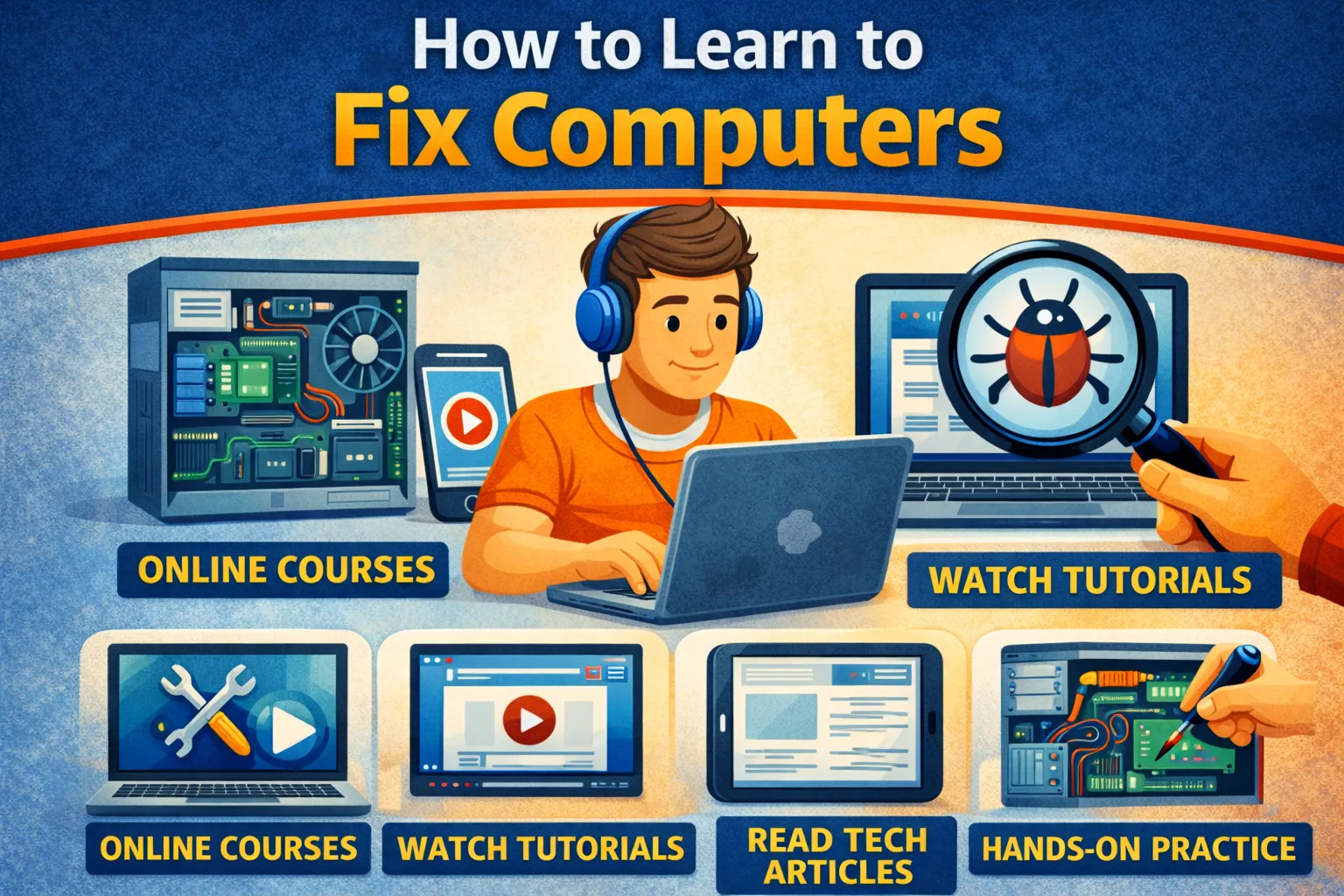
Fix Method 1: Master the “Power On Self Test” (POST)
What this fixes for fix computers
The ability to distinguish between a dead screen and a dead motherboard. If you fix computers for friends or clients, this prevents expensive misdiagnosis.
- Listen for the Fan: Press the power button. If the fan spins, the motherboard has power.
- Look for LEDs: Does the Caps Lock key light up when pressed? If yes, the computer is “thinking,” but the video cable/screen is likely broken.
- Connect an External Monitor: Plug in an HDMI monitor. If you see a picture there, the laptop screen is dead. You just diagnosed a bad LCD panel in 30 seconds.
- The RAM Beep Test: If a Desktop PC won’t boot, remove all RAM sticks. Turn it on. It should scream at you (beep-beep-beep). If it stays silent, the Motherboard is dead.
How to verify it worked
You can correctly state “This is a screen issue” vs “This is a motherboard issue” without guessing. That confidence is the baseline to fix computers like a technician.
Fix Method 2: Learn to Flash a BIOS/UEFI
What this fixes in BIOS/UEFI
Modern computers often fail because the firmware (BIOS) gets corrupted, not because hardware died. This is a key skill when you fix computers that appear “dead” but still have power.
- Enter BIOS setup (usually F2, F10, or Delete key at boot).
- Find the “Reset to Defaults” or “Load Optimized Defaults” option. This fixes 30% of boot issues immediately.
- Learn to distinguish UEFI (modern, mouse-friendly) from Legacy BIOS (blue screen, keyboard only).
- Practice disabling “Secure Boot” to allow booting from Linux or diagnostic USB drives.
Fix Method 3: Build Your Software Toolkit (The USB Key)
What this fixes with the USB toolkit
You cannot fix a crashed Windows OS with your bare hands. You need digital tools. If you fix computers for real, the USB drive becomes your default recovery platform.
- Buy a fast USB 3.0 flash drive (32GB+).
- Ventoy (The Multi-Tool): Install “Ventoy” on the USB. It allows you to drag-and-drop multiple ISO files onto one stick.
- Add Windows 10/11 Installers: Essential for “Startup Repair” or reinstalling.
- Add MemTest86: The gold standard for testing bad RAM.
- Add CrystalDiskInfo: A portable app that reads SMART data to tell you if a hard drive is dying before it dies completely.
How to verify it worked
Boot a broken PC from this USB drive (F12 Boot Menu). You now have control over the machine even if Windows won’t load. This is how you fix computers when the OS is the blocker.
Fix Method 4: The Art of Component Swapping (Hardware)
What this fixes with hardware isolation
Determining if a specific part (like RAM or Battery) is the culprit. When you fix computers, swapping one known-good part is faster than debating possibilities.
- RAM Reseat: Unclip the RAM sticks. Rub the gold contacts with a pencil eraser (cleans oxidation). Snap them back in. This fixes many “Black Screen” issues.
- Battery Disconnect: If a laptop is totally dead, open it and unplug the internal battery. Plug in the charger. If it turns on, the battery was “shorted” and blocking the power.
- Drive Swap: Take the SSD out. Put it in an external USB enclosure ($10 adapter). Plug it into another PC. If you can read the files, the drive is good, and the laptop motherboard is likely the issue.
Fix Method 5: Interpreting “Blue Screens” (BSOD)
What this fixes in BSOD analysis
Stop Codes tell you exactly what is wrong if you know how to read them. If you fix computers, these codes are signals, not noise.
- Don’t ignore the QR code. Look at the text at the bottom, e.g.,
CRITICAL_PROCESS_DIEDorMEMORY_MANAGEMENT. - Memory Management: 90% chance it’s bad RAM. Run MemTest86.
- Inaccessible Boot Device: Windows lost the driver for the hard drive. Usually a BIOS setting change (AHCI vs RAID) or a corrupted update.
- NTFS_FILE_SYSTEM: The hard drive has a file corruption. Run
chkdsk /f /rin Command Prompt.
Fix Method 6: Thermal Paste and Cleaning
What this fixes in overheating scenarios
Computers that shut down randomly after 10 minutes are usually overheating. If you fix computers often, thermal maintenance prevents repeat failures.
- Learn to remove the heat sink (the copper pipes over the CPU).
- Use 99% Isopropyl Alcohol and a coffee filter to wipe off the old, crusty grey paste.
- Apply a pea-sized dot of new thermal paste (Arctic MX-4 is a standard choice).
- Screw the heatsink back down in a cross-pattern (Top-Left, Bottom-Right, etc.) to ensure even pressure.
- Blow dust out of the fans with compressed air. Hold the fan blades so they don’t spin wildly (spinning them too fast with air can generate voltage back into the board).
Fixed Method 7: Factory Reset vs Clean Install
What this fixes in recovery decisions
Knowing when to stop fixing and just “nuke and pave.” When you fix computers for speed, choosing the right recovery path matters.
- Factory Reset: Uses the built-in recovery partition. Fast, but if the recovery partition is corrupted (virus), the virus remains.
- Clean Install: Formatting the drive and installing from your USB stick. This is the only 100% guarantee that software issues are gone.
- Data Recovery: Learn to use “Linux Live USB” (Ubuntu) to boot a computer and drag files to an external drive before you wipe Windows. Clients will love you for saving their photos.
Prevent This From Happening Again
- Backups: The only unfixable computer problem is data loss without a backup. Set up Macrium Reflect or Time Machine for every machine you own.
- Surge Protectors: A $20 strip saves a $2000 PC from lightning. Never plug directly into the wall.
- Updates: Do not fear updates. They patch security holes. But learn how to “Roll Back” drivers in Device Manager for when an update breaks audio or video.
FAQ
Do I need a certification like CompTIA A+?
To get a job? Yes, A+ is the industry standard entry-level cert. To fix your own stuff? No. Hands-on experience with broken junk is worth more than reading a textbook. If you want to fix computers professionally, certifications can accelerate trust.
Is it safe to fix my own laptop?
Yes, if you follow the “Power Down” rule (Unplug + Battery Disconnect). The components inside a laptop (5V-19V) won’t hurt you. The only dangerous part is the Power Supply Unit (box with fan) inside a Desktop PC—never open that metal box. This safety discipline is essential when you fix computers at home.
What if I strip a screw?
It happens. Use a rubber band between the screwdriver and the stripped head to get grip. Invest in high-quality driver bits (iFixit kit) to prevent this.
Mac vs PC repairs?
PC laptops are generally made to be opened. Modern MacBooks (2016+) are glued and soldered. You can replace batteries and screens on Macs, but “Motherboard” repairs require micro-soldering skills, which is an advanced tier.
Where do I find parts?
Don’t trust Amazon for specific parts. Use eBay (for used OEM parts) or specialized sites like iFixit, PartsPeople (Dell), or Encompass. Always match the “Part Number” printed on the sticker, not just the Laptop Model Name.
Official References
- Download Windows 10 Media Creation Tool
- iFixit Repair Guides (Free Manuals)
- MemTest86 RAM Diagnostic Tool
Conclusion
Learning how to fix computers is a superpower in the digital age. It shifts your perspective from “It’s broken” to “What is the symptom?” By building a simple toolkit, creating a bootable USB drive, and mastering the isolation process of the POST test, you can solve 90% of computer failures yourself. Start with a cheap, broken laptop from eBay, take it apart, and put it back together—that experience is the only true classroom. If you want to fix computers with repeatable results, commit to the process, not the guess. Visit https://truefixguides.com/ for more.
