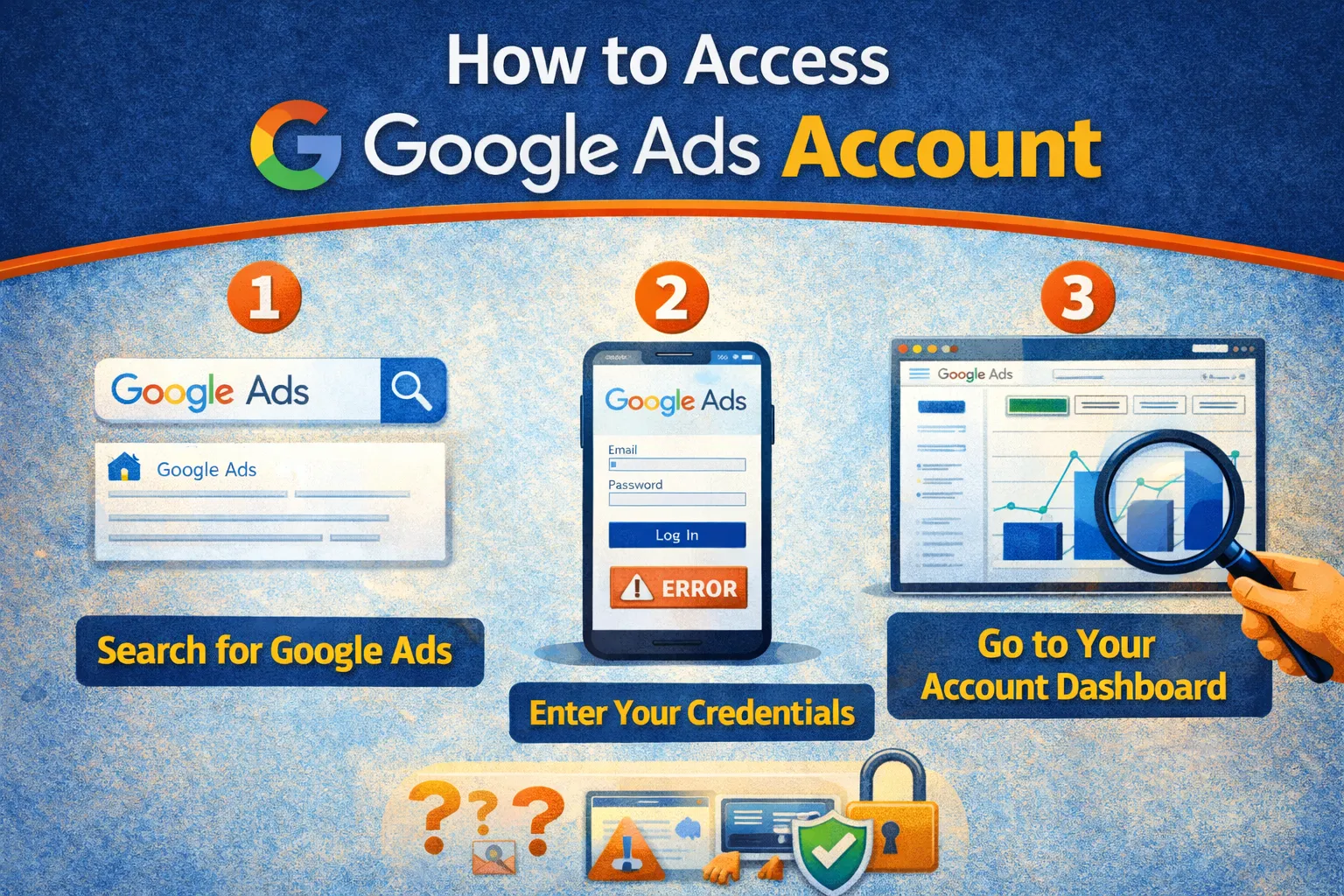
Access Google Ads Account — How to Access Google Ads Account depends on your account type: first-time access requires creating an account at ads.google.com and signing in with your Google email, while existing users simply visit ads.google.com and authenticate. Manager accounts, multiple accounts, and mobile access each have specific paths. This guide shows you how to access your advertising dashboard whether you’re a new user, agency managing clients, or accessing from different devices. Assumed context (so the UI paths match): Platform: Desktop browser (Chrome/Edge/Safari) or Google Ads mobile app (iOS/Android). Account type: Individual advertiser account OR Google Ads Manager (MCC) account. You have a Google account (Gmail or Google Workspace email) and want to access Ads for the first time, or access an existing account from a new device.
- Quick Access (1 minute)
- Access Scenarios
- Method 1: First-Time Access
- Method 2: Regular Account Access
- Method 3: Mobile App Access
- Method 4: Multiple Accounts
- Method 5: Manager Account Access
- Method 6: Shared Access (Agency/Team)
- Method 7: Recover Access to Old Account
- Access Tips and Best Practices
- FAQ
- Official References
Quick Access (1 minute)
What this fixes: This removes confusion around which login path to use so you can Access Google Ads Account correctly (new user, existing user, mobile, multiple accounts, or manager account).
- Existing account: Go to ads.google.com → sign in with your Google account email and password.
- First time: Visit ads.g oogle.com → click Start Now → sign in with your Google account → follow the setup wizard.
- Mobile: Download the Google Ads app (App Store/Play Store) → sign in with the same Google account.
- Manager account: Go to ads.google.com/home/tools/manager-accounts/ → sign in → view all linked accounts.
- If you need to Access Google Ads Account in specific situations, see the detailed methods below.
Access Scenarios: Access Google Ads Account
Choose your scenario:
- Never created an account → Method 1: First-Time Access
- Already have an account, just need to sign in → Method 2: Regular Access
- Want to use your phone or tablet → Method 3: Mobile App Access
- Manage multiple Ads accounts → Method 4: Multiple Accounts
- Agency or using a manager account → Method 5: Manager Account Access
- Need to give access to team members or clients → Method 6: Shared Access
- Can’t remember which email you used → Method 7: Recover Old Account
Method 1: How to Access Google Ads Account for the First Time
When to use this method
You’ve never created a Google Ads account and want to start advertising.
Step-by-step for first-time access
- Ensure you have a Google account (Gmail or Google Workspace email). If not, create one at accounts.google.com/signup.
- Go to ads.google.com in your browser.
- Click Start Now (top right).
- Sign in with your Google account email and password when prompted.
- Google Ads walks you through the Smart campaign wizard. You can skip this by clicking Switch to Expert Mode at the bottom for full control.
- Complete account setup: choose your billing country, time zone (cannot be changed later), and currency.
- You’ll reach your Google Ads dashboard. You can now Access Google Ads Account from any device using this same email.
Important notes for new accounts
You don’t need to add payment information immediately. You can explore the dashboard, build campaigns, and use tools. Billing is only required when you’re ready to run ads.
Next steps after setup
Bookmark ads.google.com for future access. Your Google account email is now your permanent login for this Ads account.
Method 2: How to Access Google Ads Account (Regular Sign-In)
When to use regular sign-in
You already have a Google Ads account and need to sign in from your usual device or a new device.
Step-by-step to Access Google Ads Account
- Open your browser and go to ads.google.com.
- Click Sign In (top right).
- Enter the exact Google account email you used to create the Ads account.
- Enter your password. Complete 2-Step Verification if enabled (enter code from Google Authenticator or SMS).
- You’ll land on your Google Ads dashboard with campaigns, reports, and tools visible.
- If you have multiple Ads accounts tied to this email, you may see an account picker—select the account you want.
Troubleshooting sign-in issues
If you see “Access Denied” or “This Google Account doesn’t have access”, you’re signed in with the wrong email. Sign out and use the correct one. If login loops or fails, clear browser cookies or try Incognito mode.
Best practice for daily access
Use a password manager to store your Google Ads login email and password. This is the standard way on How to Access Google Ads Account daily.
Method 3: How to Access Google Ads Account on Mobile (App or Browser)
When to use mobile access
You want to monitor campaigns, adjust bids, or view reports from your phone or tablet.
Option A: Google Ads Mobile App (Recommended)
- Download the official Google Ads app: iOS App Store or Google Play Store.
- Open the app → tap Sign In.
- Choose your Google account (the one tied to your Ads account).
- Complete authentication (password + 2FA if enabled).
- The app shows your campaigns, performance graphs, and notifications. You can pause/enable ads, adjust budgets, and view reports.
Option B: Mobile Browser
- Open Chrome/Safari on your phone.
- Go to ads.google.com.
- Tap Sign In (may need to tap the menu icon ☰ first on small screens).
- Sign in with your Google account. The mobile site is responsive but limited compared to the app.
App advantages
Push notifications for budget alerts, disapproved ads, and campaign changes. Better UI for mobile. Offline access to recent data. This is the best way on How to Access Google Ads Account from mobile devices.
Method 4: How to Access Google Ads Account with Multiple Accounts
When to use multiple-account access
You manage multiple businesses or have personal and work Ads accounts under different Google emails.
Step-by-step for switching accounts
- Go to ads.google.com.
- Sign in with the first Google account.
- To add another account: click your profile picture (top right) → Add another account.
- Sign in with the second Google account email and password.
- To switch between accounts: click your profile picture → select the account you want from the list.
- Each account opens in its own dashboard. You stay signed in to all simultaneously (browser handles this via Google’s account switcher).
Alternative: Use different browser profiles
Chrome/Edge: create separate browser profiles for each account (Settings → Manage profiles). Each profile maintains its own sign-in state, preventing accidental mixing of work/personal accounts.
Pro tip
If you manage many accounts (5+), consider creating a Google Ads Manager account (MCC) instead. See Method 5 for How to Access Google Ads Account via manager accounts.
Method 5: How to Access Google Ads Account via Manager Account (MCC)
When to use a manager account
You’re an agency, freelancer, or business managing multiple client accounts and need centralized access.
Creating a manager account
- Go to ads.google.com/home/tools/manager-accounts/.
- Sign in with your Google account (can be any Gmail, but use a dedicated business email).
- Click Create manager account.
- Enter account name (your agency/company name), time zone, and currency.
- Accept terms and create.
Accessing client accounts from MCC
- Sign in to ads.google.com with your manager account email.
- You’ll see a list of all linked client accounts on the dashboard.
- Click any account name to open its full dashboard in a new view.
- Manage campaigns, billing, and settings as if you owned the account (permissions depend on access level).
- To return to the manager overview, click the Google Ads logo or use the account picker (top left).
Linking client accounts
From MCC dashboard: Accounts → Linked accounts → + button → enter client’s 10-digit Customer ID → send link request. Client must approve via their Ads account (Tools → Access and security → Manager accounts → approve pending request).
Why use MCC
Single sign-in for all clients. Consolidated billing options. Cross-account reporting. This is how agencies learn How to Access Google Ads Account efficiently at scale.
Method 6: How to Access Google Ads Account via Shared Access (Team Members)
When to use shared access
You want to give employees, contractors, or partners access to your Ads account without sharing your password.
Granting access (as account owner)
- Sign in to your Google Ads account at ads.google.com.
- Click Tools & Settings (wrench icon, top right) → Under Setup, select Access and security.
- Click the + (plus) button.
- Enter the person’s Google account email (they must have a Gmail or Google Workspace email).
- Choose access level: Admin (full control), Standard (most features, no user management), or Read-only (view only).
- Click Send invitation.
Accessing as invited user
- The invited person receives an email from Google Ads: “You’ve been invited to access [Account Name].”
- Click Accept Invitation in the email.
- Sign in with their own Google account.
- They’ll now see this Ads account when they visit ads.google.com. If they have multiple accounts, they can switch via the account picker.
Security tip
Regularly review who has access: Tools → Access and security → Users. Remove ex-employees or contractors immediately. This ensures proper How to Access Google Ads Account governance.
Method 7: How to Access Google Ads Account When You Forgot the Email
When to use account recovery
You created an account years ago and can’t remember which Google email you used.
Step-by-step recovery
- Check all email inboxes you own (Gmail, Outlook forwarding to Gmail, old Yahoo, etc.) for messages from “Google Ads” or “noreply@google.com”.
- Look for emails containing your Customer ID (10-digit number like 123-456-7890). This ID is unique to your account.
- Once you find the email with the Customer ID, that’s the Google account tied to your Ads account.
- Try signing in at ads.google.com with each Google account you own until one shows your campaigns.
- If you still can’t find it and have billing history, contact Google Ads support: support.google.com/google-ads/gethelp. Provide your business name, website domain, and any billing info you remember. They can help locate the account.
Prevention
Document your Google Ads email and Customer ID in a secure password manager or business records immediately after account creation.
Tips and Best Practices for How to Access Google Ads Account
- Essential tip on How to Access Google Ads Account – bookmark the login page: ads.google.com to avoid phishing sites.
- Enable 2-Step Verification: Go to myaccount.google.com/security for your Google account to add an extra security layer when you Access Google Ads Account.
- How to Access Google Ads Account best practice – use a business email: If possible, use a Google Workspace email for Ads rather than personal Gmail for easier team transitions and professionalism.
- Document access details: Keep a record of which email owns which Ads account, especially if managing multiple businesses.
- Review access regularly: Check Tools → Access and security → Users quarterly to remove old team members and prevent How to Access Google Ads Account security issues.
- Quick How to Access Google Ads Account method – mobile app for monitoring: Install the Google Ads app for quick checks and emergency budget adjustments on the go.
- Manager account for agencies: If you handle 3+ client accounts, switch to an MCC for efficient How to Access Google Ads Account management.
- Verify How to Access Google Ads Account works – test from incognito: Periodically test login from an Incognito window to ensure the account isn’t locked to your device’s cookies.
FAQ
How do I access my Google Ads account for the first time?
Go to ads.google.com, sign in with the Google account you used to create the Ads account, complete any verification steps, and you’ll reach your dashboard. First-time users may need to verify identity and set up billing before running ads. This is the fastest path to Access Google Ads Account as a new advertiser.
Can I access Google Ads on my phone?
Yes. Download the Google Ads app (iOS/Android) or visit ads.google.com in your mobile browser. Sign in with your Google account. The mobile app offers campaign monitoring, bidding adjustments, and basic editing features.
How do I access multiple Google Ads accounts?
Sign in to ads.google.com, click your profile icon (top right), select “Switch account”, and choose the account you want. You can add multiple Google accounts to your browser for quick switching or use a manager account to manage them all.
What is a Google Ads manager account and how do I access it?
A manager account (MCC) lets agencies or businesses manage multiple client accounts from one dashboard. Access it at ads.google.com/home/tools/manager-accounts/ after creation. You’ll see all linked client accounts and can switch between them.
Can someone else access my Google Ads account?
Yes, if you grant them access. Go to Tools & Settings → Access and security → Users, click the + button, enter their email, assign a permission level (Admin/Standard/Read-only), and send the invitation. They access via their own Google account.
Do I need a credit card to access Google Ads?
No. You can create and access your account without payment info. However, to run ads, you must add a payment method. You can explore the dashboard, build campaigns, and use tools without billing.
How do I find my Google Ads account if I forgot which email I used?
Check all your email inboxes for messages from “Google Ads” or “noreply@google.com” with your Customer ID. Try signing in at ads.google.com with each Google account you own. Contact Google Ads support with your business info if needed.
Official References
- Google Ads Official Login
- Google Ads Help: Get started with Google Ads
- About manager accounts (MCC)
- Grant access to your Google Ads account
Conclusion: Learning How to Access Google Ads Account varies by scenario: first-time users start at ads.google.com with account creation, existing users simply sign in with their Google email, mobile users download the app, multiple-account managers use the account switcher or MCC, and teams share access via invitations. Bookmark ads.google.com, enable 2FA, and document which email owns which account for seamless Access Google Ads Account. Visit https://truefixguides.com/ for more.