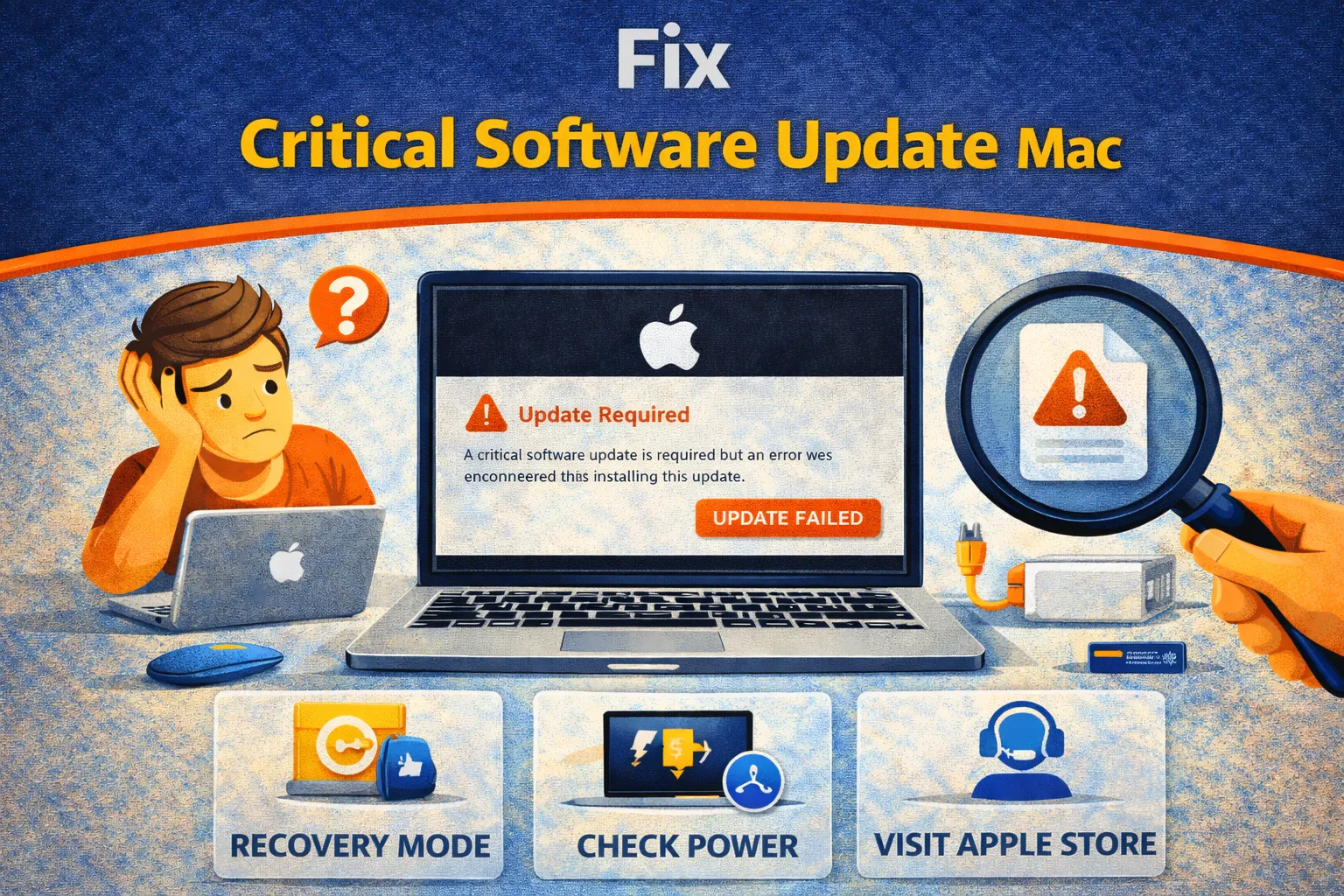
Critical software update Mac errors are a hard boot blocker: your Mac shows a white screen saying a
critical update is required, but it fails to install and loops forever. This issue is most common on Intel MacBook
Pro models with the T2 Security Chip and/or Touch Bar (roughly 2016–2020). The good news: in most cases, you can
fix critical software update Mac problems without replacing hardware—by using Ethernet or iPhone USB
tethering, reinstalling macOS via Recovery, or performing an Apple Configurator “Revive.”
If you’re stuck in this loop, do not panic. Treat it like an embedded firmware sync failure (bridgeOS/T2), not a
“dead Mac.” Follow the workflow below in order. The goal is simple: give the updater a clean network path or push
firmware manually so macOS can complete the required pairing.
Quick Fix: Fix Critical Software Update Mac Loop
Run these first. They are the highest ROI actions to fix critical software update Mac loops fast.
- Use Ethernet: Connect a USB-C to Ethernet adapter directly to your router and retry. Wired networking is the #1 way to fix critical software update Mac failures.
- Use iPhone USB tethering: Plug iPhone in via cable → enable Personal Hotspot → tap Trust. Retry the critical update using the USB internet route.
- Full shut down: Select Shut Down (not restart), leave it off 60 seconds, then power on and try again.
- Try Safe Mode: Safe Mode reduces third-party interference that can block the required update handshake.
- Switch networks: Hotspot test quickly proves whether your router/VPN/firewall is the blocker.
If the Mac still returns to the same screen, the focus shifts from “network fix” to “firmware revive.” That’s still
a software play, just a deeper one.
Symptoms Checklist
You are in the classic critical software update Mac loop if you see these:
- White screen says: “A critical software update is required for your Mac…”
- Try Again spins and fails repeatedly.
- Touch Bar is black/unresponsive (Touch Bar models).
- Issue began after reinstall, erase, restore, or a major macOS update.
- Safe Mode may boot, but normal boot triggers the critical update screen.
Troubleshooting Summary Table
| What you see | Likely cause | Best next move |
|---|---|---|
| Try Again fails instantly | Recovery networking failure | Ethernet or iPhone USB tethering |
| Touch Bar stays dark | bridgeOS/T2 mismatch | Apple Configurator Revive |
| Error after erase/reinstall | Embedded components missing | Recovery reinstall + stable network |
| Mentions server error | Apple server routing/availability | Retry later + change network |
| Revive fails repeatedly | Cable/host issue or hardware fault | Try another cable/host, then service |
Why This Happens
To understand how to fix critical software update Mac loops, you need the architecture:
these Macs are effectively two systems in one. The main Intel CPU runs macOS, while the T2 Security Chip runs
embedded firmware (often referenced as bridgeOS) that controls security functions and certain peripherals. During
updates, both layers must update in sync.
The critical software update Mac message appears when macOS detects the embedded controller is not
in the expected state (driver/firmware mismatch). If the embedded update cannot download or install, macOS blocks
normal boot as a security measure. Most failures are caused by unstable networking in the pre-boot environment or a
partially completed firmware stage.
Fix Method 1: Ethernet (Best Success Rate)
What this fixes
This fixes the most common root cause: Wi-Fi in the pre-boot/recovery environment is unreliable. Ethernet gives the
updater a stable lane to fetch the required payload.
- Connect a USB-C to Ethernet adapter to your Mac.
- Plug Ethernet into your router/modem.
- Boot to the critical update screen.
- Wait 30–60 seconds so the system detects the connection.
- Click Try Again and let it complete.
How to verify it worked
The Mac boots normally and the critical software update Mac screen disappears.
Fix Method 2: iPhone USB Tethering (Router Bypass)
What this fixes
If your router/VPN/firewall blocks Apple’s update routing, cellular tethering changes the network path and DNS,
often allowing the critical software update Mac to complete immediately.
- Connect iPhone to Mac using a cable.
- On iPhone: Settings → Personal Hotspot → enable.
- Tap Trust if prompted.
- Retry the update on the critical update screen.
Fix Method 3: Reinstall macOS via Recovery
What this fixes
Reinstalling macOS from Recovery can re-stage missing components and re-run the pairing flow, which helps
fix critical software update Mac errors without replacing parts.
- Shut down fully.
- Intel: Power on and immediately hold Command + R.
- Choose Reinstall macOS.
- Select Macintosh HD and proceed.
- Keep power connected and use Ethernet if possible.
Fix Method 4: Apple Configurator “Revive” (Firmware Repair)
What this fixes
If the embedded firmware is corrupted or stuck, the Mac may never complete the critical update on its own.
Revive pushes fresh firmware/recovery components from a second Mac. This is the most reliable way
to fix critical software update Mac loops when networking alone fails.
- On a second Mac (host), install Apple Configurator.
- Connect the two Macs with a high-quality USB-C cable.
- Put the affected Mac into DFU mode (sequence varies by exact model).
- In Apple Configurator, select the DFU device and choose Revive (not Restore).
- Wait for completion and reboot.
How to verify it worked
The Mac boots normally, and the critical software update Mac screen is gone.
Note: DFU steps are model-specific. If you want the exact DFU key sequence included inside this article,
add your Mac model identifier (example: MacBookPro15,1) or year + screen size and I will drop it in cleanly.
Fix Method 5: Safe Mode (Interference Reduction)
What this fixes
Safe Mode loads minimal drivers and disables third-party launch items that can disrupt the update process.
- Shut down completely.
- Intel: Power on and hold Shift until login appears.
- Log in (you may see “Safe Boot”).
- Go to Software Update and attempt the update again.
- Restart normally.
When It Might Be Hardware (Rare)
Most cases are software/firmware. But the probability of hardware rises if:
- The Mac had liquid damage, corrosion, or a severe drop.
- Touch Bar/top case assembly is physically damaged.
- Configurator Revive fails repeatedly across different cables and host Macs.
- Apple Diagnostics reports hardware errors.
Prevent This From Happening Again
- Use stable networking: For major upgrades, Ethernet is the simplest way to avoid a critical software update Mac failure.
- Keep power connected: Firmware stages are sensitive to power interruptions.
- Do not force quit update processes: Partial stages create boot blockers.
- Pause VPN/firewalls during upgrades: Re-enable once you’re booted normally.
FAQ
Can I bypass the critical software update Mac screen?
No. The system blocks startup until firmware pairing completes. This is a security design choice, not a normal “software update” nag.
Will Apple Configurator Revive erase my files?
Revive is designed to reinstall firmware and recovery components without erasing user data.
Restore wipes the Mac and reinstalls everything.
Why does Wi-Fi fail at this screen?
Because the environment running the updater is limited and may not have reliable Wi-Fi drivers. Ethernet and USB tethering are more consistent.
Official References
- Apple: If your Mac says a critical software update is required
- Apple Configurator: Revive or restore an Intel-based Mac
- Apple: Mac startup key combinations
Conclusion
If you’re facing a critical software update Mac loop, the playbook is clear: stabilize networking
(Ethernet or USB tether), attempt Recovery reinstall if needed, and escalate to Apple Configurator Revive when the
embedded firmware is stuck. That sequence is the fastest, lowest-risk route to fix critical software update Mac
errors and restore normal boot.
Visit https://truefixguides.com/ for more.