You plug in your Seagate, WD, SanDisk, or Toshiba external drive. The light blinks. You hear a faint spin-up.
And then… nothing. No desktop icon. No Finder location. No popup. This “ghost drive” scenario is one of the most
common macOS storage problems, and it regularly sends users searching for how to fix external hard drive Mac
issues without losing their data.
In most cases, you can fix external hard drive Mac problems safely using Finder visibility checks,
manual mounting, Disk Utility First Aid, or Terminal-based repair. The order matters. Clicking Erase too early
can permanently destroy recoverable data, which is why this guide follows a professional, low-risk workflow.
This step-by-step guide explains exactly how to fix external hard drive Mac errors, recover access
to files, and determine whether the issue is software-based or true hardware failure.
Quick Fix: Fix External Hard Drive Mac Not Showing Up
Start here. These checks resolve a large percentage of cases where users need to fix external hard drive Mac
detection problems caused by visibility or mounting issues.
- Enable external disks in Finder: Click the desktop → Finder → Settings → General → check External disks.
- Plug directly into the Mac: Avoid hubs and dongles when you try to fix external hard drive Mac issues.
- Swap the cable: A failing cable can supply power but block data.
- Restart macOS: Resets USB controllers and the disk mounting service.
- Open Disk Utility: If the drive appears there, you can often fix external hard drive Mac problems without formatting.
Important: If your drive contains valuable files, do not erase it. Always attempt recovery before formatting.
Symptoms Checklist
Use these symptoms to identify what kind of failure you’re dealing with:
- Drive light turns on, but no icon appears on Desktop or Finder.
- Repeated message: “Disk Not Ejected Properly.”
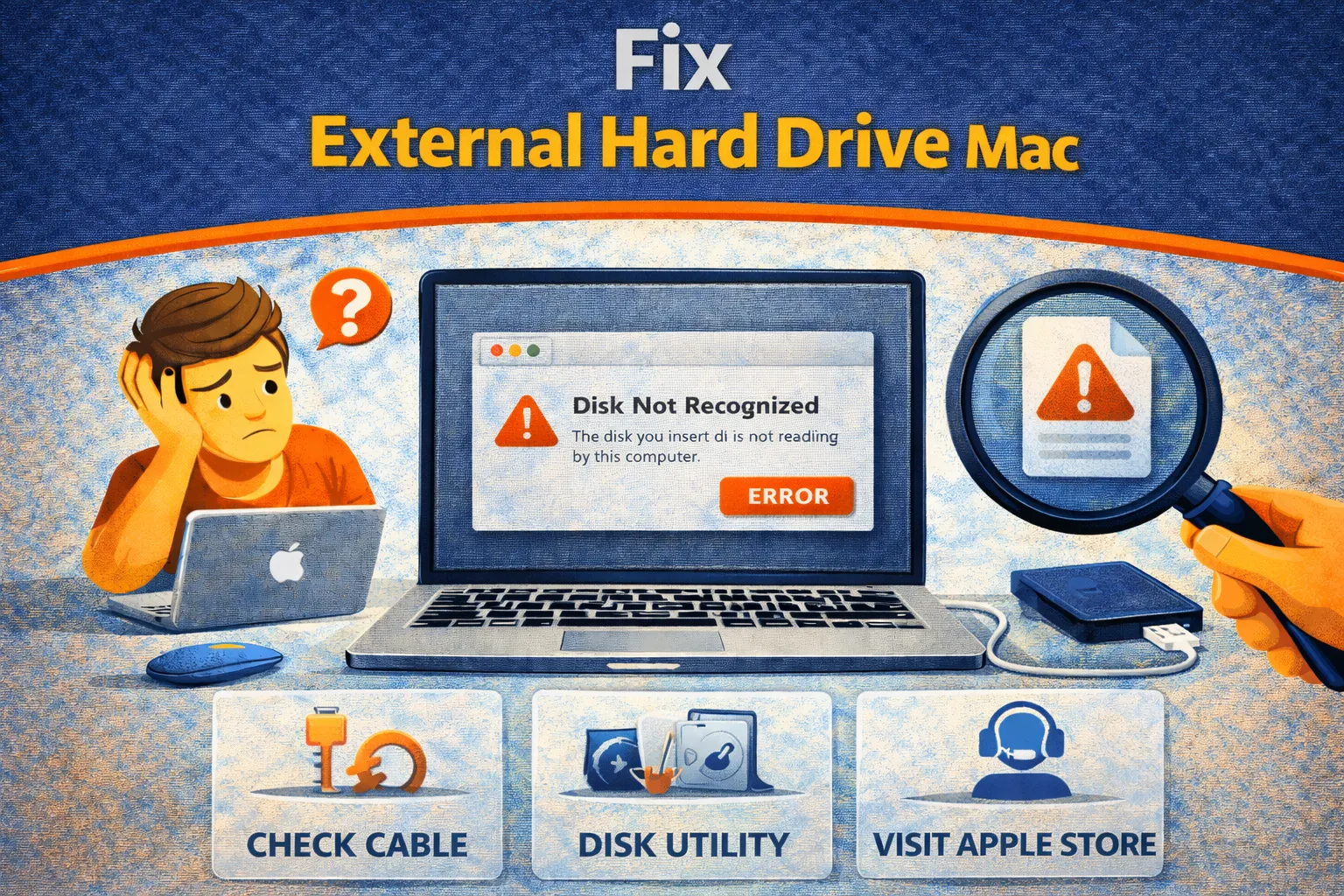
- Popup: “The disk you attached was not readable by this computer.”
- Disk Utility shows the drive greyed out (unmounted).
- Drive mounts but is read-only (can’t copy files).
- Finder freezes or becomes extremely slow when the drive is connected.
Troubleshooting Summary
| What you see | Likely cause | Best fix |
|---|---|---|
| Drive shows in Disk Utility but is grey | Mount failure | Manual Mount + First Aid |
| “Disk not readable” popup | File system corruption | First Aid + Terminal repair |
| Drive mounts but is read-only | NTFS format (Windows) | NTFS driver or reformat after backup |
| Drive not visible anywhere | Cable/port/power failure or dead drive | Swap cable/port + test on another device |
| Finder freezes when drive is plugged | Drive errors or aggressive indexing | Disable Spotlight + copy data out |
Why External Drives Fail on macOS
To fix external hard drive Mac issues efficiently, you need to understand the most common root causes:
- Unsafe ejection: unplugging without ejecting can corrupt the directory structure.
- Power starvation: some USB-C hubs don’t provide enough power for spinning HDDs.
- File system mismatch: many drives ship as NTFS, which macOS can read but can’t write to by default.
- Mounting service glitches: macOS sometimes fails to auto-mount even healthy drives.
- Physical wear: HDDs can fail mechanically over time, especially if portable and dropped.
Method 1: Show the Drive in Finder
What this fixes
This solves the simplest scenario: the drive is mounted but hidden. It’s a fast win if you’re trying to
fix external hard drive Mac “not showing” problems.
- Click the desktop.
- Open Finder → Settings → General.
- Enable External disks.
- Go to Sidebar and enable External disks there too.
How to verify
The drive appears under Finder → Locations or as a desktop icon.
Method 2: Mount the Drive Manually in Disk Utility
What this fixes
If macOS didn’t mount the disk automatically, you can force it. This is one of the most reliable ways to
fix external hard drive Mac mounting failures.
- Open Disk Utility (Spotlight search).
- Click View → Show All Devices.
- Look for your external drive under “External.”
- Select the volume (greyed out volume name).
- Click Mount.
How to verify
It becomes active (text turns normal) and shows in Finder.
Method 3: Run First Aid Safely
What this fixes
First Aid repairs directory damage and file system errors. It’s a core step to fix external hard drive Mac
corruption without formatting.
- Open Disk Utility.
- Select the volume (the indented item under the disk).
- Click First Aid → Run.
- If it completes successfully, try opening the drive in Finder.
- If it fails, run First Aid again on the next layer up (container/disk).
How to verify
You can browse folders and copy files without errors.
Method 4: Fix “Read Only” Drives (NTFS on Mac)
What this fixes
If the drive mounts but you can’t copy files to it, it’s usually NTFS. To fully fix external hard drive Mac
write issues, you need a compatible format or a driver.
- Right-click the drive → Get Info.
- Check “Format.” If it shows Windows NT File System (NTFS), macOS is read-only by design.
- Option A (Best long-term): Copy files off the drive, then erase/reformat as ExFAT.
- Option B (No erase): Install a reputable NTFS driver that enables write access.
How to verify
You can create a folder and copy a test file to the drive.
Method 5: Force Mount Using Terminal
What this fixes
If Disk Utility hangs or doesn’t mount properly, Terminal can help you fix external hard drive Mac
mount problems directly.
- Open Terminal.
- Run:
diskutil list - Find your external disk by size and note the identifier (example:
disk2s1). - Run:
diskutil mount /dev/disk2s1
How to verify
The drive appears in Finder under Locations.
Method 6: Stop Finder Freezing (Indexing & Corruption)
What this fixes
If Finder freezes when the drive is plugged in, you may still be able to fix external hard drive Mac
access long enough to rescue files.
- Disconnect the drive.
- Go to System Settings → Siri & Spotlight → Spotlight Privacy.
- Reconnect the drive briefly, then drag it into the Privacy list to stop indexing.
- If the drive mounts, immediately copy your critical files to internal storage.
How to verify
Finder becomes responsive and the drive loads folders normally.
Method 7: Data Recovery Workflow (When macOS Says “Unreadable”)
What this fixes
If macOS reports “not readable,” the priority is recovery first. This is the safest way to
fix external hard drive Mac situations without triggering data loss.
- Do not click Erase.
- Try mounting again in Disk Utility.
- If it still fails, use a reputable recovery tool to copy files to your Mac’s internal drive.
- After recovery is complete, erase and reformat the external disk (ExFAT for cross-platform, APFS for Mac-only).
How to verify
Your files are safely copied elsewhere before reformatting.
How to Prevent This Problem
- Eject properly: always eject before unplugging to avoid corruption.
- Use ExFAT for sharing: best balance for Mac and Windows compatibility.
- Avoid cheap hubs: power instability causes disconnect loops and file damage.
- Upgrade to SSD: SSDs survive drops better than mechanical drives.
- Keep backups: external drives fail eventually—plan for it.
FAQ
Will First Aid delete my files?
No. First Aid repairs file system structure. It does not intentionally delete files. If the drive is physically failing, copy critical data first.
Why is my 1TB drive showing as 200MB?
You may be viewing a small partition (like EFI). In Disk Utility, click View → Show All Devices and select the physical disk to see the full layout.
Can I fix a clicking external hard drive?
No. Repetitive clicking typically indicates mechanical failure. Stop powering it on. Professional recovery may be needed if data is valuable.
Why does the drive work on a TV but not on a Mac?
Some TVs use older partition schemes (MBR) or FAT32. macOS may fail to mount inconsistent partition maps. Copy data elsewhere and reformat properly.
Official References
- Apple Disk Utility Guide: Repair a storage device
- Apple: Resolve issues with external drives
- Apple: If a USB device doesn’t work with your Mac
Conclusion
If you’re trying to fix external hard drive Mac problems, the winning strategy is: diagnose safely,
mount manually, repair carefully, then recover data before you erase anything. In most cases, the drive isn’t “dead”—
it’s unmounted, incompatible (NTFS), or suffering from corruption after unsafe ejection. Follow the steps above in order,
and you’ll fix external hard drive Mac issues without turning a recoverable situation into permanent loss.
Visit TrueFixGuides for more.
