6 Critical Ways to Fix AI Model Compatibility Errors
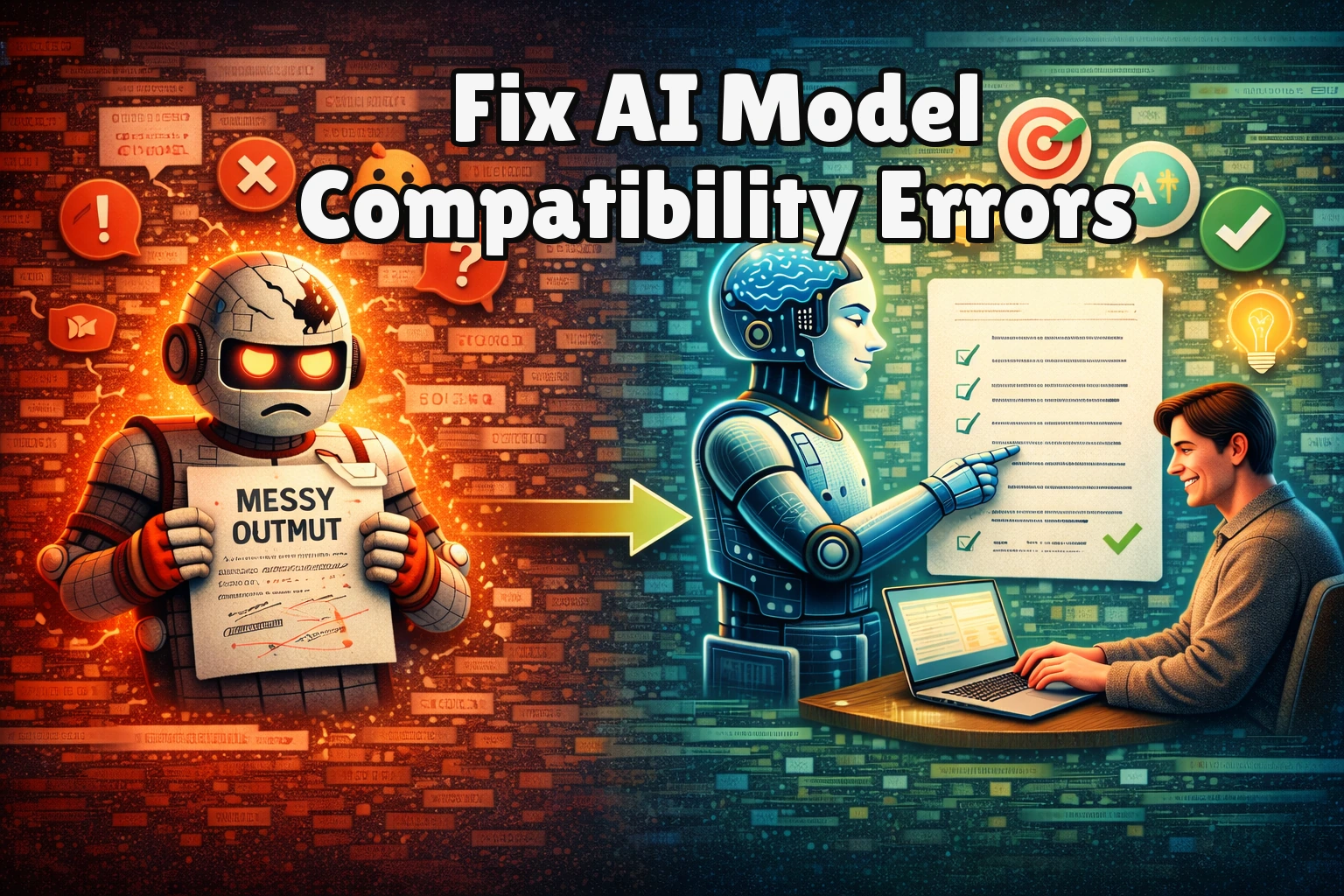
You’ve trained a model or downloaded a state-of-the-art architecture, but when you try to load it, you’re hit with a cryptic error: “Unsupported pickler protocol,” “Unknown layer,” or “SavedModel file does not exist.” AI model compatibility errors are a common yet frustrating roadblock that halts development and deployment in its tracks. These errors typically stem from mismatches between the model’s saved format and your current software environment. This guide cuts through the confusion with six proven, step-by-step fixes. We’ll diagnose the root cause and provide clear solutions to get your model running, whether you’re using TensorFlow, PyTorch, or another framework.
What Causes AI Model Compatibility Errors?
Effectively troubleshooting AI model compatibility errors requires understanding their origin. They are rarely random; they signal a specific disconnect in your machine learning pipeline.
- Framework Version Mismatch:
This is the #1 culprit behind AI model compatibility errors. A model saved with TensorFlow 2.12 may fail to load in TensorFlow 2.8 due to changes in internal APIs or saved format protocols. Similarly, PyTorch models are sensitive to the specifictorch.saveandtorch.loadversions used. - Corrupted or Incomplete Model Files:
A model file (.h5, .pth, .ckpt) that was interrupted during download or saved incorrectly is often unreadable. The loading function fails to parse the file structure, throwing a generic I/O error that masks the real problem. - Missing Custom Objects or Dependencies:
If a model contains custom layers, loss functions, or optimizers defined during training, your loading script must have access to the exact same class definitions. Failure to provide these results in an “Unknown symbol” error. - Hardware/Software Platform Incompatibility:
A model saved on a machine with a GPU or a specific CPU architecture might not load correctly on a system with different hardware, or when moving between operating systems—especially when moving between operating systems.
Identifying which of these causes applies to your situation is the first step toward applying the correct fix from the list below.
Fix 1: Verify and Match Framework Versions
This fix directly addresses the most common root cause of AI model compatibility errors: version skew. By ensuring your runtime environment matches the one used to create the model, you eliminate a huge class of serialization errors related to internal API changes.
- Step 1:
Identify the framework and version used to save the model. Check the model’s documentation, source repository, or any accompanyingrequirements.txtorenvironment.ymlfile. - Step 2:
Check your current environment’s version. In your Python script or terminal, runimport tensorflow as tf; print(tf.__version__)for TensorFlow orimport torch; print(torch.__version__)for PyTorch. - Step 3:
Create a compatible environment. If versions differ, use a virtual environment tool likevenvorcondato install the exact framework version required. For example:pip install tensorflow==2.12.0. - Step 4:
Retry loading the model within the new, version-matched environment. The loading command should now execute without the core AI model compatibility error.
After this fix, the model should load successfully. If the AI model compatibility error persists, the issue may be with the file itself or a missing dependency, which we address next.
Fix 2: Re-download or Validate the Model File
Before diving into complex solutions, rule out simple file corruption as the source of your AI model compatibility problem. A failed download or disk write error can create a model file that is incomplete, causing loaders to fail with misleading messages about format or compatibility.
- Step 1:
Locate the original source of the model file (e.g., Hugging Face Model Hub, official GitHub release, TensorFlow Hub). - Step 2:
Delete the potentially corrupted local copy of the model file from your project directory or cache. - Step 3:
Download a fresh copy of the model. Use a reliable download method—preferably the official CLI tool (likehuggingface-cliortensorflow_hub) or a direct link with a checksum. - Step 4:
If possible, verify the file’s integrity. Compare its file size with the source’s listed size, or use a provided MD5/SHA checksum to ensure the download was complete and bit-perfect.
With a verified, intact model file, attempt to load it again. This resolves many AI model compatibility errors that masquerade as version conflicts but are actually caused by a corrupt file.
Fix 3: Provide Custom Objects During Load
When a model uses custom components, the loading function needs a reference to those exact class definitions. This fix provides that mapping, resolving “Unknown layer” or “unregistered symbol” AI model compatibility errors that block model loading.
- Step 1:
Decode the error message. It will typically name the missing custom class, such as'CustomAttentionLayer'. - Step 2:
Ensure the class definition is in your current namespace. You must import or re-define the exact same Python class that was used during the model’s training, with the same name and structure. - Step 3:
Pass the class to the loader via thecustom_objectsparameter. For TensorFlow/Keras:model = tf.keras.models.load_model('model.h5', custom_objects={'CustomAttentionLayer': CustomAttentionLayer}). For PyTorch, ensure the class definition is available before callingtorch.load(). - Step 4:
For complex models, use a fullcustom_object_scope. In TensorFlow, usewith tf.keras.utils.custom_object_scope({'CustomLayer': CustomLayer}):before the load operation .
This explicitly links the saved model architecture to your current code, allowing the framework to reconstruct the model graph correctly and fix the custom-object AI model compatibility hurdle.
Fix 4: Convert the Model to a Standardized Format
This fix bypasses framework-specific serialization issues by converting the model into a universal, version-agnostic format. It directly targets AI model compatibility errors stemming from proprietary save protocols, especially when moving models between different development or deployment environments.
- Step 1:
Install a model conversion tool. For TensorFlow models, use the TensorFlow Lite converter (tflite_convert). For PyTorch, install ONNX runtime (pip install onnx onnxruntime). - Step 2:
Load the original model in its native compatible environment (as established in Fix 1). You must be able to load it successfully once to convert it. - Step 3:
Execute the conversion. For TensorFlow to TFLite:converter = tf.lite.TFLiteConverter.from_keras_model(model); tflite_model = converter.convert(). For PyTorch to ONNX:torch.onnx.export(model, dummy_input, "model.onnx"). - Step 4:
Save the new standardized file (.tflite or .onnx) and load it in your target environment using the corresponding interpreter, which is designed for cross-platform stability and avoids AI model compatibility issues.
Success means you can now run inference in a stable, portable format, effectively sidestepping the original AI model compatibility errors. If conversion itself fails, the issue may be deeper.
Fix 5: Rebuild the Model Architecture and Load Weights
When a model’s serialized graph is corrupted or uses an unsupported configuration, this fix reconstructs it from scratch. It separates the architecture (which you define in code) from the learned weights (loaded separately), resolving graph-level issues that standard loaders cannot handle.
- Step 1:
Recreate the model’s architecture exactly in code. Use the original training script or published architecture definition to instantiate a new, empty model object with the same layer structure. - Step 2:
Attempt to load only the weights from the saved file. In Keras, usemodel.load_weights('model_weights.h5'). In PyTorch, usemodel.load_state_dict(torch.load('model_weights.pth')). - Step 3:
If the weights file is also problematic, try loading it with explicit weight name mapping (usingskip_mismatch=Truein Keras or by manually filtering the state dictionary in PyTorch) to ignore mismatched layers and work around partial AI model compatibility issues. - Step 4:
Compile the new model with the original optimizer and loss settings, then verify it produces a sensible output with a dummy input.
This method often recovers a functional model when the standard load function fails, bypassing the problematic graph serialization step .
Fix 6: Use a Framework-Specific Compatibility Wrapper or Legacy API
Frameworks provide backward-compatibility tools for loading older models. This fix uses dedicated legacy loaders or compatibility modes to interpret outdated saved formats, targeting specific AI model compatibility errors that other fixes can’t resolve.
- Step 1:
Identify the exact save format. For TensorFlow, determine if it’s a SavedModel directory, an older Keras H5 file, or a pre-2.0 checkpoint. For PyTorch, check if it was saved withtorch.save(model)ortorch.jit.script. - Step 2:
Employ the legacy loader. In TensorFlow 2.x, you may needtf.compat.v1functions or disable eager execution temporarily:tf.compat.v1.disable_eager_execution()before loading . - Step 3:
For Keras models with still-unrecognized custom objects, try loading withcompile=Falsefirst:tf.keras.models.load_model('model.h5', compile=False)to bypass optimizer state AI model compatibility issues. - Step 4:
After successful loading in legacy mode, immediately re-save the model using the current framework’s recommended method to prevent future AI model compatibility errors.
This acts as a bridge, allowing you to rescue a model from an obsolete format. Once loaded and re-saved with modern APIs, the model should be future-proofed against similar AI model compatibility problems.
When Should You See a Professional?
If all six systematic fixes have failed—particularly if you cannot load the model even in its original native environment with verified files—the AI model compatibility issue likely transcends software configuration. It may point to severe file corruption, a deeply flawed model architecture, or a hardware-level data integrity problem.
Signs demanding expert intervention include consistent low-level I/O errors when accessing the file across different machines, or errors indicating the model’s internal checkpoint is fundamentally malformed (e.g., “CRC check failed,” “invalid tensor shape”). These can stem from failing storage drives or memory corruption during the original save process. For complex deployment scenarios, you can review TensorFlow’s guide on SavedModel format errors for official diagnostics on AI model compatibility.
In these cases, your most efficient path is to contact the model’s original publisher, your organization’s MLOps team, or a data science consultant who can perform binary analysis or attempt to reconstruct the model from partial data.
Frequently Asked Questions About AI Model Compatibility Errors
Can I fix a “Failed to find the saved model” AI model compatibility error without the original code?
Yes, but your options are limited. First, ensure the file path is correct and the SavedModel directory contains the saved_model.pb file and variables folder. If the structure is intact, you can attempt to load it using the generic TensorFlow SavedModel loader (tf.saved_model.load), which often works without the original training code. However, if the model uses custom ops or layers, you will hit an AI model compatibility wall. Your best recourse is to contact the model’s publisher for the specific custom object definitions or a version saved in a more portable format like ONNX.
Why does my PyTorch model load but produce nonsense outputs?
This is a subtle form of AI model compatibility mismatch. The most common cause is a discrepancy in the data preprocessing pipeline between training and inference; ensure your input normalization (mean, std) matches exactly. Architecturally, you may have loaded the state dictionary into a model instance that is slightly different, or a layer was set to training mode (model.train()) when it should be in evaluation mode (model.eval()). The latter is critical for layers like Dropout and BatchNorm. Also verify that the load_state_dict call did not silently fail due to key mismatches, which can leave layers with random initialization.
How do I prevent AI model compatibility errors when sharing my model with a team?
Prevention is the best cure for AI model compatibility headaches. Mandate the use of a standardized, version-locked environment using Docker or a precise conda environment.yml file. For the model artifact itself, always save in the most robust format: for TensorFlow, use the SavedModel format (not just H5); for PyTorch, save only the state_dict and share the architecture code separately. Consider exporting a secondary copy to ONNX as a backup. Crucially, document the exact framework versions, Python version, and any custom objects required to eliminate AI model compatibility issues for all downstream users.
Is an AI model compatibility version mismatch always about the main framework?
No — it can absolutely be a sub-dependency. While the primary framework (TensorFlow/PyTorch) is the usual suspect, the AI model compatibility error can stem from incompatible versions of critical supporting libraries like protobuf or h5py. Similarly, PyTorch models using TorchVision or Transformers depend on those versions for certain layer definitions. Always replicate the entire dependency tree from the original environment. Use pip freeze or conda list from the source machine to create a complete snapshot, as fixing AI model compatibility often requires matching this entire ecosystem.
Conclusion
Ultimately, resolving AI model compatibility errors is a systematic process of elimination. We’ve moved from ensuring version parity and file integrity, to handling custom code, converting formats, rebuilding architectures, and finally employing legacy APIs. Each fix targets a specific layer of the AI model compatibility problem, from the environment down to the file’s bytes. Beginning with the simplest checks often yields the fastest solution, while the more advanced fixes salvage models from complex version or corruption issues.
Don’t let AI model compatibility issues derail your project. Methodically apply these fixes, and you’ll recover most stalled models. Which of these six fixes worked for you? Share your experience in the comments below or pass this guide to a colleague facing similar hurdles.
Visit TrueFixGuides.com for more.