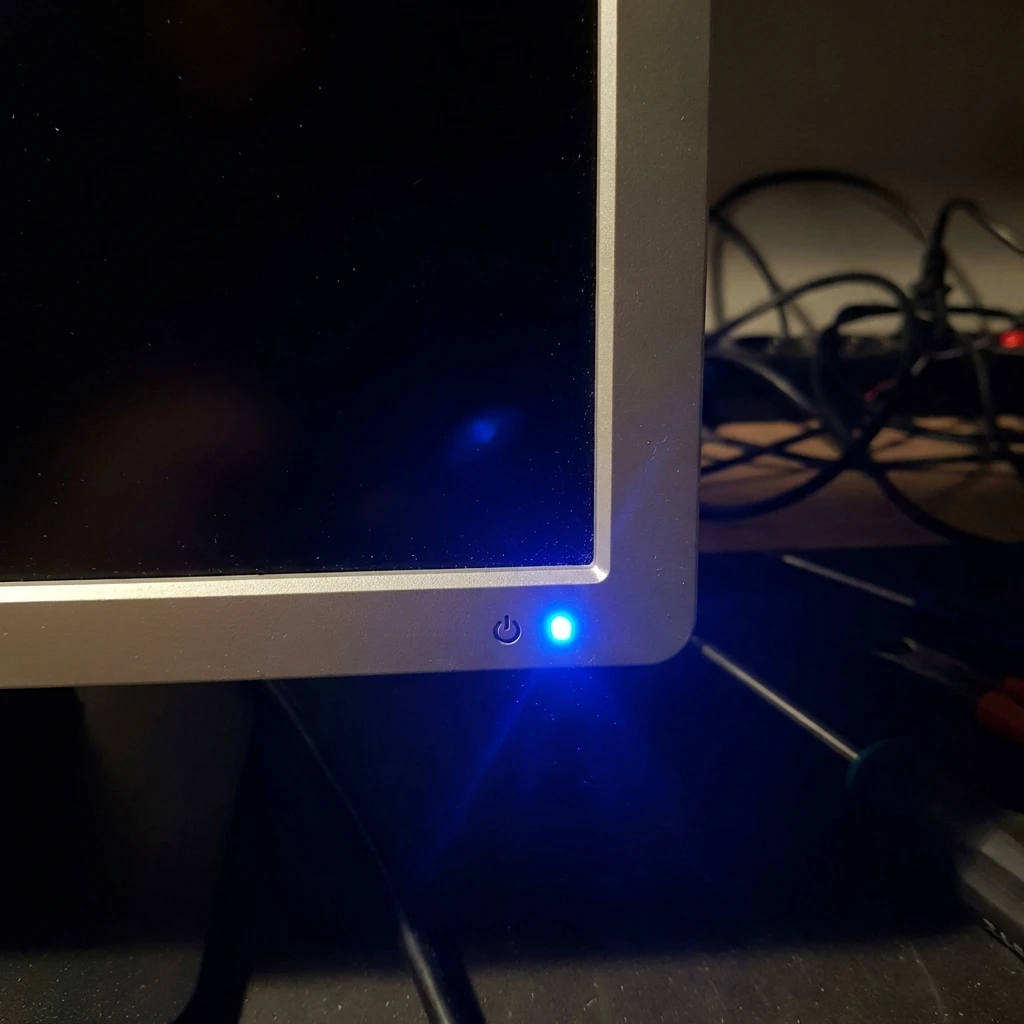
You sit down, wiggle your mouse, and see the power LED on your monitor glow a steady blue—but the screen itself
remains a stubborn void of black. This blue light but black screen scenario is a specific,
maddening kind of error. Unlike an amber or orange light (which means “Sleep Mode”), a steady blue light signals
that the monitor thinks it is displaying an image, which results in the confusing blue light but black screen
state.
This phantom display issue stems from a broken “handshake” between your computer’s graphics card and the
monitor’s logic board. Whether it’s a corrupted HDCP signal, a confused backlight, or a resolution mismatch, the
hardware is alive but the communication is dead. This guide helps you fix the blue light but black screen
issue.
Quick Fix: Wake Up Call (1 Minute)
- Cycle the Input: Press the “Menu” or “Source” button on the monitor. Manually switch to a
different input (e.g., HDMI 2) and then back to the correct one (HDMI 1). This forces a “re-handshake” and
can immediately clear a blue light but black screen freeze. - The Driver Shortcut: If you are on Windows, press Windows Key + Ctrl + Shift +
B. This restarts the video driver instantly. - Power Cycle (Monitor): Unplug the monitor’s power cable from the wall (don’t just turn it
off). Wait 30 seconds. Plug it back in. - Mouse Jiggle: Rapidly click the mouse buttons. Sometimes the “Wake on LAN” or USB wake
signal is weak.
Symptoms Checklist
- The monitor power LED is solid blue (or green), indicating “Active” status.
- The screen is pitch black—not even a “No Signal” floating box appears.
- You can hear Windows notification sounds in the background.
- If you shine a flashlight at the screen, you can faintly see your desktop icons (Backlight Failure).
- The OSD (On Screen Display) menu does not appear when you press the Menu button.
If you match these symptoms, you are almost certainly in a blue light but black screen situation where
the monitor is awake but the video chain is not delivering a valid picture.
Troubleshooting Summary: Signal vs. Hardware
| Symptom | Flashlight Test | Likely Cause | Best Fix |
|---|---|---|---|
| Black + Blue Light | Can’t see image | Input Handshake Freeze | Hard Power Cycle |
| Black + Blue Light | Image visible (faint) | Backlight Inverter Dead | Replace Monitor |
| “Out of Range” | N/A | Resolution Mismatch | Safe Mode Reset |
| OSD Menu won’t show | N/A | Monitor Firmware Crash | Unplug 60 Seconds |
| Works on Reboot only | N/A | Fast Startup Bug | Disable Fast Startup |
Why This Happens
Your monitor and PC are constantly talking. The PC sends a digital stream (HDMI/DisplayPort) that says “Display
1920×1080 at 60Hz.” The monitor replies “Roger that, displaying.”
A blue light but black screen happens when the monitor receives the “Wake Up” voltage signal
(hence the blue light) but the video data stream contains garbage or is blocked. The monitor keeps the light
blue because it detects a connection, but it displays black because it can’t decode the picture. This
often happens after a Windows Update changes the refresh rate to something your monitor doesn’t support (e.g.,
144Hz on a 60Hz cable), which can trigger the blue light but black screen deadlock.
Common Causes of blue light but black screen
Most blue light but black screen cases fall into one of five buckets: a frozen input handshake (HDMI/DP),
an HDCP copy-protection glitch, a monitor firmware crash, a resolution/refresh mismatch, or a physical backlight
failure. The steps below are sequenced to isolate which bucket you’re in quickly—without randomly swapping parts.
Fix Method 1: The “Capacitor Drain” (Hard Reset)
What this fixes
Modern monitors are mini-computers. They can crash just like your PC. If the monitor’s internal firmware freezes,
pressing the power button does nothing. You must cut the power completely. This is the primary recovery step for
a blue light but black screen caused by a firmware hang.
- Unplug the Monitor: Pull the power cord out of the back of the monitor (or the wall).
- Unplug the Video Cable: Remove the HDMI/DP cable so the monitor is isolated.
- Hold the Button: Press and hold the monitor’s physical power button for 30
seconds while it is unplugged. This drains the capacitors. - Reconnect Power: Plug the power cord back in (leave video disconnected).
- Test: Turn it on. You should see a “No Cable Connected” floating box. If you see this, the
monitor is fixed. Plug the video cable back in.
How to verify it worked
The “No Signal” logo appears clearly, proving the backlight and LCD panel are working.
Fix Method 2: The Flashlight Test (Hardware Diagnosis)
What this fixes
This determines if your monitor is physically broken. The “Backlight” is a series of LEDs behind the screen that
make the picture bright. If they burn out, you get a blue light but black screen.
- Turn the room lights off so it is dark.
- Ensure the PC is on and the monitor light is blue.
- Shine the Light: Hold your flashlight flat against the screen surface and move it around
slowly. - Look Closely: Can you see faint ghosts of your desktop icons, login screen, or mouse cursor
where the light hits? - Result:
- Yes, I see icons: Your backlight inverter is dead. The monitor needs repair or
replacement. - No, it’s pure black: It is a signal issue. Proceed to Method 3.
- Yes, I see icons: Your backlight inverter is dead. The monitor needs repair or
Fix Method 3: The Video Driver Reset (Windows)
What this fixes
Sometimes Windows wakes up from Sleep Mode but forgets to wake up the graphics driver. The PC is running, but the
video output is sleeping. This is a common software cause of a blue light but black screen when you can still
hear system sounds.
- While looking at the black screen, place your fingers on the keyboard.
- Press Windows Key + Ctrl + Shift + B all at once.
- Listen: You typically hear a “Beep” sound.
- Wait: The screen should flicker. This command tells Windows to delete the video driver
session and reload it from scratch.
How to verify it worked
The desktop instantly appears.
If it still fails
If you don’t hear a beep, Windows might be crashed entirely. Try a hard reboot of the PC.
Fix Method 4: Resolution Mismatch (Safe Mode)
What this fixes
If you recently plugged into a new monitor or updated drivers, your PC might be sending a “4K Signal” to a “1080p
Monitor.” The monitor goes black because it can’t understand the resolution. This mismatch can look exactly like
a blue light but black screen because the monitor stays “active” but cannot render the image.
- Turn off the PC by holding the power button.
- Turn it on, and as soon as the Windows spinning circles appear, hold the power button to kill it again. Do
this 3 times. - Automatic Repair: On the 4th boot, Windows enters Repair Mode.
- Go to Advanced Options > Startup Settings > Restart.
- Press 4 to enter Safe Mode (or “Enable Low Resolution Video”).
- Once in Safe Mode (it will look grainy), restart normally. Windows will reset the resolution to default.
How to verify it worked
You can see the desktop, but the icons are huge. Go to Display Settings to fix the resolution to “Recommended.”
Fix Method 5: Cable & Port Roulette
What this fixes
A damaged HDMI port pin can provide power (triggering the blue light) but drop the video data. Swapping ports
bypasses the damage and solves the blue light but black screen problem.
- If you are using DisplayPort, switch to an HDMI cable. DisplayPort has a
known “Deep Sleep” bug on many monitors (especially Dell/ASUS). - If you use HDMI 1, move the plug to HDMI 2. The port itself might be loose.
- Try a new cable entirely.
How to verify it worked
The image appears instantly on the new port.
Prevent This From Happening Again
Monitor inputs are sensitive to “hot swapping” and voltage spikes. These habits reduce future blue light but black screen
incidents.
- Disable “Deep Sleep”: In your monitor’s OSD menu, look for a setting called “Deep Sleep” or
“Power Saving” and set it to OFF. This prevents it from getting stuck in hibernate. - Use Quality Cables: Cheap HDMI cables lack shielding. Interference from power cords can
blackout the screen for seconds at a time. Use VESA-certified cables. - Update Monitor Firmware: Yes, monitors have firmware. Go to the manufacturer’s site
(Samsung/LG/Dell) and check if there is an update for your model.
FAQ
Why is my monitor power light blinking?
A blinking light usually means “Standby” or “No Signal.” It means the monitor is waiting for the PC to wake up.
Shake the mouse.
Can a power surge break my HDMI port?
Yes. HDMI carries 5V of power. A lightning strike or surge can fry the HDMI controller chip while leaving the
rest of the monitor working (hence the blue light but black screen).
What does “Out of Range” mean?
This error message means the PC is trying to force a resolution (like 4K) or refresh rate (like 144Hz) that the
monitor physically cannot display.
Is the “Flashlight Test” reliable?
It is 99% reliable for diagnosing backlight failure. If you see icons, the LCD is working, but the lights are
out. It’s a hardware repair, not software.
Official References
- Dell Support: Troubleshooting Monitor Power Issues
- HP:
Monitor Screen Is Black - Microsoft: Troubleshoot Black Screen in Windows
Conclusion
The blue light but black screen error is essentially a “communication breakdown.” Your equipment
is working, but it isn’t speaking the same language. By removing the residual power charge with a hard monitor
reset and forcing a new driver handshake, you can resolve the deadlock. If the flashlight test reveals a dead
backlight, you know it’s time for a replacement. Otherwise, it is almost always checking the cable, the input,
and the resolution settings to eliminate the blue light but black screen issue.
Visit https://truefixguides.com/ for more.
