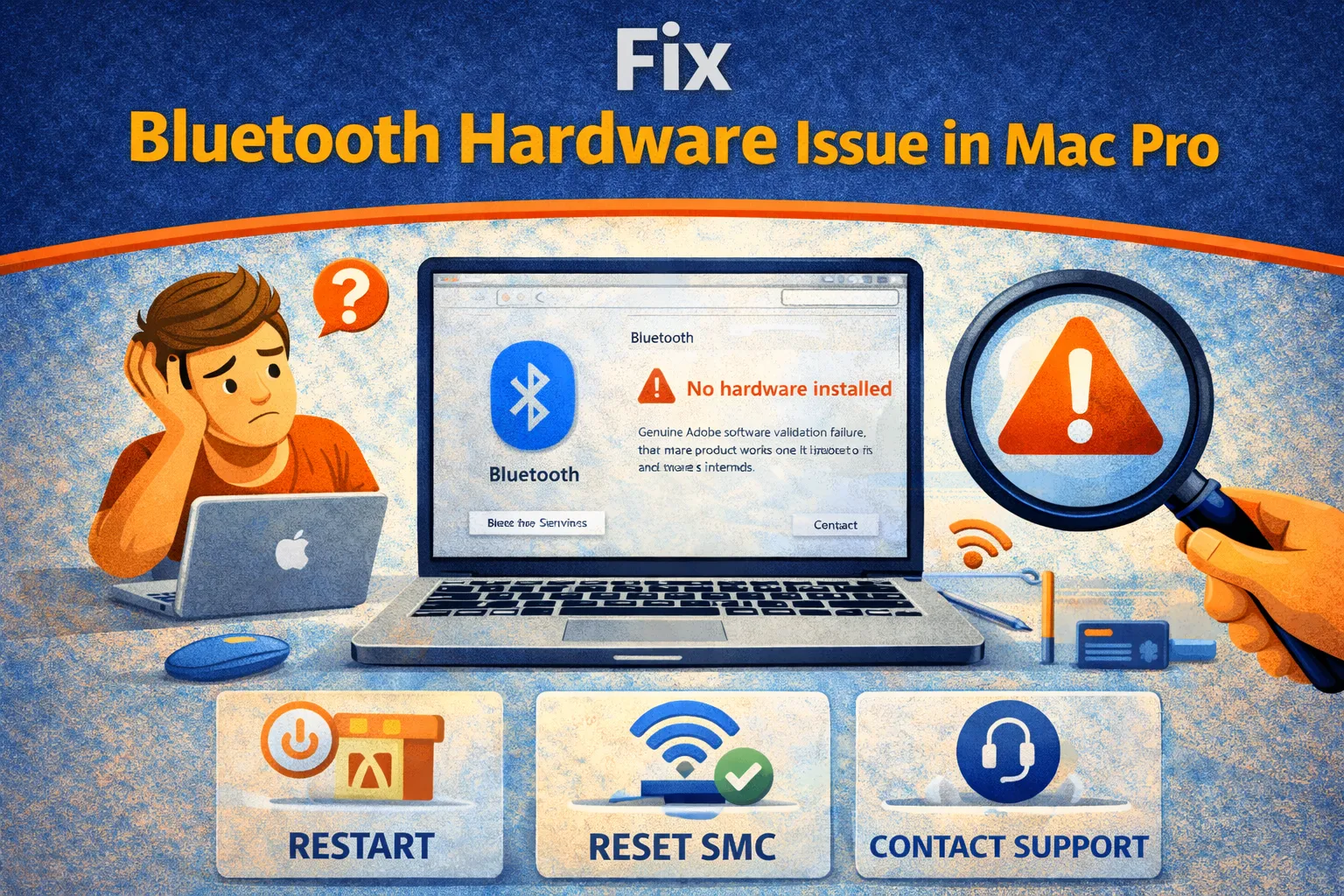
Bluetooth hardware issue in Mac is one of those errors that looks small but is actually high impact.
Your Magic Mouse stops moving, AirPods disconnect, and the Bluetooth icon shows a jagged line with
“Bluetooth: Not Available”. That message is not a normal pairing bug—it means macOS cannot talk to
the Bluetooth controller at all.
The good news: a large percentage of bluetooth hardware issue in Mac cases are “soft failures”
(driver crash, corrupted preference files, USB interference, sleep/wake handshake). The bad news: if the module is
truly dead, the fix becomes hardware or a workaround (USB dongle). This guide gives you a structured escalation
path: low-risk resets first, then deeper remediation.
Quick Fix (1 minute): Bluetooth Hardware Issue in Mac
Run these in order. They resolve many bluetooth hardware issue in Mac incidents immediately.
- Power-cycle Bluetooth services: Open Terminal and run
sudo pkill bluetoothd, then restart your Mac. - Remove USB interference: Unplug all USB hubs/drives temporarily. USB 3.0 noise can jam 2.4GHz Bluetooth.
- Forget/reconnect key devices: If Bluetooth comes back, remove the device and pair it again (mouse/keyboard/AirPods).
- Hard shutdown (not restart): Shut down fully, wait 30–60 seconds, then boot again.
- Check System Information: Apple Menu → About This Mac → More Info → System Report → Bluetooth. If it says “No information found,” proceed to the deeper fixes.
If you still see “Not Available” after these steps, this is a serious bluetooth hardware issue in Mac
scenario—continue with the methods below.
Symptoms Checklist
- Bluetooth icon shows a squiggly/jagged line through it.
- Menu bar says Bluetooth: Not Available.
- System Report → Bluetooth shows No information found.
- Magic Mouse/Keyboard randomly disconnects or lags.
- AirPods audio stutters even near the Mac.
- Issue starts after sleep/wake or after plugging in a new USB device.
Fast Diagnosis Table
| What you see | Likely cause | Best next step |
|---|---|---|
| Bluetooth “Not Available” + System Report empty | Controller not detected | SMC/NVRAM reset + plist reset |
| Bluetooth works until USB drive is connected | USB 3.0 interference | Move hub away + shielded cable |
| Bluetooth disappears after sleep | Driver crash / wake handshake failure | Disable Handoff + restart bluetoothd |
| Bluetooth returns briefly then fails again | Failing module or antenna path | Reseat antenna / consider dongle |
Why This Happens
On macOS, Bluetooth depends on a hardware controller (typically Broadcom) plus system daemons that load on boot.
A bluetooth hardware issue in Mac happens when either:
- the driver stack crashes and macOS loses the controller (soft failure), or
- the controller/antenna path isn’t electrically stable (hard failure).
On desktops like Mac Pro and Mac mini, interference is a major factor. USB 3.0 devices and unshielded hubs can
saturate the 2.4GHz spectrum (same band as Bluetooth), making the controller appear “dead” even if it’s fine.
Fix Method 1: Reset Bluetooth Preference Files (Plist Reset)
What this fixes
Corrupted Bluetooth cache/preferences can cause the system to fail controller initialization—classic
bluetooth hardware issue in Mac behavior.
- Open Finder → Go → Go to Folder (Cmd + Shift + G).
- Go to:
/Library/Preferences/ - Delete (move to Trash):
com.apple.Bluetooth.plist - Also check:
~/Library/Preferences/ByHost/and delete Bluetooth-related files (com.apple…Bluetooth…). - Shut down the Mac completely (don’t restart).
- Wait 60 seconds, then boot normally.
How to verify
Bluetooth icon returns to normal and devices can re-pair.
Fix Method 2: Restart the Bluetooth Daemon (Ventura/Sonoma Compatible)
What this fixes
Forces macOS to reload the Bluetooth stack without requiring a full reinstall.
- Open Terminal.
- Run:
sudo pkill bluetoothd - Restart the Mac.
Fix Method 3: SMC Reset / Full Power Reset
What this fixes
Power-management glitches can cut power to the Bluetooth module and trigger a persistent
bluetooth hardware issue in Mac.
- Mac desktops (Mac Pro/iMac/Mac mini): Shut down → unplug power for 15 seconds → plug back in → wait 5 seconds → power on.
- Intel MacBook (T2 models): Shut down → hold Left Ctrl + Left Option + Right Shift for 7 seconds → while holding, press Power for 7 seconds → release → wait 5 seconds → power on.
- Apple Silicon (M1/M2/M3): Shut down → wait 30 seconds → start up again (SMC behavior is integrated).
Fix Method 4: Eliminate USB 3.0 Interference (High ROI Fix)
What this fixes
USB 3.0 can behave like a 2.4GHz jammer. This frequently masquerades as a
bluetooth hardware issue in Mac.
- Unplug all USB accessories except power and display.
- Restart and test Bluetooth.
- If Bluetooth returns, re-connect devices one by one to identify the culprit.
- Use shielded cables, and move hubs/drives at least 50–100cm away from the Mac.
Fix Method 5: Disable Handoff / Continuity (Stabilization Move)
What this fixes
When the Bluetooth stack is unstable, Continuity features can keep it in a crash loop.
- System Settings → General → AirDrop & Handoff.
- Turn Handoff OFF.
- Restart and re-test Bluetooth.
Fix Method 6: Hardware Path Check (Mac Pro / Desktop Specific)
What this fixes
If your bluetooth hardware issue in Mac is on a Mac Pro or older tower, antenna routing and
connectors can be the real root cause.
- Confirm any external antenna bar is firmly attached (if applicable).
- Ensure the Mac isn’t blocked by metal structures (under metal desk, behind a PC case, etc.).
- If you’re comfortable opening a tower: check the antenna leads and reseat connectors (they should snap into place).
Fix Method 7: The Practical Workaround — USB Bluetooth Adapter
What this fixes
If the internal controller is failing, a USB adapter can restore basic Bluetooth (mouse/keyboard/headphones).
This is the fastest business-continuity play for bluetooth hardware issue in Mac when hardware repair is expensive.
- Use a macOS-compatible Bluetooth USB adapter.
- Plug it in and test pairing.
- Understand the tradeoff: Handoff/AirDrop/Apple Watch unlock may not work with generic dongles.
Prevent This From Happening Again
- Separate USB storage from Bluetooth: Don’t stack hubs/drives next to the Mac.
- Use quality cables: Shielded cables reduce interference and random disconnect loops.
- Weekly reboot cadence: Clears driver state and prevents long-uptime daemon weirdness.
- Keep macOS updated: Bluetooth firmware + driver patches often ship silently in updates.
FAQ
Does “Bluetooth: Not Available” always mean hardware failure?
No. Many cases are driver crashes, corrupted plist files, or interference. But if System Report shows no Bluetooth
controller after resets and a clean boot, the odds move toward hardware.
Why does my mouse lag only during file transfers?
USB 3.0 interference. When data is flowing, the electromagnetic noise spikes and Bluetooth loses packets. Move the
drive/hub away and use shielded cables.
Can I upgrade Bluetooth in a Mac Pro?
On some older towers, yes—you can replace the Wi-Fi/Bluetooth card with a supported Broadcom card via adapter.
On newer systems, it’s more integrated and may require service-level repair.
Official References
- Apple: Reset the SMC of your Mac
- Apple: If a Bluetooth device doesn’t work with your Mac
- Apple: Resolve Wi-Fi and Bluetooth issues caused by wireless interference
Conclusion
If you’re dealing with a bluetooth hardware issue in Mac, treat it like an escalation funnel:
reset the stack (bluetoothd), purge corrupted preferences, cut power to the module (SMC/power reset), and eliminate
USB interference. If Bluetooth still shows “Not Available” in System Report after those steps, stop burning hours—
move to the practical options: hardware service or a USB adapter workaround.
Visit https://truefixguides.com/ for more.