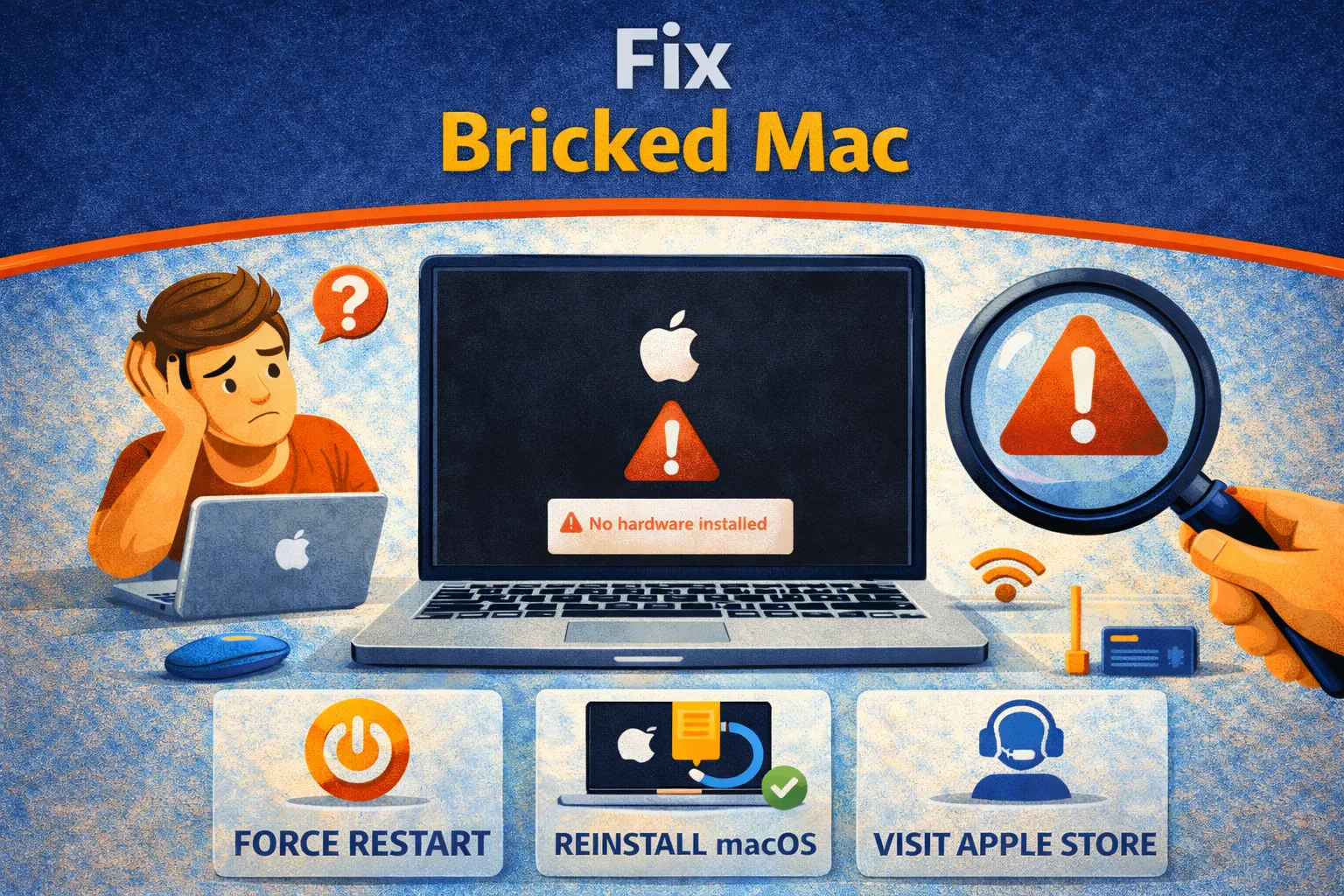
Bricked Mac is the nightmare scenario: you press power and get nothing, or your Mac is stuck in a
permanent boot loop after an update, power outage, or failed restore. Here’s the reality—most “bricked Mac” cases
are not dead hardware. They’re firmware corruption, power controller crashes, or a broken boot chain that can be
repaired using Recovery tools or Apple Configurator (DFU mode).
This guide delivers a safe, professional workflow to fix bricked Mac issues step-by-step—starting
with low-risk resets and ending with DFU revive/restore. The objective is to restore boot capability while minimizing
data loss risk.
Quick Fix: Bricked Mac Not Turning On
Run these first. They resolve a surprising number of “dead Mac” situations.
- Hard power reset: Hold Power (or Touch ID) for 10 seconds → release → wait 5 seconds → press Power normally.
- Strip accessories: Disconnect everything (USB hubs, drives, monitors). Leave only power connected.
- Try another charger/cable: Use the correct Apple wattage charger; low-power USB chargers won’t wake a bricked Mac.
- Check for signs of life: Fan noise, trackpad click, Caps Lock light, or warmth = not truly dead (good).
- External display test: If you suspect the Mac is on but screen is black, connect an external monitor.
If you still have zero response, move to diagnosis. The key is distinguishing “no power” from “no video.”
Symptoms Checklist
You’re likely dealing with a bricked Mac (firmware/boot failure) if you see any of the following:
- Black screen with no backlight and no Apple logo.
- No startup chime (older Intel Macs) and no visible boot screen.
- Caps Lock light doesn’t respond.
- Mac stuck on Apple logo, progress bar never completes.
- Mac shows an exclamation mark in a circle or restore screen.
- Boot loop after macOS update or erase/reinstall attempt.
Troubleshooting Summary Table
| What you see | Likely cause | Best next step |
|---|---|---|
| No signs of life at all | Power/SMC/controller crash or hardware power failure | 10s power reset → SMC reset (Intel) → service if still dead |
| Exclamation mark / restore symbol | Firmware corruption | Apple Configurator “Revive” (DFU) |
| Stuck on Apple logo / boot loop | OS corruption | Recovery Mode → Disk Utility First Aid → reinstall macOS |
| Padlock icon | Firmware password lock | Official Apple unlock route |
| Mac seems on but screen black | Display/backlight issue | External display test + Recovery/DFU checks |
Why Macs Get “Bricked”
A bricked Mac is usually the result of a failed update stage in the boot chain. Modern Macs (Apple
silicon M1/M2/M3 and Intel models with the T2 chip) rely on secure firmware components that must remain consistent.
If a firmware update gets interrupted—battery dies, Wi-Fi drops, forced reboot—the Mac can fail validation and refuse
normal startup.
Another frequent trigger is restore/erase operations (especially on T2 Intel Macs). If the embedded controller
firmware and macOS recovery environment fall out of sync, you get a boot blocker that looks like “dead hardware”
but is actually recoverable via DFU restore tools.
Fix Method 1: The 10-Second Power Reset
What this fixes
Clears temporary power-controller crashes and forces the system to fully drop power states.
- Disconnect all peripherals. Leave only the charger connected.
- Press and hold Power / Touch ID for exactly 10 seconds.
- Release and wait 5 seconds.
- Press Power normally once.
How to verify it worked
Apple logo appears or you get startup activity within 10–20 seconds.
Fix Method 2: Reset SMC (Intel Macs Only)
What this fixes
Resets the System Management Controller, which governs power, charging, thermal control, and sleep behavior.
Apple silicon Macs do not use the same manual SMC reset procedure.
- Intel T2 MacBooks (2018–2020):
- Shut down completely (hold Power 10 seconds if needed).
- Hold Left Control + Left Option + Right Shift for 7 seconds.
- While holding them, press and hold Power too for another 7 seconds.
- Release all keys, wait 5 seconds, then press Power normally.
- Intel non-T2 MacBooks (older):
- Shut down.
- Hold Shift + Control + Option (left side) + Power for 10 seconds.
- Release and power on.
Fix Method 3: Recovery Mode (Soft Brick Repair)
What this fixes
If the Mac powers on but can’t complete boot, Recovery Mode lets you repair disk structures and reinstall macOS.
- Apple silicon: Hold Power until “Loading startup options” → select Options → Continue.
- Intel: Power on and immediately hold Command + R.
- Open Disk Utility → select internal disk → run First Aid.
- Return to Utilities and select Reinstall macOS.
How to verify it worked
Mac boots to login normally without looping.
Fix Method 4: Apple Configurator “Revive” (DFU Firmware Repair)
What this fixes
This is the highest-leverage method to fix bricked Mac when firmware/boot components are corrupted.
It requires a second Mac and uses DFU mode to push fresh firmware without wiping data (in most cases).
- On a working Mac (host), install Apple Configurator.
- Connect the bricked Mac to the host using a high-quality USB-C cable (avoid cheap hubs).
- Put the bricked Mac into DFU mode (model-specific sequence).
- In Configurator, the device should appear as DFU.
- Right-click DFU → choose Revive (or Advanced → Revive Device depending on version).
- Wait for completion; the bricked Mac should reboot automatically.
Operational note: DFU entry is model-specific and timing-sensitive. If you want, tell me the exact Mac model/year
(example: “MacBook Pro 13-inch 2019” or “MacBook Air M2”) and I’ll insert the precise DFU key sequence into this article cleanly.
Fix Method 5: Apple Configurator “Restore” (Nuclear Option)
What this fixes
If Revive fails, Restore rebuilds firmware and recoveryOS from scratch—but it wipes the internal drive.
- Connect via Apple Configurator and enter DFU mode.
- Right-click DFU device → select Restore.
- Confirm the data wipe warning.
- Wait for the process to complete and reboot.
How to verify it worked
You reach the macOS setup screen (“Hello”). If Restore fails too, you’re likely in hardware territory.
Fix Method 6: When It’s Actually Hardware
What this fixes
Nothing—this is the decision gate. Escalate when symptoms indicate power rail or logic board failure.
- No charging indicator (where applicable) and zero response across known-good chargers.
- Liquid spill history, burn smell, or visible corrosion.
- Apple Configurator cannot detect DFU device after multiple cables/ports/hosts.
- Mac repeatedly disconnects during DFU restore.
At this point, the cost driver is logic board repair vs replacement. The rational move is service—especially if data is critical.
Prevent a Bricked Mac in the Future
- Don’t update on low battery: Keep MacBooks plugged in during firmware-heavy updates.
- Avoid unstable networks: Use reliable Wi-Fi or Ethernet during major macOS upgrades.
- Don’t force reboot mid-update: If the screen goes black during an update, wait—some stages look “dead” but are normal.
- Keep backups: Time Machine + a second copy of critical files makes Restore painless if needed.
- Skip beta OS on production machines: Betas increase bricking risk dramatically.
FAQ
Can Apple fix a bricked Mac?
Yes. If it’s firmware corruption, Apple or an authorized provider can typically revive/restore it using service tools.
If it’s logic board failure, repair or replacement may be required.
Will “Revive” delete my files?
Revive is designed to repair firmware and recovery components without wiping user data. If data is business-critical,
still treat any revive attempt as a risk event and avoid repeated power cycles.
What does an exclamation mark in a circle mean?
It commonly indicates the Mac can’t boot and may require recovery/restore—often a firmware/boot chain issue that DFU restore can resolve.
Can I revive a Mac using a Windows PC?
No. Apple Configurator runs on macOS only. You’ll need another Mac or an Apple/authorized service provider.
Why won’t my Mac enter DFU mode?
DFU is timing-sensitive, cable-sensitive, and model-specific. Use a direct USB-C connection, avoid hubs, and try multiple attempts.
If the host Mac never detects DFU, suspect cable/port/board-level issues.
Official References
- Apple Configurator User Guide
- Apple: Revive or restore a Mac with Apple silicon
- Apple: Revive or restore an Intel-based Mac
Conclusion
A bricked Mac looks catastrophic, but in most cases it’s a recoverable firmware/boot chain failure.
Start with power resets and Recovery tools, then escalate to Apple Configurator DFU Revive. Only when DFU workflows
fail repeatedly should you assume hardware. That’s the clean, low-drama way to fix bricked Mac
problems without guessing and without turning a repairable issue into unnecessary data loss.
Visit https://truefixguides.com/ for more.