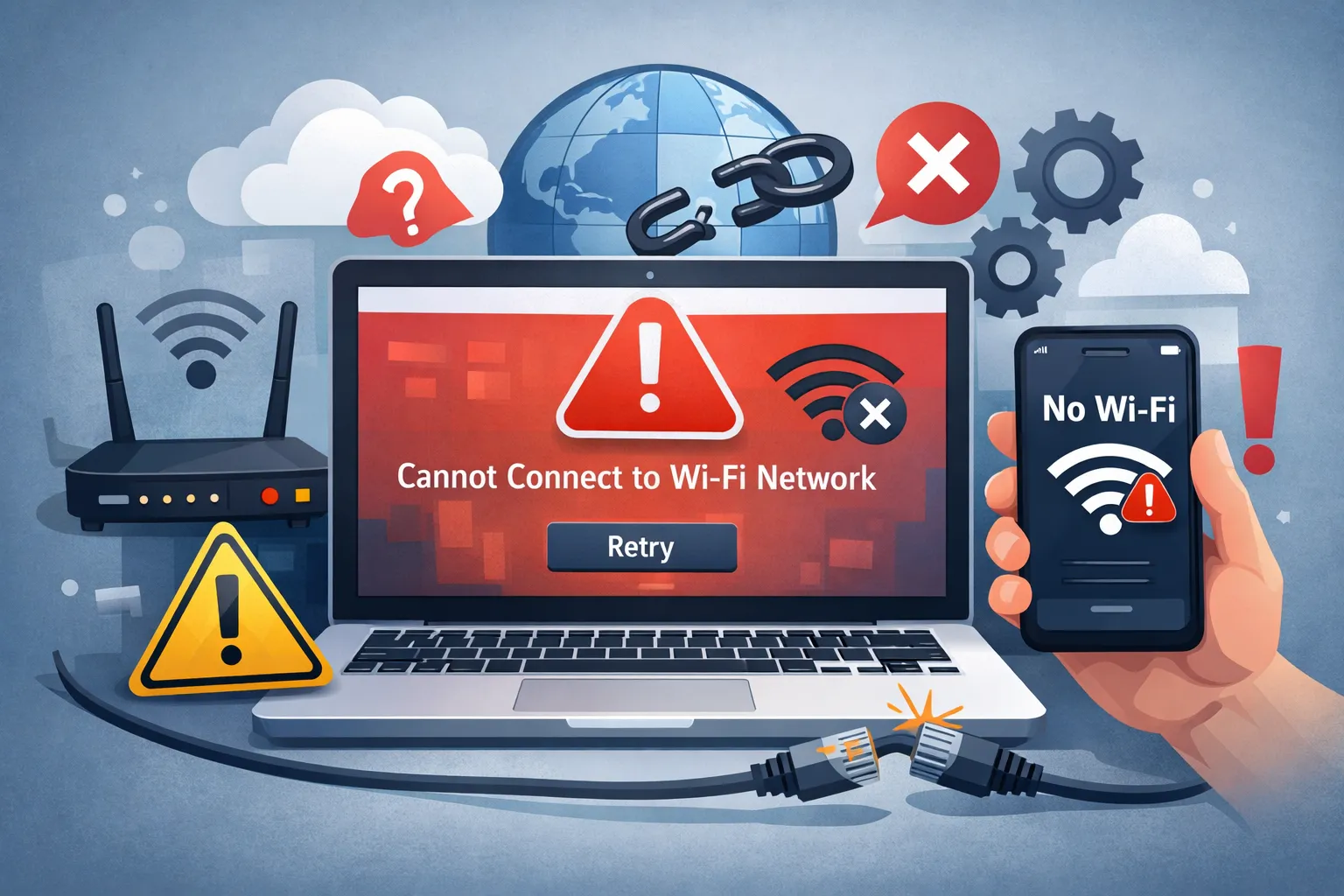
When your computer simply can’t connect to wifi network prompts, it usually throws a vague error like “Can’t
connect to this network” or keeps asking for the password you know is correct. Unlike a “No Internet” error,
this issue means you can’t connect to wifi network because the handshake between your device and the router
is failing entirely—they cannot even establish a link to start talking. This usually points to a corrupted saved
profile, an encryption mismatch (WPA2 vs WPA3), or a driver that has locked up.
Quick Fix (1 minute)
- Toggle Airplane Mode: Resets the WiFi antenna instantly.
- Forget Network: Delete the saved profile and re-enter credentials. This is the fastest move
when you can’t connect to wifi network on just one router. - Check Caps Lock: Passwords are case-sensitive (most common error).
- Restart Router: Fixes channel hangs preventing connections. If you can’t connect to wifi network
on multiple devices, this is the priority check.
Symptoms Checklist
- Error message: “Can’t connect to this network.”
- Keep prompting for the password even though you typed it right.
- PC connects to other WiFi networks, just not this one.
- Other devices connect fine, proving the router is working.
If these symptoms match, your can’t connect to wifi network problem is almost always a profile, security,
or driver handshake failure—not the internet line itself.
Troubleshooting Summary (Fast Diagnosis)
| Symptom | Likely Cause | Best Fix |
|---|---|---|
| “Can’t connect to this network” | Corrupt Saved Profile | Forget Network (Method 1) |
| Keeps asking for password | WPA Security Mismatch | Update Driver (Method 3) |
| Network visible but greyed out | Incompatible Band (5GHz) | Check Adapter Spec (Method 4) |
| Fails on all networks | Adapter Hard Lock | Network Reset (Method 2) |
Why This Happens
If you can’t connect to wifi network targets, it is often because your computer remembers an “old version” of
that network. If you changed the router password or security type (e.g., from WEP to WPA2) recently, your
computer tries to use the old saved key, gets rejected, and panics. Alternatively, Windows 10/11 drivers
sometimes get stuck in a “pending” state where they see networks but cannot initiate the encryption handshake
required to join them—exactly why you can’t connect to wifi network even when the password is correct.
Common Causes of can’t connect to wifi network
Most can’t connect to wifi network cases boil down to five causes: a corrupted saved profile, a security
mismatch (WPA2 vs WPA3 or AES vs TKIP), a driver lock-up, band incompatibility (2.4GHz vs 5GHz), or router-side
filtering (MAC address filtering / access control). The fix methods below isolate each cause fast without
guesswork.
Fix Method 1: “Forget” and Rejoin
What this fixes
This deletes the potentially corrupted profile (old password, wrong encryption type) stored on your PC and forces
a fresh negotiation with the router. It is the highest-ROI step when you can’t connect to wifi network but
the network is visible.
- Click the WiFi Icon in your taskbar.
- Right-click the problematic network name.
- Select Forget. (If you don’t see it, go to Settings > Network & internet > Wi-Fi > Manage
known networks > Forget). - Toggle WiFi Off and On again.
- Click the network and enter the password carefully.
How to verify it worked
The status bar moves from “Verifying and connecting” to “Connected, Secured.”
If it still fails
If it says “Can’t connect” immediately without asking for a password, the router might be blocking your MAC
address.
Fix Method 2: Reset Network Adapter
What this fixes
If the WiFi card’s internal software is frozen, it might detect signals but fail to connect. A reset clears this
“zombie” state. This is ideal when you can’t connect to wifi network across multiple networks, not just one.
- Press
Win + Ito open Settings. - Go to Network & internet > Advanced network settings.
- Click Network reset.
- Click Reset now and confirm.
- Your PC will restart. After reboot, try connecting again.
How to verify it worked
Windows starts with a clean slate, asking if you want to be discoverable.
If it still fails
Try resetting the TCP/IP stack manually via Command Prompt (netsh int ip reset).
Fix Method 3: Reinstall WiFi Drivers
What this fixes
Corrupted drivers are a top cause of why a PC can’t connect to wifi network or gives encryption errors on
Windows 10 and 11. If your device sees the network but fails at “Checking network requirements,” this is the
fix path.
- Right-click the Start button and choose Device Manager.
- Expand Network adapters.
- Right-click your WiFi adapter (look for “Wireless”, “WLAN”, “Intel”, or “Realtek”).
- Select Uninstall device. (Do NOT check the box to delete driver software).
- Click Uninstall.
- Restart your computer immediately. Windows will automatically reinstall the driver on boot.
How to verify it worked
The adapter reappears in Device Manager, and connection succeeds.
If it still fails
You may need to download a newer driver from the manufacturer’s website (using a different PC/Phone) and install
it.
Fix Method 4: WPA3 / Band Compatibility Check
What this fixes
New routers use WPA3 security and WiFi 6. Old laptops (5+ years) physically cannot “speak” this language and will
fail, so you can’t connect to wifi network even though it appears in the list.
- Log into your router admin panel (usually via phone or Ethernet PC).
- Go to Wireless Security settings.
- Change the security mode from “WPA3” or “WPA2/WPA3 Mixed” to WPA2 Personal (AES).
- Save and reboot router.
- Try connecting the older device.
How to verify it worked
The legacy device connects instantly once the security standard is lowered to WPA2.
If it still fails
Consider buying a cheap USB WiFi dongle that supports modern standards.
Fix Method 5: Run the Troubleshooter
What this fixes
The built-in troubleshooter can automatically restart the “WLAN AutoConfig” service, which handles the logic of
connecting to networks. It’s a good automated step when you can’t connect to wifi network and want Windows to
self-correct basic service failures.
- Right-click the Network icon in the taskbar.
- Select Diagnose network problems.
- Follow the on-screen prompts.
- It might ask to apply a fix “Reset adapter” or “Enable DHCP”. Click “Apply this fix.”
How to verify it worked
The troubleshooter reports “Fixed” and the connection establishes.
If it still fails
Check if you accidentally enabled “MAC Address Filtering” on your router, which blocks new devices.
Prevent This From Happening Again
- Don’t Change Passwords Often: If you change WiFi passwords, remember to “Forget” the
network on every device immediately. - Update Drivers: Keep your Intel/Killer/Realtek drivers updated via the manufacturer’s app.
- Stick to WPA2: Unless you have brand new gear, WPA2 is the most compatible stability
standard. This reduces future can’t connect to wifi network surprises.
FAQ
Why can’t I connect even with the right password?
Likely interference or a “stuck” profile. Even if the password is right, if the encryption type (TKIP vs AES)
doesn’t match what your PC remembers, it fails. Use “Forget Network.”
What does “Can’t connect to this network” mean?
It is a generic error meaning the connection attempt timed out or was rejected by the router. It usually implies
a driver or distance issue, not a wrong password.
How do I find my WiFi password if I forgot it?
On a PC that IS connected: Open Control Panel > Network and Sharing Center > Click WiFi Name > Wireless
Properties > Security > Show characters.
Can a cluttered router cause this?
Yes. Consumer routers can only handle about 15-20 devices. If you have 30 smart bulbs and phones, new devices
will be rejected. Disconnect unused devices.
Why does my WiFi adapter disappear?
This is a driver crash or hardware failure. A reboot usually brings it back. If it keeps happening, the WiFi card
itself might be dying.
Official References
Conclusion
If you can’t connect to wifi network signals that are clearly visible, do not panic. It is rarely a broken
computer. It is almost always a stale memory of the network. By forcing your computer to “Forget” the old
profile and reinstalling the driver, you clear the confusion and allow a fresh, secure handshake to take place.
That is the most reliable way to end a can’t connect to wifi network loop.
Visit https://truefixguides.com/ for more.


