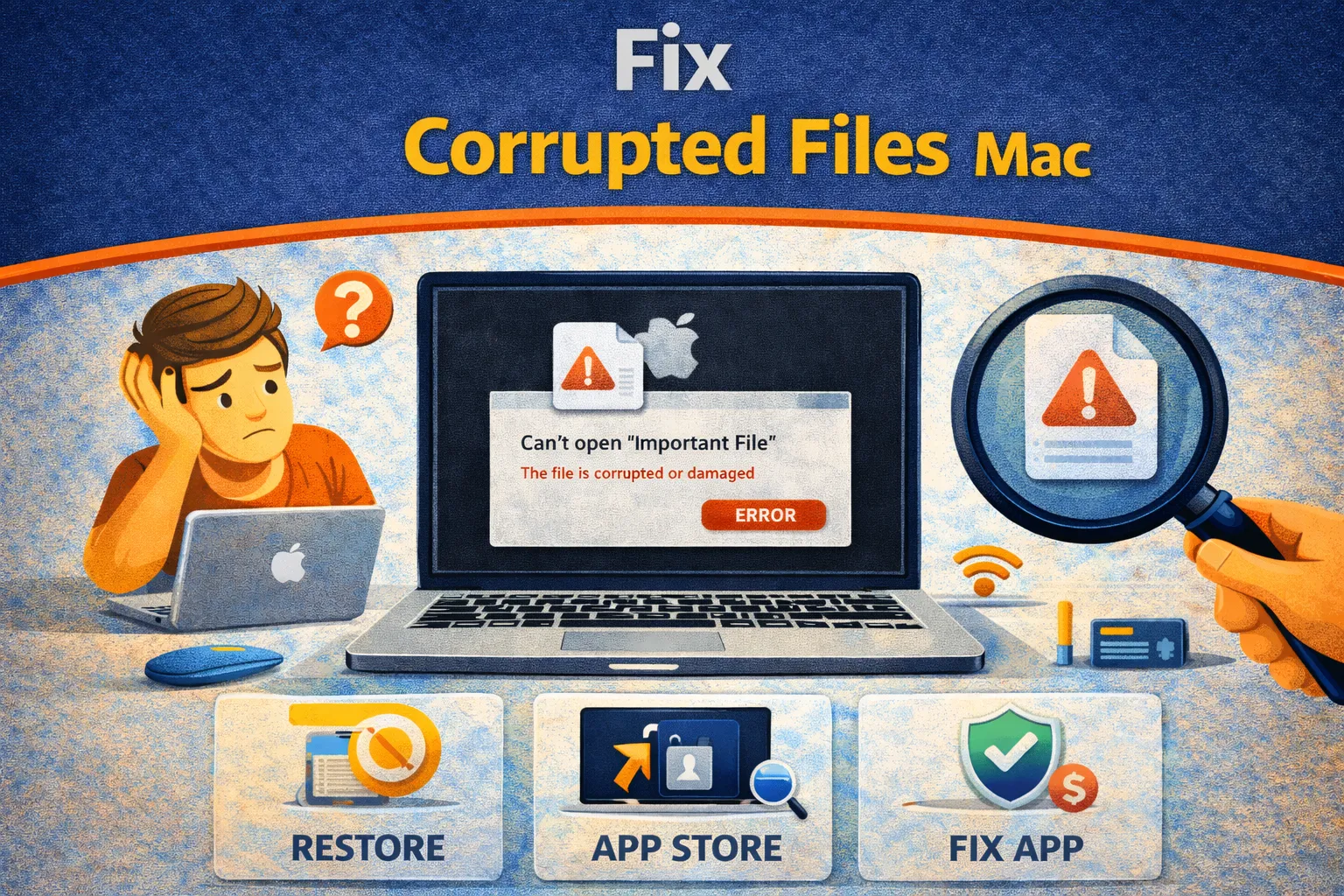
Corrupted files Mac issues are brutal: a document won’t open, a video freezes, or macOS tells you
“The file is damaged and cannot be opened.” The good news is most corrupted files Mac cases are
recoverable—either by extracting readable content, rebuilding the file header/index, or restoring a clean version
from backups. The bad news is clicking the wrong option (like formatting a drive too early) can turn a recoverable
situation into permanent data loss.
This guide provides a practical, low-risk workflow to fix corrupted files Mac problems using
built-in macOS tools, controlled workarounds, and proven third-party utilities. The priority is simple:
preserve the data first, then attempt repair steps in the right sequence.
Quick Fix: Corrupted Files Mac Not Opening
Start here. These steps solve a large portion of corrupted files Mac scenarios in under 2 minutes.
- Duplicate first (non-negotiable): Right-click the file → Duplicate. Work only on the copy.
- Move to internal storage: If the file is on USB/external, drag it to Desktop first. Some “corruption” is actually read-timeouts.
- Try a different app: macOS apps can be strict. Open docs in a second editor, and media in a tolerant player.
- Check file size: If it’s 0 KB, the data was never written—repair is unlikely. If it has a normal size, recovery chances are higher.
- Restore from backup: If you have Time Machine/iCloud/Google Drive versions, restoring a prior version is the cleanest fix.
If the file still won’t open, continue with diagnosis before you attempt deeper repairs. This is how you fix
corrupted files Mac issues without making them worse.
Symptoms Checklist
These are the most common indicators of corrupted files Mac problems:
- Error: “The file is damaged and cannot be opened.”
- Error: “Preview could not open the file because it is empty.”
- File icon becomes a generic white page (thumbnail missing).
- Word/Excel crashes immediately when opening the file.
- Video plays briefly then freezes, glitches, or shows green blocks.
- File size is suspiciously tiny or drastically wrong versus expectations.
Fast Diagnosis Table
| What you see | Likely cause | Best next step |
|---|---|---|
| “Damaged app” warning (apps only) | Gatekeeper / signature block | Open Anyway in Privacy & Security |
| Office file crashes Word/Excel | XML structure damage | Recover text / open with alternate editor |
| Video won’t play in QuickTime | Broken index/header / missing codec | VLC → transcode via HandBrake |
| File disappears / errors copying | File system issue on the drive | Disk Utility First Aid on the disk |
| File opens but content is missing | Partial overwrite / bad save | Restore previous version / backups |
Why Corrupted Files Happen on Mac
Most corrupted files Mac problems are caused by one of these failure modes:
- Interrupted write: App crash, forced shutdown, or battery drop while saving.
- Unsafe external drive removal: Unplugging USB storage during write operations.
- Bad transfer path: Faulty cable/hub causing silent write errors.
- File header/index damage: The “map” that tells apps how to read the file is broken.
- Drive-level issues: Directory corruption on the disk (file is fine, the filesystem path isn’t).
Method 1: Open With a More Tolerant App
Native macOS apps (Preview, QuickTime, Pages) can be strict. A tolerant tool often “reads around” minor corruption.
This alone fixes many corrupted files Mac cases.
- Documents: try opening with TextEdit, LibreOffice, Google Docs (upload), or another editor.
- Videos: open with VLC first. VLC is excellent at handling broken containers and indexes.
- Images: try opening in a browser (Chrome/Safari) which is designed to load imperfect web assets.
Pro move: If you can open it even partially, immediately export or save as a new format. That
rewrites the container and can stabilize corrupted files Mac data.
Method 2: Restore a Clean Version (Time Machine / Cloud Versions)
If the file’s internal structure is scrambled, the only true fix is replacement with a known-good version. This is
the highest success path for corrupted files Mac when you have backups.
- Open the folder where the file lives (Documents/Desktop/etc.).
- Open Time Machine and go back to a timestamp before the corruption happened.
- Select the healthy file and click Restore.
If you use iCloud Drive, OneDrive, Google Drive, or Dropbox, check their “Version history” feature—this is often
faster than deep repair attempts for corrupted files Mac issues.
Method 3: Convert the File to Rebuild the Header
Conversion forces software to rewrite the header/index. That’s why this method is effective for many
corrupted files Mac scenarios.
For documents
- If Word opens it: File → Save As → RTF (keeps text, strips complex formatting that often breaks).
- If Word crashes: upload to Google Docs and attempt export, or open with LibreOffice and re-save.
For images
- If Preview opens it: File → Export → save as JPG/PNG to regenerate a clean file container.
For video/audio
- Use VLC to attempt playback.
- Then use HandBrake to transcode into MP4—this rebuilds indexes and can salvage “unplayable” media.
When your goal is to fix corrupted files Mac media, rebuilding the index is usually the win.
Method 4: Disk Utility First Aid (When the Drive Is the Problem)
Sometimes the file isn’t the issue—the drive’s filesystem is. First Aid repairs the directory structure and can
resolve recurring read/copy errors that look like corrupted files Mac but are actually disk-level
corruption.
- Open Disk Utility.
- Select the disk that stores the file (not just the volume).
- Click First Aid → Run.
- After it completes, try copying the file to internal storage and opening again.
Operational reality: First Aid doesn’t “repair your Word text” or “fix a broken video.” It repairs
the storage map so the system can reliably read the bytes.
Method 5: Photos Library Repair (If the Whole Library Is Corrupted)
If the Photos app library won’t open, the database is corrupted—not necessarily the photos themselves. This is a
common corrupted files Mac edge case.
Photos Library.photoslibrary before running a repair.
- Quit Photos.
- Hold Command + Option and launch Photos.
- Click Repair and wait for the process to complete.
Method 6: Extract What’s Recoverable (Terminal Approach)
If an app refuses to open a document, you can sometimes extract readable content by opening it as raw text or
dumping bytes into a new container. This is not magic—but it can salvage content from certain
corrupted files Mac documents.
- Open Terminal.
- Type
catthen drag the corrupted file into Terminal. - Add
> ~/Desktop/recovered_file.txtthen press Enter. - Open the recovered file and copy any readable text into a clean document.
Data Recovery Escalation (When Repair Doesn’t Work)
If you’re facing recurring corrupted files Mac problems—especially on an external drive—the risk
is that the disk is failing. At that point, the mission changes: extract data before the drive dies.
- Stop repeated open attempts: Repeated reads can accelerate failure on dying drives.
- Copy critical files first: Prioritize business files, photos, and unique documents.
- Use recovery tools if needed: Disk Drill can help recover lost files from failing disks (focus on extraction, not “repair”).
- Consider professional recovery: If the drive clicks or disconnects repeatedly, lab recovery may be the only path.
Prevent Corrupted Files on Mac
- Eject external drives properly: Don’t unplug during writes—this is a top cause of corrupted files Mac issues.
- Avoid cheap hubs/cables: Unstable connections corrupt transfers.
- Keep storage headroom: A nearly full disk increases write errors and file fragmentation risk.
- Use Time Machine: Backups turn a corrupted file incident into a 60-second restore.
- Don’t force quit during saves: Let large exports finish (especially media encoding).
FAQ
Can you fix corrupted files on Mac without backups?
Sometimes. If the file has valid data but a broken header/index, conversion tools (VLC/HandBrake/export) can help.
If data was never written (0 KB) or overwritten with blanks, repair is unlikely. That’s the hard truth of
corrupted files Mac recovery.
Is “damaged app” the same as a corrupted file?
No. That message often comes from Gatekeeper security checks. Use System Settings → Privacy & Security → Open
Anyway for blocked apps.
Does First Aid repair the file itself?
No. First Aid repairs the disk directory structure so macOS can read files reliably. It helps when
corrupted files Mac symptoms are actually drive corruption or bad directory links.
What’s the fastest way to salvage a corrupted video on Mac?
Try VLC first. If it plays, transcode with HandBrake to rebuild the container/index. That workflow is one of the
most reliable ways to handle corrupted files Mac video issues.
Official References
- Apple Support: Restore items using Time Machine
- Apple Support: Repair a storage device in Disk Utility
- Apple Support: Repair your Photos library
- VLC Media Player
- HandBrake Video Transcoder
Conclusion
When you hit corrupted files Mac errors, don’t panic—and don’t start randomly clicking “erase” or
reinstalling everything. Duplicate the file, move it to internal storage, try tolerant apps, convert to rebuild
headers, and use First Aid when the disk is the real culprit. If the file is genuinely scrambled, backups (Time
Machine or cloud version history) are the only guaranteed fix. That’s the straight business logic behind
fix corrupted files Mac: preserve, extract, rebuild, restore.
Visit https://truefixguides.com/ for more.