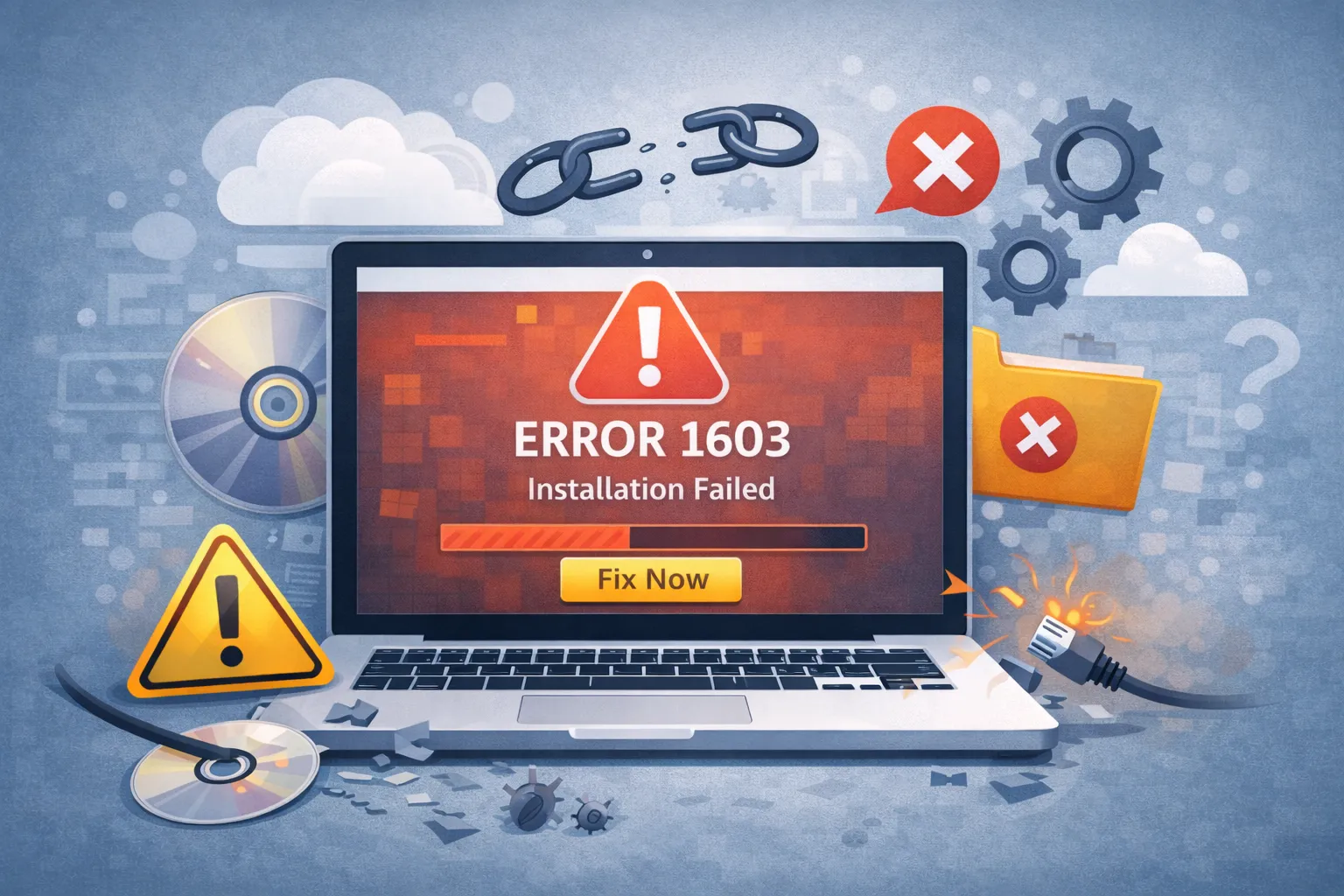
Error 1603: A fatal error occurred during installation is one of the most frustrating roadblocks
you can hit when trying to install or update software on Windows. Whether you are installing a critical driver,
a game, or a productivity tool, this generic Windows Installer error often appears without warning, leaving you
with a half-installed program and no clear explanation. Typically triggered by permissions conflicts, full temp
folders, or a locked installation service, this error is solvable. This definitive guide will walk you through
the proven methods to fix **Error 1603** and get your software installed properly.
Quick Fix (1 minute)
- Restart Your PC: Clear pending file locks and updates.
- Run as Administrator: Right-click the installer and select “Run as administrator”.
- Check Disk Space: Ensure C: drive has at least 10GB free.
- Close Background Apps: Exit browsers and other setups.
Symptoms Checklist
- Pop-up message: “Error 1603: A fatal error occurred during installation.”
- Installation rolls back immediately after reaching 100%.
- Windows Installer service stops unexpectedly.
- Log files show “MainEngineThread is returning 1603”.
Troubleshooting Summary (Fast Diagnosis)
| Symptom | Likely Cause | Best Fix |
|---|---|---|
| Fails on ALL installers | Windows Installer Service broken | Restart Service (Method 1) |
| Fails on ONE app only | Old version conflict / Leftovers | Clean Uninstall (Method 4) |
| “Access Denied” logs | Permission restriction | Grant Full Control (Method 3) |
| Drive full message (false) | Temp folder is corrupt/full | Clean Temp Files (Method 2) |
Why This Happens
The **Error 1603** code is a catch-all “fatal error” from the Microsoft Windows Installer (MSI) engine. It
technically means the installation process terminated prematurely because the engine could not write a required
file or access a specific registry key. This usually happens because the SYSTEM account (which
the installer uses) lacks the necessary read/write permissions for the destination folder, or because the
destination folder effectively doesn’t exist due to encryption or drive mapping issues. It is rarely a hardware
failure. It is almost always a software configuration conflict causing the **Error 1603** loop.
Fix Method 1: Start and Re-register the Windows Installer Service
What this fixes
This reboots the core engine responsible for handling `.msi` installations. If the service is hung or
unregistered, no installation will succeed, leading directly to the **Error 1603** message.
- Press
Win + Ron your keyboard to open the Run dialog. - Type
services.mscand press Enter. - Scroll down the list to find Windows Installer.
- Double-click it. If the Service status is Stopped, click the Start button.
- If it is already Running, click Stop, wait 5 seconds, and click
Start to restart it. - Close the window and try your installation again.
How to verify it worked
Run the installer again. If it proceeds past the initializing phase, the service is working.
If it still fails
You may need to re-register the engine. Open Command Prompt as Admin and run msiexec /unregister
followed by msiexec /regserver.
Fix Method 2: Clean Up Temporary Folders
What this fixes
Installers unpack massive amount of data into your Temp folder. If this folder is full, corrupted, or contains
conflicting files from a previous failed install, **Error 1603** will trigger and stop the install.
- Press
Win + Rand type%temp%. Click OK. - This opens your local Temp folder. Press
Ctrl + Ato select all files. - Press Delete.
- If Windows says a file is “in use,” check the box “Do this for all current items” and click
Skip. - Navigate to
C:\Windows\Tempand repeat the cleanup process (requires Admin rights). - Empty your Recycle Bin.
How to verify it worked
Check that your C: drive has gained free space. Retry the installation.
If it still fails
Ensure your Temp folder isn’t encrypted. Right-click the Temp folder > Properties > Advanced > Uncheck “Encrypt
contents to secure data”.
free up space without verifying.
Fix Method 3: Grant Full Control Permissions
What this fixes
The installer runs as the “SYSTEM” user. If the folder you are installing to doesn’t explicitly allow SYSTEM to
write files, the install fails strictly with **Error 1603**.
- Navigate to the installation target (e.g.,
C:\Program Files (x86)\YourApp). If the folder
doesn’t exist, check the parent folder. - Right-click the folder and select Properties.
- Click the Security tab and then click Edit.
- Select SYSTEM from the list.
- In the “Allow” column, check Full control.
- Repeat this for your own User Account and Administrators.
- Click Apply and OK.
How to verify it worked
The permissions window should show checkmarks next to “Full control” for the SYSTEM account.
If it still fails
Try installing the software to a different directory, such as a new folder on your Desktop, to rule out
permission issues with the Program Files directory.
Fix Method 4: Correct Short File Name Support
What this fixes
Legacy installers or updates might fail if 8.3 filename creation (short file names) is disabled on the drive,
preventing the creation of temporary config paths.
- Press
Win + Xand select Terminal (Admin) or Command Prompt
(Admin). - Type the following command:
fsutil behavior query disable8dot3 - If the result is
1, it is disabled. Type:fsutil behavior set disable8dot3 0 - Press Enter.
- Restart your computer.
How to verify it worked
Run the query command again; it should return 0.
If it still fails
This is a rare cause. If this doesn’t work, revert the setting if you wish (set it back to 1), though leaving it
enabled is generally safe.
Fix Method 5: Repair .NET Framework Dependencies
What this fixes
Many apps rely on the .NET Framework. If the installed framework is corrupted, the app installer cannot hook into
it, causing **Error 1603**.
- Download the official Microsoft .NET Framework Repair Tool.
- Run the tool (
NetFxRepairTool.exe). - Follow the on-screen prompts to scan specific versions.
- Apply the recommended fixes.
- Restart your PC.
How to verify it worked
The tool will report “Changes completed” or “Fixes applied.”
If it still fails
Go to “Turn Windows features on or off” and toggle the .NET Framework 3.5/4.8 checkboxes off and on again to
force a reset.
Prevent This From Happening Again
- Regularly Disk Cleanup: Keep internal drives free of temp junk.
- Run Official Updates: Keep Windows and .NET Framework updated.
- Avoid Registry Cleaners: Aggressive cleaners can delete installer keys.
- Use Default Paths: Avoid installing software to encrypted or external drives.
- Correct Uninstalling: Always use the official uninstaller to remove old versions.
FAQ
What exactly does Error 1603 mean?
It is a generic “fatal error” from Windows Installer. It means the installation stopped because the engine
couldn’t write a file or access a required system resource, usually due to permissions or locks.
Does disabling antivirus fix Error 1603?
Yes, often. Antivirus software can lock the new files the installer is trying to create, causing the write
operation to fail. Temporarily disabling “Real-time protection” is a valid troubleshooting step.
Can I just delete the app folder to uninstall?
No. Deleting the folder leaves registry keys behind. When you try to reinstall, the installer sees those keys,
thinks the app is already there, and fails with **Error 1603**. Always use “Installed apps” in Settings.
Is it safe to change SYSTEM permissions?
Yes, as long as you are only granting “Full control” to the installation folder. Do not change permissions on the
entire C: drive or the Windows folder.
What if I get Error 1603 on a specific game?
For games, this often indicates a missing DirectX or Visual C++ runtime. Try installing the “Redistributables”
found in the game’s installation folder (often in a subfolder named _CommonRedist).
Official References
- Microsoft
Support: Error 1603 – A fatal error occurred during installation - Microsoft: Repair
the .NET Framework - Microsoft:
Free up drive space in Windows
Conclusion
**Error 1603** is an annoying barrier, but it is rarely a sign of a serious system failure. By systematically
ensuring the Windows Installer service is running, clearing your full Temp folders, and verifying that the
SYSTEM account has write access, you can resolve the majority of these cases. Always remember to restart your PC
before attempting a reinstall—it clears the file locks that cause 50% of these errors.
Visit https://truefixguides.com/ for more.