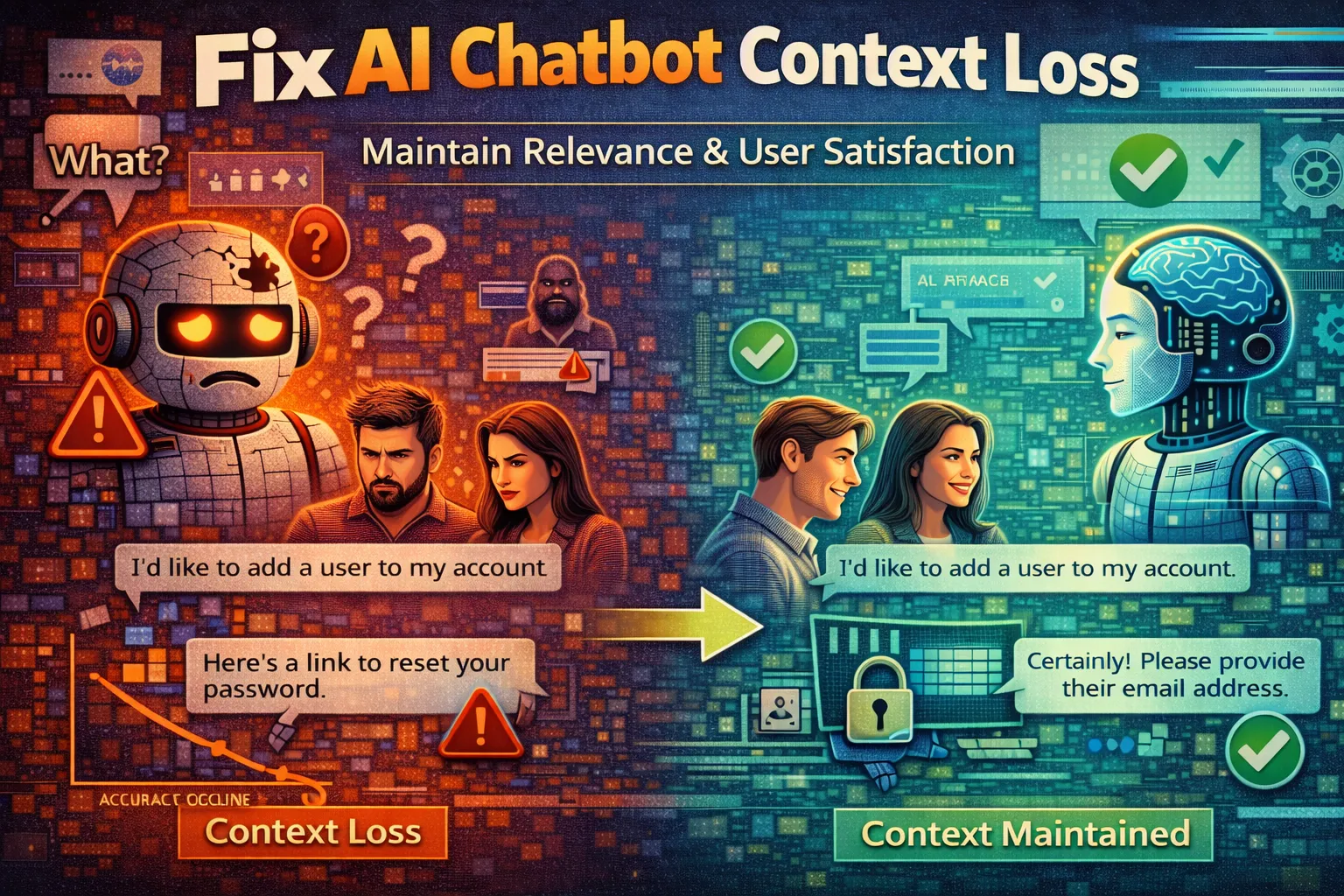
You’re deep in a complex conversation with your AI assistant, refining code or brainstorming a project, when suddenly it starts giving generic answers or forgets crucial details you established minutes ago. This frustrating phenomenon is AI chatbot context loss — where the model fails to maintain the thread of your conversation.
AI chatbot context loss breaks workflow, wastes time, and undermines trust in the tool. It typically happens when the dialogue exceeds the AI’s memory buffer or due to specific technical glitches.
This guide details six critical, actionable fixes — from immediate refreshes to strategic settings adjustments — to combat AI chatbot context loss and restore a coherent, productive dialogue.
What Causes AI Chatbot Context Loss?
Effectively solving AI chatbot context loss starts with understanding its root causes. It’s rarely random — specific technical limits and user actions trigger it.
- Exceeding the Context Window: Every AI model has a fixed context window (e.g., 128K tokens). Once your chat’s length surpasses this limit, the oldest messages are silently dropped to make room for new ones — the most common cause of AI chatbot context loss in long conversations.
- Session Timeouts or Resets: Prolonged inactivity can cause the server-side session to expire. When you resume chatting, the AI works with a fresh, empty context instead of reloading the previous state, causing a sudden AI chatbot context loss of all prior information.
- Platform Bugs or Glitches: Temporary bugs in the web interface or app can corrupt the session data sent to the AI’s backend. The model receives an incomplete or malformed context, triggering AI chatbot context loss even in conversations that haven’t reached the window limit.
- Improper Use of Threads/Conversations: Accidentally starting a “new chat” instead of continuing the existing one severs the context chain entirely. This form of AI chatbot context loss leaves the model with a completely blank slate, discarding all prior dialogue.
Identifying which scenario matches your experience is the first step to applying the correct fix for your AI chatbot context loss below.
Fix 1: Perform a Hard Refresh and Context Reset
This is your first and fastest line of defense against AI chatbot context loss. It clears local browser glitches and forces the AI platform to re-fetch the latest conversation state from its servers, often resolving temporary session corruption immediately.
- Step 1: Press Ctrl + F5 (Windows/Linux) or Cmd + Shift + R (Mac) in your browser. This performs a “hard refresh,” bypassing the local cache that may be contributing to session corruption. You can verify this shortcut in Chrome’s official keyboard shortcuts guide.
- Step 2: In the chat interface, locate the option to “Reset Chat” or “Clear Context” — often in the settings menu (⋮) or at the bottom of the sidebar. This clears any corrupted session state.
- Step 3: After resetting, manually re-paste the last 2–3 critical messages from your chat history into a new message. This explicitly re-establishes the immediate context and is the fastest way to restore the conversation after a session reset.
- Step 4: Ask the AI a direct question based on the repasted context, like “Based on the code above, what is the next step?” This tests whether the fresh context is being recognized correctly.
You should see the AI responding accurately to the newly provided context. If AI chatbot context loss persists, the issue is deeper than a client-side glitch — proceed to Fix 2.
Fix 2: Manually Re-Provide Core Context
When the AI’s internal memory buffer is overloaded or corrupted, you must become its external memory. This fix directly addresses AI chatbot context loss by manually rebuilding the conversation’s foundation for the model in a clean session.
- Step 1: Scroll back in your chat history and identify the 3–5 most critical pieces of information — the project goal, key code snippets, and specific rules you set. These are the minimum facts needed to rebuild a usable context.
- Step 2: Open a text editor and create a concise summary. Format it clearly: “Project: Build a login form. Rules: Use React hooks, no classes. Current Issue: State not updating on submit.”
- Step 3: In a brand new chat window, paste this summary as your very first message. Preface it with a command like: “Here is the context for our conversation: [paste summary].” This bypasses the broken context chain causing your AI chatbot context loss.
- Step 4: Immediately ask your next question or give your next instruction related to that context. This anchors the AI in the correct information from the start, establishing a solid foundation for the rest of the conversation.
This method bypasses the broken context chain entirely. The AI will now operate with the explicit context you provided. Use this for mission-critical conversations where AI chatbot context loss cannot be tolerated.
Fix 3: Check and Manage Your Conversation Length
This is a proactive and diagnostic fix for AI chatbot context loss. You determine whether you’ve simply hit the hard technical limit of your AI’s context window — the most common cause of persistent memory loss in long chats.
- Step 1: Estimate your chat length. A very long, detailed conversation spanning many hours or days is likely pushing the context window limit and triggering AI chatbot context loss as the oldest messages are silently dropped. You can measure token usage with OpenAI’s official tokenizer tool.
- Step 2: Strategically start a new chat thread. Begin by asking the AI to summarize the key points from the previous long conversation. Copy that summary as your bridge to maintain continuity across sessions.
- Step 3: In another new chat, paste the AI-generated summary as the foundational context (similar to Fix 2). This condenses hours of dialogue into a digestible context block that fits well within the window.
- Step 4: For future chats, adopt a “modular” approach. Start a new chat for each major sub-topic or project phase, using a summary from the previous phase as the starter context to prevent memory from accumulating past the window limit.
By consciously managing conversation length, you work within the AI’s limits instead of fighting them. This prevents AI chatbot context loss before it happens and keeps dialogues focused and effective.
Fix 4: Switch to a Dedicated AI App or Client
This fix targets AI chatbot context loss caused by browser instability, memory leaks, or restrictive sandboxing. Dedicated desktop or mobile apps often have more robust session management and direct API access, providing a more stable environment for long conversations.
- Step 1: Check if your AI service (like ChatGPT, Claude, or Copilot) offers an official desktop or mobile application. Download it directly from the official app store or the provider’s website.
- Step 2: Install and log into the application using the same account credentials you use on the web. Your conversation history should sync from the cloud, restoring any threads that appeared lost in the browser.
- Step 3: Locate your ongoing conversation in the app’s chat history sidebar and open it. Confirm the full thread is loaded before continuing.
- Step 4: Continue your conversation within the application. Observe whether the AI now maintains context over extended interactions without the random resets that appeared in the browser.
Success means your dialogue flows smoothly without random resets. The app’s dedicated resources often prevent the session corruption that triggers AI chatbot context loss in web browsers.
Fix 5: Audit and Disable Conflicting Browser Extensions
A hidden but common cause of AI chatbot context loss is browser extensions. Ad-blockers, script blockers, and privacy cleaners can inadvertently break the web app’s ability to manage your chat session, causing sudden context drops with no obvious error.
- Step 1: In your browser, navigate to the extensions management page (e.g., chrome://extensions for Chrome). You’ll find all installed extensions listed here.
- Step 2: Disable all extensions except essential security tools. Pay special attention to ad-blockers, script blockers (like NoScript), privacy cleaners, and any AI-powered helper extensions that may interfere with session management.
- Step 3: Perform a hard refresh (Ctrl+F5 or Cmd+Shift+R) on your AI chatbot’s webpage to reload it in a clean state. This is the fastest way to isolate whether an extension is responsible for your session failures.
- Step 4: Test your conversation again. If context is maintained, re-enable extensions one by one, testing after each, to identify the specific conflict causing your AI chatbot context loss.
You’ve successfully identified the culprit if AI chatbot context loss stops after disabling extensions. This isolates the issue from the core service, letting you maintain a clean environment for AI work on that site.
Fix 6: Clear Site Data and Reset Permissions
This is a deep-clean fix for persistent AI chatbot context loss caused by session corruption. Corrupted cookies, local storage, or incorrect site permissions can prevent the chatbot website from saving your conversation state correctly.
- Step 1: Go to your browser’s Settings, find Privacy & Security, and navigate to “Cookies and site data” or “Site Settings.” This is where corrupted data that causes persistent session failures is stored. Google’s guide on deleting cookies in Chrome walks through each option in detail.
- Step 2: Use the “See all site data and permissions” option. Search for and select your AI chatbot’s domain (e.g., chat.openai.com).
- Step 3: Click “Clear data” for that specific site. This removes all locally stored cookies, cache, and session data — the most thorough way to eliminate storage-level session corruption — without affecting other websites.
- Step 4: While still on the site’s permission page, ensure that permissions for “Cookies,” “JavaScript,” and “Site Data” are set to “Allow.” Then close and fully restart your browser before logging back in.
Logging back in will establish a fresh, clean session. This often resolves deep-seated glitches that cause AI chatbot context loss, as you’ve wiped the corrupted local data that was sabotaging context retention.
When Should You See a Professional?
If you have methodically applied all six fixes and still experience consistent AI chatbot context loss across multiple devices and browsers, the issue likely transcends user-side troubleshooting.
This pattern strongly indicates a problem with your specific user account on the provider’s backend — such as a corrupted profile, a flagged account, or a systemic bug affecting a subset of users. Signs that warrant contacting support include AI chatbot context loss occurring in the first message of every new chat, errors stating your account is “unable to load history,” or other users reporting no issues on the same platform simultaneously.
In this case, contact the AI service’s official support team directly through their help center, providing detailed logs and examples of the AI chatbot context loss failure for the fastest resolution.
Frequently Asked Questions About AI Chatbot Context Loss
Does clearing my browser history cause my AI to forget our chat?
Yes, clearing cookies and site storage for the AI’s website will remove the local record of your chat history, which can cause apparent AI chatbot context loss in the browser UI. However, your conversation should still be saved on the AI provider’s servers under your account.
To restore it, manually find and re-open the specific chat thread from your account’s history sidebar after logging back in. The AI model retains the context from that saved thread once it’s loaded, so the AI chatbot context loss is only in the local display, not in the server-side memory.
Why does my AI chatbot keep losing context only on my phone?
AI chatbot context loss isolated to a mobile device typically points to aggressive power-saving settings or unstable network conditions. Your phone’s OS may be putting the chatbot app or browser tab to sleep in the background, forcibly terminating its active session to save battery.
Additionally, switching between Wi-Fi and mobile data can cause a brief connection drop that the app interprets as a session timeout. To fix this, disable battery optimization for the AI app in your phone’s settings and ensure a stable connection before starting long, complex dialogues.
Is there a way to increase my AI’s context window limit?
No, you cannot increase the fundamental context window limit as an end-user — it is a fixed architectural parameter of the specific model set by the developer. Your only recourse is to switch to a service tier that advertises a larger context window. Some providers offer “128K context” models versus standard 8K or 32K versions. You can compare current model context lengths on OpenAI’s official models page.
The practical workaround for AI chatbot context loss from window limits is to manage your input by summarizing past conversations and starting new chats strategically, creating your own larger, curated context block that stays within the window.
Can using multiple AI chatbots in different tabs cause context loss?
Yes, running multiple intensive AI sessions across different browser tabs can contribute to AI chatbot context loss. Each tab runs a separate instance of the web application, competing for your computer’s RAM and the browser’s storage quotas. If resources are stretched thin, one or more tabs may fail to properly save session data.
This is especially likely if you’re using the same service across multiple tabs, as they may conflict over local storage keys. Using dedicated apps or spacing out intensive sessions can mitigate this form of memory failure caused by resource contention.
Conclusion
Ultimately, combating AI chatbot context loss requires a blend of immediate troubleshooting and strategic habit changes. We’ve walked through resetting your session, manually rebuilding context, managing conversation length, switching to stable apps, auditing browser extensions, and performing a deep clean of site data.
Each method addresses a different root cause — from hitting technical limits to resolving local software conflicts. By understanding the “why” behind the memory loss, you can apply the precise fix and restore a productive, coherent dialogue.
Start with the simplest refresh and work your way through these proven solutions. Share which fix resolved your AI chatbot context loss in the comments below, or pass this guide to a colleague struggling with the same frustration.
Visit TrueFixGuides.com for more.