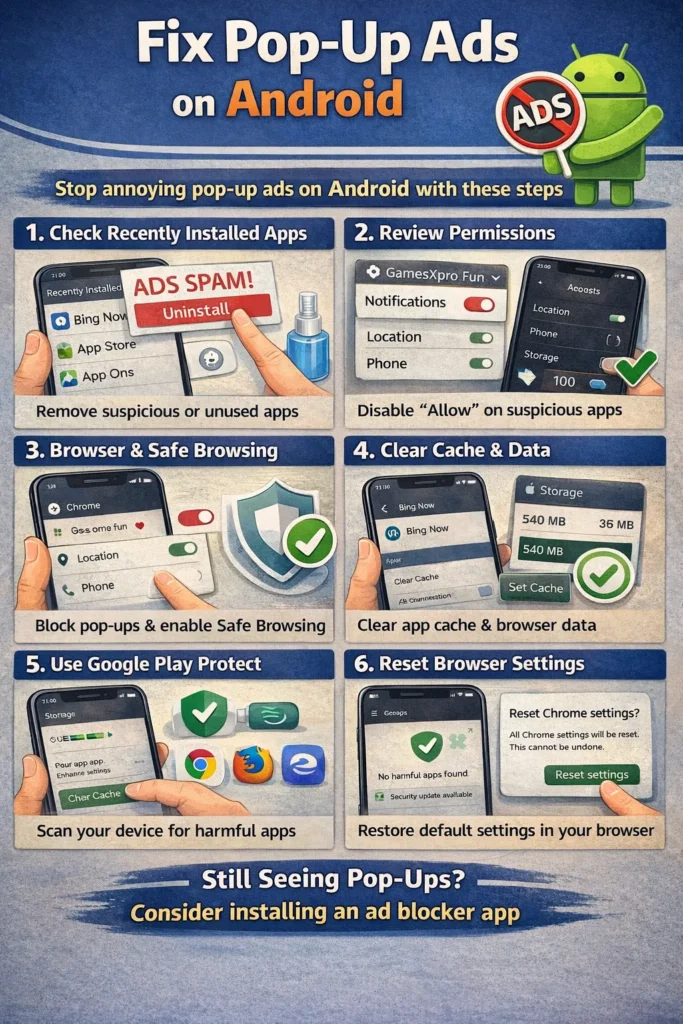
If you need to fix android virus problems because your phone is acting strangely—overheating, draining battery instantly, sending unauthorized messages,
or bombarded with pop-ups—you likely have an infection. While “virus” is the common term, these are usually
Trojans, Ransomware, or Spyware designed to steal your data or generate revenue for hackers. This guide provides
the definitive step-by-step procedure to remove malicious software, secure your device, and fix android virus issues permanently.
Quick Fix to Fix Android Virus (1 minute)
Neutralize the virus immediately with these emergency steps to fix android virus:
- Isolate the Device: Turn on Airplane Mode immediately to stop the virus
from sending data to hackers. - Enter Safe Mode: Hold Power > Long-press “Power Off” > Tap “Safe Mode”. This stops
the
virus from running. - Revoke Admin Access: Go to Settings > Security > Device Admin Apps. Turn OFF any app
you
don’t recognize. - Uninstall Malicious Apps: In Settings > Apps, look for unfamiliar apps or those with
blank
icons and uninstall them. - Play Protect Scan: Open Play Store > Tap Profile > Play Protect > Scan.
Safe Mode is your most powerful weapon; if the phone works fine in Safe Mode, the problem is 100% a downloadable
app you can remove.
Symptoms Checklist
Confirm if you truly need to fix android virus infections by checking for these signs:
- Battery drains uncontrollably even when idle
- Data usage spikes (GBs used overnight)
- “System Update” notifications that lead to shady websites
- Apps crash constantly or phone freezes
- New icons appear on your home screen automatically
- Your contacts report receiving spam SMS links from you
- You see ransom notes demanding payment to unlock files
- Google/Facebook accounts notify you of unauthorized logins
Troubleshooting Summary (Fast Diagnosis)
Use this summary table to identify the malware type and the best tool to fix android virus symptoms quickly.
| Symptom | Virus Type | Best Fix |
|---|---|---|
| Unstoppable Ads | Adware | Uninstall recent free apps / Browser Reset |
| Locked Screen / Ransom | Ransomware | Boot Safe Mode + Removing Admin Rights |
| Stolen Passwords / SMS | Spyware / Trojan | Factory Reset + Change Passwords |
| Phone sends premium SMS | Billing Fraud Malware | Check “Premium SMS” permissions |
| Fake “Virus Detected” Alert | Scareware (Browser) | Close Browser Tab + Clear Cache |
Why This Happens
Android viruses almost always enter your phone because of “Sideloading.” This means installing
apps from websites instead of the Google Play Store. Hackers take popular paid games or tools (like Minecraft or
Spotify), inject malicious code into them, and offer them for “free” on third-party sites. Understanding this vector is key to help you fix android virus attacks and prevent future ones.
Another common vector is “Smishing” (SMS Phishing). You receive a text saying “Package delivery
failed, click here,” which downloads a Trojan. Unlike iPhones, Android allows users to install software freely,
which gives you freedom but also responsibility. If you disable the “Install Unknown Apps” security block, you
open the door to infection.
Fix Method 1: Boot into Safe Mode (The Diagnostic Tool)
What This Fixes to Fix Android Virus
Safe Mode disables all third-party applications. If the virus stops working in Safe Mode, you know it is a
removable app and not a system failure. This is the primary diagnostic step to fix android virus glitches.
- Press and hold the Power button.
- On the screen, press and hold the Power Off icon.
- A “Reboot to Safe Mode” prompt will appear. Tap OK.
- The phone will restart. You will see “Safe Mode” in the bottom corner.
- Use your phone. If the glitches, heating, and ads stop, proceed to Method 2 immediately.
How to verify it worked
The phone behaves normally. This confirms the virus is dormant and can now be uninstalled safely.
Fix Method 2: Identify and Uninstall the Malicious App
What this fixes
Manually removing the source of the infection. In Safe Mode, the virus cannot protect itself, making this the most direct way to fix android virus payloads.
- Go to Settings > Apps (or Manage Apps).
- Set the filter to “Last Used” or “Recently Installed.”
- Look for:
- Apps you don’t remember installing.
- Apps with No Name and No Icon (Ghost Apps).
- Apps mimicing system tools (e.g., “System Color,” “Update Fix”).
- Tap the suspect app.
- Tap Uninstall.
How to verify it worked
Restart the phone to exit Safe Mode. If the symptoms are gone, you found the culprit.
If it still fails
If the “Uninstall” button is greyed out, the virus has granted itself Administrator privileges. Go to Method 3.
Fix Method 3: Revoke Device Administrator Access
What this fixes
Advanced viruses give themselves “Admin” rights to prevent uninstallation. You must revoke this right to fix android virus locks on your settings.
- Go to Settings.
- Search for “Device admin apps” (found under Security or Privacy).
- You will see a list of apps with high-level control (usually ‘Find My Device’ and ‘Google Pay’).
- If you see a random app here (like ‘Flashlight’ or ‘Calculator’), it is the virus.
- Tap the switch to turn it OFF.
- Tap Deactivate this device admin app.
- Now go back to Settings > Apps and uninstall it. It will no longer be locked.
Fix Method 4: Scan with Google Play Protect
What this fixes
Google’s built-in antivirus scans billions of apps daily and can retroactively detect and fix android virus threats on your phone.
- Open the Google Play Store.
- Tap your Profile Picture (top right).
- Tap Play Protect.
- Tap Scan.
- If it finds a harmful app, it will alert you and offer to disable/uninstall it.
How to verify it worked
The scan completes and says “No harmful apps found.” If it found something, it is removed.
Fix Method 5: Use a Reputable Mobile Antivirus
What this fixes
Third-party scanners catch things Play Protect might miss. This is an essential step to scan and fix android
virus variants like adware or spyware.
- Download Malwarebytes, Bitdefender, or Sophos Intercept X
from the Play Store. - Do not download generic “Cleaner” or “Booster” apps—they are often fake.
- Run a Full System Scan (Deep Scan).
- Allow the app to quarantine or remove threats.
- Once the virus is gone, you can uninstall the antivirus if you want to save battery.
Fix Method 6: Clear Browser Hijackers
What this fixes
If your “virus” is just constant redirect ads in Chrome, it’s a browser infection. Cleaning the cache is the effective way to fix android virus redirects.
- Open Settings > Apps.
- Find Chrome (or your browser).
- Tap Storage & Cache.
- Tap Clear Storage (or Manage Space) > Clear All Data.
- This wipes all tabs, cookies, and cached redirects.
before clearing data.
Fix Method 7: Factory Reset (The Nuclear Option)
What this fixes
If the virus is deeply embedded (rootkit) or you cannot find it, a Factory Reset is the final resort to fix android virus corruption.
- Back up strictly data: Photos (Google Photos) and Contacts. Do NOT back up
Apps. - Go to Settings > System > Reset Options.
- Tap Erase all data (factory reset).
- Confirm with PIN.
- The phone will reboot as if new.
- Critical: During setup, when asked to “Restore from Backup,” choose SET UP AS NEW
DEVICE. If you restore an old backup, you might reinstall the infected app.
How to verify it worked
The virus is physically erased. Your phone is 100% clean.
Prevent This From Happening Again
- Stop Sideloading: Keep the “Install unknown apps” setting turned OFF to avoid needing to fix android virus damage later.
- Verify Permissions: If a Calculator app asks for “Access to Contacts and SMS,” deny it and
uninstall it. - Update Android: Keep your security patches up to date (Settings > Security > Update).
Old
phones are easier to hack. - Use 2FA: Enable Two-Factor Authentication on your Google Account so even if a Keylogger
steals your password, they can’t login. - ignore “Virus” Pop-ups: Never download an app that a website tells you to download.
FAQ
Can a virus survive a Factory Reset on Android?
In 99.9% of cases, No. A factory reset wipes the user partition where viruses live. However, extremely rare,
state-level malicious firmware (xHelper trojan) can embed itself in the system partition. If a reset doesn’t fix
it, the phone’s hardware/firmware is compromised and should be replaced.
Do I need to pay for Antivirus on Android?
No. The free versions of Malwarebytes or Bitdefender are sufficient to scan and fix android virus
infections. Paid versions usually just offer “Real-time protection” (monitoring in background) and VPNs, which
you may not need if you are careful.
How did I get a virus?
The most likely cause is downloading a “Cracked” or “Mod” version of a paid app/game. Hackers bundle malware into
these free downloads. Alternatively, you clicked a link in a spam text message (Smishing) that auto-downloaded a
malicious APK.
Can an Android virus steal my bank info?
Yes. Banking Trojans (like Cerberus or Hydra) impose a fake login screen over your real banking app. When you
type your password, they steal it. If you suspect this, call your bank immediately from a different
phone to freeze accounts.
Why is my phone hot?
Malware often runs heavy tasks in the background, like mining cryptocurrency (Cryptojacking) or uploading your
data. This maxes out your CPU, causing the phone to heat up and the battery to die in hours.
Official References
- Google Help – Remove Malware
- Malwarebytes Android Security Blog
- Verizon
– How to remove virus from Android
Conclusion
The process to fix android virus infections is strictly a matter of isolation and removal. By using Safe Mode, you strip the virus
of its defenses, allowing you to uninstall even the most stubborn malware. Remember, protecting your phone is
active work: stick to the Google Play Store, question every permission request, and never trust a website that
claims your phone is infected.
Visit https://truefixguides.com/ for more.