To fix blurry photos from iPhone to Android, you need to understand that the “Green Bubble” problem is legendary.
For years, sending a photo or video from an iPhone to an Android device
(or vice versa) resulted in a blurry, pixelated mess. While iPhone-to-iPhone transfers use high-quality iMessage
data, cross-platform messages traditionally rely on outdated MMS technology from the 1990s, which aggressively
crushes image quality. This guide explains how to fix blurry photos from iPhone to Android using modern settings
like RCS, specialized apps, and cloud sharing tricks in 2025.
How to Fix Blurry Photos from iPhone to Android: Quick Solution
Stop the blur instantly with these solutions to fix blurry photos from iPhone to Android:
- Enable RCS on iPhone (iOS 18+): Settings > Apps > Messages > Turn ON “RCS Messaging”. This
is the permanent fix to fix blurry photos from iPhone to Android. - Use WhatsApp / Telegram: Send media via these apps instead of standard SMS/MMS.
- Send via Link: Upload to Google Photos or iCloud and text the share link instead of the
file. - Send as Document: In WhatsApp, attach the photo as a “Document” to force uncompressed
transfer. - Email It: For single high-res photos, email is still reliable (select “Actual Size”).
The arrival of RCS on iPhone is the game-changer, but knowing alternative methods ensures you can always share
crystal-clear content.
Recognize the Symptoms of Blurry Photo Transfer Issues
Confirm you are suffering from the “MMS Compression” curse:
- Photos look sharp on the sender’s phone but pixelated on the receiver’s.
- Videos arrive as tiny, postage-stamp-sized squares that are unwatchable.
- Images have visible “blocky” artifacts (JPEG compression).
- Zooming in reveals zero details (smudged faces).
- File size dropped from 5MB (original) to 40KB (received).
Troubleshooting Summary (Fast Diagnosis)
| Symptom | Likely Cause | Best Fix |
|---|---|---|
| Blurry text messages | MMS Protocol Limits | Enable RCS or use WhatsApp |
| Video is tiny/pixelated | Carrier File Size Limit | Use Google Photos Link |
| Blurry in WhatsApp Status | WhatsApp Compression | Upload High Quality Status settings |
| Blurry in Facebook Messenger | “Data Saver” Mode | Turn off Data Saver in settings |
| One specific contact is blurry | Their RCS is OFF | Ask them to enable RCS |
Understanding Why This Happens
Traditionally, iPhones communicate with other iPhones using iMessage (Blue Bubbles), which uses
internet data to send large, high-quality files. Android phones communicate with other Androids using
RCS (Rich Communication Services), which does the same.
However, when an iPhone sends a file to Android, the system falls back to MMS (Multimedia Messaging
Service) to ensure compatibility. MMS is archaic technology. Carriers limit MMS file sizes to
roughly 1MB or even 300KB. Your 12-megapixel photo (5MB) must be crushed by 95% to fit through this tiny pipe,
resulting in the blurry, blocky potato quality you see. The fix is to bypass MMS entirely.
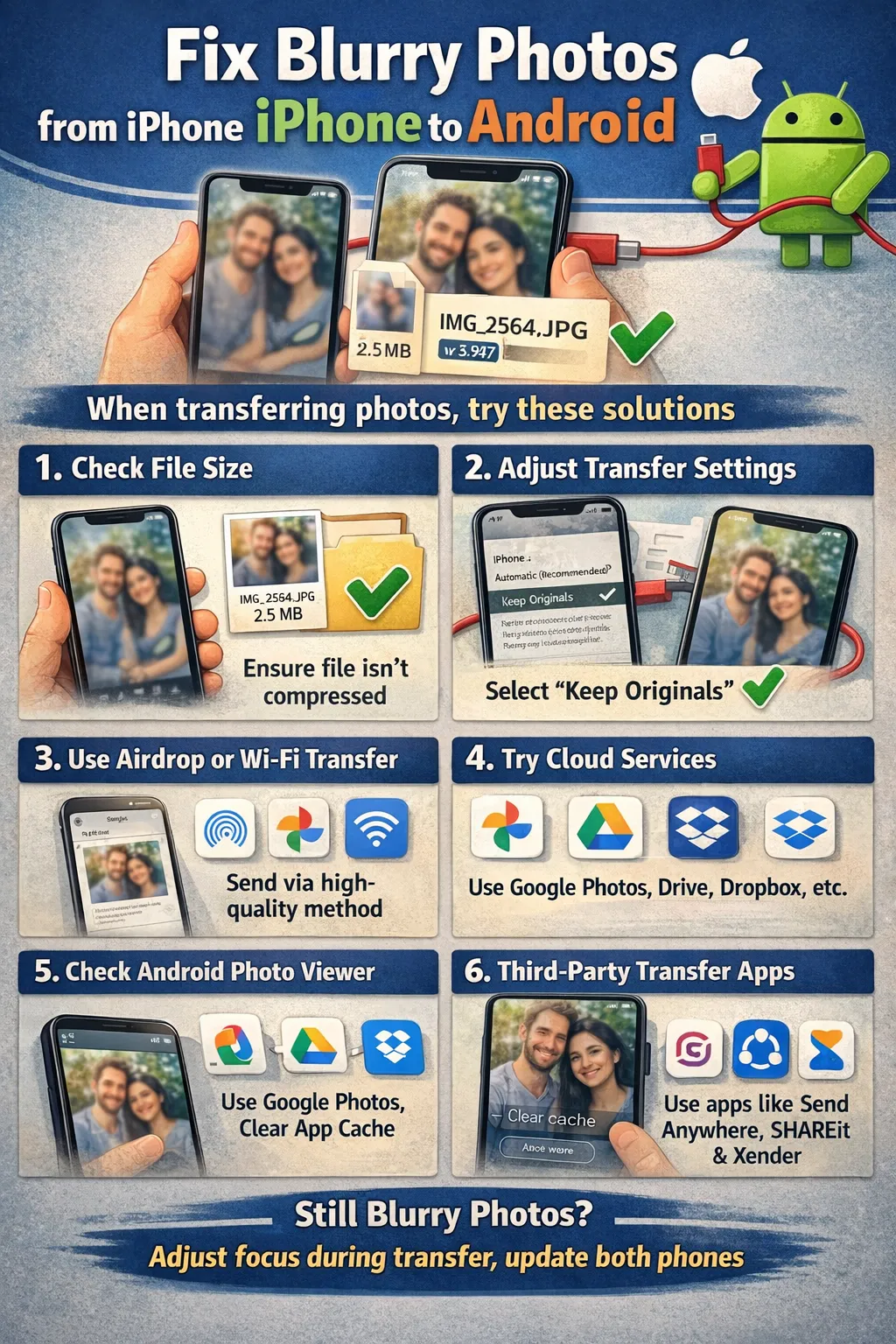
Fix Method 1: Enable RCS Messaging (The Permanent Fix)
What This Method Fixes for Blurry Photo Transfer
With iOS 18, Apple finally supports RCS. This aligns iPhone messaging standards with Android, allowing high-res
photo and video sharing natively in the messaging app. This is one of the best ways to fix blurry photos from
iPhone to Android permanently.
- On the iPhone User’s Device:
- Open Settings.
- Scroll down to Apps (or search).
- Tap Messages.
- Scroll to “Text Messaging” section.
- Toggle RCS Messaging to ON.
- On the Android User’s Device:
- Open Google Messages.
- Tap Profile Picture > Messages settings.
- Tap RCS chats.
- Ensure Turn on RCS chats is ON and status says “Connected”.
How to Verify RCS is Working
When you text each other, the text input box should say “RCS message” or “Text Message – RCS” instead of just
“Text Message” or “MMS”. Photos sent now will look identical to the original.
Fix Method 2: Use WhatsApp (High Quality Mode)
What WhatsApp High Quality Mode Fixes
WhatsApp is the global standard for cross-platform messaging. It sends media over data, bypassing carrier MMS
limits and helping to fix blurry photos from iPhone to Android.
- Open WhatsApp on either phone.
- Open the chat with the other person.
- Crucial Step: Configure upload quality first.
- Go to Settings > Storage and Data > Media Upload Quality.
- Select HD Quality or “Best Quality” (depending on version).
- When sending a photo, tap the HD icon at the top of the screen before hitting send.
Verify WhatsApp HD Transfer
The photo will have a small “HD” tag in the chat corner. It will be crisp and clear on the receiving Android
device.
Fix Method 3: Send as a “Document” (Zero Compression)
What Document Mode Fixes
Even “HD” mode adds some compression. Sending an image as a “file/document” transfers the raw bytes exactly as
they are on the drive. This is another reliable method to fix blurry photos from iPhone to Android.
- Open WhatsApp or Telegram.
- Instead of tapping “Gallery,” tap the Paperclip (Attachment) icon.
- Select Document.
- Browse and select your image file (JPG/HEIC/PNG).
- Send.
Verify Document Transfer Success
The recipient receives a file download (e.g., “IMG_2025.jpg”) rather than a preview image. When they open it, it
is the exact original resolution.
Fix Method 4: Google Photos Link Sharing (Best for Videos)
What Google Photos Link Sharing Fixes
Video files are too big even for WhatsApp. Cloud linking allows you to share 4K videos without losing a single
pixel. This method is essential when you need to fix blurry photos from iPhone to Android with large file sizes.
- Open Google Photos on the sender’s phone (iPhone or Android).
- Select the photos/videos you want to share.
- Tap the Share icon.
- Select Create Link.
- Wait for the link to copy to clipboard.
- Paste this link into your text conversation.
Verify Link Sharing Works
The recipient clicks the link and views the high-res gallery in their own Google Photos app. They can “Save to
Library” at full original quality.
Fix Method 5: Use “Send Anywhere” (AirDrop Alternative)
What Send Anywhere Fixes
If you are standing next to each other, you can transfer massive files instantly without using the internet or
slow Bluetooth.
- Install Send Anywhere on both iPhone and Android.
- On Sender: Select photos > Tap Send. A 6-digit code appears.
- On Receiver: Tap Receive > Enter the 6-digit code.
- The transfer occurs over Wi-Fi Direct (or local data), preserving 100% quality.
Verify Send Anywhere Transfer Quality
Check the file details (Info) on the receiving phone. The file size (e.g., 4.5MB) should match the sender’s file
size exactly.
Fix Method 6: Change iPhone Formats (HEIC to JPEG)
What Changing iPhone Photo Format Fixes
Sometimes Android Gallery apps struggle to display Apple’s efficient HEIC format clearly, or convert it poorly.
Changing to JPEG format can help fix blurry photos from iPhone to Android caused by format incompatibility.
- On iPhone: Settings > Camera.
- Tap Formats.
- Select Most Compatible. This forces the camera to save as standard JPEG.
- This ensures maximum compatibility when sharing files natively to non-Apple devices.
Verify JPEG Format Change
Future photos will be saved as .jpg. They are universally compatible and less likely to suffer conversion errors
during transfer.
Fix Method 7: Telegram (The Compression King)
What Telegram’s Uncompressed Mode Fixes
Telegram allows sending files up to 2GB. It is far superior to standard texting for sharing albums and is an
excellent alternative to fix blurry photos from iPhone to Android.
- Open Telegram chat.
- Tap Attachment > Select Photos.
- Tap the three dots > Send without compression.
- This sends the raw file instantly.
Prevent Blurry Photo Issues From Happening Again
Following these prevention strategies will help you permanently fix blurry photos from iPhone to Android and
avoid future quality loss:
- Move to Signal/WhatsApp/Telegram: Convince your close circle to use a data-based messenger
for group chats. - Use Shared Albums: Create a “Family Shared Album” in Google Photos where everyone dumps
their high-res pics. - Never MMS Video: Make a rule to never text a video file directly. Always use a link.
- Check Carrier Settings: Ensure your “MMS Messaging” is toggled ON in iPhone settings, or
you won’t receive pictures at all.
Frequently Asked Questions
How can I fix blurry photos from iPhone to Android without using third-party apps?
The best native solution is to enable RCS Messaging on iOS 18 or later. Go to Settings > Apps > Messages and turn
ON “RCS Messaging”. This allows high-quality photo transfers directly through the messaging app without relying
on outdated MMS technology.
Why does iPhone video look terrible on Android?
This is purely due to carrier MMS limits. Carriers often cap video messages at 1MB-3MB. A 10-second 4K video is
50MB+. To fit it, the phone destroys the quality, reducing resolution to 144p and frame rate to 10fps. The same
methods used to fix blurry photos from iPhone to Android also work for videos—use cloud links or data-based
messaging apps.
Is RCS free on iPhone?
Yes. RCS uses your internet data (Wi-Fi or Cellular) just like iMessage. It does not count against SMS/MMS limits
(though most plans are unlimited anyway). It requires iOS 18 or later.
Can I AirDrop from iPhone to Android?
No. AirDrop is proprietary Apple technology. The closest universal alternative is “Quick Share” (Android to
Android) or utilizing third-party apps like “Send Anywhere” or “LocalSend” which work cross-platform.
Does email preserve photo quality?
Yes, mostly. When you attach a photo in iOS Mail, it asks “Small, Medium, Large, or Actual Size.” Choosing
“Actual Size” sends the full-res image. However, emails have a 25MB attachment limit, so you can only send 3-5
photos at a time. Email is a simple way to fix blurry photos from iPhone to Android for single or small batches
of images.
Official References
- Apple Support –
Share Photos and Videos - Google Messages – Learn about RCS Chats
- WhatsApp Help – Sending HD Photos
Conclusion: Fix Blurry Photos from iPhone to Android Today
The era of blurry iPhone-to-Android photos is ending thanks to RCS on iOS 18. If you want to fix blurry photos
from iPhone to Android permanently, enabling this single setting
bridges the gap between the two worlds. Until everyone updates, using WhatsApp “HD” mode or Google Photos links
remains the most reliable way to share memories with the clarity they deserve.
Visit https://truefixguides.com/ for more.