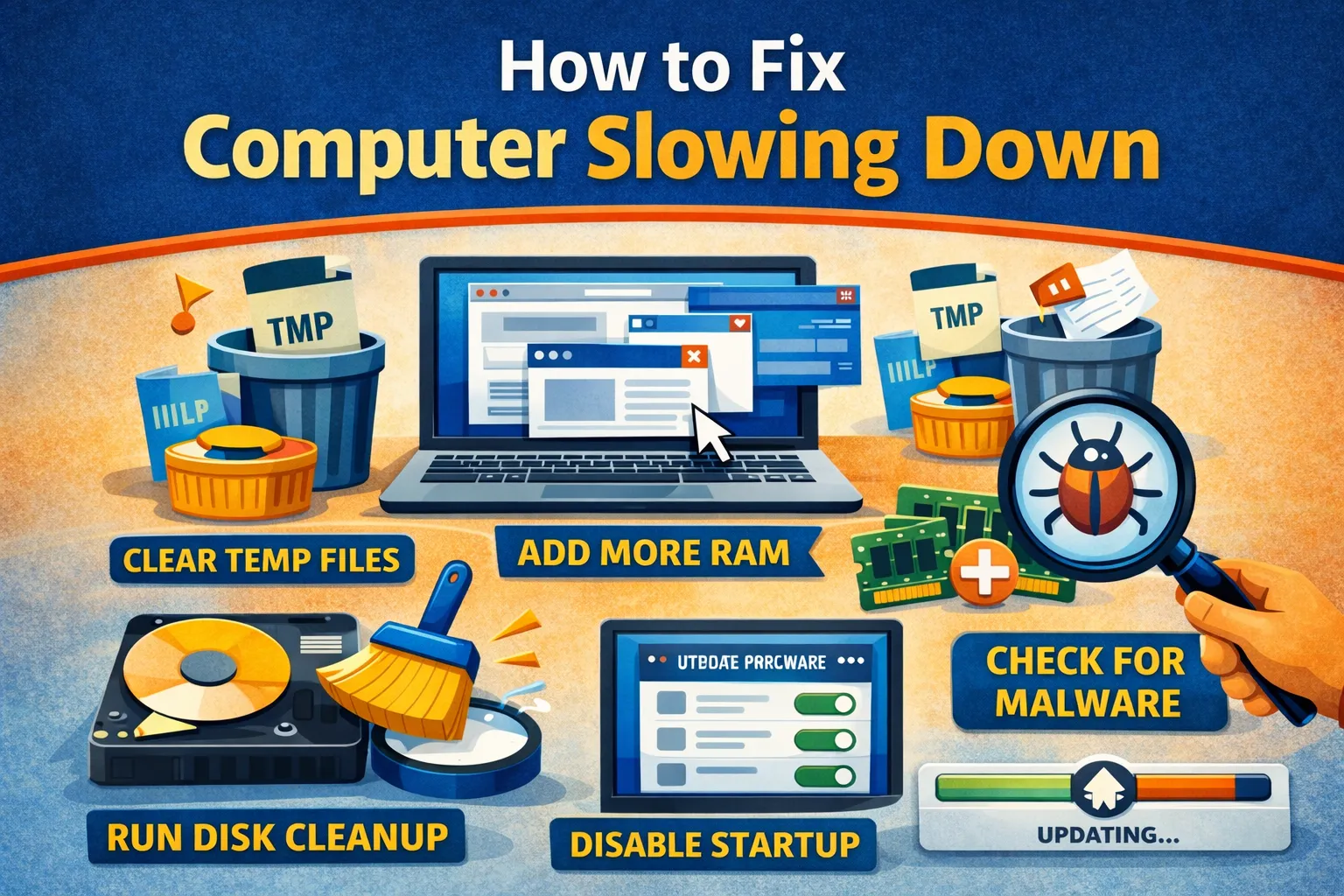
A slow computer can be caused by a busy app, limited storage, startup software, updates or aging hardware. Work through these checks in order and note when the slowdown happens: at startup, in one app, or across the whole system. Do not delete files or reset the computer before backing up important data.
1. Find the bottleneck
On Windows, press Ctrl+Shift+Esc for Task Manager and check the Processes tab while the computer feels slow. Sort by CPU, Memory and Disk to see which process is busy. On a Mac, open Activity Monitor and check CPU and Memory, including the Memory Pressure graph. A short usage spike during an update is different from a process that stays busy for minutes. Record the app name before closing or removing anything.
2. Restart and install supported updates
Save your work, restart once and test the same task again. On Windows, check Settings → Windows Update. On a Mac, check System Settings → General → Software Update. Updates can resolve bugs, but they may also use resources while installing; let them finish before judging performance. Windows 10 is past Microsoft’s free support end date, so plan a supported upgrade if that is your operating system.
3. Reduce unnecessary startup apps
In Windows Task Manager, open Startup apps and disable an app that does not need to launch when you sign in. On a Mac, review System Settings → General → Login Items & Extensions. Disable one optional item at a time, restart and compare. Leave security software, drivers and tools you depend on enabled unless you understand their role.
4. Check free storage
On Windows, open Settings → System → Storage. On macOS Ventura or later, open System Settings → General → Storage. If space is low, move or delete files you recognize, empty the trash only after reviewing it, and uninstall unused apps. Avoid “cleaner” tools that promise an automatic speed boost or remove system files without explaining what they do.
5. Investigate an unexplained process
If an unfamiliar process remains busy, search its exact name and publisher before acting. On Windows, open Windows Security → Virus & threat protection → Quick scan if you suspect malware. A high CPU or disk reading alone does not prove an infection. On a Mac, update the system and apps, then use Apple’s guidance for the specific process or symptom.
6. Check for hardware or heat symptoms
If the slowdown happens only during demanding work, make sure vents are clear and the computer has room for airflow. Sudden shutdowns, unusual drive noises, repeated disk errors or persistent freezing call for a backup and professional diagnosis. An SSD or additional memory may help some older computers, but check the model’s upgrade options before buying parts; many modern laptops cannot be upgraded.
7. Re-test and escalate the right problem
Repeat the task that was slow and compare the startup time, app response and resource readings. If one app is the problem, update or reinstall that app using its publisher’s instructions. If the whole system remains slow after the basic checks, note the operating-system version, free storage, the busy process and any error messages before contacting the manufacturer or a technician. Consider a reset only after a verified backup and a clear reason to believe software is the cause.
Sources and scope
- Microsoft: Improve PC performance in Windows — updates, startup apps, storage and restarts.
- Microsoft: Windows Security — malware scanning.
- Apple: If your Mac runs slowly — storage and app checks.
- Apple: Activity Monitor — CPU and memory diagnosis.
This guide combines vendor troubleshooting guidance. Results depend on the computer and software version; no specific hardware configuration was tested for this article. Report an issue with a step and include your model and version.


