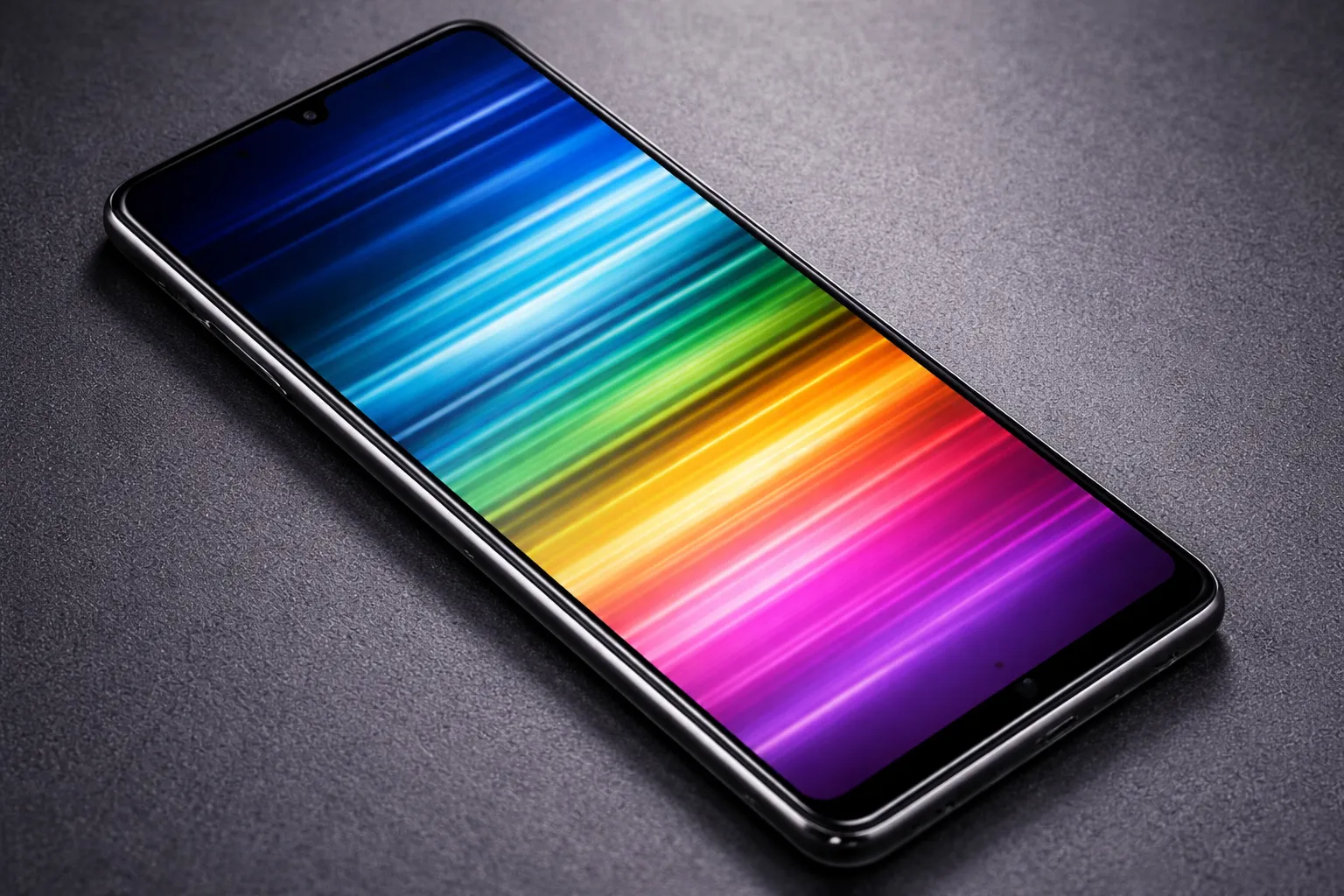
If you need to fix horizontal lines android phone screens display, identifying the root cause is critical. Horizontal lines appearing on your Android phone screen can be frustrating, whether they’re thin flickering lines, thick colored bands, or static stripes across your display. These display artifacts often appear after a drop, system update, or even spontaneously during normal use. This guide will walk you through proven methods to fix horizontal lines android phone users encounter, from simple software fixes to advanced troubleshooting steps that help you fix horizontal lines android phone screens permanently.
Quick Fix to Fix Horizontal Lines Android Phone (1 minute)
Start with these rapid checks before diving into deeper troubleshooting to fix horizontal lines android phone:
- Restart your Android phone (hold Power button, tap Restart) – this simple step can fix horizontal lines android phone software glitches create
- Remove any screen protector or case that might be pressing on the display edges
- Check if lines appear only in specific apps or system-wide (test using Camera app or Settings) to help fix horizontal lines android phone effectively
- Gently press around the screen edges to check for loose display connection
- Verify the issue persists in Safe Mode (hold Power, long-press Power Off until Safe Mode prompt appears) to fix horizontal lines android phone app conflicts cause
If the horizontal lines on Android disappear during these tests, you’ve likely identified a software conflict or physical pressure issue.
Symptoms Checklist
Identify which pattern matches your display issue:
- Thin flickering horizontal lines that come and go
- Thick colored horizontal bands (green, pink, white) across the screen
- Static horizontal lines that remain in the same position
- Lines that appear only when touching specific areas of the screen
- Lines that worsen when the phone is warm or charging
- Dead horizontal pixel lines (completely black strips)
- Lines accompanied by screen flickering or ghosting
- Lines that appear after dropping the phone or water exposure
Troubleshooting Summary (Fast Diagnosis)
| Symptom | Likely Cause | Best Fix |
|---|---|---|
| Flickering lines in specific apps | App rendering issue or GPU driver conflict | Update app, clear cache, test in Safe Mode |
| Lines after system update | Display driver incompatibility | Disable hardware acceleration, update system |
| Lines after drop/impact | Loose display connector or damaged LCD | Press edges gently, professional repair if persistent |
| Lines when phone is warm | Thermal expansion affecting display connection | Reduce screen brightness, close background apps |
| Permanent thick colored bands | LCD panel damage or flex cable failure | Hardware replacement needed |
Why This Happens
Horizontal lines on Android phone screens occur due to several interconnected factors. Software-related causes include GPU driver conflicts after system updates, where the display rendering engine fails to properly refresh pixel rows. App-level issues can trigger flickering lines when apps use incompatible hardware acceleration or outdated rendering APIs.
Hardware causes are more common and serious. Physical impact can loosen the display flex cable that connects the LCD panel to the motherboard, causing intermittent signal loss that manifests as horizontal lines. LCD panel degradation from heat, age, or manufacturing defects can create dead pixel rows. Water damage corrodes display connectors, creating electrical resistance that disrupts the display signal transmission.
Thermal stress also plays a role. When phones overheat during charging or intensive use, thermal expansion can temporarily disrupt display connections, causing lines that disappear when the device cools down. Understanding whether your issue is software or hardware-based determines the appropriate path to fix horizontal lines android phone displays show.
Fix Method 1: Restart and Force Display Refresh
What Display Refresh Fixes
This clears temporary GPU cache and resets display drivers, fixing software-based flickering lines caused by rendering glitches or memory leaks when you fix horizontal lines android phone.
- Press and hold the Power button for 3 seconds
- Tap Restart (or Power off, wait 30 seconds, then power on)
- While the phone boots, observe if lines appear during the boot animation
- After boot completes, test by scrolling through Settings and opening Camera app
How to verify it worked
Open a white background (Settings > Display) and a black background (notification shade fully expanded). Horizontal lines should be completely absent on both solid colors.
If it still fails
Lines present during boot animation or on solid colors indicate hardware damage rather than software glitches. Proceed to advanced display tests.
Fix Method 2: Test in Safe Mode to Isolate App Conflicts
What Safe Mode Testing Fixes
Safe Mode disables all third-party apps, helping identify if a recently installed app is causing display rendering issues through GPU conflicts or overlay interference to fix horizontal lines android phone.
- Press and hold the Power button until the power menu appears
- Long-press the “Power off” option until Safe Mode prompt appears (usually 2-3 seconds)
- Tap OK to reboot into Safe Mode
- You’ll see “Safe Mode” watermark in the bottom-left corner
- Test the display by using different apps and scrolling through screens
- If lines disappear, reboot normally and uninstall recently installed apps one by one
How to verify it worked
If horizontal lines vanish in Safe Mode but return in normal mode, a third-party app is the culprit. Focus on recently installed apps, especially screen recorders, custom launchers, or overlay apps.
If it still fails
Lines persisting in Safe Mode confirm the issue is system-level software or hardware-based. Move to display driver and hardware connector checks.
Fix Method 3: Disable Hardware Overlays and Force GPU Rendering
What GPU Rendering Adjustment Fixes
This forces the CPU to handle display rendering instead of the GPU, bypassing potential GPU driver bugs that cause horizontal screen artifacts when you fix horizontal lines android phone.
- Enable Developer Options: Go to Settings > About phone > tap Build number 7 times
- Return to Settings > System > Developer options
- Scroll to “Drawing” section
- Enable “Force GPU rendering”
- Enable “Disable HW overlays”
- Restart your phone and test the display
How to verify it worked
Open graphics-intensive apps like YouTube, camera, or games. Horizontal lines should not appear during video playback or scrolling.
If it still fails
GPU settings changes have no effect on hardware-caused lines. Physical display connection issues require different approaches.
Fix Method 4: Update Android System and Display Drivers
What System Updates Fix
System updates often include display driver patches that fix rendering bugs, screen flickering, and GPU compatibility issues introduced in previous versions to help you fix horizontal lines android phone software issues create.
- Go to Settings > System > System update
- Tap “Check for updates”
- If update available, tap “Download and install”
- Wait for download to complete (connect to Wi-Fi and ensure 50%+ battery)
- Tap “Install now” and wait for installation (10-20 minutes)
- Phone will restart automatically
How to verify it worked
After updating, test display in various lighting conditions and app scenarios. Lines caused by driver bugs should be resolved in the updated build.
If it still fails
If lines appeared specifically after an update, the new version may have introduced a regression. Check manufacturer forums for known issues or wait for the next patch.
Fix Method 5: Adjust Screen Resolution and Refresh Rate
What Resolution Adjustment Fixes
Some Android phones develop horizontal lines when using non-native screen resolutions or adaptive refresh rates due to display timing mismatches that you can fix horizontal lines android phone by adjusting these settings.
- Go to Settings > Display
- Tap “Screen resolution” (Samsung) or “Display size” on other brands
- Select a lower resolution (e.g., FHD+ instead of WQHD+)
- If your phone has refresh rate options: Settings > Display > Motion smoothness
- Change from “Adaptive” to “Standard” (60Hz) or vice versa
- Observe if lines change behavior or disappear
How to verify it worked
Test by playing full-screen video and scrolling rapidly through app lists. Lines caused by refresh rate conflicts should disappear at the correct setting.
If it still fails
Resolution changes don’t fix hardware damage or loose connectors. Physical inspection becomes necessary.
Fix Method 6: Clear System Cache Partition (If Supported)
What Cache Partition Clearing Fixes
Corrupted system cache files can cause display rendering errors. Wiping the cache partition clears these without deleting personal data and may help you fix horizontal lines android phone cache issues cause.
- Power off your phone completely
- Press and hold Volume Up + Power button simultaneously
- When logo appears, release Power but keep holding Volume Up
- Use Volume buttons to navigate to “Wipe cache partition”
- Press Power button to select
- Select “Yes” to confirm
- After completion, select “Reboot system now”
How to verify it worked
System should boot faster. Test display across multiple apps and system screens for line persistence.
If it still fails
Cache corruption wasn’t the cause. Hardware connection issues or panel damage require professional diagnosis.
Fix Method 7: Perform Display Connection Test (Physical Check)
What Physical Connection Test Reveals
Loose display flex cables cause intermittent horizontal lines. Gentle pressure can temporarily reseat the connection, confirming a hardware issue when you attempt to fix horizontal lines android phone.
- With the screen on and showing lines, gently press around the top edges of the screen
- Apply light pressure (similar to tapping firmly) along the left and right edges
- Observe if lines disappear, move, or intensify when pressing specific areas
- If lines change with pressure, note the exact location
- Test with the phone slightly flexed (gently bend the phone frame by a few millimeters)
How to verify it worked
If lines disappear with pressure on specific edges, you’ve confirmed a loose display connector. This is temporary relief only.
If it still fails
Lines unaffected by pressure indicate LCD panel damage or internal circuit failure. Professional repair or screen replacement is required.
Fix Method 8: Factory Reset (Last Software Resort)
What Factory Reset Accomplishes
This eliminates all software variables, including corrupted system files, incompatible apps, and OS-level conflicts that might cause display issues and helps fix horizontal lines android phone software problems cause.
- Back up all important data (photos, contacts, documents)
- Go to Settings > System > Reset options
- Tap “Erase all data (factory reset)”
- Read warnings and tap “Reset phone”
- Enter your PIN/password if prompted
- Tap “Erase everything”
- Wait 10-15 minutes for reset and reboot
- Set up phone as new and immediately test display before installing apps
How to verify it worked
Test the completely fresh system before installing any apps. If lines are gone, gradually reinstall apps to identify the culprit.
If it still fails
Horizontal lines persisting on a factory-reset phone confirm hardware damage. Screen replacement or professional motherboard repair is necessary.
Prevent This From Happening Again
- Use a quality protective case with raised edges to prevent screen impact damage
- Apply a tempered glass screen protector to absorb shocks and prevent flex cable stress
- Avoid exposing phone to extreme temperatures (below 0°C or above 45°C) to prevent display connector damage
- Keep screen brightness at reasonable levels (80% or less) to reduce heat stress
- Close resource-intensive apps when not in use to prevent GPU overheating
- Install system updates promptly as they often contain display driver stability fixes to prevent needing to fix horizontal lines android phone later
- Avoid using phone while charging during gaming or video streaming to reduce thermal stress
- Regularly restart your phone (once per week minimum) to clear GPU memory leaks and avoid issues that require you to fix horizontal lines android phone
Frequently Asked Questions
What causes horizontal lines on Android phone screens?
Horizontal lines are caused by loose display flex cables, LCD panel damage, GPU driver conflicts, or thermal stress. Software issues produce flickering lines that change with app usage, while hardware damage creates persistent static lines. Impact damage, water exposure, and manufacturing defects are the most common physical causes.
Can horizontal lines on phone screen be fixed without replacement?
Software-caused horizontal lines can be fixed through system updates, cache clearing, Safe Mode diagnosis, and factory resets. However, lines caused by physical damage (loose connectors, cracked LCD panel, water damage) require professional repair or screen replacement. The physical check test determines if repair is needed.
Why do horizontal lines appear only when the phone is warm?
Thermal expansion from heat causes display components to flex slightly. If the display flex cable connection is already weak, heat expansion can disrupt the signal temporarily. This creates horizontal lines during charging, gaming, or video recording that disappear when the phone cools. This indicates an marginal hardware connection requiring repair.
Are horizontal lines covered under warranty?
Manufacturing defects causing horizontal lines are typically covered under standard manufacturer warranty if no physical or water damage is present. However, lines appearing after drops, impacts, or liquid exposure are considered physical damage and void warranty coverage. Check your warranty status and damage indicators before claiming.
Do horizontal lines spread across the screen over time?
Yes, horizontal lines from LCD panel degradation or loose connectors typically worsen over time. Initial flickering lines may become permanent, and single lines may multiply. Thermal cycling (repeated heating and cooling) accelerates connector corrosion and LCD degradation. Early repair prevents complete display failure.
Can a factory reset fix horizontal lines android phone displays show?
Factory reset can fix horizontal lines only if they’re caused by corrupted system files, app conflicts, or GPU driver software bugs. Lines caused by physical damage, loose cables, or LCD panel defects cannot be fixed through software reset. Test in Safe Mode first to determine if the issue is software-based before resetting.
How do I know if I need to fix horizontal lines android phone hardware versus software?
Software issues produce lines that: appear only in specific apps, disappear in Safe Mode, change with GPU settings, or started after an app/system update. Hardware issues create lines that: persist during boot animation, remain in Safe Mode, worsen with screen pressure, or appeared after physical impact. Boot animation test is most definitive.
Official References
- Android Help – Troubleshoot screen issues
- Samsung Support – Fix screen display problems
- Google Pixel Help – Factory reset your device
- Android Safety & Security Center
Conclusion
Learning how to fix horizontal lines android phone screens display requires systematic troubleshooting to distinguish between software glitches and hardware damage. Start with Safe Mode testing and GPU settings, progress through system updates and cache clearing, and finally verify with physical connection checks. If software methods fail and lines persist through factory reset, professional screen repair becomes necessary. Successfully fixing these issues when you fix horizontal lines android phone restores your device to full functionality and ensures optimal display performance for years to come.
Visit https://truefixguides.com/ for more.