If you need to fix pop up ads android devices display constantly, understanding their source is the first step. Pop-up ads on Android have evolved from simple browser banners to aggressive full-screen interruptions that appear even when you’re just navigating your home screen. Whether it’s a “Congratulations, you won!” scam notification or a video ad that overrides your phone calls, these interruptions ruin the user experience. This guide will help you identify the source of these pop-ups—whether it’s a rogue website, a hidden app setting, or system adware—and permanently fix pop up ads android users encounter daily on their phones.
Quick Fix to Fix Pop Up Ads Android (1 minute)
Silence the pop-ups instantly with these fast settings changes to fix pop up ads android:
- Chrome Notifications: Open Chrome > Settings > Site Settings > Notifications > Turn OFF. (Stops 90% of “fake virus” pop-ups and helps you fix pop up ads android browsers show).
- DNS Ad Blocker: Go to Settings > Network > Private DNS > Enter
dns.adguard.com. (Blocks ad traffic system-wide to fix pop up ads android system-wide). - Review “Display Over Other Apps”: Settings > Apps > Special App Access > Turn OFF for Recent Apps.
- Uninstall Recent Free Apps: Remove any “Cleaner,” “Flashlight,” or “QR Scanner” app installed recently to fix pop up ads android apps generate.
- Samsung Users: Disable “Glance” on Lock Screen (Settings > Wallpaper > Wallpaper Services > None).
These steps target the three main sources: browser spam, app overlays, and legitimate (but annoying) system service ads when you fix pop up ads android.
Symptoms Checklist
Determine where the pop-up comes from:
- Pop-ups appear only when using Chrome/Browser
- Pop-ups appear on the Lock Screen or Home Screen randomly
- Notification bar is filled with “Missed Call” or “Warning” icons from websites
- An ad plays immediately after unlocking the phone
- An ad appears whenever you open a specific utility app
- The “Recent Apps” button shows a blank or unnamed app
Troubleshooting Summary (Fast Diagnosis)
| Symptom | Likely Source | Best Fix |
|---|---|---|
| Alerts in Notification Bar | Browser Permissions | Reset Site Settings inside Chrome |
| Full Screen Ads randomly | “Draw Over” Permission | Revoke “Display Over Other Apps” |
| Ads on Lock Screen | Wallpaper Service / Theme | Disable Wallpaper Services / Launcher |
| Ads inside Games/Apps | In-App Advertising | Use Private DNS (AdGuard) or Airplane Mode |
| Chrome Home Page changed | Browser Hijacker | Clear Storage of Chrome App |
Why This Happens
Pop-up ads on Android are rarely “hacks” but rather “permissions” you accidentally granted. The most common culprit is Web Push Notifications. When you visit a generic news or download site, a popup asks “Press Allow to continue.” Clicking Allow gives that site permanent permission to push ads to your notification bar, which look like system alerts.
The second cause is Adware Overlays. Android allows apps to “Draw over other apps” (like Facebook Messenger heads). Unscrupulous developers build free tools (calculators, PDF readers) that abuse this permission to show full-screen video ads on top of your home screen, often triggering them on unlock or Wi-Fi connection updates. Understanding these mechanisms is crucial when you fix pop up ads android devices experience.
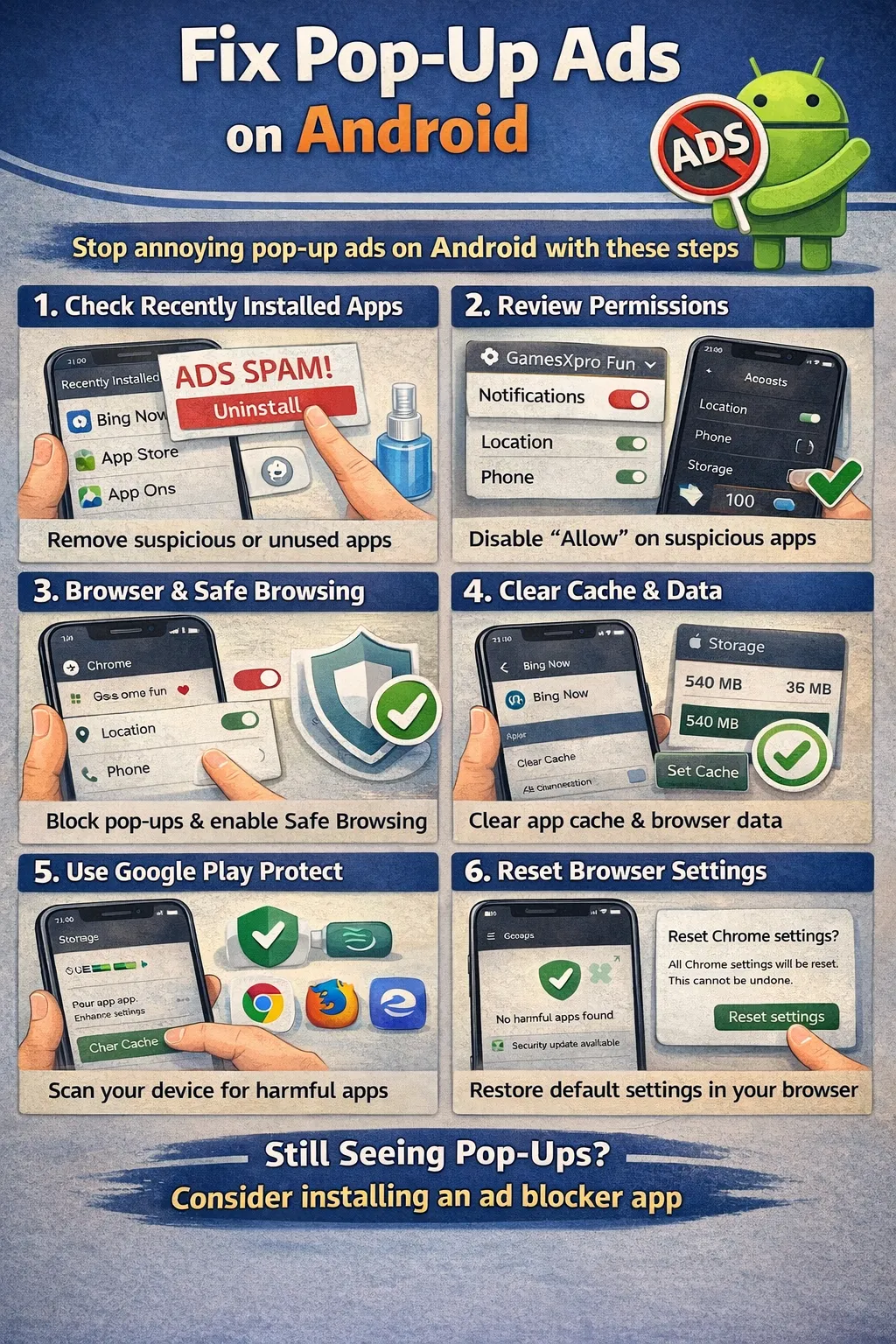
Fix Method 1: Block Chrome Notification Ads (The #1 Cause)
What Chrome Notification Blocking Fixes
Stops the stream of “Virus Alert,” “Dating,” or “Scam Prize” pop-ups that clutter your notification shade and lock screen when you fix pop up ads android.
- Open the Chrome app.
- Tap the three-dot menu > Settings.
- Tap Site settings > Notifications.
- You will see a list of “Allowed” sites. These are the culprits.
- Tap on a suspicious URL (e.g.,
news-daily-update.com). - Tap Remove (or Reset). Do this for ALL unknown sites.
- Pro Tip: Toggle the main switch “Sites can ask to send notifications” to OFF to prevent this forever.
How to verify it worked
Clear your current notifications. You should not receive any new “web” alerts. Your phone will be quiet.
If it still fails
If the notifications persist, check other browsers involved (Samsung Internet, Firefox, Opera) and repeat the steps.
Fix Method 2: System-Wide Ad Blocking (Private DNS)
What Private DNS Fixes
Blocks the connection between apps and ad servers. This stops banner ads in free games and prevents many full-screen pop-ups from loading content to help you fix pop up ads android comprehensively.
- Open Android Settings.
- Go to Network & Internet or Connections > More Connection Settings.
- Tap Private DNS.
- Select “Private DNS provider hostname.”
- Type exactly:
dns.adguard.com - Tap Save.
How to verify it worked
Open a free ad-supported app (like a Speed Test or Calculator). The banner ads at the bottom should be gone or show a blank grey space.
Fix Method 3: Revoke “Appear on Top” Permission
What Revoking Overlay Permission Fixes
Stops annoying apps from launching full-screen ads over your interface while you are doing something else. This is essential to fix pop up ads android apps create.
- Go to Settings > Apps.
- Tap the menu (three dots) > Special access.
- Tap Appear on top or Display over other apps.
- Look for apps turned ON.
- Disable the toggle for any app that isn’t a messenger (like Messenger or WhatsApp) or a system tool.
- Be specifically suspicious of Keyboards, Flashlights, Photo Editors, and PDF Readers.
How to verify it worked
Use your phone normally. Without this permission, rogue apps are technically incapable of hijacking your screen.
Fix Method 4: Identify and Uninstall the Rogue App
What Rogue App Removal Fixes
Removes the root cause if an app is installed that exists solely to serve ads when you fix pop up ads android.
- Wait for a pop-up ad to appear. Do not close it.
- Tap the Recent Apps button (the three vertical lines or swipe up and hold).
- Look at the name/icon of the app displaying the ad.
- It might have a different name than you expect.
- Go to Settings > Apps.
- Find that specific app and Uninstall it.
- Also, look for apps with No Name (blank entry) at the bottom of your app list. Uninstall them.
How to verify it worked
The source of the ads is gone. Restart your phone to clear any memory cache.
Fix Method 5: Disable Lock Screen Services (Samsung/Xiaomi)
What Lock Screen Service Disabling Fixes
Removes “GLANCE” or “Carousel” ads that appear on your lock screen as part of the phone’s built-in “features.”
- Samsung: Settings > Wallpaper and style > Browse my wallpapers > Wallpaper services > Select None.
- Xiaomi/Redmi: Settings > Lock Screen > Glance for Mi > Turn OFF.
- This stops the rotating news/ad images that appear before you unlock your phone.
How to verify it worked
Lock your phone and wake it up. It should show your static wallpaper, not a news article or ad.
Fix Method 6: Reset Google Advertising ID
What Advertising ID Reset Fixes
Disconnects your “ad profile” from your device, stopping personalized retargeting ads that follow you across apps.
- Go to Settings > Privacy > Ads.
- Tap Reset advertising ID.
- Confirm the reset.
- (Optional) Tap “Delete advertising ID” for maximum privacy, though some apps may behave oddly.
How to verify it worked
You may still see generic ads (if you didn’t do Method 2), but they won’t be based on your recent search history.
Fix Method 7: Factory Reset (The Clean Slate)
What Factory Reset Accomplishes
If ads persists after all steps, the adware might be embedded in the system partition or you have too many infected apps to clean manually.
- Back up essential data (Photos/Contacts).
- Settings > System > Reset options > Erase all data (factory reset).
- Set up the phone as New.
- Crucial: Do not restore “Apps” from your Google Backup, or you will re-download the ad-spamming app. Download apps freshly from Play Store.
How to verify it worked
A factory-reset phone is guaranteed to be ad-free unless the phone itself (cheap off-brand models) has pre-installed malware.
Prevent This From Happening Again
- Use Firefox + uBlock Origin: Use Firefox Android browser and install the “uBlock Origin” extension. It blocks pop-ups better than Chrome and helps you fix pop up ads android proactively.
- DNS Protection: Keep
dns.adguard.comactive permanently. - Deny Notifications: Train yourself to click “Block” instantly when a site asks for permissions.
- Play Store Only: Never download APKs from “Free Mod” sites.
- Pay for Premium: If you use a utility app daily, pay the $2 to remove ads legally. It’s safer than hunting for “cracked” versions and prevents the need to fix pop up ads android later.
Frequently Asked Questions
Why do ads pop up when I unlock my phone?
This is a classic sign of lock-screen adware. It is usually caused by a “Launcher,” “Keyboard,” or “Charging Animation” app you installed. Check “Display Over Other Apps” settings or uninstall recent aesthetic customization apps.
Can I block pop-ups on YouTube Android?
Standard ad blockers (DNS) cannot block YouTube ads because they are served from the same domain as the video. To fix YouTube pop-ups, you must subscribe to YouTube Premium. Third-party “Vanced” alternatives exist but carry security risks.
Is AdGuard DNS safe to use?
Yes. AdGuard is a reputable privacy company. Using their DNS simply tells your phone “If an app tries to load content from an ad-tracker server, return a blank page.” It does not slow down your internet; in fact, it often speeds it up by blocking heavy ad data.
Why does Chrome keep saying I have a virus?
It is a lie. Websites use scary graphics to trick you. Chrome does not scan your phone for viruses. If you see this, simply close the tab. If it won’t close, go to Settings > Apps > Chrome > Force Stop.
How do I fix pop up ads android Samsung Internet Browser shows?
Samsung Internet has a dedicated “Ad blockers” menu. Open the browser > Menu (three lines) > Ad blockers. Download one of the suggested plugins (like Adblock Fast). Enable it, and it will filter web traffic automatically to fix pop up ads android.
Official References
- Google Chrome Help – Block or allow pop-ups
- AdGuard DNS Setup Guide
- Manage your Google Ad Privacy Settings
Conclusion
Learning how to fix pop up ads android devices display is about reclaiming control of your screen permissions and internet traffic. By blocking browser notifications, setting up a Private DNS, and revoking overlay permissions, you can silence 99% of interruptions without needing robust antivirus software. When you successfully fix pop up ads android, keep your app list clean and your notification settings strict to enjoy a peaceful, ad-free experience on your device.
Visit https://truefixguides.com/ for more.


