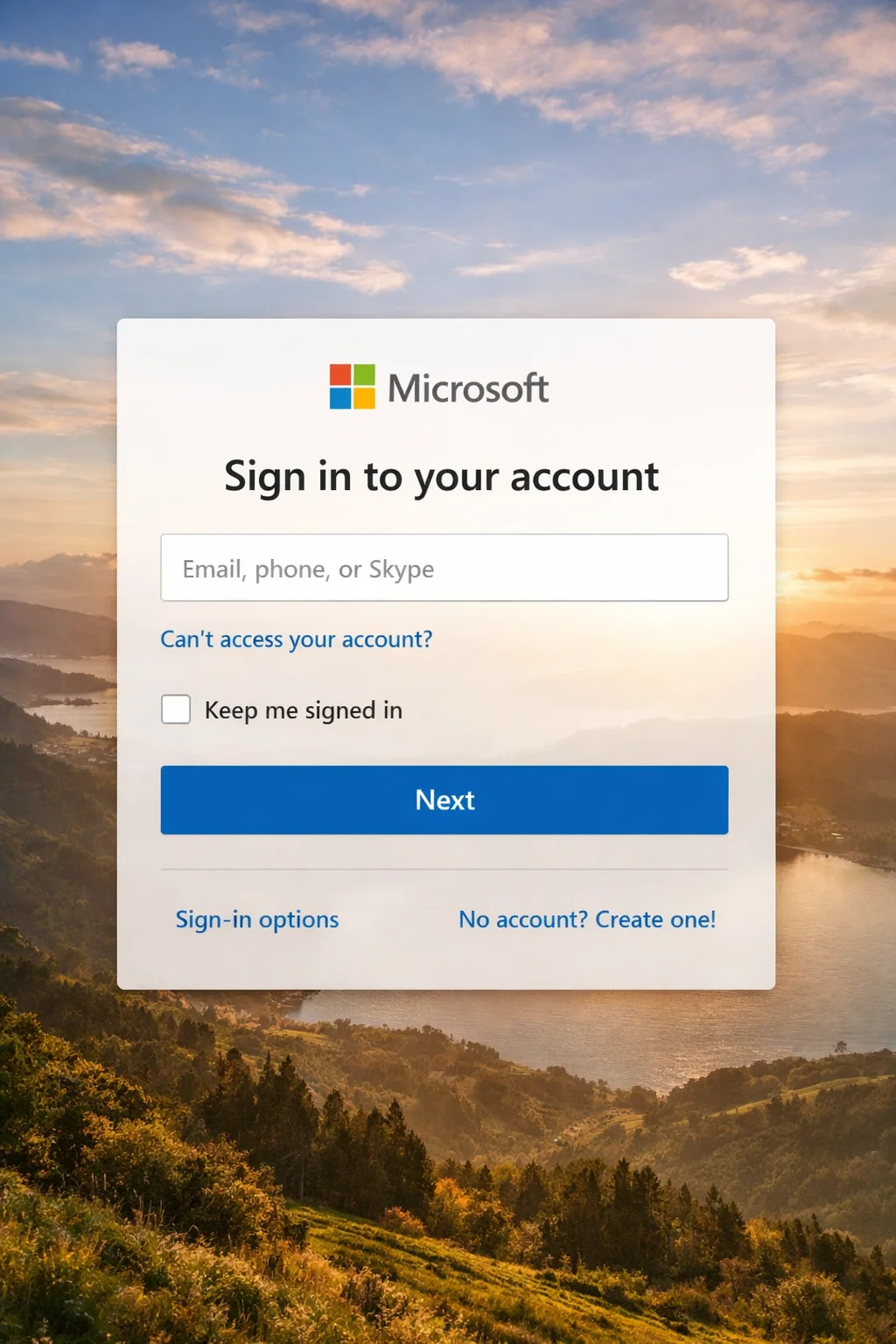
Microsoft Account Login Failed usually means you can’t complete the Microsoft sign-in flow:
it loops back to the sign-in page, shows “Incorrect password” even when correct, or rejects a 2FA code. A recent
browser update, a VPN/ad blocker, or corrupted cookies are the most common triggers. This guide fixes one core
problem: you enter your details, but sign-in fails with We couldn't sign you in. Please try again. or
loops indefinitely.
Assumed context (so the UI paths match): Platform: Windows 10/11 in a browser (Edge/Chrome). Login
method: email + password, then 2FA (Authenticator/SMS) on some accounts. Error message:
We couldn't sign you in. Please try again.. It happens on one PC and you see it on both Wi‑Fi and a
mobile hotspot.
- Quick Fix (1 minute)
- Symptoms Checklist
- Troubleshooting Summary (Fast Diagnosis)
- Why This Happens
- Fix Method 1
- Fix Method 2
- Fix Method 3
- Fix Method 4
- Fix Method 5
- Fix Method 6
- Fix Method 7
- Fix Method 8
- Prevent This From Happening Again
- FAQ
- Official References
Quick Fix (1 minute)
- Open an InPrivate/Incognito window.
- Go to account.microsoft.com and sign in (type manually; no
autofill). - Disable VPN/Proxy and pause ad blockers for this attempt.
- Windows: Settings → Time & language → Date & time → turn on Set time automatically.
- If Microsoft Account Login Failed persists, clear cookies/cache for Microsoft sites and retry
once.
Symptoms Checklist: Microsoft Account Login Failed
- “Incorrect password” even when correct (often autofill or wrong account).
- Sign-in loop: returns to sign-in screen after you enter your password.
We couldn't sign you in. Please try again.Too many attempts. Try again later.- Captcha not loading, or verification code not received.
- 2FA code not accepted (Authenticator/SMS/email).
Troubleshooting Summary (Fast Diagnosis)
| Symptom | Likely Cause | Best Fix |
|---|---|---|
| Login loop | Cookie/session corruption | Fix Method 4 |
| Incorrect password message | Autofill/layout/wrong account | Fix Method 2 |
| 2FA rejected | Time mismatch or wrong method | Fix Method 3, then 8 |
| Captcha won’t load | Ad blocker/VPN/proxy | Fix Method 5 |
| Too many attempts | Temporary lockout | Fix Method 8 |
Why This Happens
When you experience Microsoft Account Login Failed, Microsoft sign-in relies on redirects across official domains plus cookies that store your session. If cookies are
corrupted, third‑party cookies are blocked, or extensions block scripts, the redirect fails and you see a loop or a
generic error. Wrong device time can invalidate security tokens and make 2FA codes fail. When Microsoft detects
repeated failed attempts or unusual locations (often from VPN), it may throttle or lock sign-in temporarily.
Fix Method 1: Check if Microsoft Account Login Failed is Due to Service Outage – Confirm service status (official only)
What this fixes
Confirms you’re not troubleshooting during an outage.
- Open status.cloud.microsoft.
- Check for active incidents affecting sign-in/authentication.
How to verify it worked
If there’s an incident, wait for resolution, then try again. If status is healthy, continue.
If it still fails
Go to Fix Method 2.
Fix Method 2: Confirm credentials (stop autofill mistakes)
What this fixes
Fixes “incorrect password” when the site is receiving the wrong characters.
- Use InPrivate/Incognito.
- Go to account.microsoft.com → Sign in.
- Type your email manually (no copy/paste spaces).
- On password: check Caps Lock and keyboard layout (Windows taskbar language).
- Type the password manually; do not use a password manager for this attempt.
How to verify it worked
You reach the dashboard or a single 2FA prompt. If Microsoft Account Login Failed continues with
We couldn't sign you in. Please try again., continue.
If it still fails
Go to Fix Method 3.
Fix Method 3: Solve Microsoft Account Login Failed via Time/Date – Fix time/date and timezone mismatch
What this fixes
Fixes rejected codes and expired security tokens that cause Microsoft Account Login Failed.
- Windows: Settings → Time & language → Date & time.
- Enable Set time automatically and Set time zone automatically.
- Select Sync now (if shown).
- Close and reopen the browser, then retry sign-in.
- If you use Authenticator on a phone, also enable automatic time there.
How to verify it worked
2FA codes/prompts should be accepted and Microsoft Account Login Failed should stop.
If it still fails
Go to Fix Method 4.
Fix Method 4: Clear cookies/cache for Microsoft login
What this fixes
Fixes sign-in loops and stuck sessions.
- Edge: Settings → Privacy, search, and services → Clear browsing data → Choose what to clear.
- Select Cookies and other site data + Cached images and files → Time range:
All time → Clear now. - Chrome: Settings → Privacy and security → Delete browsing data → cookies + cache → All time.
- Restart the browser and try again at account.microsoft.com.
How to verify it worked
If the issue was cookie-based, Microsoft Account Login Failed disappears and you complete sign-in
normally.
If it still fails
Go to Fix Method 5.
Fix Method 5: Disable VPN/proxy/ad blockers
What this fixes
Fixes captcha/script blocks and risk-based sign-in failures.
- Disconnect VPN (app off).
- Windows: Settings → Network & Internet → Proxy → turn off manual proxy.
- Disable ad blockers/privacy extensions for the sign-in attempt.
- Retry in InPrivate/Incognito.
How to verify it worked
The captcha loads, the redirect completes, and Microsoft Account Login Failed stops on this
network.
If it still fails
Go to Fix Method 6.
Fix Method 6: Switch login method (password vs passkey/SSO)
What this fixes
Fixes scenarios where you’re using the wrong sign-in path for that account.
- Start at account.microsoft.com.
- After entering your email, select Sign-in options.
- Try the method you actually set up: password, Microsoft Authenticator prompt, security key, Windows Hello, or
passkey. - Do not mix “Continue with Google/Apple/Facebook” with a different Microsoft email/password flow.
How to verify it worked
You land on the dashboard without returning to sign-in, and Microsoft Account Login Failed is
gone.
If it still fails
Go to Fix Method 7.
Fix Method 7: Reset password (official workflow only)
What this fixes
Fixes forgotten/changed passwords and forced resets after suspicious activity that cause Microsoft Account Login Failed.
using the official website/app.
- Open account.live.com/password/reset.
- Enter your account email/phone and follow the prompts.
- If a code is sent by email, check Junk/Spam and search for “Microsoft account”.
- Set a new password and sign in again from a fresh InPrivate/Incognito window.
How to verify it worked
You can sign in with the new password and Microsoft Account Login Failed no longer appears.
If it still fails
Continue to Fix Method 8.
Fix Method 8: Fix 2FA, lockout, and suspicious activity (official recovery for Microsoft Account Login Failed)
What this fixes
Fixes “code not accepted”, “verification not received”, and temporary blocks from repeated attempts.
using the official website/app.
- If you saw
Too many attempts. Try again later., stop trying for 15–30 minutes. - Update Microsoft Authenticator and enable its notifications: Troubleshoot
problems with Microsoft Authenticator. - Re-check automatic time on Windows and your phone (Fix Method 3).
- On the sign-in screen, choose Sign-in options and switch to another factor (SMS/email) if
offered. - If Microsoft warns about suspicious activity or you can’t verify, use: I
can’t sign in to my Microsoft account.
How to verify it worked
The 2FA step completes once and Microsoft Account Login Failed is resolved.
If it still fails
Use Microsoft’s official contact entry point: support.microsoft.com contact.
Prevent Microsoft Account Login Failed From Happening Again
- Keep browser + Windows updated, and don’t permanently block Microsoft sign-in cookies.
- Leave automatic time/timezone enabled on every device.
- Sign in first, then enable VPN if you must use one.
- Store backup codes securely offline and keep recovery email/phone updated.
- Bookmark official domains only and never share verification codes.
FAQ
Why does it say my password is incorrect when it isn’t?
Autofill may be inserting an old password, the wrong account address is used, or your keyboard layout changed. Type
the password manually, verify Caps Lock and layout, and confirm you’re signing into the correct Microsoft account.
Why am I not receiving the verification code?
SMS/email delivery can be delayed or filtered, and incorrect device time can break verification. Check Junk/Spam,
wait a few minutes before resending, try an alternate method, and set date/time to automatic.
How long does account lockout last after too many attempts?
It’s often 15–30 minutes, but can be longer if retries continue. Stop trying, wait, then sign in once with the
correct details. If you suspect suspicious activity, use Microsoft’s recovery flow.
Why does login keep looping back to sign-in?
A corrupted cookie/session, blocked third‑party cookies, or an extension can interrupt the Microsoft redirect flow.
Clear cookies/cache for Microsoft sites and test in an InPrivate/Incognito window.
Can VPN cause login errors?
Yes. VPNs/proxies and some ad blockers can block CAPTCHA, scripts, or trigger risk checks. Disable them and retry
from your normal network.
What should I do if 2FA codes don’t work?
Enable automatic time on your devices, update Microsoft Authenticator, and try another verification method
(SMS/email) if offered. Use backup codes only if you already have them saved.
How do I secure my account after regaining access?
Change your password, review recent activity, update recovery options, and enable two-step verification. Remove
unknown devices and keep your security info current.
Official References
- Microsoft service health status
- Microsoft:
I can’t sign in to my Microsoft account - Microsoft password reset (official)
- Microsoft:
Troubleshoot Authenticator
Conclusion: If you’re stuck with Microsoft Account Login Failed, follow the
safe order: status → credentials → time → cookies → VPN/extensions → sign-in options → official reset → official
2FA/recovery. Next step: retry once from an InPrivate window after clearing cookies.
Visit https://truefixguides.com/ for more.