Realizing you need to recover a hacked Google account triggers a specific kind of panic. It
starts with a rejected password. It escalates when you see a recovery email you don’t recognize. Suddenly, your
Gmail, Drive, Photos, and connected services are behind a wall. This isn’t just a lost password; it is a hostile
takeover. If you are reading this, you are likely locked out right now. Take a breath. Panic causes
mistakes, and mistakes trigger Google’s security AI to lock you out permanently. This guide provides the
definitive, step-by-step path to reclaiming your digital identity in 2026, using only official, verified
recovery protocols.
Quick Fix to Recover Hacked Google Account (1 minute)
- Act Fast: Go to myaccount.google.com/device-activity on a device you used
recently (phone, tablet) if you still have access. - Secure Device: If still logged in anywhere, change your password immediately from that
trusted device. - Start Recovery: If completely locked out, go to g.co/recover immediately.
- Last Password: Enter the last password you remember (even if it’s old). This acts as a
“proof of history.” - Trust Signals: Answer security questions only on a familiar device
connected to your home Wi-Fi.
Symptoms Checklist
- “Password was changed X hours ago” notification when you try to sign in.
- Recovery email or phone number has been changed to one you don’t recognize.
- You receive a “Critical Security Alert” email from Google about a suspicious sign-in from a strange
location. - Contacts report receiving spam or phishing emails from your address.
- You are suddenly signed out of all devices simultaneously.
- Settings, forwarders, or filters in Gmail have been altered without your input to hide warning emails.
Troubleshooting Summary: How to Recover Hacked Google Account
| Symptom | Likely Cause | Best Fix |
|---|---|---|
| Password incorrect | Initial takeover / Credential stuffing | Standard Recovery Flow |
| Recovery info changed | Full account compromise | Trust Signal Recovery (Device/Network) |
| “Google couldn’t verify…” | Low trust score / Unknown device | Wait 7 Days Method |
| 2FA failing | SIM swap or hijacked Authenticator | Backup Codes |
| Account disabled | Violation of Terms | Request Review form |
Why You Must Recover Hacked Google Account Immediately
Understanding the mechanism of the attack helps you understand why Google’s recovery process is so strict. It
isn’t just “being difficult”; it is defending against a sophisticated adversary. The hacker’s goal is to
establish “persistence”—making themselves the owner and you the intruder.
1. Phishing & Social Engineering: This is the most common vector. You likely clicked a link in a
fake email that looked exactly like a Google alert. When you entered your credentials, you handed them directly
to the hacker. They often use scripts to immediately log in and change your details within seconds, adding their
own hardware key provided by the script.
2. Session Token Theft: More advanced malware steals “session cookies” from your browser. These
cookies tell Google “I am already logged in.” Hackers use these to bypass Two-Factor Authentication (2FA)
completely because Google’s servers think the traffic is coming from your already-authenticated computer. This
allows them to change passwords without ever knowing your old one.
3. Credential Stuffing: If you reuse passwords, hackers take lists of leaked emails/passwords
from old data breaches (like Adobe or LinkedIn years ago) and try them on Google. If you never changed your
password, they walk right in. Once inside, they update the recovery email to their own, locking the door behind
them.
Fix Method 1: Environment Preparation to Recover Hacked Google Account
What this fixes
This resolves rejection messages like “Google couldn’t verify this account belongs to you” by establishing your
identity through digital fingerprints rather than just passwords. Google’s AI builds a “Trust Score” for every
login attempt.
- Use a “Home” Device: Pick the device you use most often to sign in to this account (e.g.,
your primary smartphone or daily laptop). Google knows this device’s unique ID/HWID. - Connect to “Home” Internet: Do not use cellular data if possible. Use your home or office
Wi-Fi. Google associates this IP address range with your account history. - Disable Anonymizers: Turn off any VPN, proxy, or “Hide My IP” software. You want
Google to see exactly where you are. Authenticating from “Romania” when you live in “Texas” is a red flag
that lowers your trust score to zero. - Check Device Time: Ensure your device’s date and time are set to “Automatic.” Time
discrepancies can cause SSL handshake failures and 2FA code rejections.
How to verify it worked
There is no direct confirmation message, but you have successfully prepared when your device has a stable
internet connection on a known network without any VPN indicators in the status bar.
If it still fails
If you have lost your primary device, use a device on the same Wi-Fi network. The network trust signal alone can
sometimes be enough to tip the scale.
Fix Method 2: Basic Clean-up to Recover Hacked Google Account
What this fixes
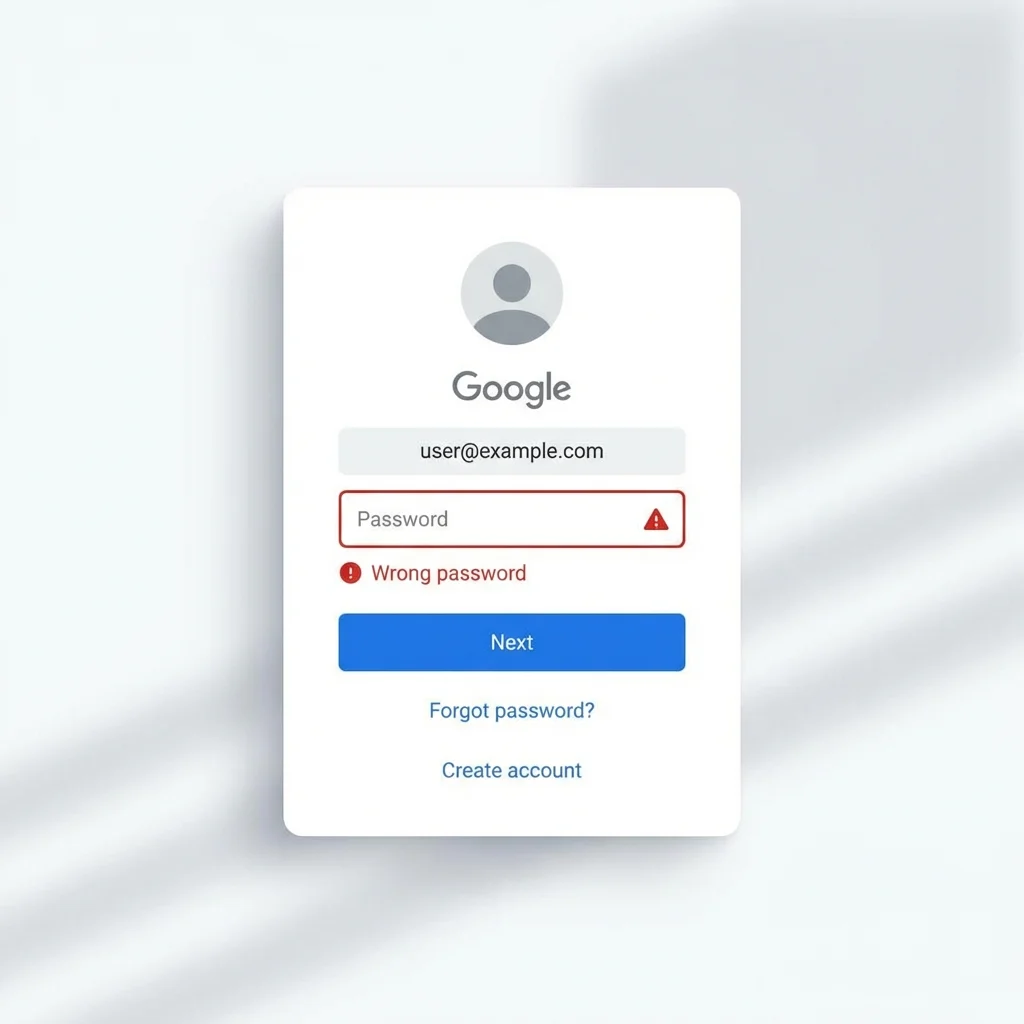
Fixes issues where the page loops, buttons don’t click, or “Incorrect Password” errors occur due to keyboard
mapping or cache conflicts. Sometimes the recovery page itself fails to load due to outdated browser scripts.
- Check Keyboard Layout: Ensure you aren’t accidentally typing in a different language or
have Caps Lock enabled. Type your password into a visible text file, such as Notepad, first to verify it is
correct. - Clear Browser Cache:
- Chrome: Settings > Privacy and security > Clear browsing data. Select Cached images
and files and Cookies and other site data. - Safari: Settings > Safari > Clear History and Website Data.
- Chrome: Settings > Privacy and security > Clear browsing data. Select Cached images
- Update Browser: Ensure you are using the latest version of Chrome or Safari. Outdated
browsers may not support the latest security scripts (ReCAPTCHA v3) used by the recovery page.
account using the official website/app. If a “support agent” asks for these, they are a scammer.
How to verify it worked
The Google sign-in page should load cleanly without any graphical glitches. When you type, the characters should
appear correctly.
If it still fails
Try a different browser (e.g., Firefox instead of Chrome) to rule out specific extension interference.
Fix Method 3: Official Flow to Recover Hacked Google Account
What this fixes
The standard process to regain access when credentials have been changed by a third party. Google has
consolidated all recovery paths (forgot password, hacked account, forgotten email) into a single dynamic flow.
- Go to https://g.co/recover. Do not use any other link found in forums or emails, as they
may be phishing sites. - Enter your email address. If you can’t remember the email itself, select “Forgot email?” and follow the
prompts to find it via your phone number. - Enter the last password you remember. This is critical. Even if the hacker changed it
yesterday, entering your password from last week proves you were the owner. Do not skip this step
if possible. It is a massive trust signal. - Follow the Verification Prompts: Google will offer a sequence of challenges based on what
is available:- Device Prompt: “Tap Yes on your phone.”
- Recovery Email: “Enter code sent to…”
- SMS: “Text a code to •••• •••• 55.”
- Analyze the Data: If the phone number or email shown is NOT yours (i.e., the hacker changed
it), do not request the code. Click “Try another way” immediately.

How to verify it worked
Success is achieved when you are prompted to create a new password. Create a strong, unique
password immediately using a mix of letters, numbers, and symbols.
If it still fails
If asking for a code sent to the hacker’s phone is the only option, proceed to the Backup Codes method below.
Fix Method 4: Recover Hacked Google Account with Backup Codes
What this fixes
Bypasses SMS and Recovery Email verification steps entirely. Most users forget they generated these when setting
up 2FA, but they remain valid until used or regenerated.
- Search your physical files, computer hard drive, or old screenshots for “Backup-codes-username.txt” or a
printout. - In the recovery flow, when asked for a verification code, click “Try another way” until you
see “Enter one of your 8-digit backup codes”. - Enter any unused code from your list. They can be used in any order, but each code works only once.
- If you find a text file on your computer, ensure it hasn’t been modified or corrupted.
How to verify it worked
The code will be accepted instantly, and you will be granted access to reset your password or modify your 2FA
settings.
If it still fails
If you did not save these codes, or have used all of them, they cannot be recovered. You must proceed to the
“Wait 7 Days” strategy.
Fix Method 5: Wait 7 Days to Recover Hacked Google Account
What this fixes
Resets the “Security Lockdown” status and may revert recovery options to older, trusted information. If you have
spammed the recovery button and failed multiple times, Google’s security AI has flagged you as a
potential attacker.
- Stop Attempting Login: Do not try to log in, recover, or reset the password for full
7 days (168 hours). - Stay Logged Out: Close the tabs. Clear your mind. Do not “check just once” on day 3.
- The Return: On Day 8, use your most trusted device on your home network.
- Attempt the Standard Recovery Flow (Method 3) again.
How to verify it worked
You may find that Google now offers questions you can answer, or reverts to sending a code to an old
phone number or email that the hacker deleted, giving you a window of opportunity to get back in. This “grace
period” for old recovery info often activates after a cooldown.
If it still fails
You may need to abandon the account if no other proofs (like credit card for Google Pay) are accepted.
Prevent This From Happening Again
Once you are back in, you are in a race against the hacker to secure the perimeter. They may still have a session
active or a “backdoor” app key installed. Take these actions immediately to lock them out for good.
- Revoke All Sessions: Go to Security > Manage all devices. Sign out of everything
except your current device. This kicks the hacker off instantly. - Enable Passkeys: Set up a Passkey on your phone. This uses biometrics and is nearly
impossible for remote hackers to phish because they cannot fake your physical fingerprint. - Check Email Filters: Hackers often set filters to delete warning emails from Google. Go to
Gmail Settings > Filters and delete anything you didn’t create. - Generate New Backup Codes: Your old ones might be compromised. Generate a new set of 10
codes and print them out. - Remove Third-Party App Access: In Security settings, revoke access for any apps you don’t
recognize or use. Hackers often leave a “malicious app” connected to read your emails. - Run a Security Checkup: Google provides a “Security Checkup” tool. Run it to get a green
checkmark across the board.
FAQ
Can I contact Google support by phone for account recovery?
No. Google does not offer phone support, chat support, or email support for free Gmail account recovery. Any
number you find online claiming to be Google Support is a scam. The online recovery tool is the only official
method.
Why does Google say “Couldn’t verify this account belongs to you”?
This means the information you provided (passwords, device checks) was not sufficient to prove ownership. This
often happens if you use a new device, a VPN, or skip too many questions. Try again from a familiar
device/location to boost your Trust Score.
How do I recover my account if the hacker changed the recovery email?
You must rely on “Trust Signals.” Use a device you have used for years. Google logs this history. If the device
trust is high enough, the system may ignore the new recovery email and offer to verify you via an old email or
security question.
What if I don’t have my phone or backup codes?
This is the most difficult scenario. Your only option is to attempt the recovery form repeatedly (but not too
often—leave 24 hour gaps) and hope to trigger a different verification question, such as confirming your credit
card if you used Google Pay, or your Date of Birth.
How long does account recovery take?
If you have the right verification steps, it is instant. If Google puts your request under “manual review” (which
usually means an AI review), it can take 3-5 business days. You will receive an update at your contact email.
Official References & Internal Links
- Google
Account Help: Secure a hacked or compromised account - Google Account Recovery
Page - Google Security
Checkup - YouTube Help:
Fix a hacked YouTube account
Related Fix Guides
- Fix Gmail Not Receiving Emails
- Google Account Login Problems
- Android System WebView Crashing? Here’s the Fix
Conclusion
To recover a hacked Google account requires patience, precision, and a cool head. It is a
process of proving your identity to a machine that is designed to trust no one. By systematically applying these
methods—starting with environmental checks and progressing to the use of backup codes or the 7-day wait—you give
yourself the best possible chance of restoration. Once back inside, lock the door behind you with Passkeys and
never leave it ajar again.