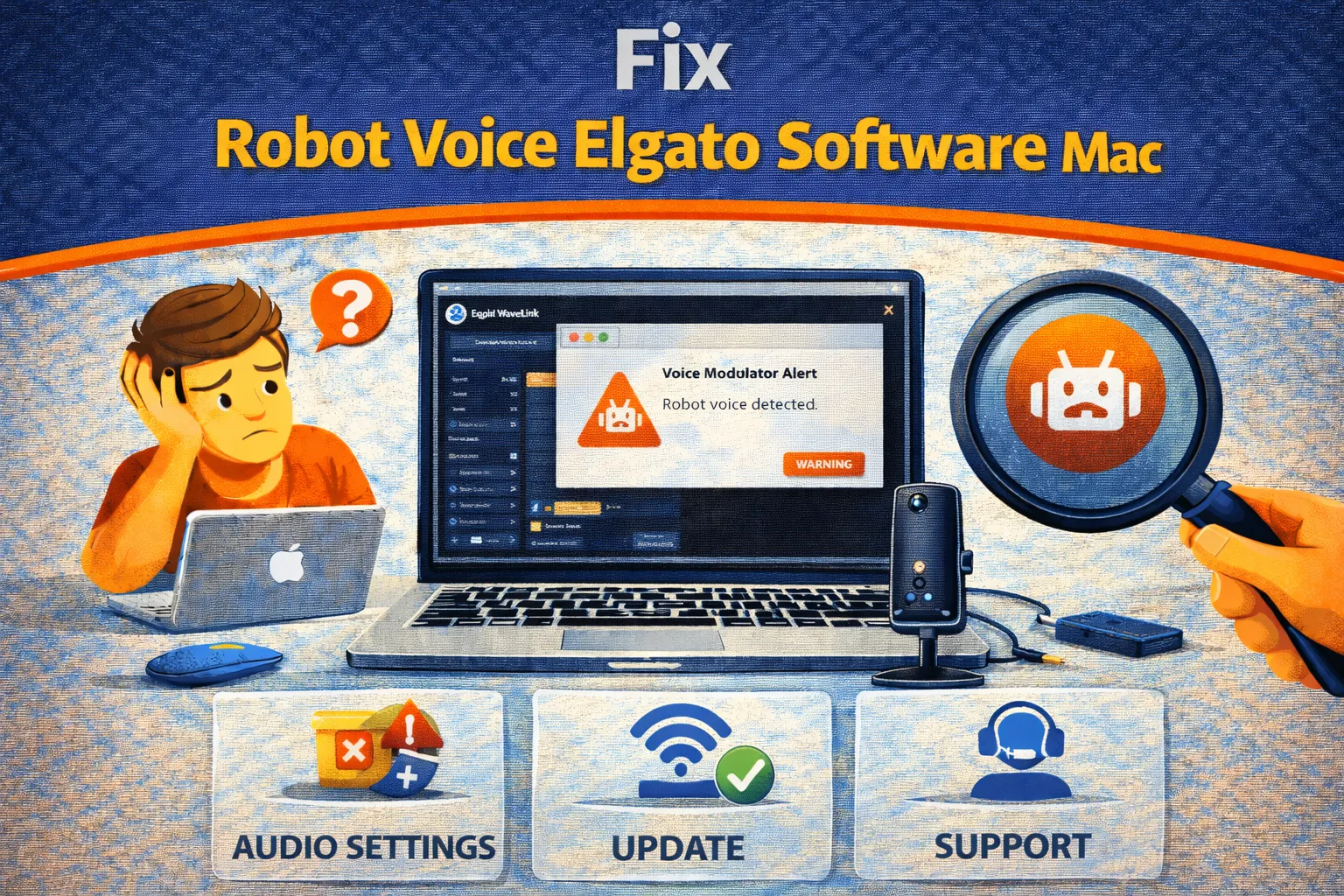
You are streaming, recording a podcast, or jumping on a Zoom call when your clean Elgato Wave:3 audio suddenly turns
into a metallic, distorted, robotic mess. This issue is widely reported by macOS users and is commonly known as the
robot voice Elgato problem. It makes your voice sound crushed, artificial, and sometimes completely
unusable.
Despite how severe it sounds, the robot voice Elgato issue is almost never caused by a defective microphone. In over
95% of cases, it is the result of a sample rate mismatch between macOS Core Audio, Elgato Wave Link,
and third-party apps like OBS, Zoom, or GarageBand. This guide explains why robot voice happens on Elgato
microphones and shows you how to fix it permanently.
Quick Fix: Stop Robot Voice on Elgato Immediately (1 Minute)
If you need an instant fix before a live stream or meeting, try these steps first:
- Toggle Low Latency Mode: Wave Link → Preferences → Advanced → Toggle OFF, wait 5 seconds, then
toggle ON again. - Reconnect the microphone: Unplug the Elgato Wave mic for 5 seconds and plug it back in.
- Fully quit Wave Link: Menu bar → Wave Link → Quit (not hide), then reopen.
- Close CPU-heavy apps: Chrome, Discord, and video editors commonly trigger robot voice Elgato
issues. - Disable AI noise removal: Turn off Elgato Noise Removal or Nvidia Broadcast plugins.
If the robot voice persists after these steps, the issue is deeper than a temporary buffer glitch and requires
correcting your macOS audio configuration.
Common Symptoms of Robot Voice Elgato on macOS
Confirm you are dealing with the classic robot voice Elgato distortion:
- Your voice sounds metallic, robotic, or digitally shredded
- Pitch shifts lower (demonic) or higher (chipmunk effect)
- Clicks, pops, or stuttering appear every few seconds
- The audio starts clean but degrades over time
- Wave Link meters move normally, but output sounds broken
- The issue appears when launching OBS, Zoom, or GarageBand
Fast Diagnosis Table: What Causes Robot Voice on Elgato
| Symptom | Likely Cause | Correct Fix |
|---|---|---|
| Metallic or robotic voice | 44.1kHz vs 48kHz mismatch | Force 48kHz in Audio MIDI Setup |
| Crackling or popping | CPU buffer underrun | Increase buffer or disable effects |
| Audio drops or freezes | USB bandwidth conflict | Direct USB connection |
| Distortion only in OBS | OBS sample rate override | Set OBS to 48kHz |
| Echo or doubled voice | Monitoring loop | Mute Stream Mix |
Why Robot Voice Happens on Elgato Microphones
Digital audio works by sampling sound tens of thousands of times per second. For video and streaming, the industry
standard is 48,000Hz (48kHz). Music software traditionally uses
44,100Hz (44.1kHz).
The robot voice Elgato issue occurs when your microphone is running at 48kHz but macOS, OBS, or Zoom expects 44.1kHz.
The operating system attempts real-time resampling, which often fails under CPU load. This math mismatch produces the
metallic, robotic distortion users describe as robot voice.
macOS is especially aggressive about changing sample rates when certain applications launch. GarageBand, Logic Pro,
Zoom, and even FaceTime can silently switch your audio clock, instantly breaking Wave Link and triggering robot voice
Elgato problems.
Fix Method 1: Audio MIDI Setup Sample Rate Alignment (Permanent Solution)
What problem this method solves
This fix eliminates clock mismatches by forcing all audio devices to share the same master sample rate.
- Open Audio MIDI Setup on macOS.
- Select Elgato Wave:3 in the left sidebar.
- Set the Format to 48,000 Hz.
- Repeat this step for:
- Wave Link Stream
- Wave Link Monitor
- System Output
- Ensure no active device remains at 44.1kHz.
How to confirm robot voice Elgato is fixed
Record a voice clip using QuickTime Player. If your voice sounds clean and stable, the clock mismatch has been
resolved.
Fix Method 2: Increase Buffer Size in Wave Link
Why this prevents robotic distortion
When your CPU cannot process audio effects fast enough, buffers underflow and produce robot voice Elgato artifacts.
- Open Wave Link.
- Hold Command and click the Settings icon.
- Increase buffer size if available.
- Disable Low Latency Mode to give the CPU more processing time.
Fix Method 3: Remove Heavy Noise Removal Plugins
Why AI plugins cause robot voice Elgato issues
AI noise removal relies on real-time audio reconstruction. On Intel Macs and base M1 systems, this frequently
overloads the audio pipeline.
- Open your microphone channel in Wave Link.
- Disable or remove Elgato Noise Removal.
- Avoid Nvidia Broadcast on macOS.
- Use lightweight alternatives such as Gate or Compressor.
Fix Method 4: Resolve USB Bandwidth Conflicts
Why USB hubs trigger robot voice on Elgato
The Elgato Wave mic transmits multiple audio streams. When sharing a hub with webcams or capture cards, data packets
drop.
- Connect the microphone directly to the Mac.
- Avoid unpowered USB hubs.
- Replace low-quality USB cables.
Fix Method 5: Match OBS Audio Settings
OBS-specific robot voice Elgato fix
OBS often overrides macOS audio settings.
- Open OBS Studio.
- Go to Settings → Audio.
- Set Sample Rate to 48 kHz.
- Restart OBS completely.
How to Prevent Robot Voice Elgato from Returning
- Avoid launching GarageBand before streaming.
- Recheck Audio MIDI Setup after macOS updates.
- Keep Wave Link firmware updated.
- Monitor CPU temperature and kernel_task usage.
- Restart macOS weekly to clear audio state corruption.
Frequently Asked Questions
Why does robot voice happen only on Zoom?
Zoom aggressively compresses audio and changes sample rates. Enable “Original Sound for Musicians” to prevent robot
voice Elgato issues.
Is 96kHz better for Elgato Wave microphones?
No. 96kHz doubles CPU usage without improving streaming quality. 48kHz is the correct and stable choice.
Is robot voice a hardware defect?
No. Digital microphones fail completely or not at all. Robot voice Elgato problems are software timing errors.
Official Documentation
Conclusion
The robot voice Elgato issue is not random, not mysterious, and not a hardware defect. It is the
result of mismatched audio clocks fighting each other inside macOS. By enforcing 48kHz across Wave Link, macOS, and
OBS — and by removing CPU-heavy plugins — you can permanently eliminate robotic distortion and restore clean,
broadcast-quality sound.
For more deep-dive macOS troubleshooting guides, explore the
TrueFixGuides knowledge base.