Why use a password manager? This is the single most effective step you can take to secure your
online life. If you are like most people, you are reusing the same three passwords across dozens of accounts.
This habit is a recipe for disaster. A single data breach at a minor site can hand over the keys to your
banking, email, and social media. This guide explains exactly why use a password manager is essential for
protecting your digital identity.
Table of Contents
Quick Fix: Why
Use a Password Manager (1 minute)
- Instantly generate and save uncrackable passwords for every site.
- Auto-fill login forms on your phone and computer, saving time.
- Receive alerts if your passwords appear in data breaches.
- Securely share passwords with family members or coworkers.
- Protect everything with one “Master Password” only you know.
Symptoms
Checklist
- You use the same password for email, banking, and streaming services.
- You frequently click “Forgot Password” links because you can’t remember them.
- You write passwords in a physical notebook or a “Passwords” document on your
desktop. - Your browser warns you that a password was found in a data leak.
- You avoid signing up for new services because creating a new account feels
exhausting.
Troubleshooting
Summary: Signs You Need a Manager
| Symptom | Likely Cause | Best Fix |
|---|---|---|
| Account Hacked | Password Reuse | Generate Unique Passwords |
| Can’t Login | Human Memory Failure | Auto-fill Credientials |
| Phishing Victim | Fake Login Page | Managers Don’t Auto-fill Fakes |
| Shared Login Chaos | Texting Passwords | Secure Sharing Vault |
Why Use a
Password
Manager: The Human Memory Limit
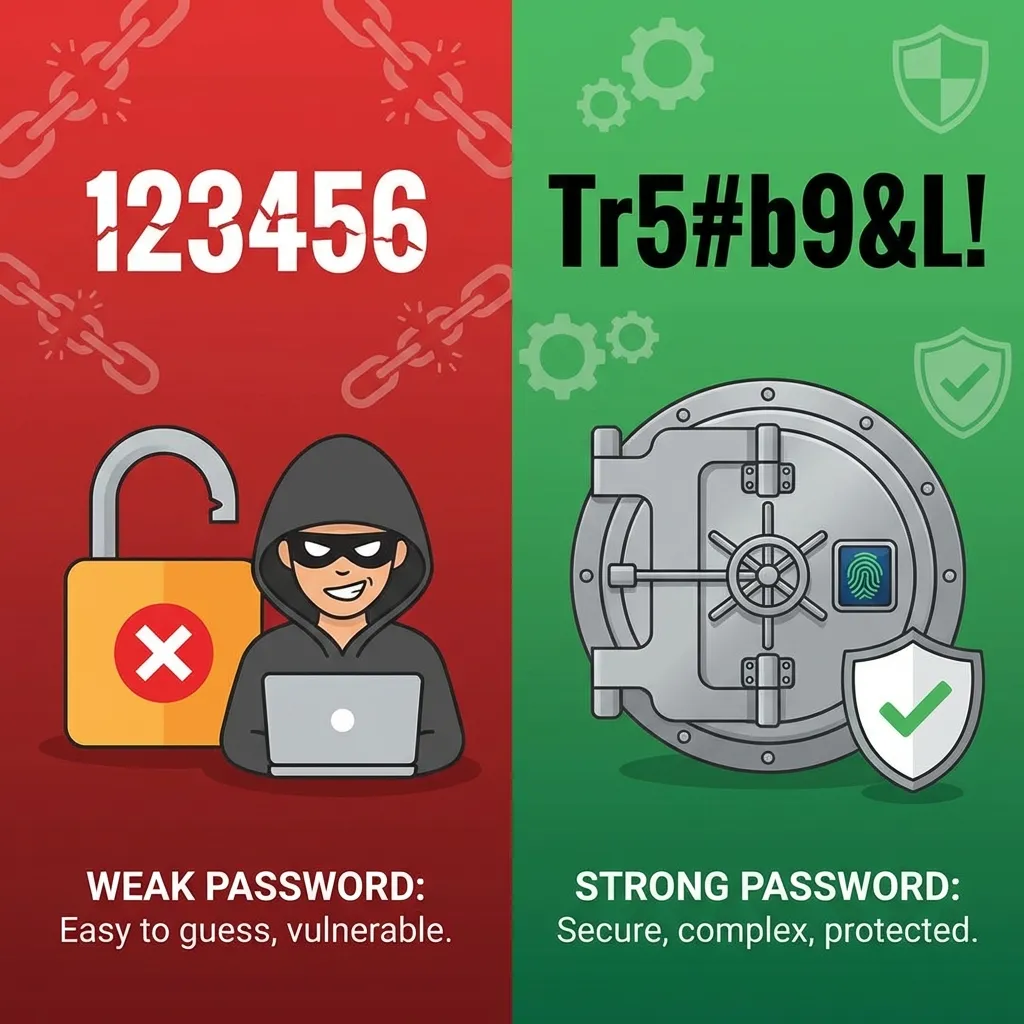
The human brain is not designed to remember 100+ unique, 16-character random strings like
Tr5#b9&L!xQ2. However, modern security demands exactly that. When you rely on your brain, you
default to patterns: “Password123”, “Fido2024”, or variations of your address.
Hackers know this. They use “Credential Stuffing” attacks—similar to how they hack Google accounts—where they take a leaked password from a
low-security
site and try it everywhere. A password manager breaks this chain by outsourcing the memory task to encrypted
software.
Fix
Method 1:
Eliminate Password Reuse with Unique Credentials
The primary reason why use a password manager is to ensure that a breach at one
company does not affect any of your other accounts. Privacy experts universally recommend this tool.
What this fixes
Prevents the “Domino Effect” of hacking. Even if hackers steal your password for Site A, your bank account on
Site B remains locked behind a completely different, mathematically complex 20-character password.
- Select a reputable password manager (e.g., Bitwarden, 1Password, or Proton
Pass). - Install the browser extension and mobile app.
- When signing up for a new account, click the manager icon in the password
field. - Select “Generate Secure Password”. It will create a string
like8^hY#kL9$mN2. - Save the login. You never need to memorize this string; the software remembers
it for you.
How to verify it
worked
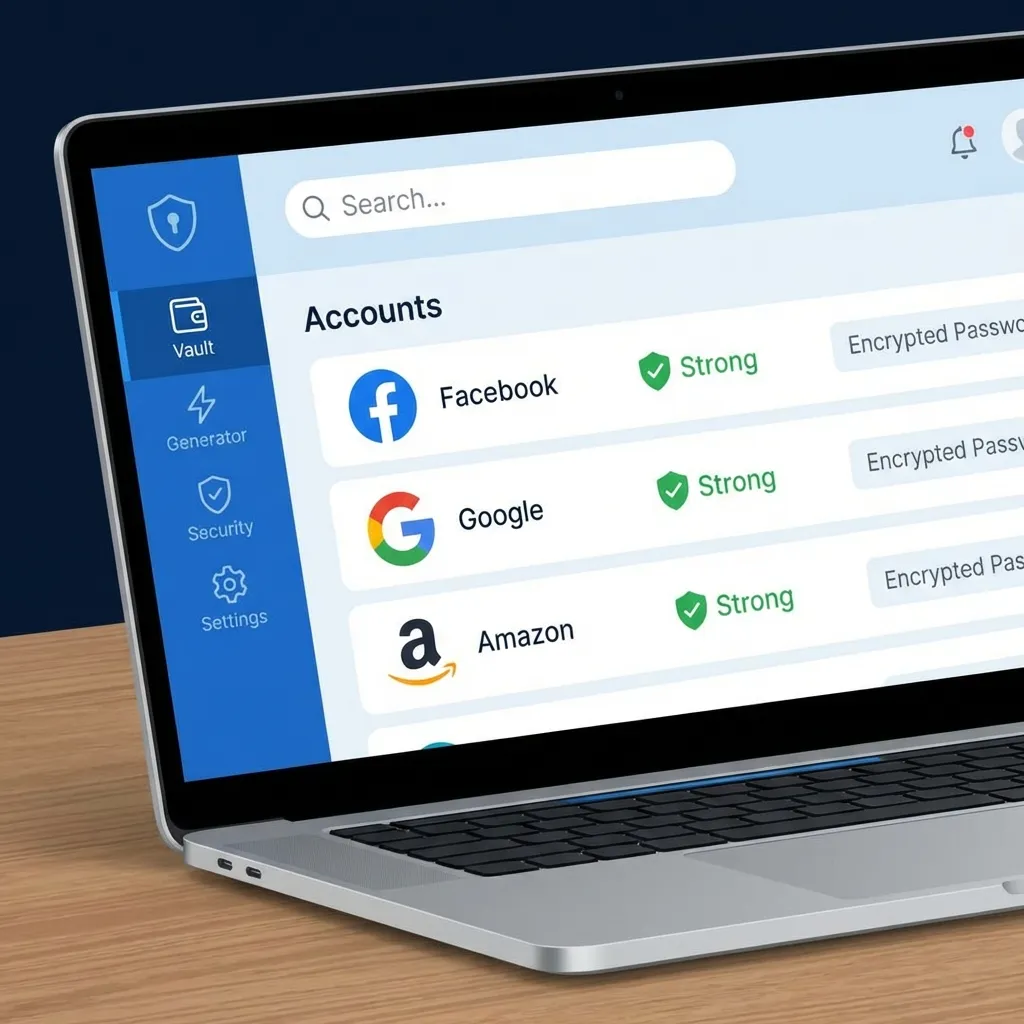
Go to the “Vault” or “Dashboard” of your password manager. You should see the new account listed with a unique
password that you cannot possibly guess.
If it still
fails
If the site rejects the password (e.g., “too long”), use the password generator settings to adjust length or
special characters to meet the site’s specific rules.
Fix
Method 2:
Defeat Phishing (Why Use a Password Manager)
Phishing sites look exactly like the real thing. A fake Google login page can foil even expert human eyes. But
it cannot fool a password manager.
What this fixes
Protects you from entering your credentials into fake websites designed to steal them.
- When you land on a login page, look at your password manager icon.
- If the icon does not offer to auto-fill your password, Stop.
- Check the URL bar. The manager refuses to fill because the domain does not
match exactly (e.g.,g0ogle.comvsgoogle.com). - If the manager does fill it, you are on the legitimate site associated
with your saved record.
How to verify it
worked
You will simply notice that on legitimate sites, logging in takes one click. On phishing links, nothing happens,
alerting you to the danger.
Fix
Method 3:
Secure Your Digital Legacy with “Emergency Access”
What happens to your digital life if you are incapacitated? Sharing a list of paper passwords is insecure. Most
premium password managers offer a feature called “Emergency Access.”
What this fixes
Ensures your family can access critical accounts (banking, insurance, email) in an emergency without
compromising your security while you are active.
- In your password manager settings, find Emergency Access.
- Invite a trusted contact (spouse, parent) via their email.
- Set a wait period (e.g., 7 days).
- If they request access, you are notified. If you deny it, they get nothing. If
you do not respond after 7 days, they are granted access to your vault.
How to verify it
worked
Your trusted contact will receive an email confirmation. You can view the “Pending Invites” status in your
dashboard.
Fix
Method 4:
Why Use a Password Manager for 2FA Storage
Two-Factor Authentication (2FA) is essential, but switching between apps to copy codes is annoying. Many
managers can generate these Time-Based One-Time Passwords (TOTP) for you.
What this fixes
Streamlines the login process. The manager fills both your username/password AND the 6-digit code
simultaneously.
- When setting up 2FA on a site, choose “Authenticator App.”
- Instead of scanning the QR code with Google Authenticator, scan it (or paste
the key) into your Password Manager entry. - Save the record.
- Next time you login, the manager will copy the current code to your clipboard
automatically.
How to verify it
worked
Watch the timer on the entry in your password manager. You should see a 6-digit code changing every 30 seconds,
synced with the website.
Important: Storing 2FA codes in your password manager is convenient but slightly less secure
than a separate device. For critical financial accounts, create a separation of concerns by keeping 2FA on a
separate app.
Fix Method 5:
Audit Your Digital Hygiene
You likely have old, weak passwords floating around from years ago. A password manager acts as a security
auditor.
What this fixes
Identifies “zombie” accounts with weak or widely reused passwords that are waiting to be hacked. Why use a
password manager if not to automate this tedious security audit?
- Open your Password Manager’s “Security Report” or “Audit” dashboard.
- Look for red flags: “Reused Passwords,” “Weak Passwords,” or “Compromised
Websites.” - Work through the list, logging into each site and using the manager to generate
a new, strong password. - Watch your “Security Score” turn green.
How to verify it
worked
Your dashboard will show “0 Reused Passwords” and “0 Weak Passwords.” This is the gold standard of personal
cybersecurity.
Prevent This
From Happening Again
- Memorize ONE Master Password: Make this a phrase (passphrase)
that is long and memorable to you, but random to others. This is the only key you ever need to keep. - Enable 2FA on the Vault: Protect the password manager itself
with a YubiKey or an authenticator app. This is non-negotiable. - Export Backups: Once a year, export your vault to an encrypted
file and store it on an offline USB drive in a safe. - Trust No Browser: Do not use the browser’s built-in “Save
Password” feature (like Chrome or Safari). They are often less secure and harder to move than a dedicated
manager. - Update the App: Keep your password manager updated to ensure
it has the latest encryption protocols.
FAQ
Is it safe to
put all my passwords in one place?
Yes. Good password managers use “Zero-Knowledge Encryption.” This means even the company that makes the software
cannot read your passwords. Your data is encrypted on your device before it is synced to the cloud.
What happens if
I forget my master password?
If you forget your master password and have no “Emergency Access” set up, you will lose your data. Because of
zero-knowledge encryption, there is no “Password Reset” button that the company can use to help you. This is a
security feature, not a bug. Write your master password down and lock it in a physical safe.
Are free
password managers safe?
reputable ones like Bitwarden (Free tier) are excellent and safe. Avoid obscure “free” apps on app stores that
might be malware. Stick to the big names: Bitwarden, 1Password, Dashlane, or Proton Pass.
Why use a
password manager instead of a notebook?
A notebook cannot accept 2FA codes, cannot auto-fill on your phone while you are traveling, cannot detect
phishing sites, and can be physically stolen or destroyed in a fire. A cloud-synced manager survives physical
disasters.
Can a password
manager be hacked?
Theoretically, yes. Specifically, LastPass had a breach. However, because user vaults were encrypted with strong
master passwords, users with strong master passwords remained safe. The risk of not using a manager
(reusing passwords) is statistically thousands of times higher than the risk of the manager’s encryption
failing.
Official
References
Official reference: CISA: Use Strong
Passwords and a Password Manager
Official reference: Google Safety Center: Manage your
passwords
Official reference: Bitwarden Security Whitepaper
Conclusion
The question isn’t really why use a password manager, but rather how you can afford
not to. In an age of billion-record data breaches, your brain is simply overmatched. By understanding
why use a password manager, you eliminate the biggest vulnerability in your digital
defense—human memory. Install one today, generate your
unique keys, and enjoy the peace of mind that comes with true security.