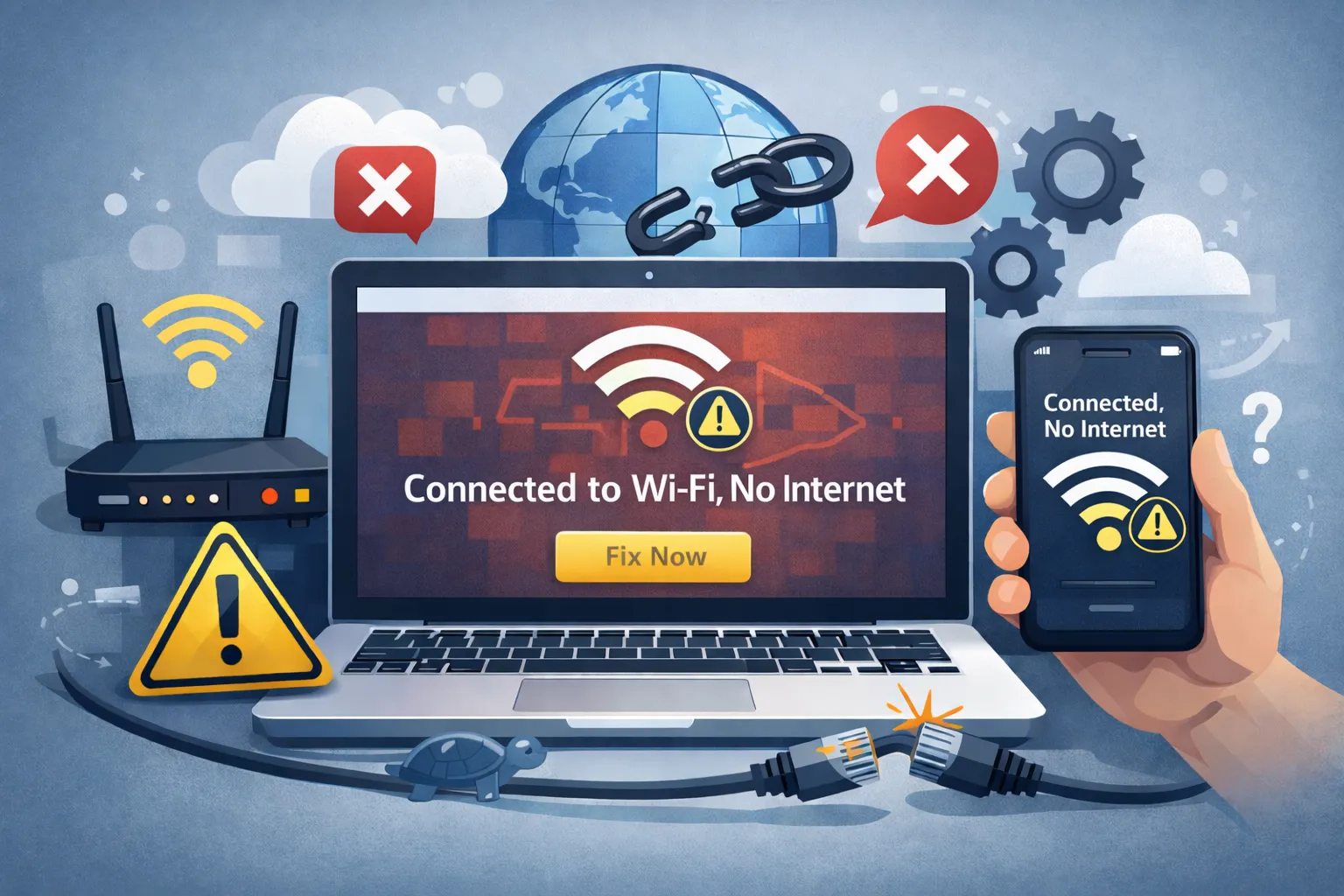
WiFi connected but no internet is one of the most confusing network errors because your device says the signal is strong, yet nothing loads. You see full bars, but Chrome says “No Internet” or “DNS_PROBE_FINISHED_NO_INTERNET”. This typically means your device can talk to the router, but the router cannot talk to the outside world (the ISP), or your device has a bad IP configuration that prevents data flow. Whether you’re experiencing wifi connected but no internet on Windows, Mac, Android, or iOS devices, this comprehensive troubleshooting guide will help you diagnose and fix the wifi connected but no internet problem immediately.
Quick Fix (1 minute)
- Restart Modem: Unplug power for 60 seconds, then replug.
- Forget Network: Remove the WiFi profile and rejoin.
- Check Time: Ensure your PC clock is synced correctly.
- Toggle Airplane Mode: Reset the radio on laptops/phones.
Symptoms Checklist
- WiFi icon shows full bars but has a “No Internet Access” warning.
- Yellow triangle icon over the WiFi signal (Windows).
- “Connected, no internet” message in WiFi settings (Android/iOS).
- Browsers return “DNS Server Not Responding” errors.
Troubleshooting Summary (Fast Diagnosis)
| Symptom | Likely Cause | Best Fix |
|---|---|---|
| All devices have no internet | ISP Outage / Modem Freeze | Restart Modem (Method 1) |
| Only ONE device fails | Bad IP/DNS Config | Flush DNS (Method 3) |
| “No Internet, Secured” | Gateway/IP Conflict | Reset Network Stack (Method 4) |
| Slow/Intermittent Drops | Channel Interference | Change DNS Server (Method 2) |
Why This Error Happens
When you see WiFi connected but no internet, it means the Local Area Network (LAN) link between your device and the router is healthy, but the Wide Area Network (WAN) link to the internet provider is broken. This is often caused by a “stale” IP address where your router thinks your device is offline, or a DNS failure where your computer cannot translate “google.com” into a numeric IP address. In rare cases, the router’s internal modem component has crashed while the WiFi radio keeps broadcasting a signal, leading to the wifi connected but no internet state.
Fix Method 1: The “Power Cycle” Sequence (Router & Modem)
When you encounter wifi connected but no internet, the power cycle sequence is your first line of defense. This clears the router’s short-term memory (RAM) and forces it to request a fresh IP from your Internet Service Provider (ISP). It fixes 80% of ISP-side “hangs.”
- Unplug the power cable from your Modem (the box from your ISP).
- Unplug the power cable from your Router (if separate).
- Wait a fully 60 seconds. (Capacitors need time to drain).
- Plug in the Modem first. Wait 2 minutes for the “Online/Cable” light to go solid.
- Plug in the Router. Wait 2 minutes for WiFi lights to blink.
- Reconnect your device and test.
Warning: Do not press the tiny pinhole “Reset” button on the back. That is a Factory Reset that wipes your password. Only unplug the power cable.
The “Internet” globe icon on your router turns green or white, and pages load. If it still fails, check your ISP’s website on your phone (using mobile data) to see if there is a local service outage in your area.
Fix Method 2: Change DNS Servers to Google/Cloudflare
Your ISP’s default DNS servers are often slow or unreliable. Switching to a public, stable DNS server instantly fixes “server not found” errors.
- Press
Win + R, typencpa.cpl, and hit Enter. - Right-click your Wi-Fi adapter and select Properties.
- Select Internet Protocol Version 4 (TCP/IPv4) and click Properties.
- Select Use the following DNS server addresses.
- Enter 8.8.8.8 (Preferred) and 8.8.4.4 (Alternate) for Google DNS.
- Click OK and close all windows.
Websites connect instantly without the “Resolving host…” delay. If it still fails, try Cloudflare DNS (1.1.1.1 and 1.0.0.1) instead.
Fix Method 3: Flush DNS and Reset IP
This clears your computer’s local cache of website addresses and forces it to ask the router for a brand new identification (IP) tag.
- Type
cmdin the Start menu search bar. - Right-click Command Prompt and choose Run as administrator.
- Type the following commands, pressing Enter after each one:
ipconfig /flushdnsipconfig /releaseipconfig /renew
- Wait for the IP address line to appear.
You receive a new IPv4 address (e.g., 192.168.1.50) and internet access returns. If you get an error message saying “Media disconnected,” your WiFi adapter might be disabled or failing.
Fix Method 4: Reset Network Settings (Windows)
If you’re still experiencing wifi connected but no internet after the previous steps, this is the “nuclear option” for software. It deletes all network adapters, removes cached passwords, and reinstalls the original factory drivers for your WiFi card.
- Go to Settings > Network & internet > Advanced network settings.
- Scroll down to select Network reset.
- Click Reset now.
- Click Yes to confirm.
- Your PC will restart automatically after 5 minutes (or restart manually immediately).
Windows will ask “Do you want to allow your PC to be discoverable?” as if you connected to a new network. If this doesn’t work, you may need to download the latest WiFi driver from your laptop manufacturer’s website using another computer.
Fix Method 5: Disable Proxy Settings
Malware or privacy tools sometimes set a “Proxy” that redirects your traffic. If that proxy server goes offline, your internet breaks completely.
- Press
Win + Ito open Settings. - Go to Network & internet > Proxy.
- Ensure Use a proxy server under “Manual proxy setup” is turned Off.
- Ensure Automatically detect settings is turned On.
Browser pages load immediately without “Proxy server error” messages. If it still fails, run a malware scan with Malwarebytes to ensure no virus is forcing the proxy back on.
Prevention Tips
- Use a UPS: Keep your router on a battery backup to prevent power flickers from freezing it.
- Update Firmware: Log into your router periodically to apply security updates from the manufacturer.
- Set Static DNS: Keep Google or Cloudflare as your permanent DNS setting.
- Avoid Signal Boosters: Cheap WiFi extenders often cause IP conflicts; use Mesh systems instead.
Frequently Asked Questions
What’s the fastest way to fix this error?
The fastest fix for wifi connected but no internet is the power cycle method (Method 1), which resolves 80% of cases in under 5 minutes. Simply unplug your modem and router for 60 seconds, then reconnect them in the proper sequence.
Why does my phone work but my laptop doesn’t?
This confirms the router has internet, but your laptop has a bad configuration. It is usually a corrupted DNS cache or a driver issue on the laptop. Focus on Fix Methods 2 and 3.
What does “No Internet, Secured” mean?
It means the connection is encrypted (password is correct) and secure, but no data is flowing through to the web. It is “securely connected to nothing.”
Can a VPN cause this problem?
Yes. If your VPN app crashes but leaves the “Kill Switch” active, it cuts all internet access to prevent leaks. Open your VPN app and disconnect properly, or uninstall it.
Should I check the cables?
Absolutely. A loose Ethernet cable connecting the modem to the router (WAN port) will cause exactly this issue: strong WiFi signal, but zero internet data.
How do I know if it is an ISP outage?
If all lights on the modem are off or blinking orange instead of green, and no device in the house works, it is almost certainly an issue with your cable line or provider.
Official References
- Microsoft Support: Fix Wi-Fi connection issues in Windows
- Google Chrome Help: Get help with common error messages
Conclusion
The WiFi connected but no internet error is rarely a hardware failure. It is almost always a conversation breakdown between your router and the modem, or your PC and the DNS server. By cycling the power correctly and hard-coding reliable DNS servers like 8.8.8.8, you bypass the flimsy default settings that cause 90% of these dropouts. Remember, wifi connected but no internet is usually a quick fix once you understand whether the issue is router-side or device-side.
Visit https://truefixguides.com/ for more.


