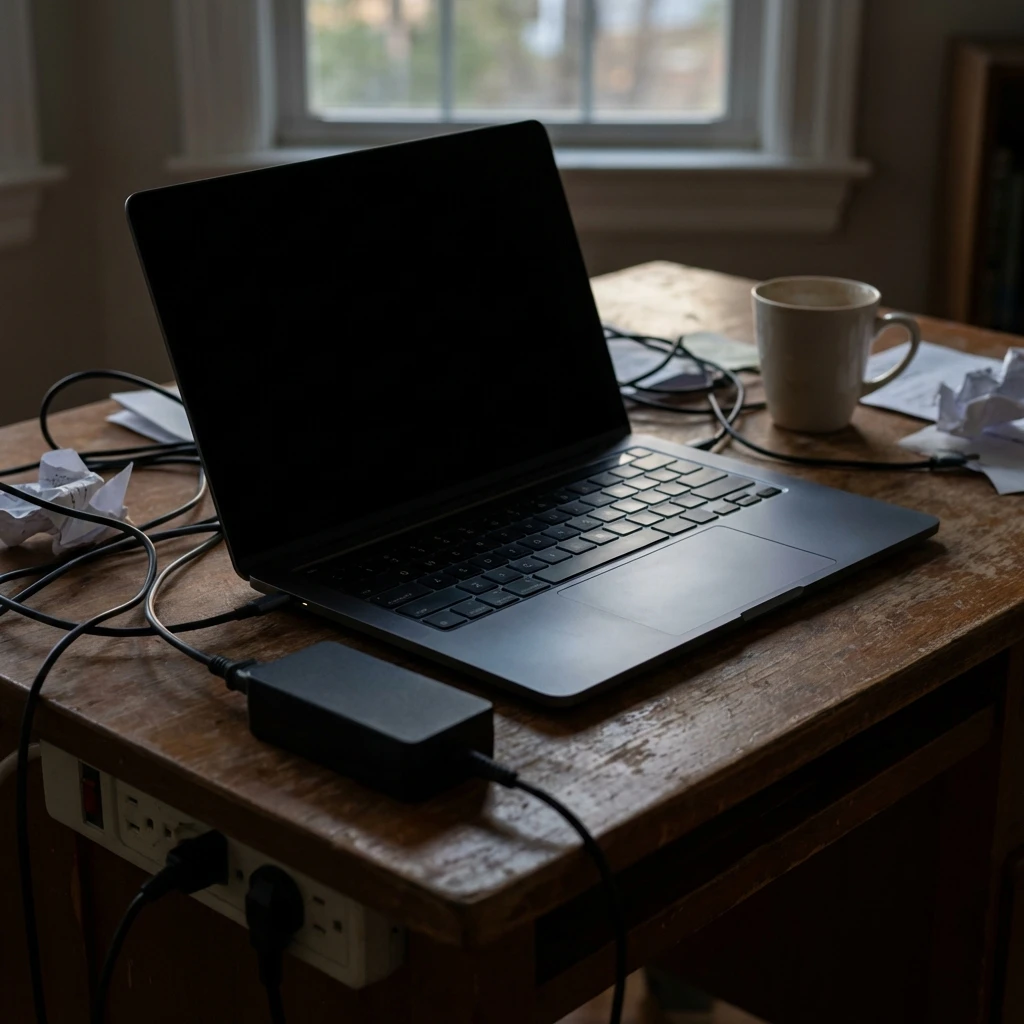
When your laptop shows no signs of life—no lights, no spinning fans, and a screen as black as ink—it feels like a catastrophic hardware failure. You press the power button, and absolutely nothing happens. It is arguably the most frustrating issue in tech because without a screen or error code, you have zero feedback to work with. However, a “dead” laptop is often just a confused one, leading to the dreaded laptop shows no signs of life scenario.
Modern laptops have complex power management systems designed to protect the battery and motherboard. If a static charge builds up or a “protection mode” is triggered by a faulty charger, your laptop shows no signs of life to prevent damage. This guide walks you through the professional “revival” process, starting with the legendary “Power Drain” method that fixes over 50% of these cases instantly.
Quick Fix: The “Magic” Power Drain (2 Minutes)
Before you panic, try this industry-standard reset. It works on Dell, HP, Lenovo, ASUS, and Acer laptops alike when your laptop shows no signs of life.
- Disconnect Power: Unplug the AC adapter charging cable from the laptop.
- Remove Peripherals: Unplug USB mice, drives, and HDMI cables.
- The “Hold”: Press and hold the power button down for a full 60 seconds. Do not let go early.
- Reconnect: Plug only the charger back in (do not rely on battery power yet).
- Test: Press the power button once firmly. If the charging light blinks or fans spin, you are back in business.
Symptoms Checklist
- Pressing power results in zero reaction (no LED lights whatsoever).
- The laptop feels completely cold to the touch even after being “plugged in” for hours.
- The charging light on the side of the laptop does not illuminate when the cable is inserted.
- You hear a faint “ticking” sound from inside the case but see no lights.
- The laptop was working fine, went to sleep, and never woke up.
- Laptop shows no signs of life despite being connected to power.
Troubleshooting Summary: Dead Laptop Diagnosis
| Symptom | Likely Cause | Best Fix |
|---|---|---|
| No lights, Adapter LED off | Dead AC Adapter (Charger) | Replace Charger |
| No lights, Adapter LED on | Static Charge / EC Freeze | Hard Power Drain |
| Charging light flashes | Battery Failure / Deep Cycle | Disconnect Battery |
| Power light on, Black Screen | Screen/GPU Failure | External Monitor Test |
| Burning smell | Short Circuit | Professional Repair |
Why This Happens
Why does a laptop show no signs of life suddenly? The culprit is usually the Embedded Controller (EC). This is a small chip on your motherboard that manages power distribution, battery charging, and the sleep/wake signals. It runs even when the laptop is off.
Sometimes, this EC chip freezes due to a static electricity spike or a software glitch during sleep mode. When it freezes, it stops recognizing the power button. Even though your battery has power and your CPU is fine, the “gatekeeper” (EC) is asleep on the job and won’t let the power through, causing your laptop shows no signs of life issue. The “Power Drain” bypasses this by forcing the EC to reboot.
Fix Method 1: Inspect the AC Adapter (The Brick)
What this fixes
A laptop cannot turn on if it has a dead battery and a broken charger. You must verify the power source is actually delivering energy when your laptop shows no signs of life.
- Check the Brick: Look at the black power brick block. Does it have a small green or blue LED light?
- No light on brick: The charger is blown, or the wall cable is loose. Swap the wall cable (it is usually a standard generic 2-pin or 3-pin cable).
- Light flickers: The internal transformer is dying. Replace the charger.
- Check the Pin: Inspect the metal tip that plugs into the laptop. Is the center pin bent or black? A bent pin prevents the “ID signal” that tells the laptop it is safe to charge.
- Wiggle Test: Gently wiggle the connector at the laptop port. If the charging light flickers on briefly, your DC Jack (charging port) is loose, which is why your laptop shows no signs of life, and likely needs soldering.
How to verify it worked
A solid LED light appears on the power brick or the laptop’s charging indicator.
If it still fails
If the charger works but the laptop stays dead, move to the battery isolation test.
Fix Method 2: Battery Isolation (Internal Systems)
What this fixes
A shorted Li-Ion battery can trigger a safety mechanism that cuts power to the entire motherboard to prevent a fire. Removing the battery removes the short, allowing the laptop to run on AC power directly and resolving cases where your laptop shows no signs of life.
- Open the Case: Unscrew the bottom panel of the laptop. Keep screws organized (they differ in length!).
- Locate Battery Connector: Follow the cables from the battery to the motherboard. You will see a multi-colored connector block.
- Unplug It: Gently slide or pull the connector out. Do not pull by the wires; use the plastic header.
- Test Run: With the battery disconnected, plug in your AC adapter and press the power button.
- Result: If it turns on now, your battery caused the blackout. You can use the laptop plugged in until you buy a replacement battery.
How to verify it worked
The laptop boots to Windows normally, but the battery icon will show “X” or “Not Detected.”
If it still fails
If it is still dead with the battery removed, the issue is the motherboard or RAM.
Fix Method 3: Reseat RAM Modules
What this fixes
Loose RAM prevents specific signals (POST) from completing. While usually this results in blinking lights, on some models (like Lenovo ThinkPads or HP EliteBooks), a RAM error prevents the power rail from initializing entirely, making your laptop show no signs of life.
- With the back cover off and battery disconnected (from Method 2), locate the RAM slots.
- Unclip: Pull the metal arms on the side of the RAM stick outward. The stick will pop up at a 45-degree angle.
- Remove and Clean: Pull the stick out. Blow any dust from the slot.
- Reinsert: Slide it back in at 45 degrees, then push down flat until the arms click.
- Power Up: Reconnect the AC adapter and try to turn it on.
How to verify it worked
The screen lights up. Note: The first boot after reseating RAM may take 30-60 seconds for “Memory Training.” Be patient.
If it still fails
The fault is likely deep in the motherboard (a blown MOSFET or capacitor).
Fix Method 4: The CMOS Reset (BIOS Battery)
What this fixes
Just like on a desktop, a laptop has a small coin cell battery helping the BIOS remember settings. If this data corrupts, the BIOS hangs before powering the screen, causing your laptop shows no signs of life situation.
- Look for a small coin battery (CR2032) attached to the motherboard, often wrapped in black tape with a 2-wire cable.
- Disconnect: Unplug this tiny connector for 60 seconds.
- Reconnect: Plug it back in.
- Reassemble and Test: This factory resets the BIOS parameters, often clearing boot blocks.
How to verify it worked
The laptop will turn on and likely display “RTC Battery Low” or “Date/Time Not Set.” This confirms the reset worked. Press F1/F2 to set the time.
If it still fails
If you have tried a new charger, battery removal, and a power drain with no luck, the motherboard is physically damaged.
Common Scenarios When Laptop Shows No Signs of Life
Understanding when your laptop shows no signs of life helps identify the root cause faster. Sudden failures after Windows updates often indicate driver conflicts freezing the EC chip, while gradual decline with intermittent charging issues points to failing power delivery components. Laptops that died during sleep mode typically have EC freeze problems solvable with power drains, whereas devices that stopped working after physical impact likely have loose internal connections or damaged motherboard traces. Recognizing your specific scenario allows you to skip ineffective troubleshooting steps and apply the most relevant fix immediately.
Prevent This From Happening Again
Laptops are fragile ecosystems. A “dead” event is often a warning sign of poor health.
- Avoid “Sleep” Mode Transport: Do not throw a sleeping laptop into a bag. It can overheat, crash, and trigger a safety shutdown that looks like death. Use “Hibernate” or “Shut Down” instead.
- Charge Cycles: Do not leave your laptop plugged in 24/7 if it sits at 100%. This degrades the battery, leading to the short-circuit issue mentioned in Method 2.
- Ventilation: Heat kills motherboard components. Ensure the intake vents on the bottom are not blocked by blankets or laps.
- Regular Power Drains: Perform a power drain monthly to prevent EC chip freezes that cause laptop shows no signs of life issues.
- Use Surge Protection: Always plug chargers into surge protectors to prevent voltage spikes from damaging internal components.
- Clean Vents Quarterly: Dust buildup causes overheating that can trigger protective shutdowns mimicking complete failure.
FAQ
Can I retrieve my files if the laptop won’t turn on?
Yes! Your data lives on the SSD or Hard Drive, not the motherboard. A technician can remove the drive and plug it into another computer to copy your photos and documents.
What does it mean if the power light blinks orange/amber?
This is a specific “Diagnostic Code.” For Dell, 2 amber / 3 white might mean RAM failure. For HP, blinking caps lock means BIOS corruption. Search your specific model + “blink code” for the exact answer.
My laptop gets hot when plugged in but won’t turn on. Why?
This is a bad sign. It means power is entering the board but is being dumped into a short circuit (creating heat) instead of doing work. Unplug it immediately to prevent melting components.
Is the “Pinhole Reset” the same as removing the battery?
Yes. Many modern laptops with internal batteries have a tiny hole on the bottom case. Inserting a paperclip for 10 seconds disconnects the battery electronically, simulating a removal.
How much does motherboard repair cost?
It is expensive—often $200-$400. If your laptop is more than 4 years old, it is usually more economical to buy a new one than to replace the motherboard.
Official References
- HP Support: Laptop Won’t Turn On
- Dell Knowledge Base: Resolve No Power Issues
- Lenovo Support: Troubleshooting Power Issues
Conclusion
When a laptop shows no signs of life, it tests your patience. But remember: unless you spilled water on it or dropped it down stairs, the components are likely fine. The issue is almost always a power state “lock.” By performing the Hardware Power Drain and isolating the battery, you release that lock. If these steps fail, you can rest easy knowing you did everything a technician would do before declaring the motherboard deceased. For most, however, that single 60-second button hold will be the miracle cure.
Visit https://truefixguides.com/ for more.

