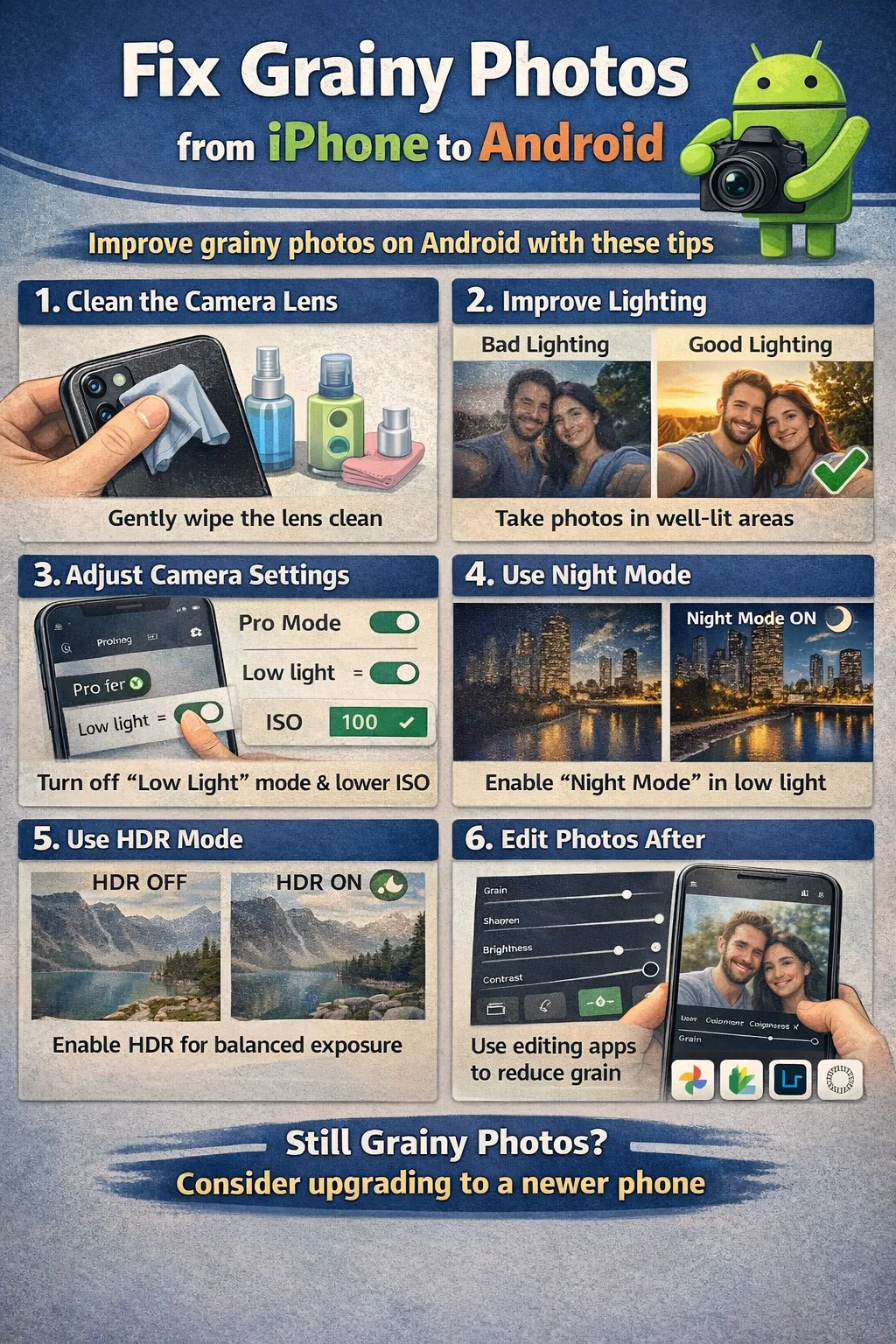
To fix grainy photos android users need to understand that grainy, noisy, or pixelated photos are the enemy of a crisp Android photography experience. That “sandpaper”
texture often ruins special low-light moments, making them look low-quality and fuzzy. While small smartphone
sensors struggle in the dark, modern Android phones offer powerful tools to fix grainy photos android cameras produce in various lighting conditions. This guide covers
how to prevent noise before you shoot and how to rescue grainy images you’ve already taken using advanced
editing and AI tools designed to fix grainy photos android devices capture daily.
Quick Fix to Fix Grainy Photos Android (1 minute)
Fix grainy photos android immediately with these solutions:
- Use Night Mode: Switch your camera to “Night” or “Night Sight” mode before shooting to
drastically reduce grain and fix grainy photos android users experience in low light situations. - Lower ISO in Pro Mode: Open your Camera > More > Pro Mode. Manually set ISO to 400 or
lower to fix grainy photos android devices capture in challenging conditions. - Adobe Lightroom Mobile: Import photo > Edit > Detail > Increase “Noise Reduction” slider
(free feature) to fix grainy photos android smartphones take. - Google Photos: Edit > Adjust > Denoise (if available on your device/subscription).
- Remini App: specific AI processing to reconstruct details and wipe away grain instantly.
These steps tackle the two main approaches: better capture settings to prevent grain, and post-processing tools
to remove it and fix grainy photos android users struggle with.
Symptoms Checklist
Identify if your photo suffers from “digital noise” (grain) or other quality issues:
- Speckled, sand-like texture across the entire image
- Colored splotches (chroma noise) in dark/shadow areas
- Loss of fine detail (hair and skin look mushy)
- Fuzzy appearance even when the subject is in focus
- Grid-like artifacts (often JPEG compression, but looks like grain)
- Image looks significantly worse when zoomed in
Troubleshooting Summary (Fast Diagnosis)
| Symptom | Likely Cause | Best Fix |
|---|---|---|
| Colored speckles (Red/Green/Blue) | Color Noise (High ISO) | Lightroom “Color Noise Reduction” |
| Sand-like texture (Luminance) | Luminance Noise (Low Light) | Lightroom “Noise Reduction” or Google Photos Denoise |
| Blurry + Grainy | Motion Blur + High ISO | Stabilize phone + Night Mode |
| Grainy in daylight | Digital Zoom (Cropping) | Don’t zoom past optical limit; move closer |
| Old photo looks grainy | Low Resolution source | Remini / AI Upscaler |
Why This Happens on Android Devices
Grain, or digital noise, is essentially “visual static.” In audio, if you turn up the volume on a quiet
recording, you hear a hiss. In photography, when you take a picture in low light, your Android phone amplifies
the signal from its image sensor to make the picture visible. This amplification is called ISO.
When the camera increases the ISO (sensitivity) to see in the dark, it also amplifies the random electrical
interference in the sensor, creating those unsightly speckles. Android phones have smaller sensors than
professional cameras, making them more prone to this noise. Another common cause is Digital
Zoom. When you pinch-to-zoom beyond your lens’s optical limit, the camera simply crops and enlarges
the pixels, making the noise much more visible and “chunky.”
Fix Method 1: Adobe Lightroom Mobile (The Pro Standard)
What This Fixes for Fix Grainy Photos Android
Lightroom offers the most sophisticated manual noise reduction algorithms available on Android for free. It
separates “Luminance” (texture grain) from “Color” (colored blotches). This method helps you fix grainy photos android devices produce in low-light conditions effectively and professionally.
- Download Adobe Lightroom from the Play Store (Free version works).
- Open the app and import your grainy photo.
- Tap the Detail tab (triangle icon) in the bottom menu.
- Locate the Noise Reduction slider.
- Slowly slide it to the right (around 20-40). Watch the grain disappear.
- Warning: Don’t go too high (above 50-60) or the photo will look like plastic/wax.
- If you see red/green splotches, use the Color Noise Reduction slider.
- Tap the Export icon to save your clean image.
How to Verify It Worked
Zoom into a shadow area. The “sand” texture should be smooth, but edges of objects should remain relatively
sharp.
If It Still Fails
If the photo becomes too blurry, the noise was too severe for manual removal. Try AI restoration (Method 3) to fix grainy photos android cameras captured.
Fix Method 2: Google Photos “Denoise” & Adjustments
What This Fixes
A quick, built-in solution for Google One subscribers or Pixel users integrated directly into the gallery app to fix grainy photos android users take.
- Open the photo in Google Photos.
- Tap Edit.
- Go to Tools. If you have “Denoise” here, use it.
- If not, go to Adjust.
- Scroll to find Denoise (sometimes labeled “Noise reduction”).
- Slide the dot to the right until the grain smooths out.
- Also, increase Sharpening slightly to counteract the softness caused by denoising.
- Tap Done > Save copy.
How to Verify It Worked
Compare the before/after by holding your finger on the photo during editing. The “After” should look cleaner and
smoother.
Fix Method 3: Remini – AI Photo Enhancer
What This Fixes
Best for rescuing extremely grainy, low-quality, or old photos where manual sliders fail. It uses AI to
hallucinate/reconstruct details and helps fix grainy photos android users struggle with in severe cases.
- Download Remini from the Play Store.
- Open the app (you may have to watch an ad on the free version).
- Select your grainy photo.
- Tap Enhance.
- Wait for the AI execution (usually takes 15-30 seconds).
- Drag the “Before/After” slider to see the difference.
- The AI will interpret the grain as detail and reconstruct a clear face/object.
- Tap the download icon (arrow) to save.
How to Verify It Worked
The resolution will likely double, and the face will look remarkably sharp. Note that AI sometimes changes facial
features slightly.
If It Still Fails
If the face looks unnatural, try a lower “beautification” setting if available, or stick to Lightroom for a more
authentic look.
Fix Method 4: Shoot with “Night Mode” (Prevention)
What This Prevents
Prevents grain from happening in the first place. Instead of boosting ISO (which causes grain), Night Mode takes
multiple long-exposure shots and stacks them to gather real light and fix grainy photos android cameras would otherwise produce.
- Open your Camera app.
- Swipe through modes to find Night, Night Sight (Pixel), or
Nightography (Samsung). - Hold your phone extremely steady.
- Tap the shutter button.
- Do not move while the circle timer completes (usually 2-5 seconds).
- The phone captures multiple images and averages out the noise, resulting in a clean photo.
How to Verify It Worked
Take two shots: one in standard “Photo” mode and one in “Night” mode. The Night mode shot will be brighter, more
colorful, and almost entirely grain-free.
Fix Method 5: Use Pro Mode to Limit ISO
What This Controls
Gives you manual control to prevent the camera from automatically choosing a high ISO setting that creates grain.
- Open Camera and select Pro or Manual mode.
- Find the setting labeled ISO.
- It will likely be on “Auto.” Tap it and select a low number like ISO 100 or ISO
400. - The screen will get very dark.
- To compensate, lower the Shutter Speed (e.g., 1/10 or 1/4 second) until the image is bright
again. - Crucial: You must rest the phone on a table or tripod. Slow shutter speeds blur with
handshakes. - Take the photo.
How to Verify It Worked
Because you forced a low ISO, the sensor didn’t amplify the signal noise. The resulting image will be incredibly
clean, mirroring professional camera quality.
Fix Method 6: Snapseed “Grainy Film” Hack
What This Masks
Sometimes you can’t remove grain perfectly. This method fights fire with fire by applying an artistic, pleasing
grain over the ugly digital noise to mask it.
- Open photo in Snapseed.
- Go to Tools > Details.
- Increase Structure to bring out edges.
- Go back to Tools > Grainy Film.
- Select a style (like L03 or X04).
- Slide Style Strength to taste.
- Slide Grain to around 20-30.
- This replaces the ugly, colored digital noise with a uniform, aesthetic “film grain” texture.
How to Verify It Worked
The photo will look intentional and artistic (like a vintage film shot) rather than like a low-quality digital
mistake.
Fix Method 7: Clean Your Lens
What This Resolves
A surprising physical cause. Grease (fingerprints) on the lens smears light, causing the camera to struggle with
focus and contrast, which the software tries to fix by over-sharpening and boosting ISO, creating a “grainy”
look.
- Check your rear camera lens glass.
- Fog it with your breath or use a microfiber cloth.
- Wipe in a circular motion until crystal clear.
- Retake the photo.
How to Verify It Worked
Lights in the photo will look like sharp points rather than streaky blobs. Blacks will look deeper, reducing the
perception of gray noise.
Prevent This From Happening Again
- Avoid Digital Zoom: Never pinch-to-zoom in low light. Crop the photo later instead to fix grainy photos android devices produce from excessive zoom.
- Add Light: Use the flash, a flashlight, or move your subject closer to a lamp/window. More
light = Lower ISO = Less Grain. - Keep Hands Steady: Connect your elbows to your body or lean against a wall to allow sharper
shots at slower shutter speeds. - Use RAW format: If your phone supports RAW capture (Pro mode), use it. RAW files bypass
internal aggressive processing, allowing better noise reduction in Lightroom later. - Lower Resolution: Some phones offer “pixel binning” (12MP mode instead of 50MP/108MP). Use
the standard 12MP mode in the dark; it combines pixels to reduce noise.
FAQ
Why do my photos look grainy even in daylight?
Grain in daylight usually comes from using digital zoom. If you zoom 5x or 10x on a standard lens, the camera
crops the center of the sensor and enlarges the pixels, making them visible blocks (pixelation) that look like
grain. Clean your lens and avoid zooming to fix this.
What is the best free app to remove grain?
Adobe Lightroom Mobile is the best standard free app because it offers a high-quality “Noise Reduction” slider
without aggressive AI changes. For a one-tap AI solution, Remini is excellent but the free version requires
watching ads.
Does higher megapixels mean less grain?
Not necessarily. In fact, packing more pixels onto a small smartphone sensor (like 108MP) makes each pixel
smaller and less capable of gathering light, which can increase noise. That’s why phones use “pixel
binning” to combine 4 or 9 pixels into one larger “super pixel” for cleaner low-light shots.
Can I fix a blurry AND grainy photo?
It is difficult. Grain removal softens the image, and the image is already soft from blur. You have to
compromise. AI tools like Remini are your only real hope here, as they can mathematically reconstruct the face
to be sharp while simultaneously ignoring the grain pattern.
How can I fix grainy photos android produces on Instagram?
This is compression artifacts, not camera noise. Instagram compresses uploaded photos. If you upload a very
high-res photo, their algorithm crushes it, creating “blocking.” Try resizing your photo to 1080px wide before
uploading to control the quality yourself and fix grainy photos android users post on social media.
Official References
- Adobe Lightroom Mobile
User Guide - Google Photos Editing Features
- Samsung Galaxy Camera Modes Explained
- Google Pixel Night Sight Help
Conclusion
Grainy photos are no longer a permanent disaster when you know how to fix grainy photos android smartphones create. By understanding the relationship between light and
ISO, you can prevent noise using Night Mode and Pro settings. For the shots you’ve already taken, tools like
Adobe Lightroom (for purists) and Remini (for AI restoration) offer powerful ways to fix grainy photos android users capture and
reveal the clear, sharp memory underneath. With these methods, you’ll confidently fix grainy photos android devices produce in any situation.
Visit https://truefixguides.com/ for more.