Network troubleshooting starts by locating the failure: joining Wi-Fi, reaching the internet, accessing one service, or getting acceptable speed. A connected Wi-Fi icon only describes part of that path. This guide helps you compare devices and services, select the correct article, and gather evidence for your internet provider or network administrator.
Part of the complete tech troubleshooting guide. Use this page to select a path, then follow the article that matches your exact symptom.
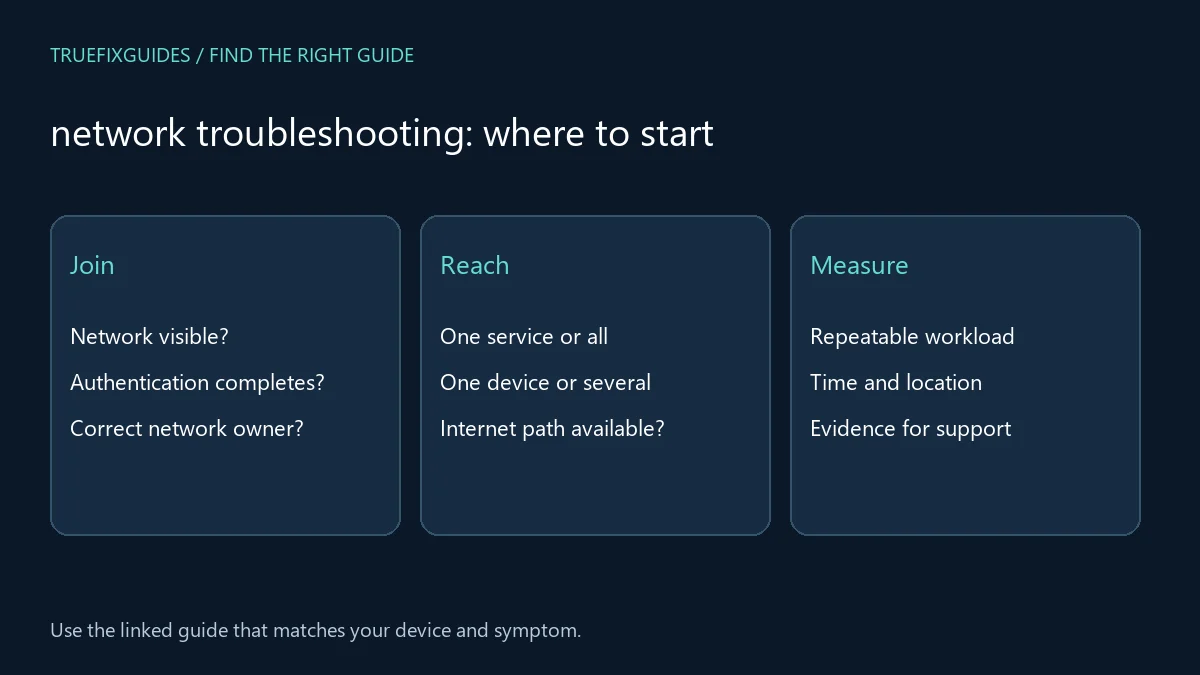
1. Choose your network troubleshooting guide
Start with the closest observable symptom. Each link below has a different purpose; you do not need to work through every article in order.
- Cannot join Wi-Fi — Start here when discovery or authentication fails before the device reaches the network.
- Connected without internet — Use this route when the device joins Wi-Fi but external services do not work.
- Slow internet access — Compare repeatable workloads and record whether the pattern affects one device or several.
- Windows limited-connectivity warning — Match the warning with actual access tests rather than relying on the icon alone.
2. Identify the scope before resetting anything
Record the device, network name, connection type, and exact error. Check whether one app, one website, one device, or every device is affected. If a permitted comparison is available, test a familiar service from another device on the same network. Preserve the results. Resetting several systems at once can remove the evidence needed to locate the original failure.
3. Separate joining the network from internet access
Failure to join Wi-Fi differs from joining successfully without external connectivity. Record whether the network is visible, whether authentication completes, and what the device reports afterward. Network troubleshooting should follow that sequence. On a managed or public network, a sign-in page or administrator policy may be involved, so use the network owner’s process rather than changing protected settings.

4. Measure speed with a clear comparison
For slow access, note the time, location, device, and affected workload. Compare the same task under similar conditions and record whether other devices show the same pattern. A single test result does not explain every slowdown. Distinguish weak local connectivity, shared usage, a slow remote service, and device-specific performance before attributing the issue to the internet plan.
5. Escalate with evidence and preserve security
Provide the network owner or provider with the affected devices, times, exact messages, and controlled comparisons. Avoid disabling certificate validation or security tools to make a connection appear successful. Microsoft’s Wi-Fi guidance offers a Windows-specific reference, but router and provider procedures must match the equipment and account. Record any change so it can be reversed if it does not help.
6. Verify your network troubleshooting result
Network troubleshooting is complete when the affected service works from the original device under normal conditions. Verify more than a connection icon: repeat the actual call, upload, page load, or application request. If the cause remains uncertain, preserve the timeline and comparisons so support can investigate the correct part of the connection path.
For the relevant official reference, use Microsoft’s official Wi-Fi troubleshooting guidance. Match the product and version before applying a procedure.
Related guide pages and complete article list
For a symptom that belongs to another layer, continue with Windows troubleshooting guide, account login troubleshooting guide, software troubleshooting guide. Return to the main tech troubleshooting guide when you are unsure which category fits.
The Network & Connectivity archive lists all published articles in this category. This guide provides the starting paths; the archive is useful for finding additional or newly published topics.

Frequently asked question
Does restarting the router prove it was the cause?
No. A restart may temporarily change several conditions. Record whether the original symptom returns and compare other devices. A lasting explanation needs more evidence than one successful reconnect.
Guide directory reviewed October 24, 2026. Prepared with AI assistance and linked source review. Diagrams are explanatory, not screenshots or evidence of hands-on testing.
New troubleshooting guide: Ethernet Connected but No Internet Windows 11: 7 Easy Fixes