Mac troubleshooting begins with the Mac model, macOS version, and a precise description of the failure. Slow performance, a disconnected accessory, an unreadable external drive, and a startup failure belong to different investigations. This guide organizes the available articles and helps you prepare a useful test before changing system settings or seeking repair.
Part of the complete tech troubleshooting guide. Use this page to select a path, then follow the article that matches your exact symptom.
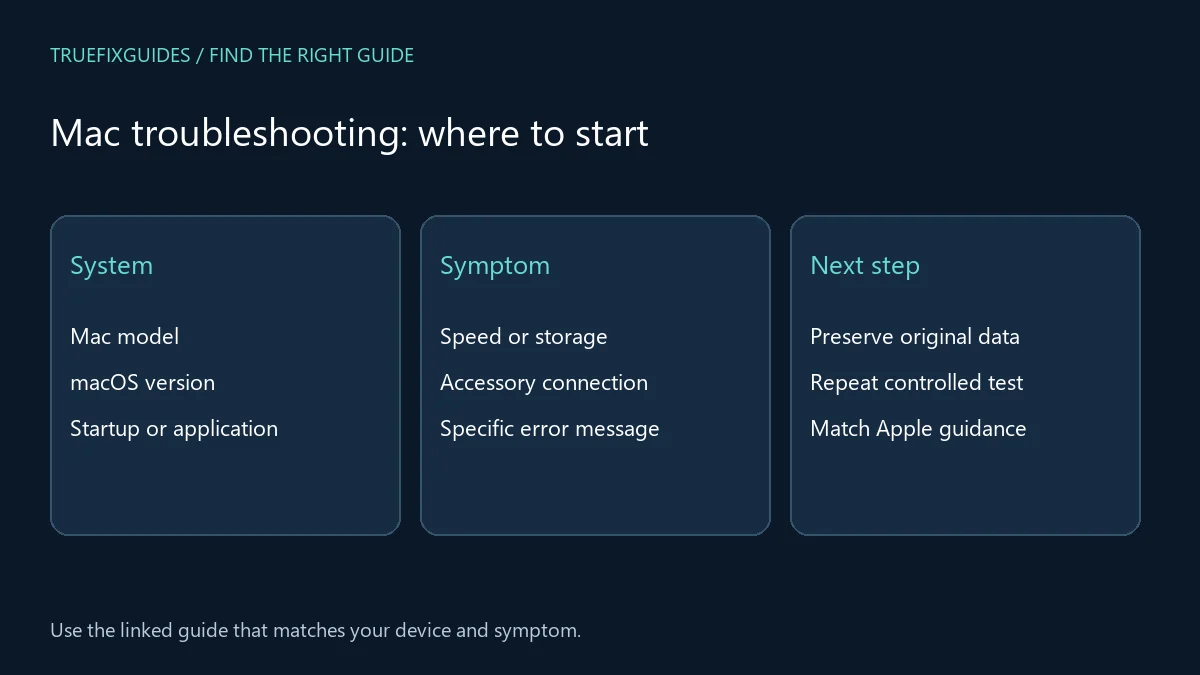
1. Choose your Mac troubleshooting guide
Start with the closest observable symptom. Each link below has a different purpose; you do not need to work through every article in order.
- Slow iMac performance — Start with the tasks that are slow and compare them with a simple baseline.
- Bluetooth pairing problems — Distinguish discovery, pairing, and an accessory that disconnects after connecting.
- External drive problems — Identify whether the drive is detected, mounted, or readable before attempting repairs.
- Damaged or unreadable files — Preserve original data and identify whether the problem affects one file or a storage device.
- Adobe verification errors — Check the application and account context through legitimate vendor support routes.
- Ollama port conflict on Mac — Identify the process using the local service port before starting or stopping another server.
2. Identify the model and failure stage
Record the Mac model and macOS version if the system is accessible. Note whether the failure happens before sign-in, after sign-in, inside one app, or only when an accessory is connected. Include the exact error message. Recovery and service instructions can depend on hardware, so avoid applying a procedure intended for a different Mac generation.
3. Separate performance from storage and file problems
A slow application does not establish that the entire computer needs repair. Compare a simple task with the failing workflow and note resource pressure or a particular file involved. If important files cannot be read, preserve the original data and avoid repeated destructive repair attempts. Mac troubleshooting should distinguish recovering access to data from improving speed; those goals may require different priorities.
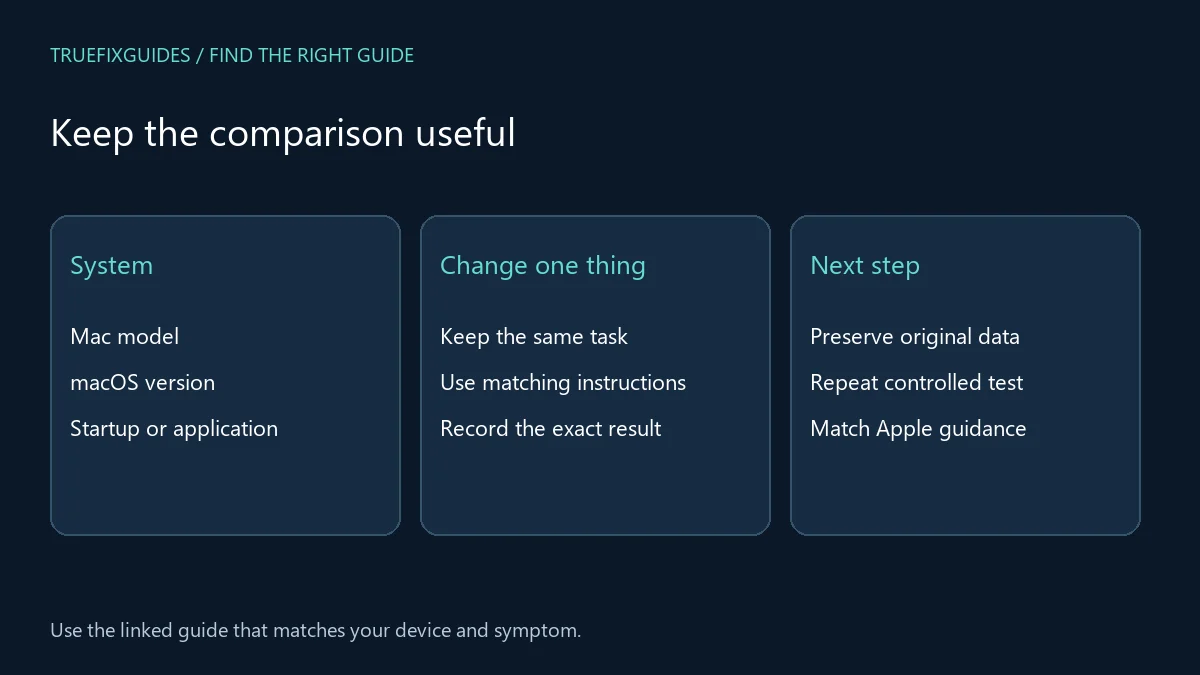
4. Isolate accessories and application-specific errors
For Bluetooth, mice, audio devices, or external drives, record the connection method and what the system detects. Compare one variable at a time using compatible equipment where available. For a software verification message, follow the software vendor’s legitimate licensing route. Do not remove security components or alter licensing files merely to suppress an alert.
5. Prepare evidence before recovery or service
Keep the model, error text, recent changes, and test results together. Check the state of important backups before a recovery operation that could affect storage. Apple’s Mac Support organizes model and system help; its repair service can identify appropriate service options. If the Mac is managed by an employer, involve IT before changing enrollment, recovery, or security settings.
6. Verify your Mac troubleshooting result
Mac troubleshooting is complete when the affected task works and important data remains accessible. Repeat the original workflow with the same accessory or file where appropriate. If service is required, provide a concise symptom history instead of a list of unrelated changes. Record any remaining limitations and the next responsible support contact.
For the relevant official reference, use Apple’s official Mac Support. Match the product and version before applying a procedure.
More specific troubleshooting guides
Choose the article that matches the failing task. These guides cover narrower problems within this topic.
Related guide pages and complete article list
For a symptom that belongs to another layer, continue with computer troubleshooting guide, hardware troubleshooting guide, software troubleshooting guide. Return to the main tech troubleshooting guide when you are unsure which category fits.
The Apple & Mac archive lists all published articles in this category. This guide provides the starting paths; the archive is useful for finding additional or newly published topics.

Frequently asked question
Should I reinstall macOS for every persistent error?
No. First identify the affected layer and preserve evidence. A single application, peripheral, or damaged file may need a focused fix. Understand backup and recovery implications before reinstalling the operating system.
Guide directory reviewed October 24, 2026. Prepared with AI assistance and linked source review. Diagrams are explanatory, not screenshots or evidence of hands-on testing.
New troubleshooting guide: macOS Spotlight Not Working: 7 Easy, Proven Fixes
New troubleshooting guide: macOS 27 Wi-Fi Not Working: 7 Easy, Proven Fixes
New troubleshooting guide: Mac External Display Not Detected: 7 Easy, Proven Fixes
New troubleshooting guide: Spotlight Indexing Stuck on Mac: 7 Easy, Proven Fixes