Tech troubleshooting starts with a clear symptom and the right guide. TrueFixGuides organizes help across accounts, AI tools, computers, hardware, networks, mobile devices, and software. Use this central guide to choose a problem area or platform, then move to a focused article instead of trying unrelated fixes.
Each category guide explains its scope, links to existing articles, and identifies useful information to collect. The aim is a verified next step: a working task, a narrower diagnosis, or a clear support request.
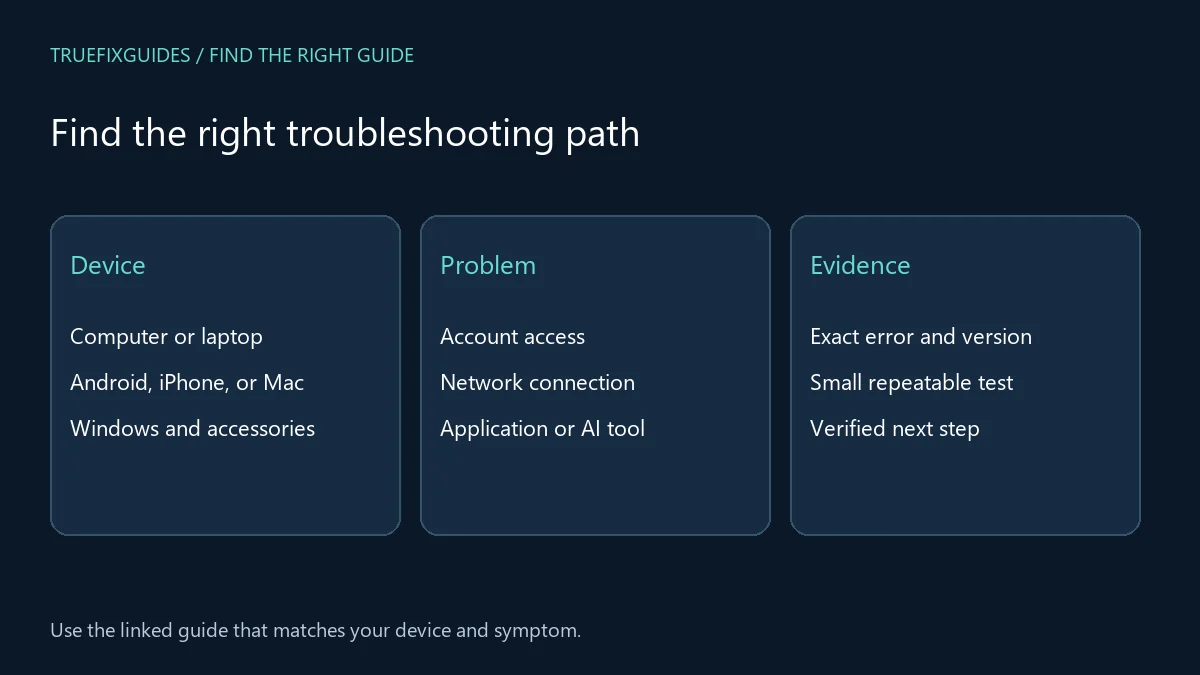
Start with the symptom you can observe
Write down what you expected, what happened instead, and the exact action that triggered it. Include an error message when one is available. “The app closes when I open this file” is more useful than “the computer is broken.” Record the device and software version, and note whether the problem affects one task or several unrelated tasks.
Keep important data and account access in mind before changing settings. A reset, reinstall, or recovery procedure can have consequences beyond the original symptom. Read the relevant guide first and match it to your device. For managed equipment or accounts, involve the responsible administrator.
Choose a problem area
These seven paths group tech troubleshooting by the kind of failure. Use the one that best matches the observed symptom, even if the same device appears in more than one category.
- account login troubleshooting guide — For rejected sign-ins, verification challenges, recovery, and connected-account access. Start with the provider and the stage where sign-in stops.
- AI troubleshooting guide — For hosted assistants, uploads, usage limits, local models, APIs, and model evaluation. Separate failed requests from incorrect or unsupported outputs.
- computer troubleshooting guide — For desktop and laptop power, startup, display, and performance symptoms. Identify whether the machine receives power and reaches a usable operating system.
- hardware troubleshooting guide — For displays, cables, accessories, and physical-device comparisons. Use model-specific service guidance when a procedure goes beyond safe external checks.
- network troubleshooting guide — For Wi-Fi joining failures, connected-without-internet warnings, and slow access. Compare the affected device and service with an appropriate baseline.
- phone troubleshooting guide — For phone-wide charging, temperature, and touchscreen symptoms. Move from the general symptom to Android or Apple instructions for the actual device.
- software troubleshooting guide — For installations, updates, browser releases, and website software layers. Keep application maintenance separate from operating-system and hosting-runtime work.
Choose your device or operating system
If you already know the platform, these four guides provide a more specific starting point. They complement the problem-area guides rather than requiring a second complete troubleshooting process.
- Android troubleshooting guide — For Android phones and tablets, including app behavior, unwanted ads, camera issues, and charging. Record the manufacturer because settings and service procedures vary.
- Mac troubleshooting guide — For Mac performance, files, external storage, Bluetooth, and application errors. Match the Mac model and macOS version before recovery or repair.
- iPhone troubleshooting guide — For iPhone charging, temperature, app crashes, and photo-sharing symptoms. Use Apple guidance for model-specific steps and service decisions.
- Windows troubleshooting guide — For Windows installer messages, missing components, compatibility errors, and updates. Keep the exact Windows build and application error with the report.

Make one useful comparison at a time
A controlled comparison keeps the task the same while changing one relevant factor. Compare one file with another, one application with another, or one compatible accessory with another when the guide calls for it. Record the result before moving on. Changing several settings together can make a temporary improvement difficult to explain or repeat.
Tech troubleshooting also needs clear boundaries. An account restriction will not necessarily be fixed by reinstalling an application. A server runtime patch is separate from a website application update. A display receiving power does not establish that a computer completed startup. Choose the guide for the layer where the evidence points.
Verify the result and prepare support details
Repeat the original task after a change. Confirm that the expected result appears and that important data remains accessible. If the issue returns, record the timing and conditions rather than labeling the first success a permanent fix. Keep the relevant version numbers and the change that was tested.
When you need support, provide the device or service, exact error, steps to reproduce it, and a short list of comparisons already tried. Remove passwords, recovery codes, private documents, and tokens. Tech troubleshooting should make the next investigation more focused, even when the final correction requires a provider or repair technician.

Use official instructions and understand the guide scope
TrueFixGuides articles are starting points for a focused investigation. Check dates and compatibility notes, particularly for security releases and changing software. The Microsoft Windows support hub, Apple Support, and Android Help provide official product routes. Vendor documentation should resolve a model-specific detail when a general guide does not match your system.
Read our editorial standards for the site’s approach to published guidance. A checklist is not a guarantee that every symptom has the same cause. Stop when a step does not fit the device, would risk data you have not protected, or requires skills beyond your situation.
Frequently asked questions
Should I start with the device or the problem category?
Use whichever is clearer. If you know the exact Windows error, start with Windows. If several devices cannot access the internet, start with networks. The category guides link to neighboring topics when the investigation moves to another layer.
Do I need to follow every linked article?
No. This tech troubleshooting hub is a directory of routes. Choose the guide that matches your symptom, use its checks, and return here only if the evidence points to a different problem area.
Guide directory reviewed October 24, 2026. Prepared with AI assistance and linked source review. Diagrams are explanatory, not screenshots or evidence of hands-on testing.