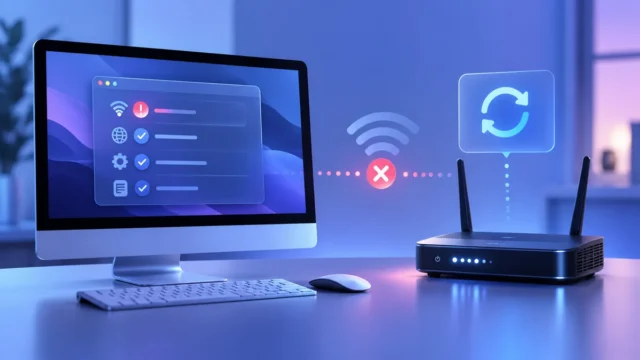
Mac external display not detected can result from the display input, cable bandwidth, dock, adapter, unsupported display count, accessory permission or software. Test the physical signal path before reinstalling macOS or purchasing a new monitor.
Apple recommends connecting the display directly to the Mac, checking model limits, using Detect Displays and installing current macOS and display firmware. Save work before disconnecting a dock that also carries storage.
Quick outcome: Use this Mac external display not detected guide in order, stopping as soon as the symptom is resolved.

Table of Contents
Table of contents
Mac external display not detected: prove the monitor works
Turn on the monitor, open its built-in menu and select the correct HDMI, DisplayPort or USB-C input. A visible monitor menu proves the panel has power even when the Mac signal is missing.
Test the monitor and cable with another supported source when possible. Test the Mac with one known-good display. Cross-testing separates the Mac, cable and monitor instead of replacing parts by guesswork.
If the display contains important USB storage through a dock, eject volumes before disconnecting anything.
Connect directly and verify cable capability
Remove hubs, KVM switches and docks for one test. Connect the display directly to a supported Mac port. USB-C cables vary: some carry only charging or low-speed data and cannot carry DisplayPort video.
Confirm that the cable and adapter support the target resolution and refresh rate. A marginal cable may work at 1080p but fail at 4K or a high refresh rate. Use manufacturer-certified cables of reasonable length.
Check the Mac’s display limit
Look up the exact Mac model’s technical specifications and external-display support. The number, resolution and refresh rate supported varies by chip and model. A dock cannot create native display outputs beyond the Mac’s supported capability unless it uses a separate display technology with its own software.
Disconnect every other display and test one standard-resolution monitor. If Mac external display not detected occurs only when a second or third screen is added, the configuration may exceed the model limit.
Use Detect Displays and approve the accessory
Open System Settings > Displays, hold Option to reveal Detect Displays, and select it. Disconnect the display from power and the Mac, wait briefly, then reconnect.
Apple silicon laptops may ask whether to allow a new accessory. If the connection was denied, review the approved accessory setting and reconnect. Do not weaken organization-managed accessory policy; ask IT on a work Mac.
Reset resolution and refresh rate safely
If the display appears briefly and goes dark, select a standard resolution and refresh rate supported by both devices. Avoid forcing unsupported modes through third-party utilities during diagnosis.
Put the Mac to sleep and wake it, or restart with only the one display connected. For closed-lid use, connect the laptop to power and use an external keyboard and mouse as Apple requires.
Update macOS, dock and monitor firmware
Install the current macOS update, which can include display firmware and compatibility fixes. Update a third-party dock or monitor only with the manufacturer’s official utility and instructions.
If Mac external display not detected began after a dock firmware update, contact the dock maker with the firmware version and connection diagram. Do not flash firmware intended for another model.
Escalate port or graphics hardware signs
Test another supported port and run Apple Diagnostics. Service is appropriate when every known-good display fails, the port is loose or damaged, video artifacts appear on the built-in screen, or the Mac shuts down under display load.
Provide support with the Mac model, macOS build, display model, cable/adapter, resolution, direct-connection result and other-source test. That evidence prevents repeated purchases of equivalent cables.
Frequently asked questions about Mac external display not detected
Why is Mac external display not detected through a dock?
The dock, cable, firmware, bandwidth or Mac display limit may be responsible. Connect the monitor directly to the Mac for a controlled test.
Where is Detect Displays on a Mac?
Open System Settings > Displays and hold the Option key to reveal the Detect Displays control on supported macOS versions.
Can every USB-C cable carry video?
No. Cable capabilities vary. Use a cable and adapter that explicitly support the required DisplayPort, resolution and refresh rate.
Official sources and related guides
Use the current vendor documentation for version-specific details. The links below are direct, dofollow references.
- Apple external-display troubleshooting
- Apple connect external displays guide
- Apple macOS update guidance
Continue with these TrueFixGuides resources: