External hard drive not showing up in Windows 11? First decide whether the files are irreplaceable. Stop using a drive that clicks, overheats, or repeatedly disconnects. Otherwise test its power supply, cable, and a direct USB port. Check Device Manager and Disk Management before changing anything on the disk. A drive letter can help an existing healthy volume appear in File Explorer; initializing or formatting a used drive can erase data.
The nine checks below separate power and USB faults from an absent drive letter, offline disk, unsupported file system, and failing hardware. If you have no backup and Windows shows the disk as RAW, Unallocated, or Not Initialized unexpectedly, stop write operations and consider a qualified recovery service before attempting repair.
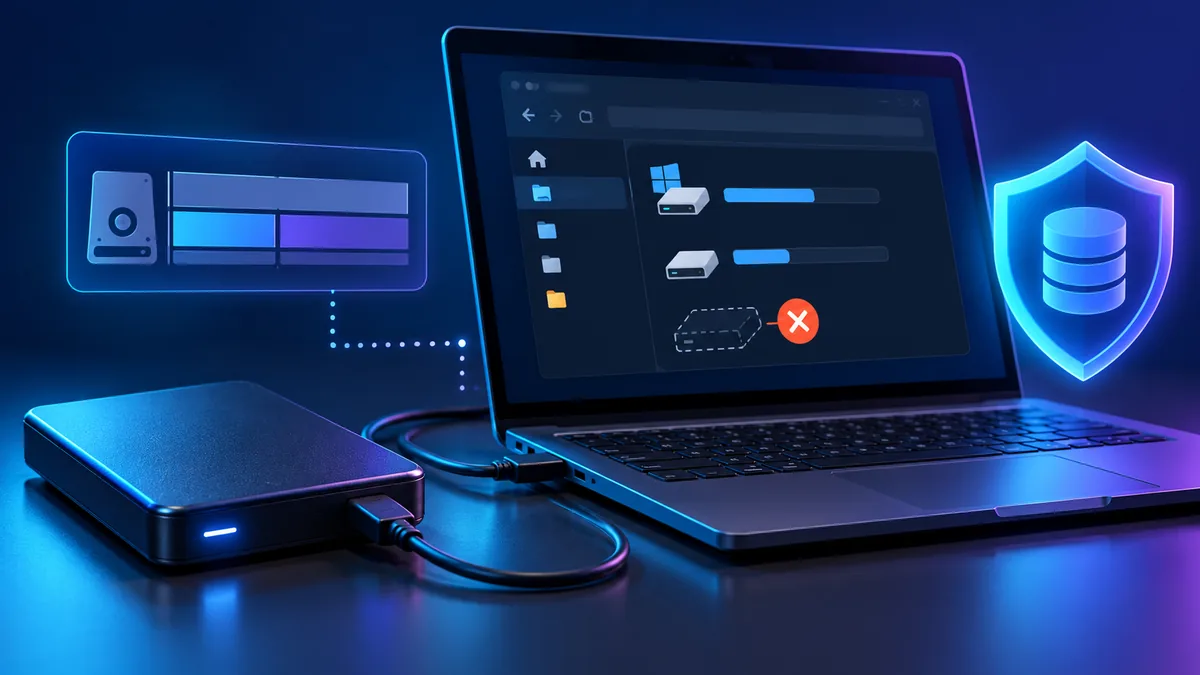
Table of Contents
Table of contents
What external hard drive not showing up Windows 11 means
A drive can fail at the power, USB connection, device enumeration, disk, partition, file-system or drive-letter layer. File Explorer shows mounted volumes, while Disk Management can reveal a disk that has no letter, is offline, is unallocated or uses a file system Windows cannot mount. A disk shown in Disk Management but not File Explorer needs a different response from a disk absent from both tools. Note the disk capacity and connection type so you can identify the correct device without guessing by position.
These instructions apply to ordinary external drives on Windows 11. Encrypted drives, RAID sets, NAS units, and organization-managed storage may have different rules. If the drive belongs to a managed storage system, use its administrator or vendor procedure rather than changing Disk Management settings yourself.
Symptoms and diagnostic checklist
Start with a comparison: does the drive spin or light up, does Windows make a connection sound, does Device Manager list it, and does Disk Management show its expected capacity? If it appears on another trusted computer with the same cable, the first PC is more likely at fault. If it clicks or repeatedly drops off every computer, stop testing to avoid more damage.
- The drive has power but is absent from File Explorer.
- Disk Management shows the disk without a drive letter.
- Windows asks to initialize or format a drive that contains data.
- The drive repeatedly connects and disconnects.
- The disk works on another computer but not this PC.
Quick checks
- Stop if clicking, burning smell or dangerous heat appears.
- Try a direct port and known-good data cable.
- Remove hubs and docks for the test.
- Check Disk Management without changing the disk.
- Test another trusted computer.
- Confirm whether the data is backed up.
Write down the exact Disk Management status: Online, Offline, RAW, Unallocated, Not Initialized, or a healthy volume without a letter. Those labels point to different paths. Do not treat a “format this disk” prompt as proof that the files are gone; it may also mean Windows cannot read the current file system.
Before you change anything
If the files are accessible intermittently, copy the most important files to another healthy disk before troubleshooting further. If the device is physically unstable or the only copy is valuable, disconnect it and ask a qualified recovery service. Do not run CHKDSK, create a new volume, initialize, or format the drive as a first step; those operations can change data or metadata needed for recovery.
Record the drive model, capacity, whether it needs its own power adapter, and its previous file system if known. Keep BitLocker recovery information available for an encrypted drive, but never post the key publicly. Use the PC and drive makers’ support pages for model-specific drivers and warranty guidance.
external hard drive not showing up Windows 11: step-by-step fixes
Start with the safety decision and connection checks. Continue to a drive-letter change only when Disk Management shows an existing healthy data volume. If the drive is unexpectedly RAW, Unallocated, or Not Initialized and contains files you need, stop before the write-related steps and seek recovery advice.
1. Protect irreplaceable data first
Repeated power cycles and repair writes can worsen a failing disk. Clicking, scraping, smoke, unusual heat, or repeated disconnections are reasons to stop. A recovery service may need the original drive state; avoid experiments that modify it.
- Disconnect a clicking or overheating drive.
- Write down what happened before the failure.
- Use professional recovery when the only copy matters.
Expected result: You decide whether the data is backed up and whether further testing is safe. If the drive shows physical distress, disconnect it and stop here.
Safety or rollback: Do not run CHKDSK, initialize or format an unstable disk.
2. Test power, cable and a direct port
A portable drive may need more power than a weak hub provides, while a desktop external drive may require its original AC adapter. Compare a known-good data cable and a direct built-in port. Use only the manufacturer-approved power supply; a mismatched adapter can damage the enclosure.
- Use the original power adapter if required.
- Connect with a known-good rated data cable.
- Use a built-in port without a hub.
Expected result: The drive appears consistently or the connection layer is isolated.
Safety or rollback: Stop using connectors that spark, loosen or heat.
3. Check Device Manager status
Device Manager can show whether Windows recognizes the USB bridge, the disk, or neither. Check the Device status message for an error code. Seeing a USB device but no disk suggests a different failure from seeing no USB event at all. Record the result before updating drivers or rescanning.
- Open Device Manager.
- Inspect Disk drives and Universal Serial Bus controllers.
- Record status and error codes before rescanning hardware.
Expected result: You identify enumeration or driver failure.
Safety or rollback: Do not remove every USB controller.
4. Inspect Disk Management safely
Right-click Start and choose Disk Management. Match the external device by its expected capacity and, if possible, by disconnecting and reconnecting only a healthy drive while watching which disk entry appears. Inspect the disk label and volume rectangle without accepting an Initialize Disk or Format prompt.
- Open Disk Management.
- Match the disk by capacity, not only position.
- Record disk and volume status without accepting prompts.
Expected result: The exact disk state is known.
Safety: Microsoft’s initialization instructions apply to a new disk with no existing data; they warn that initialization of a used disk erases data. If an old drive unexpectedly says Not Initialized, RAW, or Unallocated, do not initialize, format, or create a volume while you need its files.
5. Assign a missing drive letter
If Disk Management shows an existing healthy data volume but no drive letter, a letter assignment may make it visible in File Explorer without formatting. Confirm you selected the external data volume, not an EFI, recovery, or system partition. Avoid changing the letter of a volume used by installed software.
- Right-click the recognized healthy volume.
- Choose Change Drive Letter and Paths.
- Add an unused letter and reopen File Explorer.
Expected result: The existing volume mounts without formatting.
Safety or rollback: Do not assign letters to recovery or system partitions.
6. Bring an intentionally offline disk online
An Offline status can result from a disk-signature collision or storage policy. Verify the disk identity and whether it is part of a managed, mirrored, encrypted, or backup set before bringing it online. If you are unsure why it is offline, ask the storage administrator or vendor rather than forcing a change.
- Confirm the correct external disk.
- Right-click its disk label and choose Online if appropriate.
- Check the volume and letter.
Expected result: The disk returns online without repartitioning.
Safety or rollback: Do not force a disk online when it belongs to a managed storage set.
7. Update chipset and storage drivers
If the disk works on another computer but this PC does not enumerate it reliably, check Windows Update and the PC maker’s chipset or USB controller driver for the exact model. A driver update is unlikely to repair an unreadable file system or physically clicking disk, so use the cross-computer result to decide whether this step fits.
- Install stable Windows updates.
- Install chipset or USB drivers for the exact PC model.
- Restart and reconnect the drive once.
Expected result: The controller enumerates the drive reliably.
Safety or rollback: Avoid third-party driver updater tools.
8. Handle unsupported or damaged file systems
A disk created for another operating system may contain a file system Windows cannot mount normally. An unexpectedly RAW volume may instead indicate corruption. If the files matter, read the disk on its original compatible system or consult recovery support before formatting it for Windows.
- Check the file-system label and prior computer used.
- Read the drive on a compatible system if possible.
- Copy data before converting or reformatting.
Expected result: Data is accessed on the correct platform or safely migrated.
Safety or rollback: Formatting erases the volume.
9. Compare enclosure, drive and computer hardware
Compare the same healthy drive and cable on another trusted computer. If it fails everywhere, the enclosure, power supply, or disk may be at fault. If it works elsewhere, focus on the first computer’s USB port and controller. Do not open a sealed unit or remove a disk from an encrypted enclosure unless the vendor says it is safe.
- Test on another supported PC with a known-good cable.
- If appropriate, test the manufacturer diagnostic.
- Use warranty or recovery service based on the result.
Expected result: The failing component is isolated.
Safety or rollback: Do not open sealed drives or swap enclosures when encryption or warranty is involved.
Troubleshooting decision table
| What you observe | Likely layer | Best next action |
|---|---|---|
| Visible in Disk Management without letter | Mounting | Assign a safe unused letter. |
| Shown as RAW or unallocated unexpectedly | File system/partition | Stop writes and consider recovery. |
| Absent on every PC | Drive/enclosure hardware | Service or recover data. |
| Works on another PC | First PC USB/driver | Repair controller path. |
| Clicks or overheats | Physical failure | Disconnect immediately. |
Use the external drive missing File Explorer table to avoid repeating steps that cannot affect the observed layer. If two rows fit, begin with the one that preserves the most data and settings.
When these fixes will not help
- A clicking, hot, or repeatedly disconnecting drive needs hardware assessment, not repeated software scans.
- A BitLocker-locked drive needs its correct recovery method; assigning another letter does not unlock it.
- An unsupported file system may need a compatible computer before Windows can read its files.
- A managed or mirrored storage set needs its administrator or vendor procedure.
For support or recovery, provide the drive model and capacity, exact Disk Management status, whether it appears in Device Manager, and the cable/port/computer comparisons already tried. Keep the physical drive available. Do not send screenshots with a BitLocker recovery key or other private information.
Prevention
- Keep at least one separate backup of files that matter; an external disk can fail without warning.
- Eject the drive before disconnecting it when Windows is writing files.
- Use an appropriate power supply and a sound cable; avoid loose connectors and unstable hubs.
- Keep the drive dry, ventilated, and protected from shocks.
- Record whether the disk is encrypted and keep its recovery method safely available.
No maintenance habit guarantees a disk will survive. A verified second copy of important files gives you recovery options when hardware or a file system fails.
Frequently asked questions
Should I initialize a drive that already held files?
No. Microsoft’s initialization procedure is for a new empty disk. If a used drive unexpectedly prompts for initialization and you need its files, stop write operations and investigate the disk or seek recovery advice.
Does assigning a drive letter erase files?
Assigning an unused letter to an existing healthy data volume normally changes how Windows mounts it, not its file contents. Confirm the correct volume first. Do not treat a RAW or Unallocated disk as a simple missing-letter problem.
What if the disk is RAW or Unallocated?
If it previously contained files, avoid Format, Initialize, New Simple Volume, and repair writes until you have a backup or recovery plan. Windows showing RAW or Unallocated does not prove the data is safely disposable.
When should I stop testing?
Stop immediately for clicking, abnormal heat, burning smell, repeated disconnects, or an unexpected data-loss prompt on the only copy of important files. Further attempts can reduce recovery options.
Official sources and related guides
The technical claims for external drive missing File Explorer were checked against the primary vendor resources below. Interfaces, availability and policies can change, so use the current vendor page if a label differs.
- Microsoft Disk Management
- Microsoft Learn: initialize only a new empty disk
- Microsoft Learn: troubleshoot missing, RAW, or uninitialized disks
Continue with these contextual TrueFixGuides resources:
In summary, an external hard drive missing from Windows 11 needs a data-safety decision first. Compare power, cable, and ports, then inspect Device Manager and Disk Management. Assign a letter only to an existing healthy data volume. If the only copy is physically failing or unexpectedly RAW, Unallocated, or Not Initialized, stop writing to it and plan recovery.