2.4 GHz vs 5 GHz Wi-Fi is a choice between coverage and available capacity on a particular device. A distant or older device may work better on 2.4 GHz; a nearby laptop may benefit from 5 GHz. Leave both bands enabled and test the connection where you actually use it.
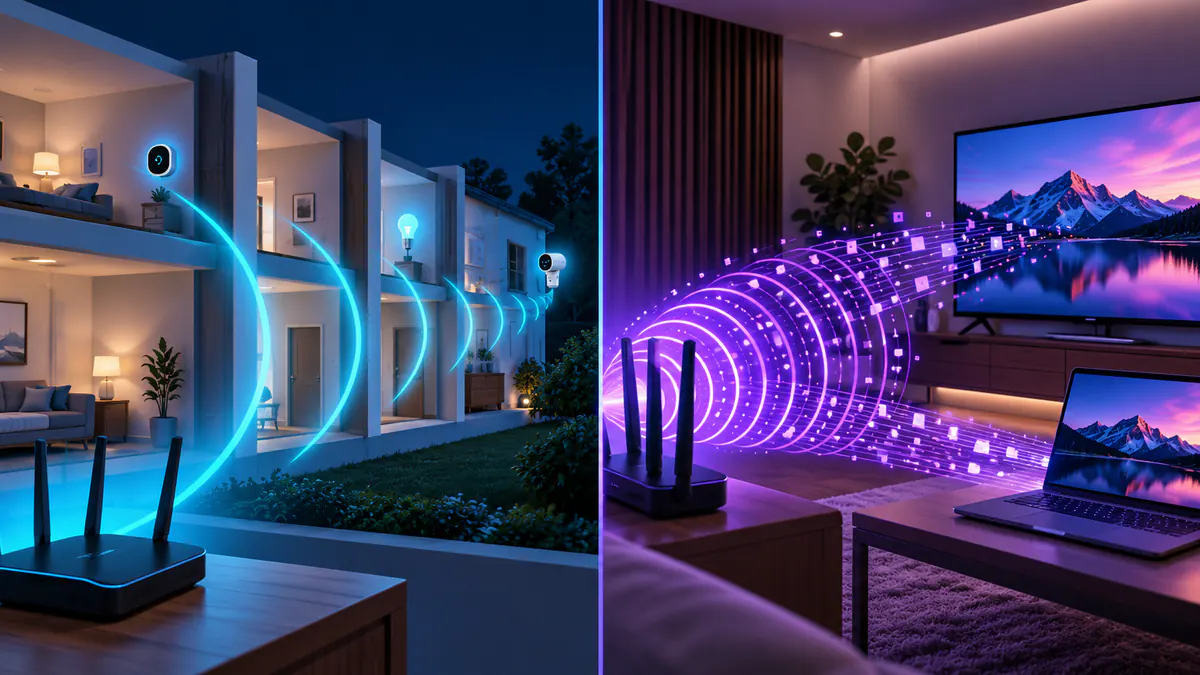
Table of contents
2.4 GHz vs 5 GHz Wi-Fi: the quick answer
Use 2.4 GHz when a device is farther from the router, must pass through several walls, or supports only that band. Use 5 GHz when the device is close enough for a stable signal and needs higher local throughput or less competition from crowded 2.4 GHz networks. Leave both bands enabled on a capable router so different devices can use the one that works best.
The 2.4 GHz vs 5 GHz Wi-Fi choice is about a radio band, not a guarantee of internet speed. Your connection also depends on the router, client, channel, interference, walls and internet plan. A weak 5 GHz connection can perform worse than a strong 2.4 GHz one. Test the actual device where you normally use it.
2.4 GHz vs 5 GHz Wi-Fi: 8 practical differences
| Question | 2.4 GHz | 5 GHz |
|---|---|---|
| 1. Typical range | Usually broader | Usually shorter |
| 2. Walls and floors | Often penetrates obstacles better | Often weakens sooner through obstacles |
| 3. Potential throughput | Generally lower | Generally higher when signal and equipment allow |
| 4. Household interference | Many devices share the band | Often less legacy-device contention |
| 5. Channel width | 20 MHz is a common reliability choice | Auto or supported wider widths may help capacity |
| 6. Older device support | Common on older and simple IoT devices | Requires client support for 5 GHz |
| 7. Channel availability | Fewer nonoverlapping choices | More choices, subject to local rules |
| 8. Best typical use | Coverage and low-data devices | Nearby video, downloads and other demanding work |
This 2.4 GHz vs 5 GHz Wi-Fi table describes common tendencies, not an absolute winner in every home. Intel and the FCC describe broader 2.4 GHz coverage and typically higher 5 GHz data capacity. Apple’s router guidance recommends enabling supported bands and using automatic channel selection. Real-world results depend on the building and devices.
Range and walls: why distance changes the answer
Lower-frequency 2.4 GHz signals generally travel farther and pass through walls better than 5 GHz signals. That can make a printer or camera in a distant room more dependable on 2.4 GHz. It does not mean a 2.4 GHz connection is always usable at every distance; thick materials, metal, floors, neighboring networks and router placement can still block it.
In a 2.4 GHz vs 5 GHz Wi-Fi test, stand where the device normally runs. Compare a normal task, such as opening a video call or sending a file, on each band. Repeat after moving a room away. A test next to the router tells you little about the far bedroom. Keep the device, network and time of day comparable so band choice is the main variable.
If both bands are weak in the same room, move the router to a central, open position or consider a properly placed access point or mesh system. The 2.4 GHz vs 5 GHz Wi-Fi choice cannot overcome a large coverage gap by itself. Avoid stacking the router behind a television or inside a metal cabinet.
Speed and responsiveness: test the whole path
5 GHz can provide higher local throughput when the signal is strong and both router and client support the needed Wi-Fi capabilities. It often has more channel options than 2.4 GHz. Still, your internet speed may be limited by the broadband connection, a crowded router, a slow server or an older device. A faster Wi-Fi link cannot exceed the weakest part of the path.
For 2.4 GHz vs 5 GHz Wi-Fi, run two kinds of checks. First, transfer a file between devices on your local network if you can do so safely; that reflects local Wi-Fi capacity. Second, test the real internet task, such as a video call. If the local test is strong but the internet test is slow on both bands, investigate the modem, provider or destination before changing Wi-Fi settings.
Latency matters as well as headline download speed. In a 2.4 GHz vs 5 GHz Wi-Fi test, a band with fewer dropouts may produce a better meeting or game session than one with an impressive one-time speed result. Compare repeated runs and note disconnects and packet loss where your tools display them.
Interference, channels and channel width
The 2.4 GHz band is widely used by Wi-Fi, Bluetooth and other household devices. Neighboring routers can overlap there, especially in apartment buildings. Apple recommends a 20 MHz channel width for 2.4 GHz to improve reliability around other networks. For 5 GHz, Apple recommends Auto or all supported widths, and Auto channel selection where available.
In 2.4 GHz vs 5 GHz Wi-Fi troubleshooting, do not assume a wider channel always helps. Wider channels can increase potential throughput but also occupy more radio space and become more susceptible to interference. The best setting depends on your router and nearby networks. Start with the manufacturer’s supported automatic settings, then change one item only when measurements show a reason.
Some 5 GHz channels are subject to regional rules or radar avoidance, so a router may change channels or a device may not see every channel. Check the router’s country setting and firmware, and use its official channel guidance. Do not set an unsupported region just to expose extra channels. In 2.4 GHz vs 5 GHz Wi-Fi troubleshooting, compare the device’s supported bands and channels before blaming the password.
Smart-home and older-device compatibility
A phone or laptop can often use both bands, while a low-cost sensor, doorbell, camera or printer may use only 2.4 GHz. The exact device specification decides. A 2.4 GHz-only device may fail setup when the phone is attached to a 5 GHz network with a different name or when a companion app assumes same-band discovery. Follow the maker’s pairing instructions and keep the device near the router for its first setup.
The 2.4 GHz vs 5 GHz Wi-Fi choice does not require turning off one band permanently. Apple recommends enabling every band supported by a router so devices can use the best compatible mode. If a temporary separate 2.4 GHz network is needed for pairing, record the original names and settings so you can restore them. Do not weaken Wi-Fi security for an older device without understanding the risk.
If the device connects but cannot reach the internet, the 2.4 GHz vs 5 GHz Wi-Fi choice may not be the cause. Check its IP address, router access rules, service status and DNS. A 2.4 GHz-only product cannot benefit from forcing 5 GHz, but a dual-band product may still prefer one band based on signal conditions.
Router settings to check before changing bands
Before a 2.4 GHz vs 5 GHz Wi-Fi adjustment, sign in to your router using its official app or local interface. Record its current network names, security mode, band availability, channel and width. Changing a network name or password can disconnect every saved device, so schedule changes when you can reconnect them.
- Confirm both supported bands are enabled. Apple’s guidance recommends enabling all bands the router offers.
- Set channel selection to Auto unless a measured interference problem and the router manual justify a manual channel.
- Use 20 MHz for 2.4 GHz as a practical starting point; leave 5 GHz width on Auto or supported options unless you have a specific reason.
- Keep router firmware current using the vendor’s update method. Preserve WPA2/WPA3 security supported by your devices.
- Reconnect one representative nearby and one distant device; repeat the original failing task.
Expected result: devices can connect using a compatible band and the problem improves or becomes easier to localize. If changing a channel breaks one client, restore the original setting and check that client’s supported channels. Avoid changing SSID, security, DNS and channel width all at once; you need to know which change caused the result.
Choose the band by room and device
| Situation | First band to try | Verify |
|---|---|---|
| Phone near router with large downloads | 5 GHz | Stable transfer and latency |
| Camera across several walls | 2.4 GHz | Device supports it and stays connected |
| Older smart plug with 2.4-only specification | 2.4 GHz | Manufacturer pairing directions |
| Video call one room away | Try 5 GHz, compare 2.4 GHz | Dropouts rather than speed alone |
| Both bands unreliable at far edge | Improve coverage | Placement, access point or mesh |
The 2.4 GHz vs 5 GHz Wi-Fi winner may differ by room. A dual-band network lets a laptop use 5 GHz near the router while a sensor uses 2.4 GHz farther away. If your router combines the bands under one network name, the client and router may steer automatically. Separate names can help diagnose a particular problem, but do not split the network without a clear need.
When switching bands does not fix the problem
| Symptom | Check first | Next safe step |
|---|---|---|
| Both bands say connected, no internet | Modem and provider status | Test another device and wired connection |
| Only far room fails | Signal and building obstacles | Reposition router or add coverage |
| 5 GHz SSID absent on one device | Client 5 GHz/channel support | Check adapter and router manual |
| 2.4 GHz slow only in evening | Neighbor congestion and channel | Try Auto or measured channel change |
| One IoT device fails pairing | Its band, app and security support | Follow maker’s setup flow |
In a 2.4 GHz vs 5 GHz Wi-Fi diagnosis, restart only after recording the current state. A router reboot may temporarily improve an unrelated issue, masking the true cause. If a wired connection also fails, investigate the broadband side before replacing Wi-Fi hardware. If one adapter drops on both bands, update its supported driver from the device maker.
Security, rollback and the 5G confusion
Neither Wi-Fi band is inherently “more encrypted.” Security depends on the router’s authentication and encryption configuration, not the radio frequency. Use a supported WPA2 or WPA3 mode and a strong password. Do not disable security to get an old gadget online; use a supported guest or isolated network if the router and vendor permit it.
For 2.4 GHz vs 5 GHz Wi-Fi, write down the original band, channel, width and SSID settings before a test. If performance drops or devices disconnect, restore those values and reconnect a known-good device. If you cannot access the router after a change, use the vendor’s documented recovery procedure rather than repeated random resets.
“5 GHz Wi-Fi” is a radio band in your local network. “5G” usually refers to a mobile network generation. A phone can use a 5 GHz Wi-Fi connection while its mobile data is off, and a 5G mobile connection while Wi-Fi is off. Confusing the two can lead to the wrong troubleshooting steps.
Frequently asked questions
Is 5 GHz always faster?
No. It can support higher throughput with a strong signal, but distance, obstacles, interference, hardware and internet speed can dominate the result.
Does 2.4 GHz go through walls better?
Generally yes, but construction materials and interference matter. Test where the device actually sits rather than relying on a fixed range number.
Should I disable 2.4 GHz?
Usually keep both bands enabled. Older or smart-home devices may need 2.4 GHz, and Apple recommends enabling the bands a router supports.
Are 5 GHz Wi-Fi and 5G mobile data the same?
No. One is a local Wi-Fi frequency band; the other is a cellular network technology.
Which band is better for gaming?
In a 2.4 GHz vs 5 GHz Wi-Fi choice, use the band with stable latency and few dropouts at your gaming location. Try 5 GHz nearby, but compare 2.4 GHz if the signal is weak.
Why can my smart plug see only one network?
Check its supported band and the router’s SSID and security settings. Many simple devices support only 2.4 GHz; follow the manufacturer’s current pairing guide.
Official sources and related guides
The 2.4 GHz vs 5 GHz Wi-Fi comparison follows current Apple, Intel and FCC guidance. Check your router and device manuals for model-specific support.
- Apple: recommended router settings
- Intel: 2.4, 5 and 6 GHz differences
- Apple: Wi-Fi network design and interference
- FCC: household broadband and Wi-Fi guide
If neither band connects, see our Wi-Fi connected but no internet guide. For Windows-specific network settings, see Windows 11 Wi-Fi option missing. Browse the Network Troubleshooting Hub for related steps.
Conclusion
For 2.4 GHz vs 5 GHz Wi-Fi, start with the device and room. Choose 2.4 GHz when coverage or compatibility is the limiting factor; choose 5 GHz when a strong nearby connection and capacity matter. Keep both supported bands available, use sensible automatic router settings, and compare the real task after each change.


