USB-C Hub vs Docking Station is a compatibility decision. Choose a hub for a few portable ports, or a dock for a repeatable desk setup, but confirm what your laptop’s USB-C port can carry first. Video, charging and data speed depend on the whole connection chain.
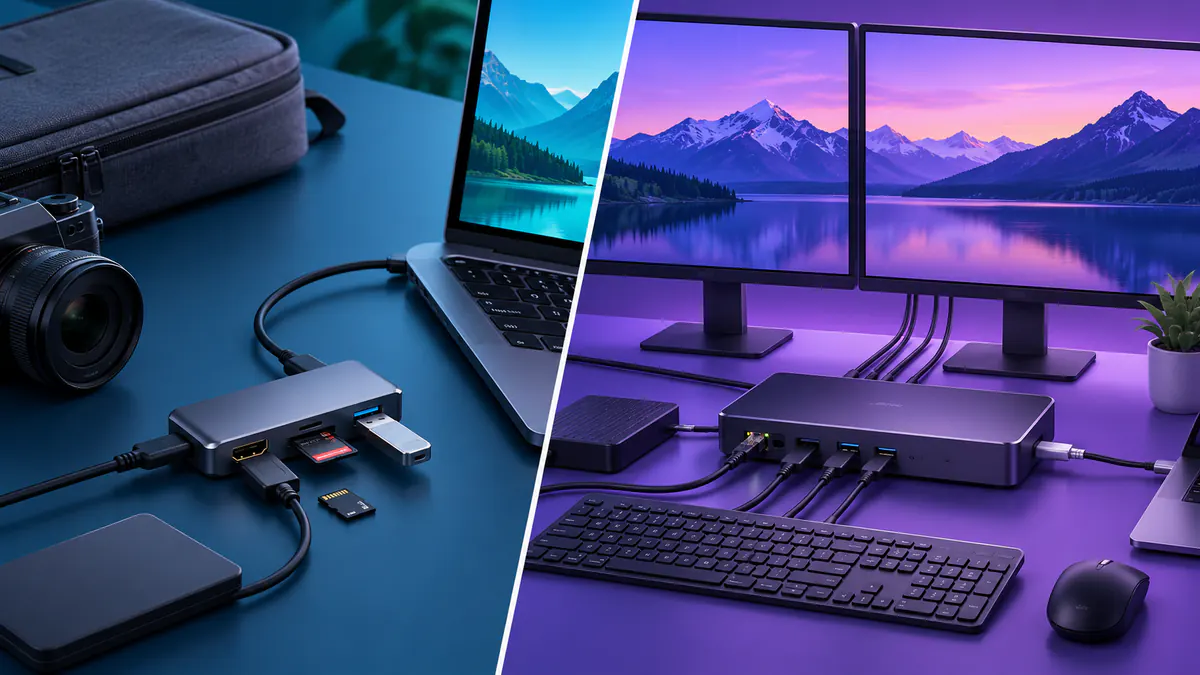
USB-C Hub vs Docking Station: which should you buy?
Choose a compact USB-C hub when you need a few extra ports for travel or occasional desk use. Choose a docking station when you want a repeatable desk setup with several peripherals, external power and displays that your specific laptop can support. The label does not guarantee any particular speed, charging output or monitor count. Read the specifications for your laptop port, cable, hub or dock, and monitors as one connected system.
The USB-C Hub vs Docking Station choice is about required functions and compatibility, not physical size alone. Some hubs have a power input and multiple video ports; some docks are compact. A USB-C connector can carry different data, power and video capabilities depending on implementation. USB-IF states that USB Type-C by itself does not require USB4, high-speed USB or USB Power Delivery. Confirm each advertised capability separately.
USB-C Hub vs Docking Station: 9 practical differences
| Factor | Typical hub | Typical dock |
|---|---|---|
| 1. Main use | Portable port expansion | Permanent or repeatable workstation |
| 2. Power source | May be bus powered or accept pass-through power | Often has its own power supply |
| 3. Laptop charging | Only if host, cable, source and hub support it | Only if dock output meets laptop needs |
| 4. Displays | Model and host dependent | Model and host dependent, often more display options |
| 5. Peripheral ports | Usually a smaller set | Often more USB, audio and network ports |
| 6. Cable layout | Short attached or detachable lead | One desk cable to many attached devices |
| 7. Port bandwidth | Shared within product limits | Also shared within product limits |
| 8. Driver needs | Depends on video technology and features | Depends on video technology and features |
| 9. Price and size | Often lower and smaller | Often higher and less portable |
These are tendencies rather than standards. A premium travel hub may cost more than a basic dock, and a dock cannot unlock a display mode the laptop does not support. For USB-C Hub vs Docking Station, compare exact model numbers, not broad product categories or port counts in a product photo.
First verify the laptop USB-C port
Find your laptop’s exact model and the manufacturer’s specification for the port you will use. Check data protocol and speed, DisplayPort Alt Mode or Thunderbolt/USB4 video support, Power Delivery input and the number of external displays supported. Identical-looking USB-C sockets on one computer can have different capabilities. A lightning-bolt or display symbol may help, but the manual is stronger evidence.
Dell’s docking guidance says USB-C video docks require a compatible DisplayPort Alt Mode port or suitable Thunderbolt port. Microsoft’s USB-C troubleshooting guide likewise tells users to check that the PC, connected device and cable support the same alternate mode. If the port only supports USB data and charging, an ordinary video-output hub may not produce a monitor signal.
In a USB-C Hub vs Docking Station purchase, the first question is therefore “What can my laptop output?” A product advertising two HDMI sockets cannot guarantee two independent desktop displays. The laptop GPU, host port, display mode, cable and dock all constrain the result. Confirm the exact resolution and refresh rate for each monitor with the maker’s compatibility matrix.
USB-C Hub vs Docking Station: monitor support
There are several paths to a monitor: native DisplayPort Alt Mode, Thunderbolt or USB4 tunneling where supported, and USB graphics solutions such as DisplayLink that may require software. They are not interchangeable. A DisplayLink dock can offer displays through USB data on compatible systems, but it may need a driver and may behave differently with protected video or graphics-heavy tasks. Read the dock’s actual technology and platform instructions.
For USB-C Hub vs Docking Station, check whether the seller means mirrored outputs or independently extended displays. Microsoft notes that a simple splitter duplicates a signal instead of creating separate independent monitors. A second HDMI socket on a product does not override that limitation. On Windows, select Extend with Windows + P when the hardware supports a second desktop.
Test a single display directly from the laptop first if possible. Then connect through the hub or dock with the same monitor and cable. If direct video works but dock video fails, inspect the correct upstream port, dock power, firmware and any required driver. If direct video never works, check the host’s supported video mode before blaming the accessory.
Calculate charging and peripheral power
Power Delivery is negotiated; it is not implied by the USB-C shape. Check the laptop’s recommended charger wattage, the hub or dock’s stated power output to the host, the power adapter’s capacity and the cable’s rating. A pass-through hub may reserve part of the adapter’s power for itself and attached devices. A dock with an external supply may still charge the laptop below its recommended level, especially under heavy load.
Watch for separate labels such as “power input,” “power to host,” and “USB-C downstream charging.” These ports can do different jobs. Microsoft documents a Surface travel hub whose downstream USB-C socket does not provide video output or laptop charging despite its familiar connector. This is a concrete reason to verify the role of every socket instead of assuming they all behave alike.
For the USB-C Hub vs Docking Station decision, a laptop that loses battery while plugged into the accessory may simply be drawing more than the offered power. Use the manufacturer’s approved adapter, disconnect power-hungry peripherals and check the laptop’s charging indicator. Avoid buying an unverified high-wattage adapter to mask a mismatch in the hub or cable.
Shared bandwidth, storage and network ports
Ports share the accessory’s upstream connection. Attaching a high-resolution display, fast external SSD, camera and Ethernet adapter can expose a bottleneck even when each downstream port has an impressive individual label. Exact behavior depends on the host protocol, display mode and accessory design. Read tested combinations in the manufacturer’s specifications, especially if you need high refresh rates or large file transfers at the same time.
For important storage, start with a direct laptop connection and a known-good cable to establish a baseline. Then add the hub or dock and repeat a representative file copy. If the drive disconnects under load, inspect cable quality, accessory power and firmware before formatting the drive. Back up files before experimenting with a connection that has already shown instability.
The USB-C Hub vs Docking Station price difference may be justified when a powered dock keeps several desk devices stable. For one keyboard, a mouse and occasional USB drive, a simpler hub can be sufficient. Define the actual simultaneous workload rather than buying the largest port count available.
A compatibility checklist before buying
- Record the laptop model, operating system and exact upstream port capabilities from its manual.
- List required devices: monitor count, resolution, refresh rate, storage, Ethernet, audio and USB peripherals.
- Verify video technology and supported display combinations for the exact hub or dock model.
- Check host charging wattage, adapter inclusion and cable requirements.
- Read driver and firmware support for your operating system and managed-device policy.
- Check whether the dock can run the full intended setup at once, not each port independently.
- Keep the return policy and packaging until the complete setup passes a real work session.
In USB-C Hub vs Docking Station shopping, pay particular attention to “compatible with USB-C.” That phrase confirms connector fit at most; it does not tell you whether native video, Thunderbolt features, charging or multiple displays will work. Match the maker’s compatibility table with your exact laptop model.
The USB-C Hub vs Docking Station shortlist should contain only models with documented support for your host port and intended monitors. Keep a copy of the compatibility page in case specifications change.
Set up and test without losing a working configuration
Update the laptop using its manufacturer’s normal support channel. If the dock maker supplies firmware, follow its documented update order with reliable power. Start with the accessory’s own power supply where required, connect its upstream cable to the correct laptop port, then add one monitor. Confirm the display appears at the expected resolution and refresh rate before attaching more devices.
Add the second display, network, storage and input devices one at a time. Record the first addition that causes a failure. Test sleep, wake, laptop charging and a file transfer during a normal work session. A setup that works for thirty seconds but drops a drive after wake is not ready for important work. Keep direct cables available as a rollback path.
For USB-C Hub vs Docking Station, a controlled trial is more useful than a one-time successful connection. Compare the desk setup’s stability with the portable setup you already have. If a dock introduces new issues, disconnect it and verify each device directly on the laptop before changing operating-system settings.
Recheck the USB-C Hub vs Docking Station choice after a full day of work, including charging and monitor wake. A stable setup matters more than a long feature list.
Troubleshoot the most common failures
| Symptom | Check | Next action |
|---|---|---|
| No monitor signal | Host video mode, upstream port and cable | Test direct display and one monitor |
| Second monitor only mirrors | Host display limit and splitter behavior | Check maker matrix; select Extend if supported |
| Laptop not charging | Host power input, dock output, adapter and cable | Use documented power configuration |
| SSD disconnects | Power, cable and shared bandwidth | Back up; test drive directly |
| Dock fails after sleep | Firmware, drivers and power state | Update through official channels and retest |
| Ethernet works, video does not | Data support may exist without video mode | Check Alt Mode or DisplayLink requirements |
If a dock reports a USB-C limitation in Windows, read the exact warning. Microsoft’s USB-C troubleshooting instructions distinguish unsupported modes, incorrect port selection and cable problems. Do not reinstall the operating system or replace a monitor until the connection chain has been checked. For a managed work computer, ask the administrator before installing display drivers.
When neither accessory is the answer
A hub or dock cannot repair a broken laptop port or exceed the computer’s native graphics limits without a supported alternate display technology. Some high-performance laptops need their original charger even while connected to a dock. A specialized monitor, capture device or high-speed drive may perform best through a direct connection. If the system is already unstable without an accessory, diagnose that baseline first.
The USB-C Hub vs Docking Station choice can also be postponed. If you only need one monitor and a few peripherals, test a direct cable and a basic adapter. That provides a known-good reference and prevents a complicated purchase from hiding the real fault.
Frequently asked questions
Does every USB-C hub support HDMI?
No. The host must support the required video path and the hub must implement it. Check both manuals.
Can a docking station add two independent monitors?
Only when the exact host, dock and display mode support that combination. A basic splitter mirrors rather than extends.
Will a dock always charge my laptop?
No. Verify Power Delivery input, dock output wattage, adapter and cable against the laptop’s needs.
What is the main USB-C Hub vs Docking Station difference?
A hub is often a portable expansion for a few ports; a dock is often a powered desk connection. Features overlap, so specifications decide.
Why does Ethernet work while HDMI stays black?
USB data can work even if the host lacks the needed video mode, or a display driver is missing. Test the monitor directly and inspect the host port.
Official sources and related guides
The USB-C Hub vs Docking Station guidance uses standards and manufacturer support material. Check the exact product manual before purchase.
- USB-IF: USB Type-C capability labeling
- Dell: docking station setup and port compatibility
- Microsoft: external monitor troubleshooting
- Microsoft: USB-C problems in Windows
See our Mac external display troubleshooting guide, laptop charging checks and hardware troubleshooting hub.
Conclusion
For USB-C Hub vs Docking Station, start with the laptop port and the simultaneous devices you need. A compact hub is enough for simple travel expansion; a compatible powered dock can simplify a full desk. Verify video, charging, bandwidth and cable specifications before purchase, then test the complete setup while you can still return it.
Revisit the USB-C Hub vs Docking Station choice if you change laptops, displays or charging requirements.