Windows 11 26H2 update availability expanded in October 2026, but a successful upgrade still starts with checking your own device. Review the offered update, prepare your files, and read the current known issues before restarting. This guide explains the rollout and a practical seven-step upgrade checklist.
Source review: October 24, 2026. Check the linked vendor advisories for later changes.
1. Understand the Windows 11 26H2 update rollout
Microsoft’s 26H2 release-health page, with status dated October 21, says the rollout has reached full availability for devices running versions 25H2 and 24H2. Microsoft describes delivery through servicing technology and directs users to Windows Update to check their device.
General availability is an announcement about the release. Your computer’s offered updates, organizational settings, and current health still determine the next practical step. Read the screen in front of you rather than following instructions written for a different machine.
Record your present Windows version before starting the Windows 11 26H2 update so you can give support a clear before-and-after comparison.
2. Check the offer in Windows Update
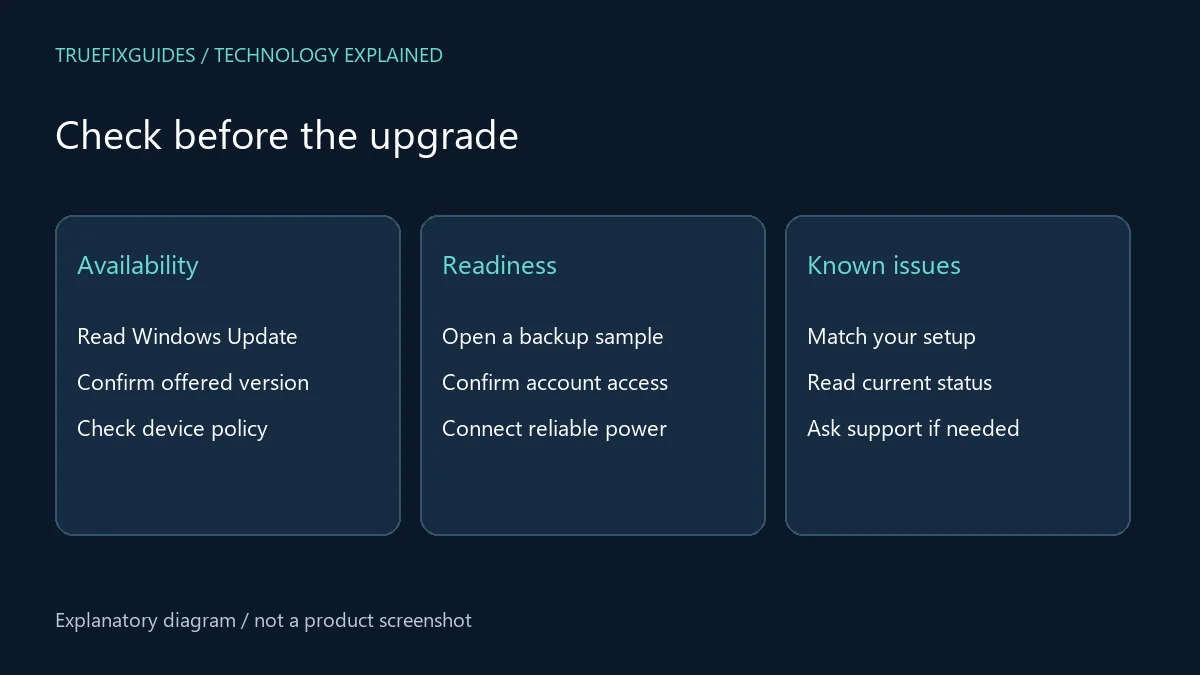
Open Settings → Windows Update and select Check for updates. If the feature update is offered, read its name and any accompanying message. Microsoft lists Download & install as the next step when the release is available for the device.
Do not confuse an ordinary cumulative security update with a feature update simply because both appear on the same page. Note which item you are installing and whether another restart is already pending. Finish existing maintenance in the order Windows presents.
If the Windows 11 26H2 update is absent on a managed computer, ask IT about the deployment plan. Avoid changing policies or forcing an installer solely to match a release headline.
3. Review known issues for your version
Open the official release-health page and read the current issue descriptions, affected environments, and resolution status. Check the date of each entry. An issue affecting a specific enterprise configuration does not automatically affect every home computer.
Write down anything that matches your setup, especially essential applications, remote access, or devices used for work. If an issue matters to your workflow, ask the relevant support team how to proceed before scheduling the restart.
The Windows 11 26H2 update article you are reading is a dated guide. Microsoft’s live release-health page remains the place to check changing status. Avoid repeating an old workaround after its conditions no longer apply.
4. Prepare important files and recovery access
Make sure important files have a current backup you can actually open. Check a small sample from the backup destination rather than assuming a sync icon proves every folder is protected. Include locally stored projects and documents outside your usual desktop folders.
If device encryption is enabled, confirm you can retrieve the recovery information through your normal account or organization. Keep it private. Also make sure you know how to sign in after a restart and can reach support if the normal work session is unavailable.
For the Windows 11 26H2 update, preparation should be concrete: accessible files, known account access, a power connection, and enough time to finish the process without interruption.
5. Install during a realistic maintenance window
Save open work, close applications normally, and connect a laptop to reliable power. Start the offered update when you can tolerate a restart and a short period without the device. Avoid beginning immediately before a meeting or travel departure.
Follow the progress and restart instructions shown by Windows. Do not repeatedly force the computer off because a percentage appears unchanged for a short time. If an error appears, record the code and stage before taking corrective action.
Keep the Windows 11 26H2 update separate from unrelated driver replacements or software removals. Making several major changes together makes it harder to explain a problem afterward.
6. Verify the version and essential workflows
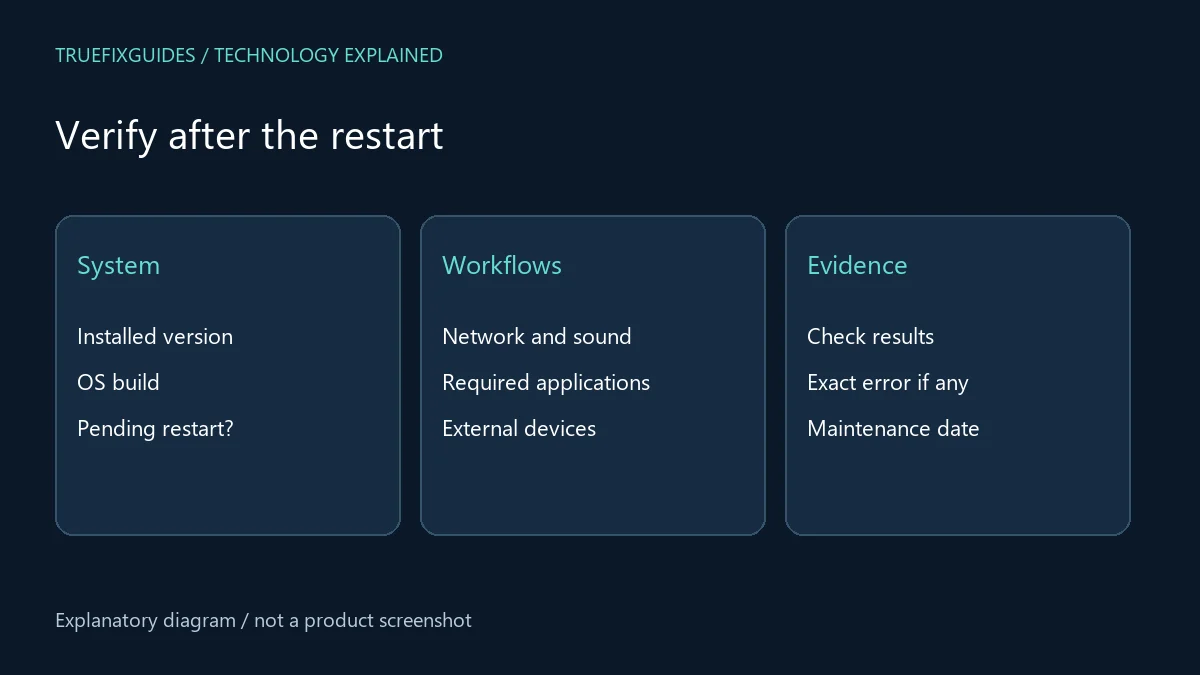
After signing in, check Settings → System → About for the installed Windows version and OS build. Return to Windows Update to see whether any restart or update remains pending. Record the result with the maintenance date.
Test the functions you depend on: Wi-Fi, sound, external displays, printing, required applications, and approved remote access. Open a known document and confirm that the application can save a harmless copy. Keep each check simple and repeatable.
A completed Windows 11 26H2 update is more than reaching the desktop. The relevant question is whether the installed version and your important workflows are both verified.
7. Report failures with evidence
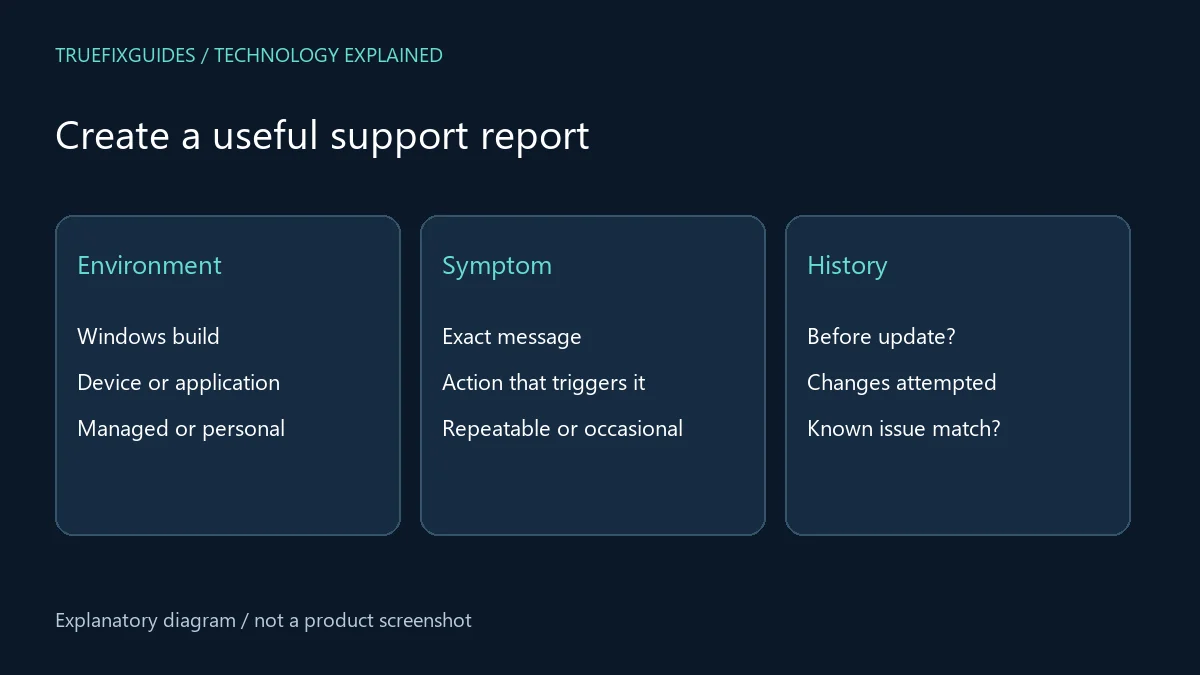
If something fails, record the exact error, Windows build, affected application or device, and the action that triggers it. Note whether the problem happens every time. If only one program fails, avoid describing it as a total operating-system failure.
Use your organization’s help desk or Microsoft’s support path, and compare the symptom with the official known-issues list. Do not install random registry fixes or driver bundles from an unrelated forum post. A precise report helps support select the correct next step.
Our Windows troubleshooting articles and network guides can help classify symptoms. Keep your Windows 11 26H2 update notes until any remaining issue is resolved.
Frequently asked questions
Does full availability mean I should force the update?
No. Check the offered update and current device guidance. A missing offer or managed deployment needs investigation in context, not an automatic policy bypass.
Will upgrading repair every existing Windows problem?
No. An upgrade changes the operating system, but unrelated application, hardware, account, and network problems may remain. Record existing symptoms before maintenance so you can compare them afterward.
Editorial note: Prepared with AI assistance using the linked official sources. The featured illustration is AI-generated; diagrams explain the workflow. This guide does not claim hands-on testing of the releases.