Firefox 158.0.1 update news on October 20, 2026 includes security fixes and an updated certificate blocklist. The practical response is to install the appropriate supported update, restart Firefox, and confirm the version. If a website then shows a certificate warning, investigate the warning rather than immediately bypassing it.
Source review: October 24, 2026. Check the linked vendor advisories for later changes.
1. Understand the Firefox 158.0.1 update
Mozilla’s MFSA 2026-111 advisory rates the release’s overall impact as high. It lists issues involving SVG boundary conditions, certificate blocklists, audio/video memory, and the PDF viewer. The advisory identifies Firefox 158.0.1 as the fixed desktop release for those entries.
These categories explain why a browser update matters even if you do not install new extensions or change settings. A browser processes many kinds of content during normal use, so maintenance should not wait until a visible crash appears.
Keep the advisory date with your notes. The Firefox 158.0.1 update is the specific October release discussed here; a later supported release may already be available when you read this.
2. Know why the certificate blocklist changed
Mozilla says it blocked compromised intermediate eMudhra certificates through OneCRL on October 17. This release includes the updated list so clients also receive that protection when RemoteSettings is unavailable or disabled by policy. The same security advisory documents this change.
A certificate helps a browser assess the identity behind an encrypted connection. A warning can therefore be meaningful even when a site looks familiar. The right response is to identify the hostname and error, then have the website or network owner investigate.
Do not interpret the Firefox 158.0.1 update as a reason to weaken certificate checking. A newly blocked connection may be a protection working as intended.
3. Check your installed Firefox version
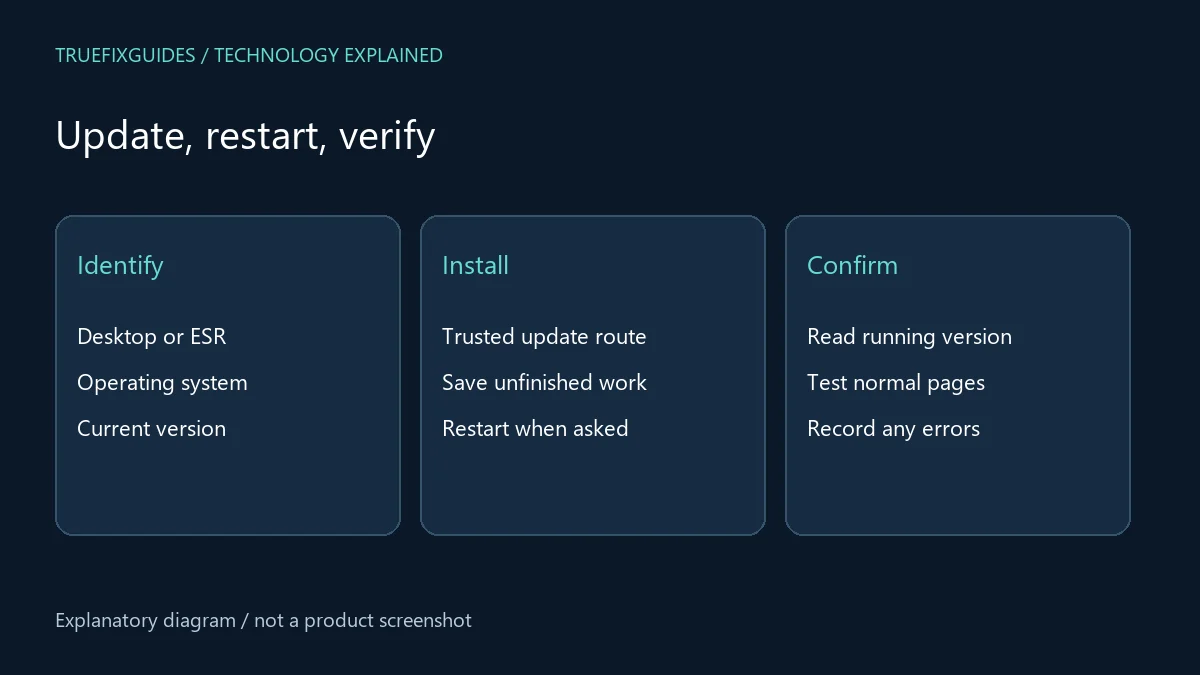
Open the Firefox menu and use Help → About Firefox on Windows or Linux; on macOS, use the Firefox application menu and About Firefox. Follow Mozilla’s official update guide for the supported route on your system.
Record the complete version and whether the installation is a standard release or ESR. Linux packages and managed installations may use a distribution or administrator-controlled updater. Use that established route instead of layering a second installation over the first.
When reviewing the Firefox 158.0.1 update, compare your installation with the advisory for its own branch. ESR numbering differs from the standard desktop release.
4. Install through the trusted update route
Save work in open web applications, then let the approved updater complete and restart Firefox when prompted. Return to About Firefox afterward to verify the running version. A successful download is only one stage of completing an update.
If the application is centrally managed, ask IT for the intended version and deployment status. Send the exact update message instead of guessing that policy is broken. For a personal installation, use Mozilla’s instructions and download sources rather than advertisements claiming to repair Firefox.
The Firefox 158.0.1 update should not require giving an unfamiliar support caller remote access to your computer. Keep maintenance within the trusted application or your organization’s process.
5. Investigate certificate warnings carefully
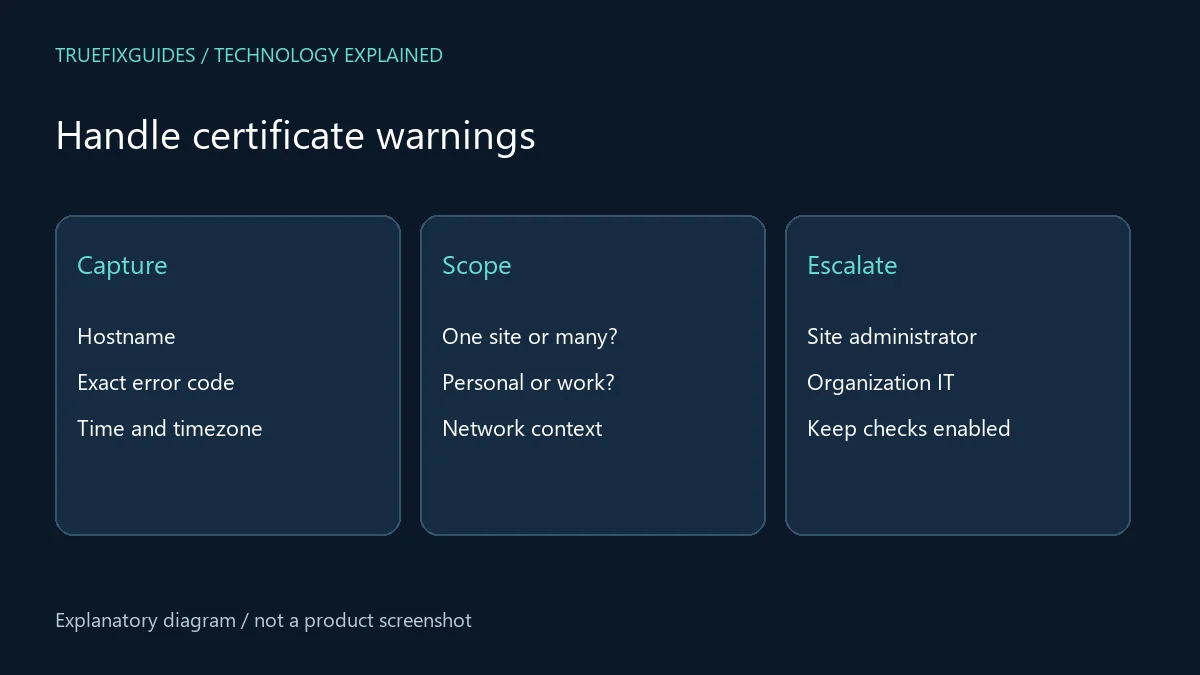
If a warning appears, record the hostname, exact error code, and time. Check whether it affects one website or many unrelated sites. Do not share private page content or authentication tokens in a public support post.
A single-site problem belongs with that website’s administrator. Problems across several sites may need device or network investigation. On a workplace network, involve IT because managed inspection and certificate settings require context.
Avoid disabling security checks to make the warning disappear. After the Firefox 158.0.1 update, a blocked connection is a symptom to explain. The absence of a warning after bypassing a protection would not demonstrate that the connection is trustworthy.
6. Test normal browsing after the restart
Open a familiar public page, sign in to a routine application, and check a non-sensitive PDF if that is part of your usual work. Keep the tests small and relevant. There is no need to seek out malicious content to prove that an update installed.
If a problem affects one site, compare that site with a known working page and note the difference. If an extension behaves differently, record its name and version before changing settings. Change one variable at a time so the result remains understandable.
The Firefox 158.0.1 update record should include the installed version and any reproducible regression, not just a general statement that browsing “seems different.”
7. Preserve a useful support record
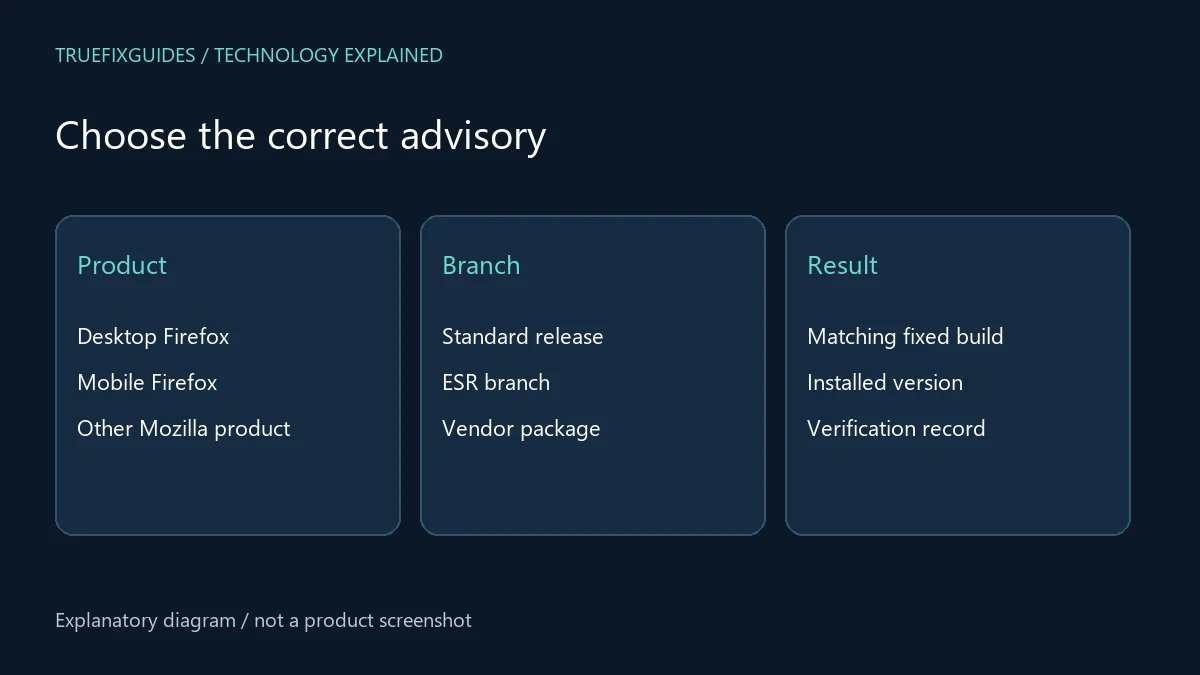
Keep the operating system, Firefox branch, full version, update time, and exact error together. For certificate problems, include the hostname and error code. For crashes or rendering problems, explain the shortest sequence that reproduces the issue.
Check the Mozilla advisory index when maintaining other products or branches. Do not apply a desktop version number to Firefox on Android, iOS, or an ESR installation without checking the corresponding entry.
For broader application issues, see our software troubleshooting collection. Close the Firefox 158.0.1 update task after verifying the version, restart, and normal workflows; track any remaining site-specific problem separately.
Frequently asked questions
Should I downgrade if a certificate warning appears?
Do not use a downgrade as a certificate workaround. Record the error and involve the website or network administrator. Resolve the underlying trust issue while keeping a supported browser.
Does this mean every Firefox user was compromised?
No. A security advisory describes vulnerabilities and fixes. It does not establish that every installation was attacked or that a particular user lost data.
Editorial note: Prepared with AI assistance using the linked official sources. The featured illustration is AI-generated; diagrams explain the workflow. This guide does not claim hands-on testing of the releases.