Computer troubleshooting works best when you separate four questions: does the machine receive power, does it start, does it show an image, and does it perform normally after sign-in? A black screen does not automatically mean a dead computer. This guide helps desktop and laptop owners choose the right diagnostic path before changing parts or reinstalling software.
Part of the complete tech troubleshooting guide. Use this page to select a path, then follow the article that matches your exact symptom.

1. Choose your computer troubleshooting guide
Start with the closest observable symptom. Each link below has a different purpose; you do not need to work through every article in order.
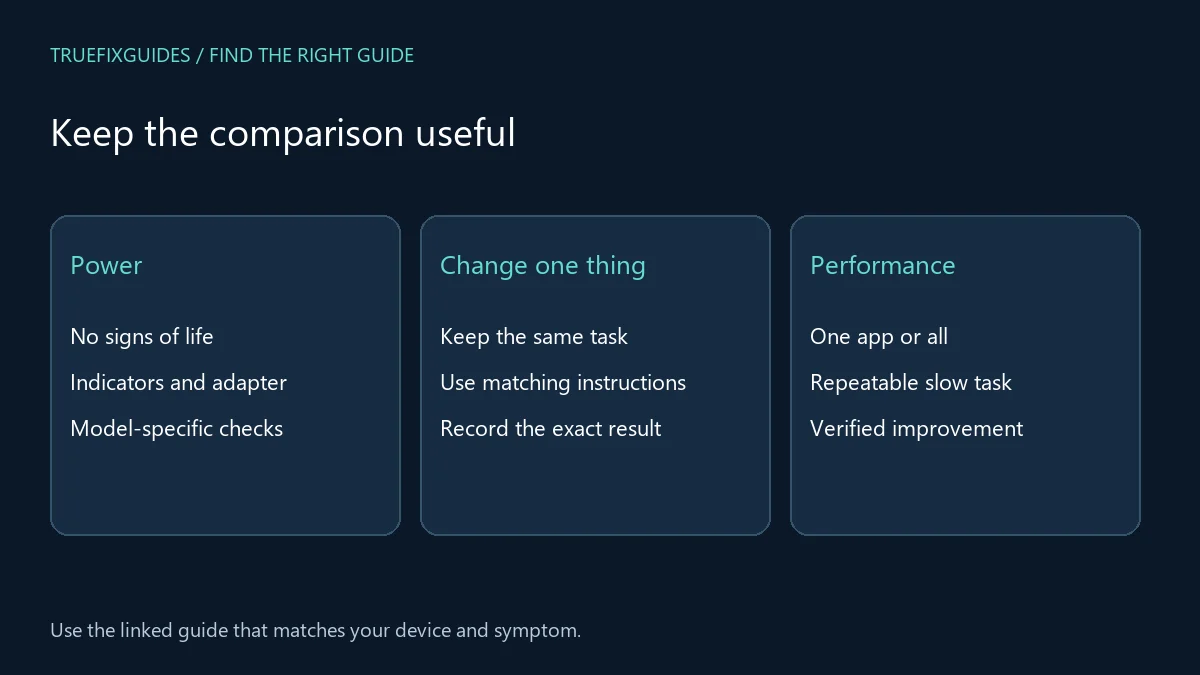
- Desktop has no power — Start with the absence of power signs rather than assuming a Windows startup problem.
- Laptop shows no signs of life — Record the charger and indicator behavior before moving to model-specific service guidance.
- Computer runs without a picture — Separate the display connection from the machine’s startup behavior.
- Computer gradually slows down — Use a repeatable task to investigate performance and verify the effect of each change.
- Beginner’s troubleshooting path — Use this broader introduction when you need help organizing symptoms and choosing a starting point.
2. Describe power and startup separately
Observe power indicators, fans, sounds, and the point where progress stops. A machine with no signs of power differs from one that starts but produces no image. Record whether the symptom is consistent and whether it began after moving the device, connecting an accessory, or installing an update. These observations guide the next article without requiring internal disassembly.
3. Distinguish a display problem from a failed computer
If the computer appears to run, note what the display shows: no signal, a backlight, a logo, an error, or a blank desktop. Check the selected input and visible connection arrangement using the device documentation. Computer troubleshooting should keep the display and the computer as separate components until evidence connects them. Do not buy a replacement part based only on the color of an indicator light.
4. Measure performance with a repeatable task
For a slow machine, describe a specific task and compare it with a simple baseline. Note whether slowness affects startup, one app, file access, or everything. Record storage availability, recent changes, and any explicit resource warning. Avoid combining many cleanup utilities and configuration changes; that makes it difficult to know which action helped or caused a new problem.
5. Choose the right boundary for self-service
Use operating-system guidance for application and update errors, and manufacturer documentation for hardware-specific checks. Preserve important files before a repair process that could affect storage. Stop when a procedure requires tools, electrical knowledge, or access you do not have. For managed computers, involve the organization’s IT team before altering security, firmware, or recovery settings.
6. Verify your computer troubleshooting result
Finish computer troubleshooting by repeating the original task and recording what changed. If the machine still cannot be used, prepare the model, symptom, indicator behavior, recent events, and checks performed for the manufacturer or repair provider. A useful diagnosis narrows the failed stage without making unsupported claims about a particular component.
For the relevant official reference, use Microsoft’s Windows help and learning. Match the product and version before applying a procedure.
More specific troubleshooting guides
Choose the article that matches the failing task. These guides cover narrower problems within this topic.
Related guide pages and complete article list
For a symptom that belongs to another layer, continue with hardware troubleshooting guide, Windows troubleshooting guide, Mac troubleshooting guide. Return to the main tech troubleshooting guide when you are unsure which category fits.
The Computer & Laptop Repairs archive lists all published articles in this category. This guide provides the starting paths; the archive is useful for finding additional or newly published topics.

Frequently asked question
Does a fan spinning prove that startup completed?
No. It is one observation about power and activity. Record the display, error indicators, and whether the operating system becomes usable before deciding which startup stage failed.
Guide directory reviewed October 24, 2026. Prepared with AI assistance and linked source review. Diagrams are explanatory, not screenshots or evidence of hands-on testing.