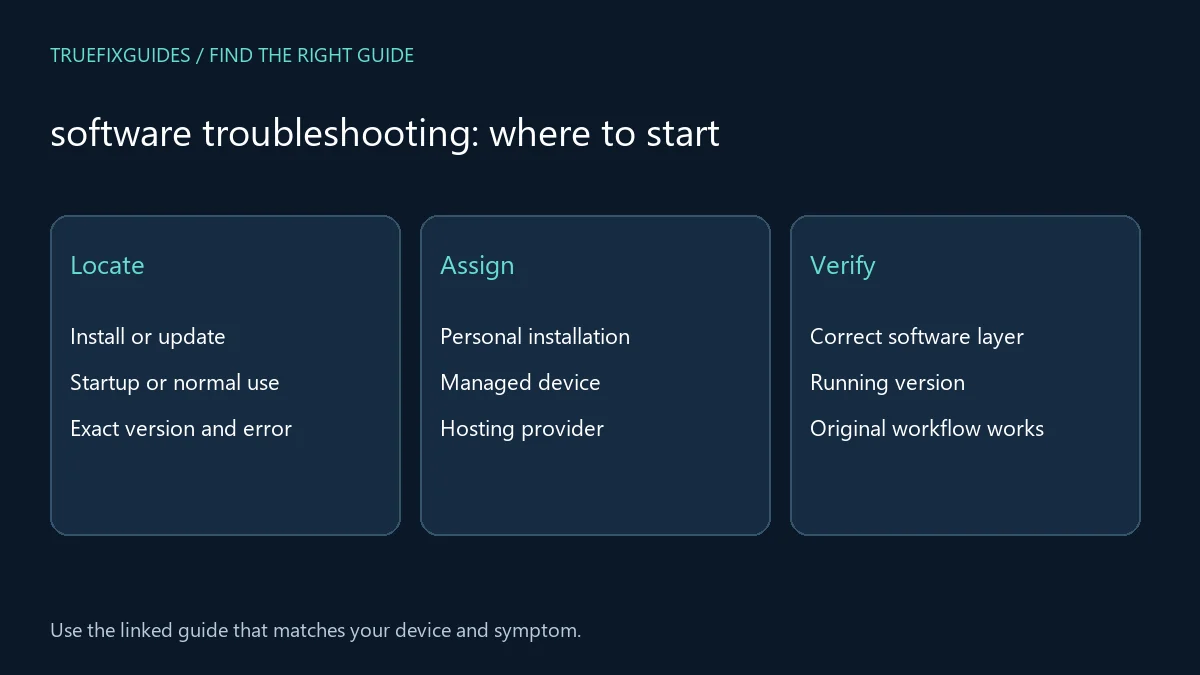
Software troubleshooting starts by identifying whether the failure occurs during installation, updating, startup, or normal use. Browser releases, WordPress core, and a server’s PHP runtime are separate software layers. This guide organizes the available articles and helps you select instructions that match the application, version, and responsibility for the system.
Part of the complete tech troubleshooting guide. Use this page to select a path, then follow the article that matches your exact symptom.
1. Choose your software troubleshooting guide
Start with the closest observable symptom. Each link below has a different purpose; you do not need to work through every article in order.
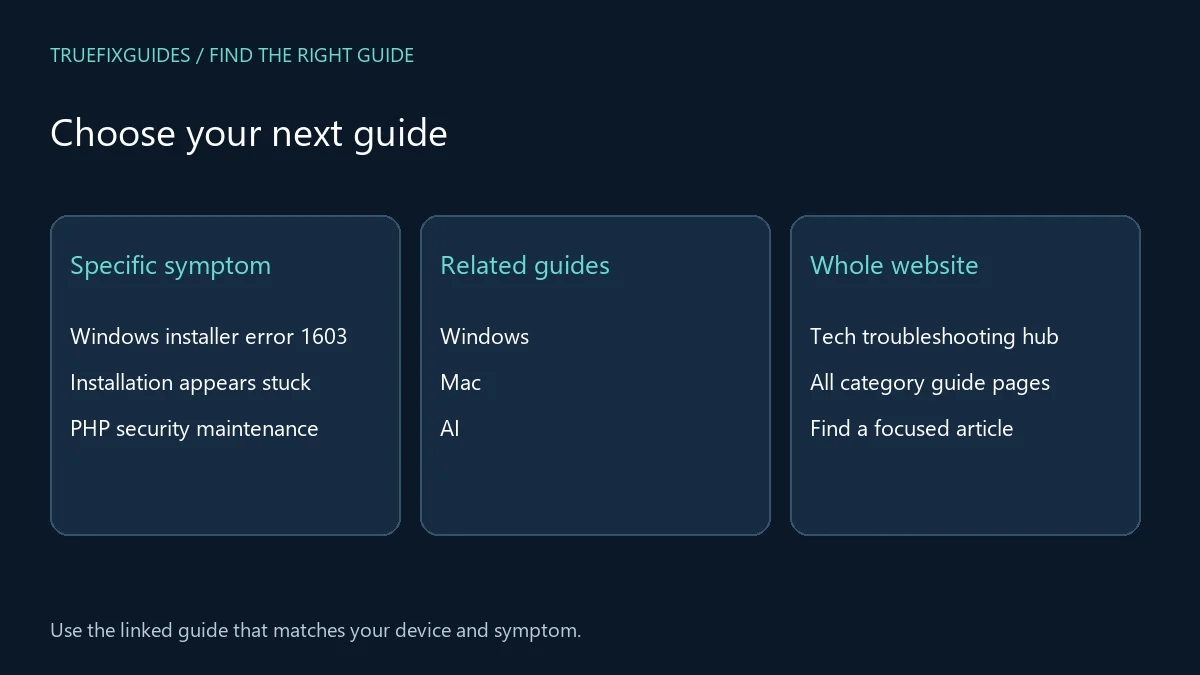
- Windows installer error 1603 — Use the exact installer error as the starting point and preserve its log context.
- Installation appears stuck — Identify the installer stage before interrupting or starting another copy.
- PHP security maintenance — Check the dated advisory and confirm the patched runtime with the hosting owner.
- WordPress security maintenance — Treat core updates separately from PHP and verify important site workflows afterward.
- Chrome release and update checks — Match platform and release channel before comparing browser version numbers.
- Firefox security release checks — Use the matching release branch and investigate certificate warnings rather than bypassing them.
2. Record the application and failed stage
Save the product name, version, operating system, exact message, and action that triggered it. Note whether installation never completes, an update needs a restart, or an installed application fails during use. A precise stage narrows the investigation. Preserve the original installer source and relevant logs without sharing credentials, license keys, or customer data.
3. Separate local installation from managed deployment
Determine who controls the installation: you, a workplace administrator, or a hosting provider. Use the approved update route for that environment. Software troubleshooting should not bypass management policy just because a newer version exists. If installation appears stuck, record the stage and activity before interrupting it, and check the product’s documented recovery process rather than repeatedly launching another installer.
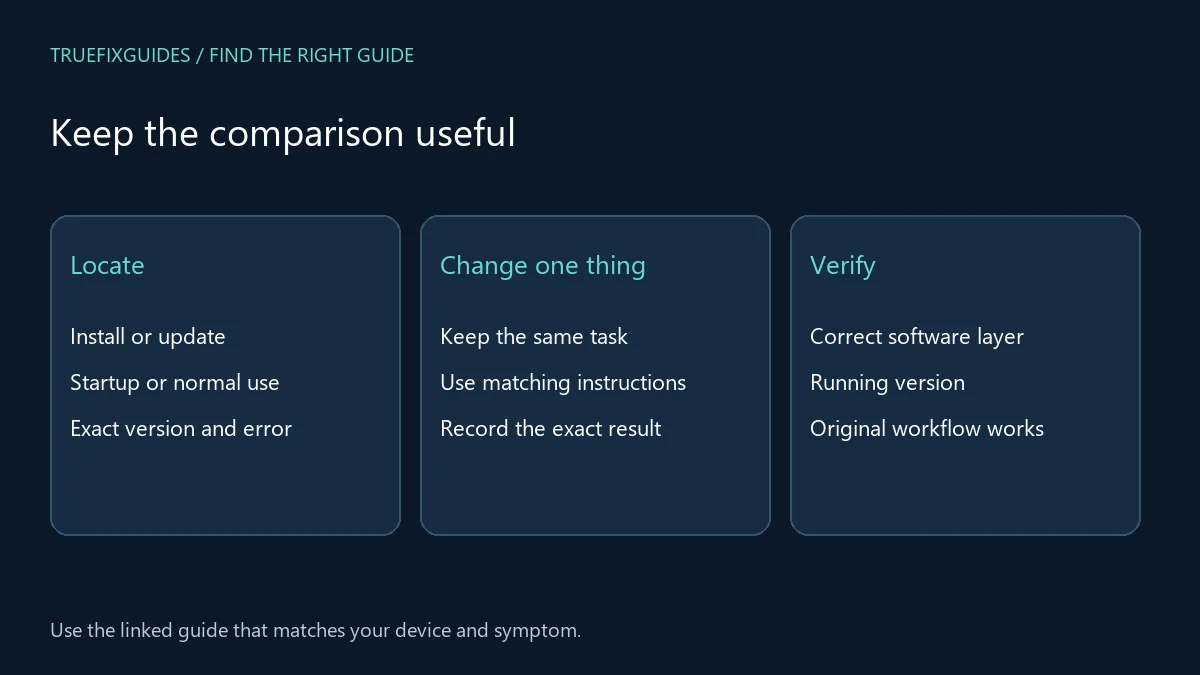
4. Match security guidance to the correct layer
A PHP patch addresses the runtime serving a website; a WordPress update addresses the application. Likewise, a browser release does not update the operating system. Check the official advisory date and whether a newer supported release has superseded it. Keep package evidence and completion time for each layer instead of treating one successful update as proof that everything is current.
5. Verify the task after maintenance
After an update or repair, confirm the running version and repeat a small workflow that exercises the affected feature. For a website, test the relevant public and administrative actions; for a desktop app, open and save a harmless file. WordPress’s official updating guide provides application-specific preparation. Keep backups and recovery contacts appropriate to the system being changed.
6. Verify your software troubleshooting result
Software troubleshooting should leave a clear record of the installed version, corrective action, and verified workflow. If the problem persists, provide support with the smallest reproducible example and the exact stage that fails. Dated release articles remain useful context, but always check the linked vendor announcement for later guidance before applying an update.
For the relevant official reference, use WordPress’s official updating guide. Match the product and version before applying a procedure.
Related guide pages and complete article list
For a symptom that belongs to another layer, continue with Windows troubleshooting guide, Mac troubleshooting guide, AI troubleshooting guide. Return to the main tech troubleshooting guide when you are unsure which category fits.
The Software Troubleshooting archive lists all published articles in this category. This guide provides the starting paths; the archive is useful for finding additional or newly published topics.
Frequently asked question
Should I download a repair utility for every error?
No. Start with the product’s own documentation and the exact error. An unrelated utility may change settings without addressing the cause and make the original failure harder to reproduce.
Guide directory reviewed October 24, 2026. Prepared with AI assistance and linked source review. Diagrams are explanatory, not screenshots or evidence of hands-on testing.