Bluetooth connected but no sound on Windows 11? First choose the headset or speaker as the output in Settings → System → Sound, then play a Windows test sound. If the test works but one app is silent, inspect that app’s Volume mixer output. If every source is silent, check the accessory’s volume and other paired devices before removing the pairing. The eight checks below separate routing, accessory, profile and driver problems.
What “Bluetooth connected but no sound” tells you
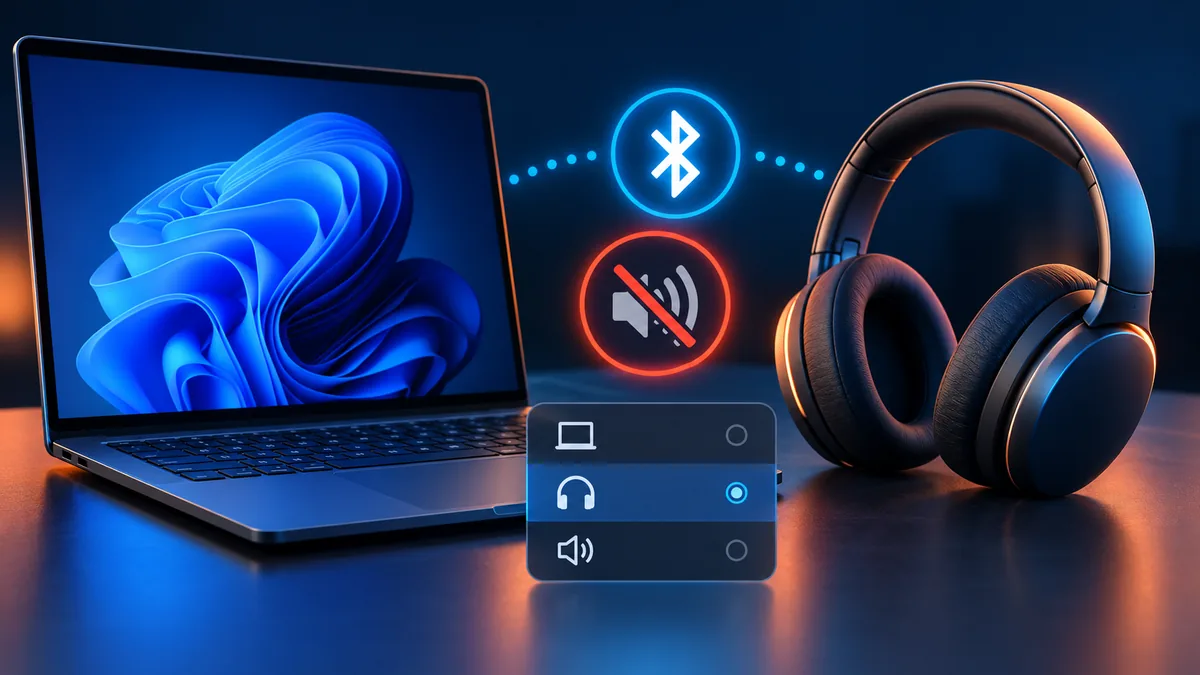
A connected badge shows that Windows and the accessory have a Bluetooth connection. It does not prove that the accessory is the selected media output, that the app uses the default output, or that the headset has enough charge to play audio. Some headsets also connect to a phone and laptop at once, which can change which device has priority. Write down whether the issue affects system sounds, one application, calls or all audio.
Microsoft’s Bluetooth no-sound support page starts with the Bluetooth troubleshooter and output selection, then covers volume, pairing, driver and protocol checks. Use the steps that match your symptom; a full driver reinstall is not the first response to an app-specific mute.
| Symptom | Most useful first check | Likely next branch |
|---|---|---|
| Windows plays through laptop speakers | System output selection | App-specific routing |
| Windows test sound works; one app is silent | Volume mixer and in-app output | Restart that app |
| Sound disappears during a call | Input/output and audio profile | LE Audio compatibility check |
| Headset silent on every source device | Accessory power and its own controls | Manufacturer support |
| PC does not list the accessory as output | Bluetooth audio capability and pairing | Driver or device support |
Run a quick audio test without changing drivers
- Keep the volume low initially. Raise the headset’s physical volume and the Windows volume separately; some devices have independent controls.
- Pause or disconnect another phone or tablet paired to the same accessory. If your headset supports multipoint, check its own instructions for source switching.
- In Windows 11, open Settings → System → Sound. Select the Bluetooth device under Output and use the available test control or play a local file.
- Try a second app. Note whether sound works in the browser, a media player or the Windows test but fails in a meeting app.
These comparisons show where to focus. If the accessory is silent even when connected to another phone, investigate the accessory rather than changing Windows settings. If the Windows test works, leave the Bluetooth driver alone until you check the silent app.
Bluetooth connected but no sound on Windows 11: eight fixes
1. Select the Bluetooth output explicitly
Click the sound icon in the taskbar or open Settings → System → Sound. Under Output, choose the Bluetooth headset or speaker. Run a test sound. Windows can keep a built-in speaker, monitor or USB audio device as the default even though a Bluetooth accessory is connected. If you see several similarly named outputs, choose the one that matches the device and check its properties.
Expected result: the Windows test sound reaches the accessory. If the device is missing from Output, move to pairing and compatibility checks rather than changing an app’s volume.
2. Check Volume mixer and the affected app
Open Settings → System → Sound → Volume mixer while the silent app is running. Make sure the app is not muted and that its output is set to Default or the intended Bluetooth device. Some meeting and game apps also have their own speaker setting; compare it with the Windows selection. Close and reopen the app after changing its output.
Expected result: the app plays sound when the Windows test already worked. If every app is silent, continue with the accessory and Bluetooth checks.
3. Check the accessory, battery and multipoint state
Charge the accessory, confirm it is not muted or paused by a touch gesture, and try its built-in volume controls. Disconnect it from other nearby source devices for one controlled test. A headset that is connected to two devices may keep media on the other one. If the manufacturer offers an app, check its source-selection screen; do not factory-reset the accessory before saving its pairing instructions.
Expected result: the headset responds when Windows is its only source. If it fails on all devices, consult the maker’s support instructions.
4. Separate call-profile trouble from silent media
Bluetooth Classic headsets can change audio behavior when their microphone is in use. Test ordinary music playback with the meeting app closed, then test a call. If sound fails only during calls, confirm the meeting app’s microphone and speaker choices. Selecting the laptop microphone for one test may reveal a headset profile conflict, but it also means the headset microphone will not be used for that call.
Some Windows 11 PCs and accessories support Bluetooth LE Audio, which can handle microphone use differently. Microsoft’s LE Audio guidance describes a Format when microphone is active option on supported hardware and software. If that option is present and stereo mode glitches, test mono for compatibility. Do not assume every Windows 11 PC has that control, and do not disable hands-free features as a blanket fix.
Expected result: you determine whether call input selection, a particular profile or the accessory’s LE Audio support is involved.
5. Run the Windows Bluetooth and audio troubleshooters
Open the Get Help Bluetooth troubleshooter from Windows settings or Microsoft’s support page. Run the audio troubleshooter if output is selected but the Windows test is silent. Read each proposed change before applying it. Save the result or error code if the tool cannot fix the issue; that information is more useful than repeating a reset.
Expected result: a common service or routing fault is identified. If no fault is found, use the next reversible step.
6. Restart the connection and Windows
Turn the accessory off. In Settings → Bluetooth & devices, turn Bluetooth off, wait about ten seconds and turn it back on, as Microsoft recommends. Power the accessory on again and reconnect. If output still does not register, save work and restart Windows once. This refreshes endpoints without changing service startup types or deleting the pairing.
Expected result: the Bluetooth device appears as a usable output and plays a test sound. If the connection works until the next reboot, note the pattern for driver or firmware support.
7. Check updates and audio capability
Install stable Windows updates and check the PC maker’s official Bluetooth and audio driver page for your exact model. Check the accessory maker’s firmware instructions as well. Windows’ Device Manager can search for a driver, but a model-specific package may come from the manufacturer. Avoid generic driver-download sites. If the headset cannot stream media because it lacks a compatible audio profile, a driver update cannot add unsupported accessory hardware.
Microsoft mentions A2DP support for higher-quality Classic Bluetooth streaming. LE Audio has separate compatibility requirements for the PC, drivers and accessory. If you are troubleshooting audio quality during microphone use, check the relevant Microsoft LE Audio page rather than assuming one profile rule covers every device.
Expected result: a compatible driver or firmware resolves the issue, or you identify a capability limitation that needs another output device.
8. Remove and re-pair only if the earlier tests fail
Before removing the device, note how to put it back into pairing mode and whether it is paired to other important devices. Open Settings → Bluetooth & devices → Devices, find the accessory, choose Remove device, then add it again according to the maker’s instructions. Removing a pairing does not erase files, but it may require reconnecting the accessory to every device that used that pairing.
Expected result: Windows creates a fresh connection and lists the accessory under Sound Output. If a newly paired headset remains absent from the output list, verify accessory compatibility and test another known-working Bluetooth audio device on the PC.
Troubleshooting decision table
| Result | Next action | Why |
|---|---|---|
| Sound test plays, one app does not | Fix app-specific output or mute | System audio path works |
| Headset works on phone, not Windows | Check Windows output, pairing and driver | Accessory can play audio |
| Headset fails on phone and PC | Check battery and maker support | Failure follows accessory |
| Only calls sound wrong | Compare call input/output and supported LE Audio mode | Microphone use changes audio path |
| No Bluetooth output appears after re-pairing | Check profile support and PC adapter | Connection alone is not a media endpoint |
When these fixes will not help
A physically damaged speaker, failed battery or incompatible Bluetooth audio profile needs accessory-specific service or replacement. A PC that lacks LE Audio hardware cannot gain every LE Audio feature through a settings toggle. If the Bluetooth radio itself is missing or disabled, follow the broader Windows troubleshooting hub and your PC maker’s instructions before focusing on sound output.
If Windows plays through USB speakers but not a USB headset that shows a device error, the problem may be in the USB audio path rather than Bluetooth. The USB audio Code 10 guide covers that separate case. Keep the evidence from the test that fails instead of applying both repair paths at once.
Frequently asked questions
Why does Windows say connected but keep playing through speakers?
Windows can maintain the Bluetooth connection without selecting it as the media output. Choose the accessory in Sound Output, then check the app’s output if the Windows test plays correctly.
Why does audio change when I turn on the headset microphone?
The audio route or format can change during a call. Classic Bluetooth and LE Audio behave differently, and LE Audio stereo-with-microphone support depends on both the PC and accessory. Check the available format or select a different input for one controlled test.
Should I disable hands-free telephony?
Not as a routine fix. It can remove the headset microphone function and may not apply to newer LE Audio devices. Identify whether the problem is playback, call input or an app setting first.
Will removing and re-pairing delete my files?
No, it changes the Bluetooth pairing, not documents or photos. You may need to pair the accessory again and restore any manufacturer-specific settings.
Can a Windows update cause this?
It can change drivers or routing, but the timing alone does not establish the cause. Check the selected output and test another app before replacing a driver. If the issue began after an update, record the update and driver versions for support.
Conclusion
When Bluetooth is connected but Windows 11 has no sound, start with output selection and a Windows test sound. Follow the result toward an app setting, a competing paired device, call-profile compatibility or the Bluetooth driver. Re-pair only after the reversible checks. This order preserves your working setup and gives you a clear result to share with the accessory or PC maker if the fault persists.