Claude Code login not working? Identify where the sign-in stops: the command does not launch, the browser cannot finish authentication, the account lacks access, or the terminal rejects the completed login. Reinstalling immediately can hide the distinction without solving it.
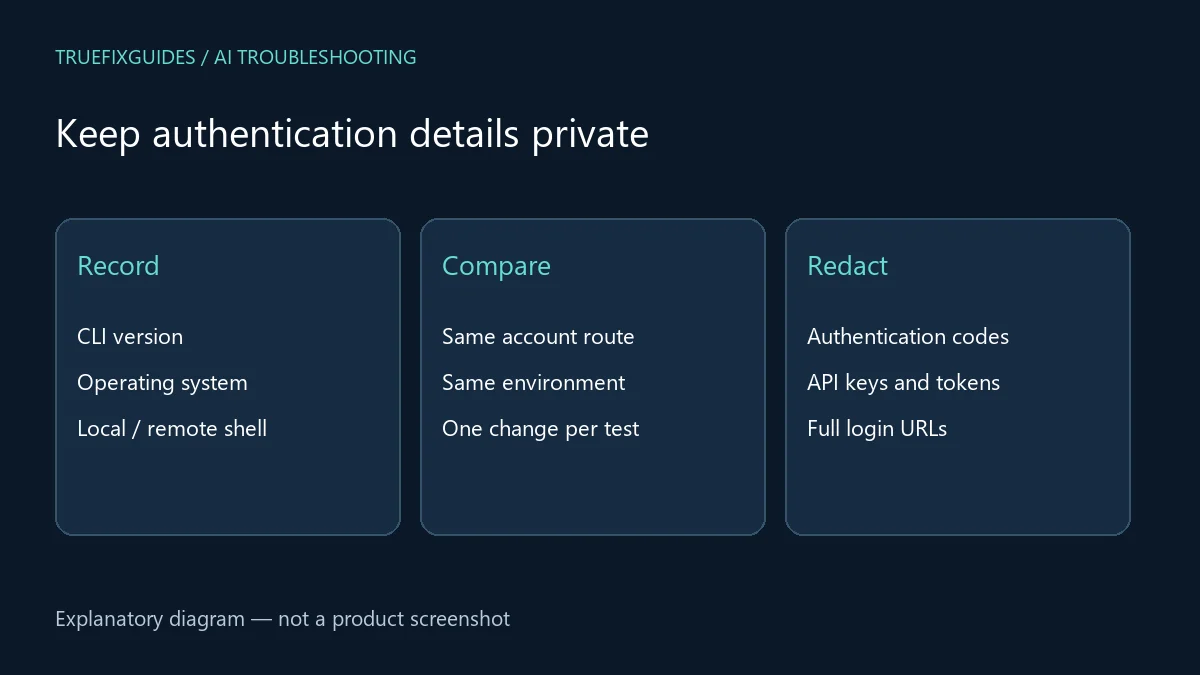
This guide focuses on the Claude Code command-line login flow. Organization-managed gateways and cloud-provider deployments may require your administrator’s configuration. Keep authentication codes, API keys, and full login URLs private. The safest first check is claude --version, followed by claude doctor if the command starts, then the login stage that actually fails. A successful browser page does not by itself prove that the CLI saved a usable credential.
1. Locate the Claude Code login not working symptom
Write down the exact error and where it appears. Record your operating system and whether the terminal runs locally, in WSL, over SSH, or inside a container.
| Symptom | Investigate |
|---|---|
| Command not found | Installation and PATH before authentication. |
| Browser never opens | The login link supplied by the CLI. |
| Browser finishes but terminal waits | The supported callback or code flow. |
| Access denied or wrong organization | Account, seat, and administrator policy. |
| Login succeeds but requests hit a limit | Usage or billing rather than authentication. |
For Claude Code login not working, this short record makes the next step specific instead of speculative. Also note whether the failure occurs in native Windows, macOS, Linux, WSL, SSH, a container or an IDE terminal. Those environments may use different configuration directories and browser handoff paths. Avoid attaching complete login URLs to support tickets because they can contain sensitive state.
2. Confirm the installed CLI can start
In your usual terminal, run these diagnostic commands:
claude --version
claude doctor
Anthropic’s installation and login troubleshooting guide covers missing commands, conflicting installations, and PATH problems. If the command cannot run, fix that stage before investigating your password.
Record the version and relevant diagnostic result. If you use an IDE terminal, compare it with a newly opened system terminal. Different environments can launch different installations or inherit different settings.
Do not paste a command from an unrelated operating-system tutorial merely because it promises to repair login. Use the official installation route appropriate to the environment you actually recorded.

3. Use the intended account and authentication method
Claude Code login not working can result from choosing a different account route than your setup expects. Anthropic’s authentication documentation distinguishes Claude subscription accounts, Console access, organization accounts, and cloud deployments.
Before signing in, decide which one you intend to use. A personal browser account does not establish access to a company organization. Ask the administrator to confirm your seat or required login method when the error mentions organizational access.
For a normal interactive login, start the supported flow:
claude auth loginChoose the intended account in the browser rather than accepting the first already-signed-in profile without checking it. Anthropic’s authentication reference lists the supported account types and explains that environment credentials can take precedence over a saved subscription login. For example, an approved ANTHROPIC_API_KEY can route requests through a Console account instead of the Claude subscription you expected. Do not print the key to debug it. Check whether the variable is present, review your shell profile or managed settings, and use /status in a working session to identify the active method. Change only a setting you control and understand; ask an administrator when a policy supplies it.
4. Complete the supported browser-to-terminal handoff
If Claude Code login not working means the browser never opens, the official authentication guide says you can copy the login URL from the CLI using its offered control. Use the URL from the current attempt, not an old tab.
In WSL, remote terminals, or containers, the browser may not reach the local callback. Anthropic’s login troubleshooting instructions say to copy the URL printed by the current claude auth login attempt, open it in a browser on your local machine, and paste the displayed code into the terminal prompt. If an interactive prompt does not accept a paste, the docs suggest the terminal’s alternate paste shortcut or the shell command claude auth login, which reads the code from standard input. Do not treat a browser localhost connection error as proof that the account login itself failed.
Do not share the code in a chat, issue, or screenshot. Keep the same terminal session open while completing the flow. Starting several attempts makes it harder to know which browser tab belongs to which waiting session. If the browser shows success but the CLI still waits, check whether the current terminal is asking for a pasted code. Complete that prompt in the same session. Then verify the terminal reports success before retrying the original task. If it remains stuck, record the exact terminal message and whether the login ran locally or remotely; those details separate a handoff problem from an account rejection.
5. Compare configuration without exposing credentials
For recurring Claude Code login not working, ask whether the same account succeeds in another terminal environment. A difference between a local shell and a container suggests that their configuration or authentication context deserves inspection.
Anthropic documents that an approved API key can affect the login path, and managed settings can require an account method or organization. Check whether such configuration exists without printing its secret values.
Do not delete an entire configuration directory as a first response. Preserve your settings and ask the administrator about managed policies. On Windows and Linux, Anthropic documents a local credential file under the Claude configuration directory; a different CLAUDE_CONFIG_DIR points to a different credential store. Check that the account running the CLI can access its own configuration location, and whether the disk or network home directory is full. Do not display or edit the credential file just to test login. On macOS, the docs describe a Keychain path and a fallback; use claude doctor for its Keychain warning rather than deleting stored logins. Our AI authentication troubleshooting guide covers the broader distinction between identity, permissions, and credentials.
6. Separate service and network errors from account access
A failed connection during sign-in is not proof that your subscription is invalid. Check Claude’s status page and match any incident to the time and affected service. A 403 Forbidden or message that Claude Code access was not granted may instead be an organization role or policy issue. Anthropic’s troubleshooting guide says that a Custom role without Claude Code permission needs an organization owner to grant access. Reinstalling the CLI or changing a password will not add that permission.
If Claude Code login not working occurs only on a managed network, report the exact error to IT. Keep required certificate and network protections enabled. A blocked callback, unavailable endpoint, and rejected account need different fixes.
Compare a permitted network or known-working environment only when you are authorized to use it. Record the result rather than assuming that every connection problem can be solved by disabling security software. If the failure is a TLS or proxy error, use the exact message with your organization’s network team and Anthropic’s current network requirements. If the service status shows an incident, retry after recovery instead of rotating credentials. Keep one variable per test so you can tell which change mattered.
7. Verify login with a small, harmless request
After the terminal confirms login, run claude auth status --text to check the active sign-in information where your installed version supports it. Anthropic documents a Sign-in ends line for relevant claude.ai logins in newer versions; it may be absent for other credential types. If a session starts, /status can also show the selected account or provider. Then start a session in a non-sensitive test directory and ask a simple question that does not require editing files or running tools. This separates basic account access from project-specific configuration.
If the reply succeeds, return to your project and compare any remaining error. If a fresh shell works but an IDE terminal does not, restart the IDE so it inherits the intended environment and check whether its extension uses a different account. If only one project fails, inspect that project’s settings and permissions without exposing secrets. If it reports a usage or billing limit, handle that as a separate condition instead of repeating authentication.
When reporting Claude Code login not working, include the CLI version, operating system, terminal environment, exact error, and which stage failed. Redact tokens, private repository paths, and authentication links. A reproducible sequence is more useful than a large unfiltered log.

Claude Code login not working: common questions
Why does the browser say success while the terminal waits?
The browser and terminal may not have completed their handoff. Follow the current CLI’s supported callback or code instructions, especially in a remote environment.
Should I buy API credits to repair login?
First identify the account method you intend to use. Purchasing credits does not fix a browser callback or grant membership in an unrelated organization.
Does a successful login prove the project is configured correctly?
No. Login verifies one part of the workflow. A later tool, repository, or usage error should be diagnosed from its own message.
Why does Claude Code ask me to log in again after a successful sign-in?
The saved login may have expired, the current shell may use a different configuration directory, or another credential source may be active. Anthropic recommends /login for an expired OAuth login and checking the system clock if repeated expiry is reported. Compare the active account and environment before removing any saved state.
What if Claude Code says the organization has disabled access?
Check whether a different API key or provider is taking precedence. If the error explicitly denies Claude Code access under an Enterprise role, an organization owner must review the role. Do not buy credits or reinstall the CLI before identifying which account and organization the session is using.
Once Claude Code login not working is resolved, keep the successful environment and account choice documented. For other symptoms, see our AI troubleshooting guides.
Editorial note: Prepared with AI assistance from the linked official documentation, reviewed November 21, 2026. Illustrations and diagrams explain the workflow; they are not evidence of hands-on product testing. Account features and limits can change.