CPU vs GPU for local AI depends on your model, available memory and the response time your task needs. Start on a CPU for a simple baseline; use a supported GPU or partial offload when measured speed makes it worthwhile. Confirm the runtime’s actual backend before buying hardware.
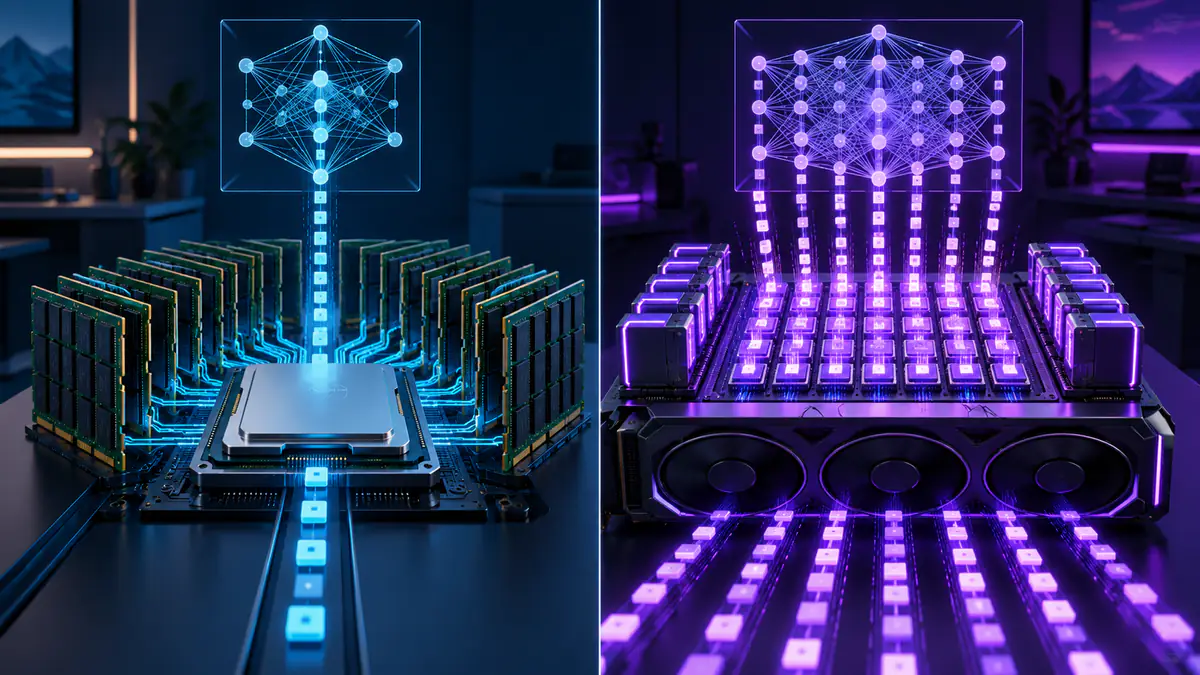
CPU vs GPU for local AI: the quick verdict
Start with a CPU if you are testing a small, quantized model, have no supported GPU, or value a simple setup over speed. Use a supported GPU when the model and working context fit available memory and response time matters. A GPU is often faster for parallel model calculations, but the result depends on the model, quantization, batch size, runtime, device and memory pressure. There is no honest universal tokens-per-second promise.
The CPU vs GPU for local AI question is rarely all-or-nothing. Several local runtimes can place some layers on a GPU and leave the rest on the CPU. llama.cpp describes hybrid inference, and LM Studio exposes GPU offload controls. A partial split can make a model run when VRAM is limited, though movement between memory pools may limit the benefit. Measure your actual workload rather than buying hardware from a benchmark headline.
CPU vs GPU for local AI: 10 useful differences
| Factor | CPU inference | GPU inference |
|---|---|---|
| 1. Initial setup | Usually fewer driver requirements | Needs supported backend and driver |
| 2. Parallel work | Good general-purpose processing | Designed for highly parallel math |
| 3. Memory location | Uses system RAM | Often limited by VRAM or shared memory |
| 4. Model fit | Can use available RAM, often with slower responses | Fast path depends on fitting working set |
| 5. Context length | More context consumes RAM and time | More context can consume substantial GPU memory |
| 6. Quantization | Smaller models reduce memory needs | Support and speed depend on backend |
| 7. Interactive latency | May be adequate for occasional use | Can be better when acceleration works |
| 8. Parallel users | Throughput can become constrained | More headroom on suitable hardware |
| 9. Power and heat | CPU load and cooling still matter | GPU power and cooling may rise |
| 10. Cost | May reuse hardware already owned | Dedicated hardware can be expensive |
These are decision factors, not fixed scores. A capable integrated GPU with shared memory is different from a discrete card, and a highly optimized CPU run can beat an unsupported or badly configured GPU path. For CPU vs GPU for local AI, record the exact machine and model before interpreting any performance claim.
Model memory, context and GPU offload
A model file’s size is only the beginning of memory planning. The runtime also needs space for context, intermediate work and operating-system processes. As context grows, memory use and processing time may rise. The number shown as VRAM on a product box is not all necessarily free for your model: displays, browsers and other applications can use it. Check available memory while the workload runs.
CPU inference typically loads work into system RAM. A discrete GPU has its own VRAM; integrated graphics may share system memory. If the model cannot fit wholly on the GPU, a supported runtime may offload some layers, reduce context, use a smaller quantization or run on the CPU. That does not mean every model has the same quality after quantization; test the output on a task where mistakes matter.
For CPU vs GPU for local AI, the safe sequence is to choose the model first, estimate its memory needs, then select a context size and backend. LM Studio documents an estimate-only load option, with context length and GPU offload reflected in the estimate. A model that loads at a short context may fail when you raise the context or add another user. Leave headroom instead of sizing a system to the exact file size.
What speed measurements actually mean
Distinguish time to first response from generation speed and total task time. A long prompt may spend much of its time in prompt processing before producing the first token. A short chat may feel fine on a CPU while a long document or coding context feels slow. Multiple concurrent requests create a different workload from one interactive session.
To compare CPU vs GPU for local AI fairly, keep the model file, quantization, prompt, context length and output target identical. Warm each setup consistently and record at least three runs. Note prompt processing time, generation speed, peak RAM and VRAM, total latency, power behavior and whether the output remained usable. Record any crashes or fallback to a different backend. A single fast number without these conditions is weak buying evidence.
If the GPU seems slower, verify that the runtime actually selected it and that the intended layers were offloaded. A setup with too little VRAM may spend time moving data or falling back to CPU work. Check the runtime log and supported backend list. Do not assume a large GPU-utilization graph proves the model itself is running efficiently.
CPU vs GPU for local AI: check hardware support
GPU support is a software question as well as a hardware question. llama.cpp documents different backends such as Metal, CUDA, Vulkan and SYCL, each with its own build and support requirements. Ollama and LM Studio have their own supported-platform lists and settings. Verify the exact GPU model, operating system, runtime version and driver against current vendor documentation before buying a card for one local model.
On a Mac, unified memory changes the usual discrete-VRAM calculation, but memory still has a finite total and the application must support the relevant acceleration path. On Windows or Linux, a graphics card visible to the operating system does not prove the AI runtime has a compatible backend. An unsupported GPU can leave you with CPU inference even after paying for hardware.
When CPU vs GPU for local AI is a purchase decision, budget for the entire machine: system RAM, storage for model files, adequate cooling, power supply and the exact GPU memory needed for your chosen models. Compare the cost against a smaller model or an occasional hosted service, taking your data and privacy requirements into account. Do not claim that local processing is automatically private if the app also has cloud features enabled.
Run a controlled local comparison
- Write down the exact model name, file format, quantization and license. Use the same file for both runs where possible.
- Record CPU, RAM, GPU model, VRAM or shared-memory capacity, operating system and runtime version.
- Choose one real task: for example a short question, a long document summary or a code explanation. Define a minimum acceptable answer.
- Run a CPU baseline with an explicit CPU setting where your runtime supports one. Record time and memory.
- Enable the supported GPU backend, choose a documented offload setting and repeat the identical task.
- Change one variable at a time, such as context length or offload amount, and keep the previous working setting available.
- Repeat runs and inspect both speed and output. Stop if heat, instability or memory failures make the gain impractical.
For CPU vs GPU for local AI, do not present this protocol as hands-on benchmark results. It is a way for the reader to collect evidence on their own machine. If the CPU baseline already meets the required response time, a costly GPU upgrade may have little practical value for that workload.
Use partial offload when memory is tight
LM Studio’s current command-line documentation lets users control GPU offload with its --gpu option and inspect estimated resources with --estimate-only. The exact accepted values and interface may change, so follow the linked current documentation. llama.cpp exposes GPU-layer controls and also documents that setting zero GPU layers may not fully disable every GPU operation in some configurations. Use its device selection if a strict CPU-only comparison is required.
Partial offload can help a model exceed a card’s VRAM while still accelerating some work. It can also be slower than expected if the split creates costly transfers or if the remaining CPU work dominates. Compare several supported offload amounts and watch both RAM and VRAM. If the app crashes at load, reduce context first or choose a smaller model; avoid forcing a setting that leaves no memory headroom.
This CPU vs GPU for local AI middle path is especially useful when you already own the GPU. It is less persuasive as a reason to buy a card without knowing the target model and expected performance. Read the runtime log to confirm what actually loaded on each device.
Diagnose slow or failed inference
| Symptom | Likely check | Safe next step |
|---|---|---|
| Model will not load | RAM, VRAM and context estimate | Close competing apps; reduce context or model size |
| GPU never used | Backend, driver and device support | Update through official instructions; confirm selected device |
| Fast first reply, slow long chat | Growing context and memory | Test a shorter context or fresh session |
| Output differs | Sampling settings, model file and backend | Align settings before speed claims |
| Computer freezes or overheats | Memory pressure and cooling | Stop load; restore lower setting and inspect hardware |
In CPU vs GPU for local AI troubleshooting, isolate a load failure from a generation failure. Read the exact message before deleting model files or reinstalling a runtime. An out-of-memory warning points to a different fix than an unsupported driver or missing backend. Keep the previous known-good configuration so that one change can be rolled back.
When neither CPU nor GPU is enough
A larger model can exceed both available RAM and VRAM, and a slow storage drive can add delays even if compute is adequate. Some workflows need a supported NPU or specialized accelerator; others are easier with a smaller quantized model. If the task is occasional, compare the total cost and privacy terms of a hosted model before purchasing dedicated hardware. Do not upload private material without reviewing the service’s terms and your own obligations.
For CPU vs GPU for local AI, quality and task fit come before hardware. A faster wrong answer is not a successful setup. Test the smallest model that meets the task’s accuracy and privacy needs, then decide whether acceleration improves the actual workflow.
Frequently asked questions
Can a local AI model run without a GPU?
Yes, when the model and runtime support CPU inference and enough system RAM is available. Small quantized models are a practical starting point.
Does more VRAM always mean faster answers?
No. VRAM affects what fits, while compute, bandwidth, backend, model and context affect speed. Benchmark the target workload.
Can CPU and GPU share the work?
Yes, supported runtimes can offload part of a model. Check its logs and settings to confirm the split.
Is a GPU required for private local AI?
No. Privacy depends on the app’s data flows and settings, not merely the processor. Check whether cloud connections or telemetry are enabled.
What is the best CPU vs GPU for local AI benchmark?
The most useful test is your own model and representative task, with the same context and output settings on both paths. Record latency, memory and answer quality.
Primary documentation and related guides
The CPU vs GPU for local AI guidance uses current runtime documentation rather than unverified benchmark claims.
- llama.cpp: supported builds and GPU backends
- llama.cpp server: device and GPU-layer options
- LM Studio: model loading and GPU offload
Continue with Ollama vs LM Studio, Ollama GPU troubleshooting and the AI model troubleshooting hub.
Conclusion
For CPU vs GPU for local AI, begin with a CPU baseline and the exact model you need. Use a supported GPU when it improves your real response time and fits the working set with headroom. Check offload, context, memory and output quality before spending money or treating a benchmark as proof.
Save your CPU vs GPU for local AI timing and memory results so you can retest after a hardware or model change.