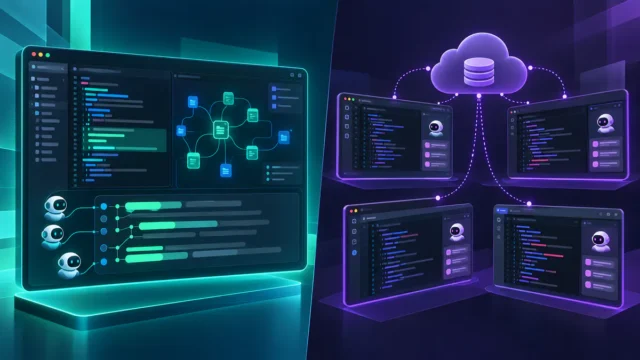
Ollama vs LM Studio is a choice between two increasingly capable local-model workflows. Both have desktop and command-line options plus local APIs. Ollama also offers hosted cloud models, so check whether your selected model runs on your own computer before treating a session as offline.

Table of contents
Ollama vs LM Studio: the quick answer
Choose Ollama when your main task is launching local models from scripts, integrating its API, or using its current desktop and agent integrations. Choose LM Studio when you want a desktop workflow for discovering, loading, chatting with, and inspecting local models, with a local API when needed. Both now offer command-line and server capabilities. Ollama also documents cloud models; a cloud request is not local inference.
The Ollama vs LM Studio decision depends more on workflow and hardware than on a universal winner. Pick one specific model and prompt, confirm both tools can run that model on your computer, then compare the same output task. A different model, quantization or context length can dominate any apparent app-level speed difference.
Ollama vs LM Studio: 9 real differences
| Question | Ollama | LM Studio |
|---|---|---|
| 1. First local model | App or terminal setup, then choose or run a local model | Discover, download, load and chat in the desktop app |
| 2. Command line | Core part of its workflow | lms CLI is available |
| 3. Desktop interface | Desktop app and integrations | Model discovery, chat and developer controls |
| 4. Local API | Default local base at localhost:11434 |
Server usually at localhost:1234 when started |
| 5. OpenAI-style endpoints | Supports a documented subset | Documents compatibility endpoints and native REST API |
| 6. Offline local inference | Downloaded local models can run locally | Downloaded models, chat and local server can work offline |
| 7. Cloud option | Official cloud models and API key route | Current comparison centers on its local-model workflow |
| 8. Model memory | Depends on model and context; inspect with ollama ps |
Model loading allocates RAM; check its current requirements |
| 9. Network serving | Configurable local service | Developer server can run on localhost or a network |
The Ollama vs LM Studio table is a current feature map, not a measured benchmark. Both products change quickly. Confirm a particular API endpoint, runtime and model format in official documentation before changing an application. “OpenAI-compatible” does not mean every feature of every OpenAI client is supported.
Why the old CLI-versus-GUI comparison is outdated
Older advice often calls Ollama a terminal-only runner and LM Studio a GUI-only chat app. That no longer describes the documented products. Ollama’s quickstart includes an app, local and cloud models, agent connections and an API. LM Studio documents a lms command-line interface, a local server, its own REST API and compatibility endpoints as well as the visual app.
For Ollama vs LM Studio, compare the task you will actually do. A developer connecting a client to a localhost endpoint may find both viable. A reader who wants to browse model variants and tune a model through a desktop view may prefer LM Studio’s Discover and Chat flow. An existing Ollama script or integration is also a real reason to keep Ollama. Do not migrate solely because a comparison chart labels one tool “more technical.”
Neither interface guarantees a good answer. Model selection, prompt design, context limits, quantization and available memory matter. Licensing also belongs to the model you download; the Ollama vs LM Studio choice does not grant rights to use every model commercially.
Getting started with a local model
In the Ollama vs LM Studio setup, decide whether inference must stay on the computer. If yes, download a local model before testing offline. A cloud model or cloud API request has different connectivity and data-handling implications. Use the products’ official download pages and the model publisher’s license and size information.
Ollama local route
- Install Ollama from its official site for a supported system. Open the app or follow the terminal setup prompts.
- Select a local model that fits your computer. Check the exact model name and whether the download completed.
- Run a short prompt in the app or terminal. If you use the API, verify the local server responds at the documented
localhost:11434base. - Try the same prompt after disconnecting from the internet to confirm that your chosen workflow truly runs locally.
LM Studio local route
- Check LM Studio’s current system requirements, then install it from the official site.
- Use Discover to find a suitable model, download it, open Chat and load it into memory.
- Send a short prompt. Note the model variant and context settings so the comparison is repeatable.
- If an app needs an API, start the server from the Developer tab or with
lms server start, then test the documented local address.
Expected result: the selected model produces an answer without a cloud login during local-only testing. For Ollama vs LM Studio, repeat this test with the same local model on each tool. If loading fails, try a smaller compatible model rather than repeatedly increasing context size on memory-constrained hardware.
Local API and automation: choose the endpoint you need
Ollama documents http://localhost:11434/api for its local API and http://localhost:11434/v1 for OpenAI-style compatibility. Its cloud endpoints use https://ollama.com and an API key, a different route. LM Studio’s server is started from Developer or lms server start; its quickstart uses http://localhost:1234 by default. LM Studio also documents a native /api/v1 REST API.
In the Ollama vs LM Studio API choice, read the exact endpoint your application calls. A client may need chat completions, responses, embeddings, streaming, tool calls or model management; compatibility is feature-specific. Ollama explicitly describes its OpenAI support as a subset. LM Studio lists its supported compatibility and native endpoints. Test the one your app uses with a small, non-sensitive prompt before moving production data.
In Ollama vs LM Studio, port 11434 and 1234 are defaults, not proof of a healthy service. A connection refusal can mean the server is stopped, the port changed, another program took it, or your app points to a container’s own localhost. Check the tool’s actual server settings and logs. A successful /v1/models request does not prove the model is loaded or a chat request will fit memory.
Offline use, privacy and cloud boundaries
LM Studio states that downloaded local models, local document chat and its local server can work without internet. Model search, downloads, runtime downloads and some updates need connectivity. Ollama documents local models without an API key and a distinct hosted cloud API that needs a key; it also lets users sign in to use cloud models through the app. The important question is which model and endpoint your current session uses.
For Ollama vs LM Studio privacy, do not infer “private” merely from a local-looking chat window. Verify the endpoint, model type, plugins or integrations, and whether the app is connected to a hosted service. A local model still processes data on a computer that may have other software, backups or access policies. A local server exposed to a LAN creates another access path; leave it bound to localhost unless network serving is required and secured.
Never put an API key in a public web page or committed source code. Ollama’s cloud quickstart says to keep the key on the application server. LM Studio’s local API can be configured for token authentication; its default local server setup may not require it. When serving beyond your machine, review the current security options and firewall rules first.
Hardware and model size decide more than the logo
A model must fit the available memory and supported runtime to work well. LM Studio’s current requirements page lists Apple Silicon for macOS and says Intel Macs are not currently supported. It recommends at least 16 GB RAM for Windows and notes GPU memory guidance. Ollama documents GPU compatibility and lets you inspect whether a loaded model uses CPU or GPU with ollama ps. Check the latest requirements for your exact platform.
The Ollama vs LM Studio speed question needs a controlled test. Use the same model weights and quantization, prompt, context length and output limit on the same computer. Record whether both apps used the same processor path and whether either model swapped to disk. Compare the complete answer and error rate, not just first-token speed. No unsourced “X is always faster” claim is reliable across model versions and hardware.
If an older laptop runs out of memory, start with a smaller model and shorter context. Download size is only part of memory use; runtime allocation and context also consume space. In an Ollama vs LM Studio test, record these settings. If your device cannot run a useful model locally, a hosted option may meet the task, but read its privacy, price and account terms before sending sensitive content.
Which one fits your workflow?
| Need | Starting choice | Check |
|---|---|---|
| Existing scripts using Ollama API | Ollama | Keep the working endpoint and model |
| Browse and load models visually | LM Studio | Confirm system requirements and model format |
| Local API for a new app | Either | Test the exact endpoint and model |
| Offline document chat | LM Studio is documented for this flow | Download model/runtime first; verify offline |
| Ollama-hosted cloud model | Ollama | Separate cloud from local data handling |
| Headless service | Either may work | Read current CLI and service docs |
In Ollama vs LM Studio, a workflow that already works is a valid result. Use a change only if it removes a real problem such as unsupported hardware, model incompatibility, a missing API feature or a costly manual step. Avoid installing both merely to chase a vague performance claim; parallel model downloads can waste storage.
Troubleshooting common comparison failures
| Symptom | Check first | Next safe step |
|---|---|---|
| Model will not load | Available RAM/VRAM, format, runtime | Try a smaller supported model |
| API connection refused | Server running and correct localhost port | Start server, then test a basic endpoint |
| Local chat works, client fails | Endpoint path and API feature support | Compare client request with official example |
| Unexpected cloud traffic | Model and base URL | Switch to downloaded local model if required |
| Slow responses | Model size, context, CPU/GPU loading | Reduce workload and retest fairly |
When neither tool can load the same model, the result does not rank Ollama vs LM Studio fairly. Diagnose format and available resources first. If a developer app fails only with one server, compare its request path, expected response shape and streaming mode against that server’s official compatibility page. Do not disable security controls or expose the port to the internet as a troubleshooting shortcut.
Safe switch and rollback plan
Before changing an app from one local server to another, record its current base URL, selected model identifier, context and generation settings. Export chat or presets where supported, and keep the original runtime installed until the replacement passes a full task. Model files may need a different format or import path; do not delete the existing copy first.
For an Ollama vs LM Studio migration, test one non-sensitive prompt in the desktop app, then one through the API if your workflow requires it. Compare answers and error behavior, then try a longer representative task. If the new setup fails, restore the previous base URL and model and remove only the configuration you added. Keep network binding on localhost unless you intentionally provide authenticated LAN access.
Frequently asked questions
Is Ollama only command-line and LM Studio only graphical?
No. Ollama now documents desktop use and integrations. LM Studio provides a CLI and local API server. Their interface strengths differ, but that old binary comparison is outdated.
Can both run models offline?
Yes, with compatible downloaded local models and required runtimes. LM Studio explicitly documents offline chat and local serving. Check that an Ollama session uses a local model rather than its cloud option.
Which is faster?
There is no universal Ollama vs LM Studio speed winner. Model weights, quantization, context, hardware and runtime affect results. Test the same task and model on your own device.
Can I use an OpenAI client with either?
Both document compatibility endpoints, but supported features differ. Point the client at the correct local base URL and test its required endpoint. Do not assume every OpenAI feature is available.
Do I need an API key for local requests?
Ollama says local requests do not require a key. LM Studio’s local server does not require authentication by default, though token authentication can be configured. Exposing either server beyond localhost changes the security decision.
Can I keep both installed?
Yes, if you have enough disk and memory and know which server port each client uses. Avoid loading large models in both at once on a constrained machine.
Official sources and related troubleshooting
This Ollama vs LM Studio guide is based on the products’ current setup, API, offline and hardware documentation. Menus and endpoint support can change; check the linked pages for your installed version.
- Ollama quickstart
- Ollama API base URLs
- LM Studio getting started
- LM Studio local API server
- LM Studio offline operation
For a local Ollama port error, see our address-already-in-use guide or the localhost 11434 connection guide. Browse the AI Troubleshooting Hub for related diagnostics.
Conclusion
For Ollama vs LM Studio, start with the workflow, not an old CLI-versus-GUI label. Ollama is useful for its local and cloud routes, scripting and integrations. LM Studio offers a visual local-model path plus a capable CLI and API server. Choose one supported model, verify the endpoint and privacy boundary, then keep the setup that completes your real task reliably.