MacBook not charging when plugged in needs a diagnosis before a reset. The safest route is to identify whether the failure comes from the device, application, account, network, or provider service, then change one layer at a time. This guide gives you that sequence and explains what each result means.
When a MacBook is plugged in but not charging, inspect the power source, cable, adapter and port first. Then check the battery menu: “Not Charging” can be intentional during optimized charging, high temperature or when the adapter powers the Mac but lacks enough wattage. Restart, update macOS and run Apple Diagnostics before service.
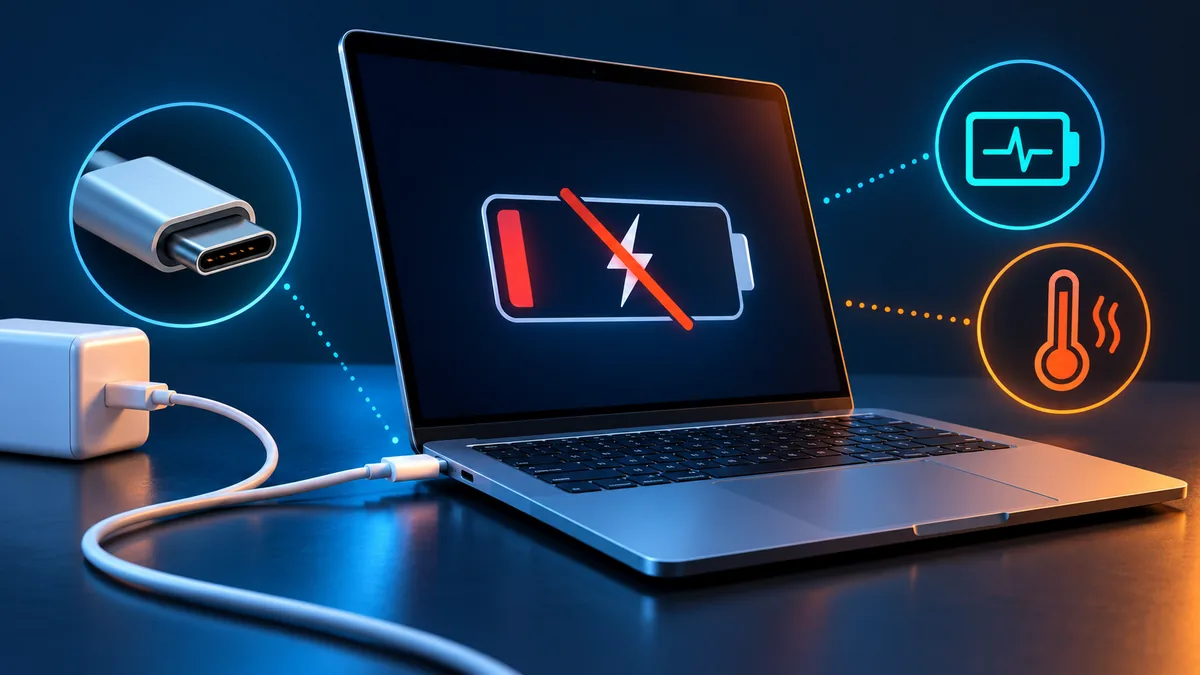
Table of Contents
Table of contents
What MacBook not charging when plugged in means
A connected adapter can power a Mac without increasing battery percentage. macOS may pause charging to protect battery lifespan, while an undersized or damaged adapter can supply less energy than the Mac is using. No power connection at all points more strongly to the outlet, cable, port, adapter or hardware.
The guide covers Apple silicon and Intel Mac notebooks using MagSafe or USB-C. Labels vary by macOS version. Battery removal, board repair and port replacement are service procedures, not home troubleshooting steps. Scope label: Mac battery not charging.
Symptoms and quick diagnosis
Confirm that you are solving the same problem before applying a fix. MacBook not charging when plugged in can look similar to several unrelated failures, and the correct next step depends on what still works.
- The battery menu says Not Charging.
- The percentage stays fixed or falls while connected.
- MagSafe has no light or flashes amber.
- One USB-C port or one cable works while another does not.
- Battery Health reports Service Recommended.
Begin with the least invasive comparison: note what still works, whether the problem follows a location or accessory, and whether it started after an update, drop, repair or settings change. Preserve a backup before recovery or service. Diagnostic label: Mac battery not charging.
Quick diagnostic checklist
- Try a known-working wall outlet without a power strip.
- Inspect cable, adapter and port for damage or debris.
- Use an adapter with sufficient Apple-rated wattage.
- Check Battery settings and temperature.
- Restart the Mac.
- Back up before diagnostics or service.
Before changing anything
Back up the device if it remains usable. Keep the Apple Account password, device passcode and a trusted phone number available. Use Apple-certified or manufacturer-rated power and connection accessories, and record any recent repair or liquid exposure. Baseline: Mac battery not charging.
For Mac battery not charging, save work and record the exact message, time, version, and last successful action. Keep screenshots private. Do not share passwords, one-time codes, recovery keys, API keys, financial details, device serial numbers, or unredacted logs.
Use official downloads and support channels when investigating Mac battery not charging. If a step changes stored data, account access, drivers, firmware, network profiles, or recovery state, read its safety note first and keep a way back.
MacBook not charging when plugged in: step-by-step fixes
Work from the first Mac battery not charging check downward. The order deliberately starts with reversible checks and leaves resets, reinstallations, recovery operations, and hardware service until the evidence justifies them.
1. Test the wall outlet and adapter seating
A loose outlet, switched power strip or removable adapter plug can fail before the Mac ever sees power. Use the result as evidence before moving to the next step; changing several layers together hides the cause and can create a second problem.
- Connect a simple known-working device to the outlet.
- Connect the Mac adapter directly to the wall.
- Reseat every removable connection firmly.
Expected result: The battery menu recognizes AC power.
Safety or rollback note: Stop using an outlet or adapter that sparks, smells, buzzes or overheats.
2. Inspect and compare the cable, connector and port
USB-C and MagSafe cables can fail internally even when the exterior looks normal. Debris can prevent full contact. Use the result as evidence before moving to the next step; changing several layers together hides the cause and can create a second problem.
- Disconnect power.
- Inspect with good light and remove loose debris without metal tools or liquid.
- Try a known-good certified cable and another supported port.
Expected result: A cable or port-specific fault is isolated.
Safety or rollback note: Do not insert tools deeply or use compressed air against Apple guidance.
3. Use an adapter with sufficient wattage
A phone charger may be recognized but cannot supply enough power for a working MacBook. The battery can drain under load while connected. Use the result as evidence before moving to the next step; changing several layers together hides the cause and can create a second problem.
- Check the adapter wattage in System Information or its label.
- Compare it with the Mac model requirement.
- Test the correct Apple or reputable USB Power Delivery adapter.
Expected result: The Mac receives adequate power and the percentage rises.
Safety or rollback note: Avoid counterfeit, damaged or incorrectly rated adapters.
4. Check optimized charging and charge limits
macOS may intentionally hold near 80 percent based on charging history, and Apple notes that charging can pause to improve lifespan. Use the result as evidence before moving to the next step; changing several layers together hides the cause and can create a second problem.
- Open System Settings > Battery.
- Review Battery Health and optimized charging.
- Use Charge to Full Now only when shown and genuinely needed.
Expected result: The pause is explained or normal charging resumes.
Safety or rollback note: Do not disable battery-health features permanently merely to keep 100 percent.
5. Let the Mac reach a safe temperature
Charging can slow or stop when the battery is too hot or cold. Heavy workloads also consume the available adapter power. Use the result as evidence before moving to the next step; changing several layers together hides the cause and can create a second problem.
- Move the Mac to a ventilated room-temperature surface.
- Stop intensive tasks and remove insulating covers.
- Wait, then reconnect the correct adapter.
Expected result: Charging resumes after temperature and load normalize.
Safety or rollback note: Do not cool electronics in a refrigerator or expose them to condensation.
6. Restart and install stable macOS updates
A power-management process or firmware component can recover after a restart, and macOS updates include model firmware. Use the result as evidence before moving to the next step; changing several layers together hides the cause and can create a second problem.
- Save work and restart.
- Open Software Update.
- Install a stable compatible update while reliable power is available.
Expected result: Power management reports and charging behavior return to normal.
Safety or rollback note: Back up before a major upgrade and do not interrupt firmware installation.
7. Check battery condition and cycle information
Battery Health and System Information can show degraded capacity, service recommendations and cycle count. These indicators provide context but do not replace physical inspection. Use the result as evidence before moving to the next step; changing several layers together hides the cause and can create a second problem.
- Open System Settings > Battery > Battery Health.
- Open System Information > Power.
- Record condition, cycle count and AC charger information.
Expected result: You can distinguish a recognized charger from a worn battery.
Safety or rollback note: A swollen battery requires immediate shutdown and professional service.
8. Run Apple Diagnostics and prepare for service
Apple Diagnostics can identify some battery, adapter and logic-board faults. Use the result as evidence before moving to the next step; changing several layers together hides the cause and can create a second problem.
- Disconnect nonessential accessories.
- Start Apple Diagnostics using Apple’s model-specific instructions.
- Save reference codes and arrange Apple support if the issue persists.
Expected result: A hardware code or reproducible power failure reaches service with evidence.
Safety or rollback note: Diagnostics do not guarantee every intermittent fault will be detected.
Troubleshooting decision table
| What you observe | Most likely layer | Best next action |
|---|---|---|
| Not Charging near 80% | Optimized charging | Review Battery settings. |
| Charges when asleep only | Adapter wattage or workload | Use correct adapter and reduce load. |
| One cable works | Cable | Replace the failed certified cable. |
| One port works | Port | Inspect and service the failed port. |
| Service Recommended or swelling | Battery hardware | Back up, stop unsafe use and service. |
Use the Mac battery not charging decision table to avoid repeating steps that cannot affect your symptom. If two rows appear to match, start with the one that requires the least invasive change.
When these fixes will not help
- The device has impact, liquid or connector damage.
- Activation, carrier or account restrictions require the responsible provider.
- A managed-device policy prevents the change.
- A failed component needs qualified service.
Arrange Apple or authorized service when the same fault survives current software, safe resets and accessory comparisons, or when diagnostics indicate hardware. Back up first and document intermittent symptoms because a bench test may not reproduce them immediately. Case label: Mac battery not charging.
How to prevent the problem
- Keep iOS or macOS and apps on stable supported releases.
- Maintain current encrypted or cloud backups.
- Use certified cables, chargers and accessories.
- Protect the device from heat, moisture and impact.
- Review recovery contacts and carrier details before travel.
Prevention for Mac battery not charging cannot eliminate provider outages or component failures, but it can preserve recovery options and make the next diagnosis much faster.
Frequently asked questions about MacBook not charging when plugged in
Why does my MacBook say Not Charging at 80 percent?
Optimized battery charging may intentionally pause near 80 percent to reduce aging.
Can a low-watt phone charger damage a MacBook?
A compliant USB-C charger usually negotiates power, but it may charge slowly or not keep up. Use the model-appropriate adapter.
Should I reset the SMC?
On Apple silicon, restart is the relevant first step. Intel procedures vary by model, so follow Apple’s current instructions only.
Why does the battery drop while plugged in?
The workload may consume more than the adapter supplies, or the cable, adapter, port or battery may be faulty.
Official sources and related guides
The Mac battery not charging guidance in this article was checked against the following primary vendor resources. Interfaces and policies can change, so use the current vendor page when a label differs from your screen.
Continue with these related TrueFixGuides resources:
In summary, MacBook not charging when plugged in should be handled by identifying the failing layer, applying the least destructive relevant fix, and confirming the result before moving on. Stop when the normal test succeeds; more changes do not make a working system more repaired.