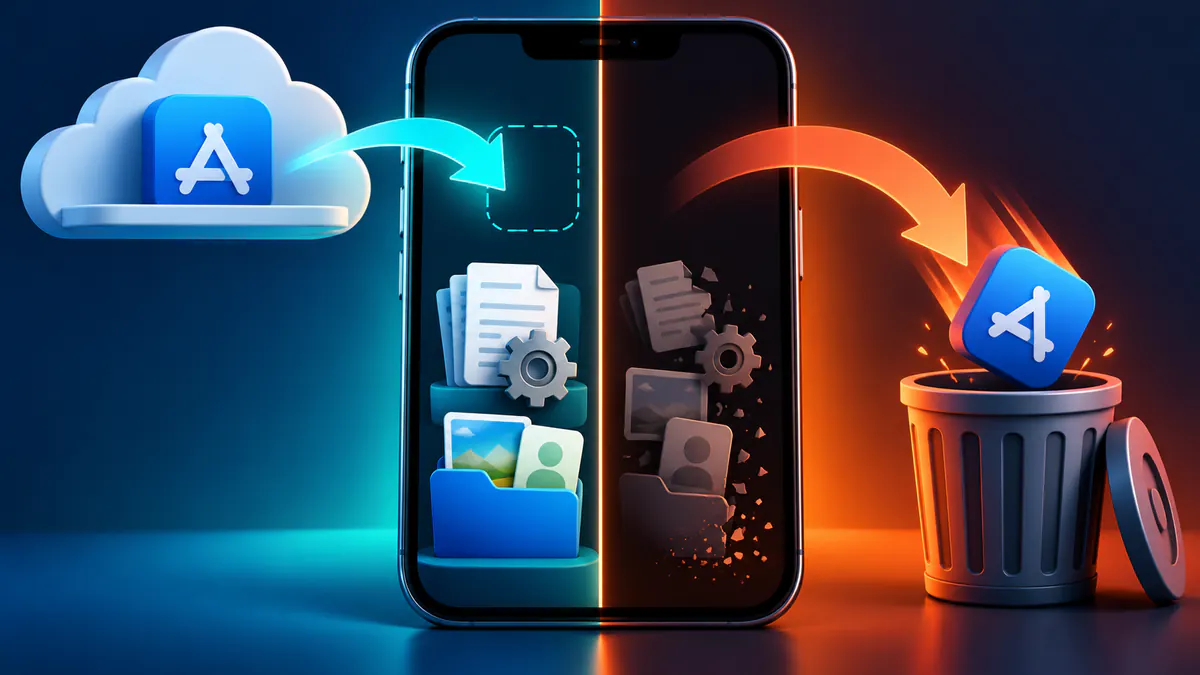
Offload App vs Delete App on iPhone comes down to whether you want to keep local documents and data. Offload removes the app package while retaining that data; Delete App removes the package and related local data. Check storage and backup status first, especially for unsynced work.
Offload App vs Delete App: the quick answer
Choose Offload App if you need space now but want iPhone to keep that app’s documents and data for a later reinstall. Choose Delete App if you intend to remove the app and its related local data. Apple describes exactly this difference in iPhone Storage. Before deleting an app with drafts, downloads, recordings, authenticator codes or other unique data, confirm where those items are stored and make a recoverable copy.
The Offload App vs Delete App decision matters because the app package and its documents can consume very different amounts of space. An offload removes the package but leaves the documents and data; it may release little space when documents are the larger part. Deletion can free more space, but the loss of local data can be difficult or impossible to undo. Neither action is a reliable substitute for a verified backup.
Offload App vs Delete App: 7 practical differences
| Question | Offload App | Delete App |
|---|---|---|
| 1. App package | Removed until reinstalled | Removed |
| 2. Documents and data | Kept on the device | Related local data removed |
| 3. Storage recovered | Mainly app package | App package and related local data |
| 4. Return to the app | Reinstall the app, then check its data | Redownload and restore only what remains in a separate account, sync or backup |
| 5. Unsynced drafts | Designed to preserve app data, but still back up important work | At risk of permanent loss |
| 6. Troubleshooting value | Can replace the app package without removing stored data | More complete local reset, with higher data risk |
| 7. Best reason | Temporary space without discarding data | Permanent removal or a deliberate clean reinstall |
This Offload App vs Delete App table concerns data stored locally with an iPhone app. It does not prove that a third-party service has removed information stored on its servers. Account deletion, subscription cancellation and cloud-data removal are separate actions governed by that service. Check the app’s own instructions for those tasks.
Offload App vs Delete App: what storage will you recover?
Open Settings → General → iPhone Storage, wait for the list to load, and select the app. Review its displayed size and documents and data before choosing an action. Apple notes that cached and temporary information may be counted differently, so the figures are a useful estimate rather than a promise of an exact number of free bytes after the action.
If an app package takes most of the space, offloading can make a useful difference while retaining its data. If downloads, offline maps, media or other documents dominate, an offload may leave much of the footprint behind. In that case, first look inside the app for a supported way to remove only the downloads you no longer need. Do not delete an entire app just to clear one file if the app provides a precise cleanup control.
For the Offload App vs Delete App storage decision, distinguish device storage from iCloud storage. Freeing local space does not necessarily reduce a cloud plan’s usage. A synced photo or document can remain in cloud storage, and deleting a local app does not guarantee its service-side copy disappears. Inspect each storage location before claiming the problem is solved.
Offload App vs Delete App: documents and accounts
Apple says offloading preserves the app’s documents and data on the device. This is why it is usually the less disruptive first action when you need to keep an unfinished project. You still need a working version of the app to reopen it. Check that the app is available for redownload and that your Apple Account can access it before offloading an essential or discontinued app.
Deleting an app removes the app and related local data. A service login may restore information that was actually synced to its server, but do not assume every draft or downloaded item is synced. Export a sample file or verify the same data on another signed-in device or the service website. For an authenticator, password manager, banking app or work profile, follow its official migration and recovery instructions first.
App purchases and subscriptions are separate from the local app package. Redownloading an app under the same Apple Account may be possible, but availability and in-app-purchase restoration differ by product. Apple provides a purchase-history route to redownload supported apps. Check the subscription in the account’s subscription settings if you intend to stop billing; deleting an app alone does not establish that cancellation occurred.
The Offload App vs Delete App choice is also a privacy question. Removing an icon is not the same as closing an online account or requesting deletion of server data. If you want to leave a service, first save what you need, then use its account-deletion instructions and verify the outcome. Avoid framing iPhone’s Delete App control as an online privacy eraser.
Protect important data before touching the app
- Open the app and identify unsynced drafts, saved files, offline downloads, local chat history, keys or codes.
- Check the app’s sync status. If it offers export, create an export and open one exported item to verify it.
- Check iCloud Backup or your computer backup and whether this app’s data is included. Apple explains that app data not already synced to iCloud may be included in device backups, depending on settings.
- Confirm the Apple Account and app login details. Check whether the app is still available in the App Store.
- Record the current storage figures and any error message. Change only one thing at a time.
For Offload App vs Delete App, a backup is useful only if it contains the data you care about and you know how recovery works. A recent device backup is not proof that every app-specific item is present. For business, school or managed apps, ask the administrator before removing an enrollment or work account. Losing a one-time recovery method can be worse than keeping a large app installed.
Before the Offload App vs Delete App choice, verify one representative document and a recovery method you can actually use. This check is especially valuable for an app with work that has not synced.
How to offload an app safely
- Open Settings, then General, then iPhone Storage.
- Select the app and compare its app size with documents and data.
- Tap Offload App and confirm. Do not choose Delete App by accident.
- Return to iPhone Storage and check whether the expected space became available.
- When you need the app again, tap its cloud-marked icon or reinstall through the App Store. Open a known document and verify the app still works.
Expected result: the app package is removed and the retained documents and data remain associated with it. Reinstallation requires access to the app and usually an internet connection. If the app is no longer distributed, region restricted or incompatible with the current iOS version, reinstallation may fail; investigate availability before offloading software you cannot replace.
iPhone can also offload unused apps automatically when storage is low. Apple’s current iPhone guide places Offload Unused Apps under Settings → Apps → App Store. Menu labels can vary by iOS version. Leave automatic offloading off when a critical app must be available offline or at a moment’s notice; manually offload lower-risk apps instead.
After the Offload App vs Delete App decision to offload, keep the app installed again long enough to verify its documents open correctly. Do this before relying on the recovered space for an important update.
How to delete an app without losing needed data
- Complete the backup and account checks above.
- Open Settings → General → iPhone Storage and select the app.
- Choose Delete App only after confirming you no longer need its local data, or have a tested way to restore it.
- Confirm the deletion, then check available storage.
- If this is a troubleshooting reset, redownload the app, sign in and test the original failing task. Restore synced or exported data only through the app’s supported process.
Expected result: iPhone removes the app and its related local data. Do not assume that reinstalling will recreate unsynced content. If you are deleting an app to fix crashes, first check app and iOS updates and any known service outage. A crash caused by an account, network or vendor outage can return immediately after reinstall.
In the Offload App vs Delete App troubleshooting sequence, offload first when preserving data is the priority. Delete only when a verified backup exists or the local data is expendable. If you are leaving the service, follow its separate account and subscription steps before assuming the matter is closed.
For Offload App vs Delete App as a crash fix, record whether the original crash still occurs after reinstalling. If it does, inspect the app version and service status instead of repeating deletion.
Choose by problem, not by button name
| Your situation | Start with | Reason |
|---|---|---|
| Need temporary free space, data matters | Offload App | Retains documents and data |
| App has huge offline downloads | Remove downloads inside app | Targets the large files |
| App crashes but has unsynced drafts | Update, backup, then consider offload | Protects drafts before a reset |
| Leaving app permanently | Export, then Delete App | Removes local copy; account removal is separate |
| App package is small, local data huge | Review data, then deliberate deletion | Offload may save little space |
| Essential authenticator or managed app | Official recovery or administrator | A removal could block account access |
The Offload App vs Delete App decision should be revisited after checking the actual storage breakdown. An unfamiliar app name or a large number in Settings is not enough information to justify permanent deletion. Identify who owns the data, where it is backed up and how you would recover it.
When the expected result does not happen
Space did not increase much after offloading. The documents and data may be the larger portion. Recheck iPhone Storage after it refreshes. Remove unnecessary files through the app, or export and deliberately delete only if safe. Also review other large storage categories instead of repeating the same action.
Reinstall does not start. Check network access, available storage, Apple Account and App Store availability. Apple’s redownload instructions explain where to find past apps. A removed or incompatible app may not be recoverable merely because its icon remains on the Home Screen.
Data is missing after deletion. Stop changing the device and check the app’s sync account, export and backup status. Do not create new work over an uncertain restore. Apple documents what iCloud Backup may contain; whether a particular item returns depends on the app and backup. Contact the app provider when its own data format or server sync is unclear.
Crash continues after reinstall. Capture the error, iOS version and app version. Test another network only if relevant, and check the vendor’s service status. If several apps crash or the phone is overheating, see our broader app and phone guides below. Repeated deletion without an identified cause risks data and rarely helps.
If Offload App vs Delete App seems to have no effect on the storage warning, compare the largest categories in iPhone Storage. Photos, messages or system data may be the actual constraint.
When neither action is the right fix
Neither offloading nor deletion repairs a failing storage chip, an account outage, a subscription dispute or an unsupported iOS version. A device with many large photos and videos will gain little from removing one small app. If the app is part of a school or company device policy, its removal may affect enrollment and access. Find the actual storage or failure source before changing the app.
The Offload App vs Delete App comparison also does not tell you whether personal data remains with the provider. For that question, use the provider’s privacy settings and support process. If the app is necessary for two-factor authentication, migration comes before any removal. Treat the availability of a reinstall, a verified backup and account recovery as a single decision.
Frequently asked questions
Does Offload App delete my documents?
Apple says Offload App frees space used by the app while keeping its documents and data. Still back up unique work before relying on any storage action.
Does Delete App cancel a subscription?
No. Review the subscription separately in your Apple Account or the service account and follow its cancellation instructions.
Can I reinstall an offloaded app offline?
The app package must be downloaded again, so plan for internet access and App Store availability. Keep essential offline apps installed.
Why did offloading save less space than expected?
Offloading preserves documents and data; those files may be most of the app’s storage footprint. Check the breakdown in iPhone Storage.
Will deleting and reinstalling fix every crash?
No. It can clear related local data, but an app defect, network problem or service outage may remain. Back up first and test the original failing task after reinstalling.
Is Offload App vs Delete App different for cloud-synced apps?
The iPhone actions are the same, but recovery may depend on what actually synced to the provider. Verify the cloud copy before deleting any local data.
Apple sources and related guides
The Offload App vs Delete App guidance is based on current Apple storage, backup and redownload documentation. Check your app provider’s instructions for its own data.
- Apple: check iPhone and iPad storage
- Apple: manage storage on iPhone
- Apple: what iCloud backs up
- Apple: redownload apps
For related symptoms, see apps that keep closing, iPhone update download problems and phone overheating checks.
Conclusion
For Offload App vs Delete App, start with the data you need to keep. Offload for temporary space while retaining documents and data. Delete only after you have checked local files, sync, backup and account recovery. Compare iPhone Storage before and after, then open the app or restored files to confirm the result.


