AirDrop not working from iPhone to Mac? Turn on Wi-Fi and Bluetooth on both devices, keep them nearby and awake, and check the Mac’s AirDrop receiving setting. Test one small file with Everyone for 10 Minutes; if that works but Contacts Only does not, check the Apple Account details on the contact card. Newer systems may request an AirDrop code for a non-contact.
Distinguish “device not visible” from “transfer waiting,” “declined,” or “file sent but not found.” Each points to a different check. Do not reset network settings before these comparisons.
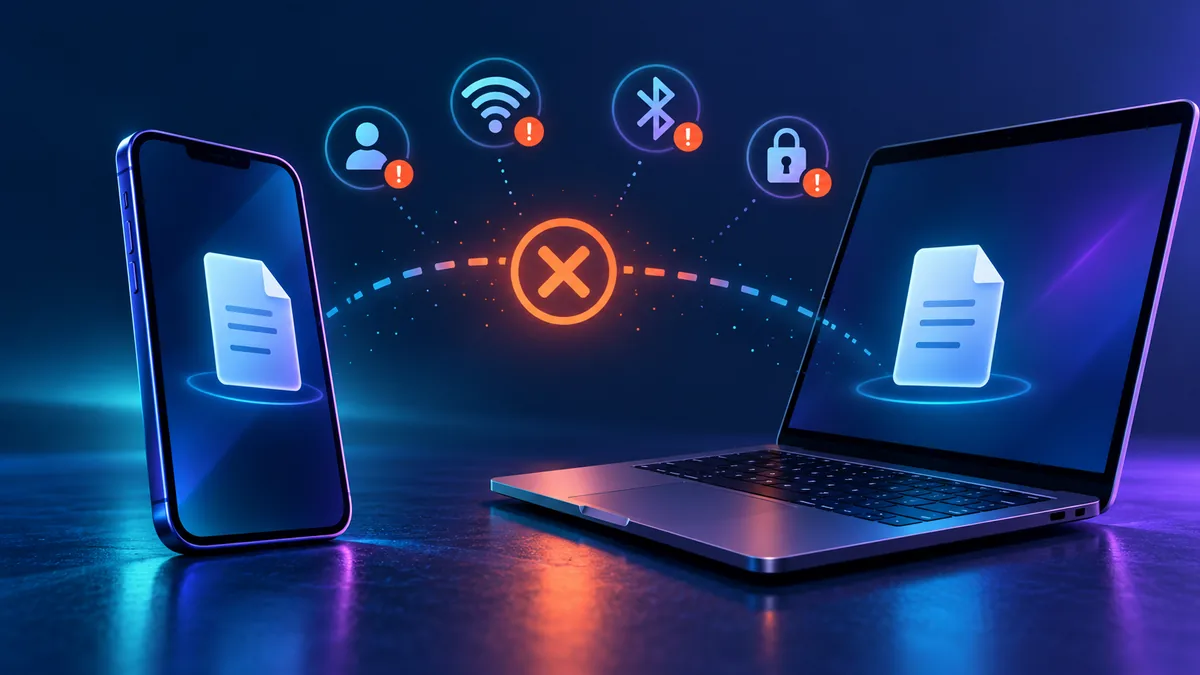
Table of Contents
Table of contents
What AirDrop not working iPhone to Mac means
AirDrop discovery uses nearby Bluetooth and Wi-Fi. Contacts Only depends on matching contact information, while non-contact transfers on iOS and macOS 26.2 or later can require a code. A sent item may save to Downloads or the accepting app, so a missing file is not the same as failed discovery.
These steps cover supported iPhone and Mac AirDrop versions. Receiving menus and the code flow vary by operating-system version. Managed devices can restrict AirDrop by policy; ask the administrator rather than bypassing that setting.
Symptoms and diagnostic checklist
Note whether the Mac appears as a recipient, whether the receiving device displays an accept or code prompt, and whether a small item reaches Downloads. Keep both screens awake during one controlled test. That sequence separates discovery, acceptance, and file-location problems.
- The Mac or iPhone never appears.
- Transfer remains on Waiting.
- AirDrop says Failed or Declined.
- Contacts Only works inconsistently.
- A code prompt does not appear or complete.
Quick checks
- Keep devices within 10 meters.
- Turn Wi-Fi and Bluetooth on.
- Turn Personal Hotspot off.
- Wake and unlock both devices.
- Try Everyone for 10 Minutes.
- Send one small local photo.
Record the iPhone and Mac operating-system versions, receiving mode, and exact failure stage. Do not share AirDrop codes, private filenames, or screenshots containing personal information in public support threads.
Before you change anything
Use a small non-sensitive test file. Note the current receiving mode and restore Contacts Only or Receiving Off after a temporary Everyone test. If you disconnect a personal VPN, reconnect it after the comparison.
Do not turn off a managed firewall or change security policy merely to make a transfer work. Back up irreplaceable files before changing device settings, and keep any AirDrop code between the sender and intended recipient.
AirDrop not working iPhone to Mac: step-by-step fixes
Test one small item after each change and stop when it arrives. A discoverable device with a failed transfer needs an acceptance or file-size check; a device that never appears needs radio and receiving-mode checks first.
1. Enable Wi-Fi and Bluetooth on both devices
Apple requires Wi-Fi and Bluetooth on both devices for nearby AirDrop discovery. They do not need to join the same Wi-Fi network for the initial nearby transfer.
- Enable Wi-Fi and Bluetooth on iPhone.
- Enable both in Mac Control Center.
- Wait briefly and reopen AirDrop.
Expected result: Devices appear for discovery.
Safety or rollback: Do not reset networks before this simple check.
Retest: Open the share sheet again and look for the Mac. If it appears, send one small file before changing additional settings.
2. Turn off Personal Hotspot
A Personal Hotspot session can interfere with nearby discovery. Turn it off for one test while both devices remain close and awake.
- Open iPhone Personal Hotspot settings.
- Turn Allow Others to Join off.
- Retry AirDrop nearby.
Expected result: Discovery resumes without hotspot contention.
Safety or rollback: Reconnect hotspot after the test if needed.
Retest: If the Mac appears, finish the small transfer and restore hotspot only if needed. If no device appears, continue with receiving mode.
3. Use Everyone for 10 Minutes
Everyone for 10 Minutes is a short diagnostic for Contacts Only matching. It makes the receiver discoverable to nearby people during the window, so use it briefly in a trusted place.
- Set receiving device AirDrop to Everyone for 10 Minutes.
- Send one small item.
- Return to Contacts Only afterward if preferred.
Expected result: The issue is classified as contact matching.
Safety or rollback: Everyone reverts automatically but still exposes temporary discoverability.
Retest: If this mode works but Contacts Only does not, check the contact card and Apple Account identity. Return to your preferred receiving mode afterward.
4. Complete the AirDrop code flow
On iOS, iPadOS, or macOS 26.2 and later, a non-contact may need an AirDrop code. The recipient accepts the prompt, sees the code, and shares it directly with the sender to enter on the sending device.
- On the receiving device, choose Continue when the code prompt appears.
- Enter the code only on the sending device.
- Complete the transfer and do not share the code publicly.
Expected result: The non-contact transfer is authorized.
Safety or rollback: Treat the code as temporary trust information.
Retest: After the code is entered, verify that the small item arrives. Do not publish the code or treat its prompt as a network failure.
5. Verify Contacts Only identity
Contacts Only works when the recipient’s contact card includes the sender’s Apple Account email address or phone number. Check the intended card rather than adding an unknown person.
- Open the recipient contact card.
- Confirm the signed-in Apple Account address or number.
- Retry Contacts Only.
Expected result: Contact-based discovery works.
Safety or rollback: Do not add untrusted people solely to bypass a warning.
Retest: Retry a small item in Contacts Only. If Everyone still works but Contacts Only does not, keep the identity comparison for Apple support.
6. Keep devices awake and test a small file
A sleeping Mac or locked device can hide the prompt. A small file is easier to diagnose than a large batch; Apple recommends AirDrop for a small selection of items.
- Unlock both devices.
- Open Finder AirDrop on Mac.
- Send one small photo or text file.
Expected result: A baseline transfer completes.
Safety or rollback: Avoid sending sensitive files during diagnostics.
Retest: Watch for the receive prompt and locate the item in Downloads or the accepting app. If the small file works, divide a large batch.
7. Restart and update both devices
Restarting both devices can refresh discovery without deleting network settings. Install stable updates when available after backing up important work.
- Restart iPhone and Mac.
- Install stable available updates after backup.
- Retry the small-file test.
Expected result: Current AirDrop components discover and transfer.
Safety or rollback: Do not interrupt updates.
Retest: Retry the same small file with the same receiving mode. If the failure is still version-specific, note both OS versions for support.
8. Check VPN, firewall and receiving location
A personal VPN or local-network policy can block discovery or transfer. Compare one test with the personal VPN disconnected; review Mac firewall settings without disabling protection broadly.
- Disconnect a personal VPN for one test.
- Review Mac firewall without disabling it globally.
- Check Finder Downloads or the accepting app.
Expected result: A network filter or save-location misunderstanding is isolated.
Safety or rollback: Do not disable managed security or firewall protection.
Retest: If a filter is responsible, use an approved adjustment and restore the VPN. If transfer succeeds but the item seems missing, check the Mac Downloads folder or accepting app.
Troubleshooting decision table
| What you observe | Likely layer | Best next action |
|---|---|---|
| Everyone works, Contacts Only fails | Contact identity | Correct Apple Account details. |
| Devices never appear | Discovery radios/hotspot | Check Wi-Fi, Bluetooth and hotspot. |
| Code required | Non-contact security | Use AirDrop code. |
| Small file works, batch fails | Size/session | Send smaller groups. |
| VPN off fixes it | Local networking policy | Adjust approved VPN settings. |
Follow the observed stage: invisible recipient means radio or receiving setting; Everyone working but Contacts Only failing means identity; a code prompt means acceptance; a completed transfer with no visible file means check the save location.
When these fixes will not help
A work or school policy may disable AirDrop and require an administrator. Unsupported older devices or incompatible OS versions may lack newer receiving and code options. If both devices can discover other recipients but not each other after current updates and a small-file test, give Apple support the model and version details.
Prevention
Keep Wi-Fi and Bluetooth available, use Contacts Only when appropriate, and verify Apple Account contact details for people you regularly share with. Return from Everyone for 10 Minutes after a diagnostic. For large folders or routine backups, use a transfer or sync method designed for many files.
Frequently asked questions
Do my iPhone and Mac need the same Wi-Fi network?
Nearby AirDrop discovery needs Wi-Fi and Bluetooth enabled, but the devices do not have to join the same Wi-Fi network. Keep them close and awake for the first small-file test.
Why does Everyone work but Contacts Only fail?
Check that the receiving contact card contains the sender’s Apple Account email address or phone number. Test in Everyone for 10 Minutes only briefly, then return to your preferred receiving mode.
What is the AirDrop code for?
On iOS, iPadOS, or macOS 26.2 or later, a non-contact transfer can require a code shown to the recipient. Share it directly with the intended sender and enter it on the sending device.
Where did my AirDropped file go on Mac?
Check Downloads and the app that accepted the item. Apple notes that a Finder AirDrop window can show the acceptance prompt. A missing file after acceptance is a location question, not necessarily a discovery failure.
Why does one photo work but a large batch fail?
Use smaller groups and keep both devices awake. Apple recommends AirDrop for a small selection of files; a large transfer can be harder to complete and diagnose. Use a different transfer method for a large library.
Official sources and related guides
Apple’s current iPhone and Mac AirDrop guides describe radio requirements, receiving modes, Contacts Only matching, code prompts, and save behavior. Follow the page for your operating-system version if a control differs.
Continue with these contextual TrueFixGuides resources:
Enable Wi-Fi and Bluetooth on both devices, check receiving mode, then send one small file. Everyone working while Contacts Only fails points to contact identity; a code prompt on newer systems needs the recipient’s approval. If transfer completes, check Downloads or the accepting app before retrying.


