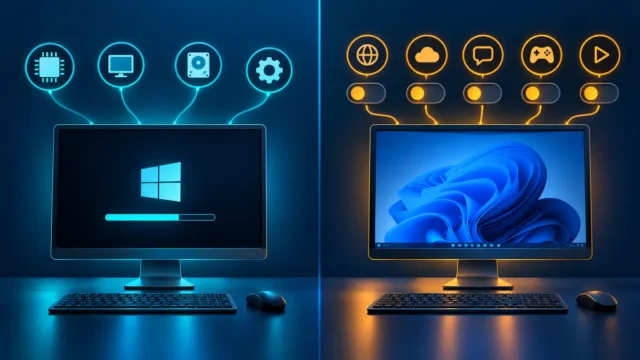
Reset This PC vs clean install is not a single-winner contest. Use Reset This PC for a guided reinstall when you want the easiest recovery path and may need to keep personal files. Use a clean installation when you need the most complete fresh start and are prepared to erase partitions, reinstall apps, and restore data. The correct decision depends on the device, workload, compatibility requirements, privacy expectations, recovery options, and what must keep working after the change.
This Reset This PC vs clean install guide gives a direct answer first, then compares the choices across practical criteria. It is written for readers who need to choose, troubleshoot, or migrate safely. It does not invent laboratory scores or claim hands-on testing that was not performed.

Table of contents
Reset This PC vs clean install: quick verdict
Use Reset This PC for a guided reinstall when you want the easiest recovery path and may need to keep personal files. Use a clean installation when you need the most complete fresh start and are prepared to erase partitions, reinstall apps, and restore data.
| Choose Reset This PC | Choose a clean Windows installation |
|---|---|
| Windows still reaches Settings or Windows Recovery Environment | Windows recovery is damaged |
| you want a guided process | you need to rebuild partitions or eliminate OEM software |
| you need the keep-my-files option and accept reinstalling apps | persistent compromise or severe corruption justifies a fully controlled start |
If the Reset This PC vs clean install recommendation still feels close, rank the criteria that can block the task: compatibility first, then data safety and recovery, then required features, reliability, support, and total cost. Cosmetic preferences should break a tie, not override a hard requirement.
How this comparison was made
The Reset This PC vs clean install assessment uses documentation-based feature, compatibility, safety, privacy, recovery, and workflow comparison; no sponsored placement and no claim of hands-on benchmark testing. Claims are limited to behavior documented by the vendors or standards bodies linked below, plus conservative troubleshooting principles that preserve data and settings.
This Reset This PC vs clean install article is not a paid placement, and no winner was selected for affiliate value. Prices, plan limits, model names, firmware, operating-system menus, and supported features can change. Check the current official page before purchasing hardware, changing a subscription, or using a destructive recovery option.
A fair Reset This PC vs clean install trial holds variables constant. Use the same input, file set, network, accessory, task length, and success test. Measure whether the task finishes correctly, how much correction it needs, what breaks, how recovery works, and whether the result can be repeated.
What Reset This PC and a clean Windows installation actually do
Reset This PC is one side of the decision because it emphasizes: keep my files can preserve user files, but backup is still essential. It should be evaluated in the context of Windows still reaches Settings or Windows Recovery Environment; you want a guided process; you need the keep-my-files option and accept reinstalling apps. Its advantage disappears if the required device, account, driver, file system, protocol, or recovery path is unsupported.
a clean Windows installation emphasizes: a true clean install removes files on erased partitions. It is the stronger candidate when Windows recovery is damaged; you need to rebuild partitions or eliminate OEM software; persistent compromise or severe corruption justifies a fully controlled start. Confirm the exact product version and configuration, since a familiar name does not guarantee identical capability on every platform.
Side-by-side comparison
| Criterion | Reset This PC | a clean Windows installation | Practical edge |
|---|---|---|---|
| Personal files | Keep my files can preserve user files, but backup is still essential | A true clean install removes files on erased partitions | Reset for preservation |
| Applications | Installed apps are removed | Installed apps are removed | Tie |
| Setup source | Cloud download or local recovery files | Bootable installation media | Reset is simpler |
| Partition control | Limited choices in the recovery workflow | Full disk and partition choices | Clean install |
| Driver state | May restore OEM customizations depending on options | Starts from Microsoft media, then drivers are added | Use-case dependent |
| Malware confidence | Helpful, but recovery partitions and choices matter | Erasing affected partitions gives a cleaner boundary | Clean install |
| Skill level | Guided Windows interface | Requires media creation and careful disk selection | Reset is easier |
| Recovery if Windows will not boot | Available through Windows RE when recovery works | Can boot from prepared USB media | Clean install is independent |
| Rollback burden | Some recovery paths are integrated | Restore requires your own backup and reinstall plan | Reset |
1. Personal files
Reset This PC: Keep my files can preserve user files, but backup is still essential. a clean Windows installation: A true clean install removes files on erased partitions. Practical edge: Reset for preservation. This distinction matters when a decision must survive normal day-to-day use, not just a one-minute setup test. Record the observed comparison result rather than assuming every version behaves alike.
2. Applications
Reset This PC: Installed apps are removed. a clean Windows installation: Installed apps are removed. Practical edge: Tie. Treat this as a workflow requirement rather than a marketing checkbox, because configuration can change the practical result. Record the observed comparison result rather than assuming every version behaves alike.
3. Setup source
Reset This PC: Cloud download or local recovery files. a clean Windows installation: Bootable installation media. Practical edge: Reset is simpler. Use the same device, connection, workload, and success criteria when testing this point so the comparison remains fair. Record the observed comparison result rather than assuming every version behaves alike.
4. Partition control
Reset This PC: Limited choices in the recovery workflow. a clean Windows installation: Full disk and partition choices. Practical edge: Clean install. The right choice depends on the failure you are preventing and the recovery path you can actually support. Record the observed comparison result rather than assuming every version behaves alike.
5. Driver state
Reset This PC: May restore OEM customizations depending on options. a clean Windows installation: Starts from Microsoft media, then drivers are added. Practical edge: Use-case dependent. Document this requirement before paying, formatting, resetting, or moving important data; it is expensive to discover it later. Record the observed comparison result rather than assuming every version behaves alike.
6. Malware confidence
Reset This PC: Helpful, but recovery partitions and choices matter. a clean Windows installation: Erasing affected partitions gives a cleaner boundary. Practical edge: Clean install. A product or feature update can change this detail, so verify the linked official documentation at the time of setup. Record the observed comparison result rather than assuming every version behaves alike.
7. Skill level
Reset This PC: Guided Windows interface. a clean Windows installation: Requires media creation and careful disk selection. Practical edge: Reset is easier. For managed equipment, an administrator policy can override the consumer behavior described here. Record the observed comparison result rather than assuming every version behaves alike.
8. Recovery if Windows will not boot
Reset This PC: Available through Windows RE when recovery works. a clean Windows installation: Can boot from prepared USB media. Practical edge: Clean install is independent. If both options meet the requirement, let the next criterion decide instead of over-weighting a theoretical advantage. Record the observed comparison result rather than assuming every version behaves alike.
9. Rollback burden
Reset This PC: Some recovery paths are integrated. a clean Windows installation: Restore requires your own backup and reinstall plan. Practical edge: Reset. A controlled trial is more reliable than specifications alone when accessories, drivers, accounts, or network conditions are involved. Record the observed comparison result rather than assuming every version behaves alike.
Choose Reset This PC when
- Windows still reaches Settings or Windows Recovery Environment. This is the strongest signal because it describes the main workflow rather than a rare edge case.
- You want a guided process. Confirm this requirement with the actual device, account, or application before committing.
- You need the keep-my-files option and accept reinstalling apps. Keep the alternative available until the first complete real-world task succeeds.
Choose a clean Windows installation when
- Windows recovery is damaged. This use case gives the option a meaningful operational advantage.
- You need to rebuild partitions or eliminate OEM software. Test the feature with current software and normal security controls enabled.
- Persistent compromise or severe corruption justifies a fully controlled start. Plan how data, settings, and credentials will move if the choice later changes.
a clean Windows installation deserves the same evidence standard. Verify the complete workflow rather than a demonstration, including authentication, import or transfer, output quality, reconnection after restart, and recovery after one deliberate failure test.
Safe evaluation and switching plan
Before changing anything in the Reset This PC vs clean install decision, make a recoverable baseline. Save configuration, export data where supported, record versions, keep recovery credentials, and photograph physical cable or port layouts when relevant.
- Step 1: Copy documents and irreplaceable files to a separate device or cloud account. Write the baseline down so memory is not the only record.
- Step 2: Save the BitLocker recovery key and verify account passwords. Do not remove the current working option yet.
- Step 3: Create Windows installation media even if you plan to use Reset. Use non-sensitive sample data for the first trial.
- Step 4: List required applications, licenses, network drivers, and device-specific tools. Compare the result with the original acceptance criteria.
- Step 5: Choose the least destructive option that can realistically solve the failure. Keep the rollback materials until several normal tasks succeed.
Safety warning: Both options can cause data loss. Verify a separate backup, encryption recovery keys, license access, browser sync, and installer availability before starting. Disconnect other drives before partition changes if you could select the wrong disk. Stop if the test threatens the only copy of data, requires an unknown command, removes account recovery, weakens network security, or selects a disk or device you cannot positively identify.
Troubleshooting the choice
If Reset This PC works but a clean Windows installation does not, compare prerequisites before assuming a defect. Check version, account entitlement, operating-system support, firmware or driver level, available memory or storage, network policy, permissions, and the exact input used.
If neither Reset This PC vs clean install side works, return to a known-good baseline. Test a second cable, device, account, network, file, or small workload where relevant. The shared failure often sits outside the comparison—for example, a damaged source file, expired credential, blocked port, failing storage device, or service outage.
If both work but results vary, repeat the same task at least three times and note latency, errors, reconnections, manual corrections, power or resource use, and recovery. For Reset This PC vs clean install, stability across ordinary use is more valuable than one unusually fast run.
When neither option is right
Do not force the Reset This PC vs clean install choice when a third path better matches the requirement. An official repair tool, a managed enterprise service, a different storage format, a wired connection, a verified backup, a supported adapter, or professional recovery may be safer than either option.
- Neither option supports the required device, operating system, account policy, or data format.
- The only copy of important data would be placed at risk.
- A physical fault, service outage, or carrier or administrator restriction is the real blocker.
- The task requires compliance, accessibility, support, or security controls that neither option documents.
- The expected benefit is smaller than the migration cost and the current setup is stable.
Frequently asked questions
Which is better in Reset This PC vs clean install?
Use Reset This PC for a guided reinstall when you want the easiest recovery path and may need to keep personal files. Use a clean installation when you need the most complete fresh start and are prepared to erase partitions, reinstall apps, and restore data. “Better” should mean the option that meets the required workflow with acceptable risk, compatibility, recovery, and cost—not the option with the longest feature list.
Can I use Reset This PC and a clean Windows installation together?
In a Reset This PC vs clean install workflow, sometimes—but not always. They may complement one another, serve different devices, or create conflicting settings. Check official support boundaries, avoid duplicate background services, and test one controlled workflow before combining them.
Is Reset This PC safer than a clean Windows installation?
Safety depends on configuration, updates, account protection, data handling, and the exact failure being avoided. Both options can cause data loss. Verify a separate backup, encryption recovery keys, license access, browser sync, and installer availability before starting. Disconnect other drives before partition changes if you could select the wrong disk. A safer choice is the one with a verified backup and a clear rollback path.
How should I test Reset This PC vs clean install fairly?
For Reset This PC vs clean install, use the same hardware, data, network, workload, versions, and acceptance criteria. Change one variable at a time, repeat a representative task, and record failures as well as speed. A one-time best result is not dependable.
Should I switch immediately after reading this comparison?
Do not switch the Reset This PC vs clean install setup immediately. Preserve the current working state, confirm compatibility, and complete a small reversible trial first. Move important data only after the replacement passes the full task.
Official sources and related guides
The Reset This PC vs clean install facts above were checked against these primary documentation and standards resources. Follow the current vendor instructions when an interface or supported-version list differs from the description.
- Microsoft: Recovery options in Windows
- Microsoft: Reset your PC
- Microsoft: Reinstall Windows with installation media
Continue with the relevant TrueFixGuides resources:
- Fix a sluggish computer first
- Diagnose Windows black screen after login
- Fix Windows Installer service access
Conclusion
For Reset This PC vs clean install, choose from the real constraint rather than the product name. Use Reset This PC for a guided reinstall when you want the easiest recovery path and may need to keep personal files. Use a clean installation when you need the most complete fresh start and are prepared to erase partitions, reinstall apps, and restore data. Preserve a rollback path, test with representative work, and keep the option that produces a correct, repeatable result without unacceptable risk.