Windows 11 black screen after login means the sign-in completes but the desktop never appears, sometimes leaving only a movable pointer. Microsoft confirmed a version 26H2 desktop-loading problem that mainly affected Azure Virtual Desktop hosts using FSLogix and resolved it in KB5127648, released October 13, 2026.
A home PC can show a similar symptom for different reasons, including Explorer failing to start, a display driver, a damaged profile, or startup software. The sequence below begins with reversible checks and keeps update-specific facts separate from general blank-screen troubleshooting.
Quick outcome: Use this Windows 11 black screen after login guide in order, stopping as soon as the symptom is resolved.
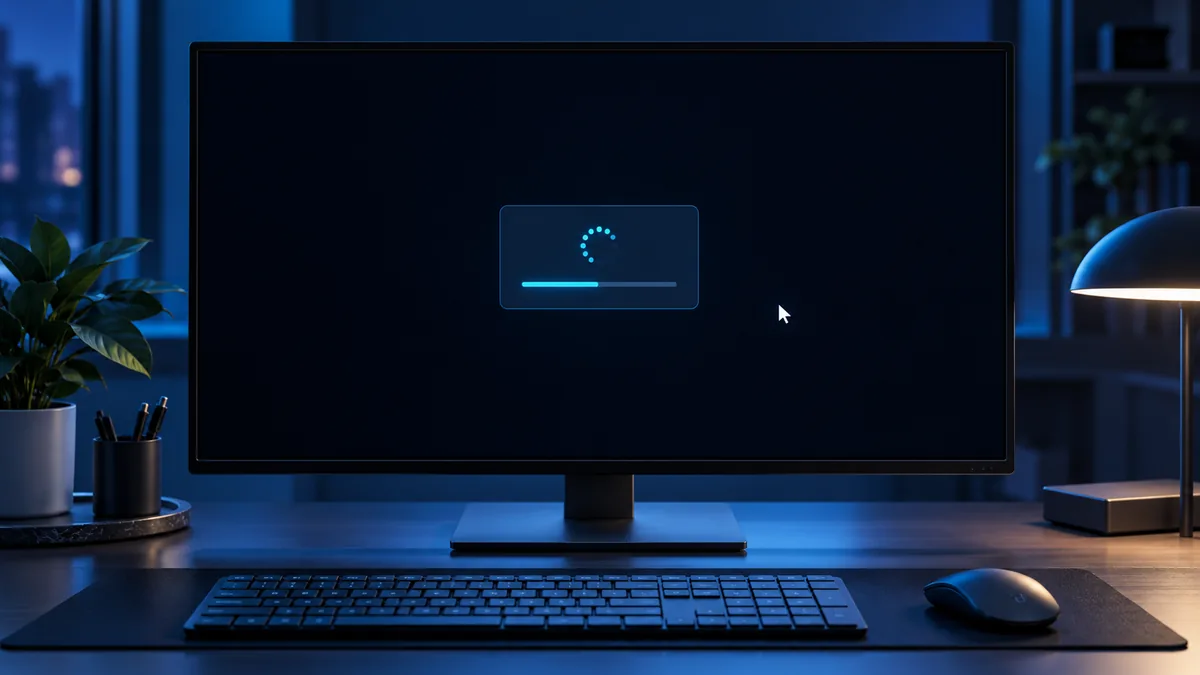
Table of Contents
Table of contents
Windows 11 black screen after login: identify the exact state
Wait two minutes, then press Ctrl+Alt+Delete. If the security screen opens, Windows is running and the failure is probably in the desktop session rather than the monitor. Open Task Manager from that screen and note whether Windows Explorer appears in the process list.
Move the pointer and press the monitor’s menu button. A visible on-screen monitor menu proves that the panel has power. If even the monitor menu is absent, continue with the separate hardware display checks in the related guides instead of treating this as a Windows session problem.
Record the Windows edition, OS build, recent update history, whether the pointer is visible, and whether the problem affects every account. This evidence determines whether the confirmed 26H2 issue actually fits.
Install KB5127648 or a newer cumulative update
If Task Manager opens, select Run new task, enter ms-settings:windowsupdate, and check for updates. Microsoft says KB5127648 and later updates resolve the reported 26H2 desktop-loading issue. Restart after installation and test the same account.
On an organization-managed virtual desktop, contact the administrator before changing policies. Microsoft provided a Known Issue Rollback for managed devices before the cumulative fix, but current systems should use the newest approved update instead of applying old workarounds.
If Windows 11 black screen after login began on a physical home computer with no FSLogix or Azure Virtual Desktop, the update may still help, but do not assume the enterprise-specific bug is the only possible cause.
Start Windows Explorer manually
Open Task Manager with Ctrl+Shift+Esc, choose Run new task, type explorer.exe, and select OK. Microsoft lists this as a temporary mitigation for the confirmed desktop-loading issue. If the taskbar and icons appear, save your work and install current updates.
When Explorer immediately crashes again, open Task Manager > Processes and note the crash time. Avoid downloading replacement copies of explorer.exe. The file is part of Windows and should be repaired only with Windows servicing tools or a supported update.
Reset the graphics path without deleting drivers
Press Windows+Ctrl+Shift+B once. Windows should briefly refresh the graphics driver and may play a tone. Disconnect unneeded docks, adapters and secondary monitors, then test the built-in screen or one known-good display.
If Safe Mode works, use Device Manager to install a current driver from Windows Update or the PC/GPU manufacturer. Roll back only when the symptom began immediately after a driver change and the previous driver is available. A driver comparison is more useful than repeatedly reinstalling the same package.
Compare Safe Mode and another user account
Enter Windows Recovery Environment, choose Troubleshoot > Advanced options > Startup Settings, and start Safe Mode. If the desktop loads there, disable recently added startup utilities, shell customizers, overlay tools and third-party display software one at a time.
Test another existing local account if available. When one profile consistently fails while another works, protect the affected user’s files before creating a replacement profile. Do not delete the old profile as a first step.
A Windows 11 black screen after login that affects every account, including Safe Mode, is more likely to involve system files, storage, drivers or an incomplete update.
Repair Windows files from a supported recovery path
From an administrator terminal reached through Task Manager or recovery, run DISM /Online /Cleanup-Image /RestoreHealth, then sfc /scannow. Let each command finish and record its final message. These tools verify the Windows component store and protected system files; they do not repair failing hardware.
If Windows cannot stay running, use Startup Repair or System Restore from Advanced options. BitLocker-protected devices may require the recovery key. Do not start a reset until important files are backed up.
Know when the black screen needs escalation
Stop troubleshooting if the drive reports errors, the computer repeatedly powers off, or the display shows artifacts before Windows starts. Those symptoms can indicate hardware trouble. For managed AVD or FSLogix environments, provide the administrator with event logs and the affected profile details.
Escalate Windows 11 black screen after login after the latest update, Safe Mode, another account and Explorer test still fail. Include the build number, update IDs, display configuration, Task Manager behavior and any Explorer crash events.
Frequently asked questions about Windows 11 black screen after login
Did Microsoft confirm Windows 11 black screen after login?
Microsoft confirmed a 26H2 desktop-loading issue mainly seen on Azure Virtual Desktop hosts using FSLogix. It was resolved in KB5127648 and later updates.
Why can I see the mouse pointer but not the desktop?
The display path is working enough to draw the pointer, but Explorer, the user profile, a display driver or startup software may have failed to load the desktop.
Will launching explorer.exe permanently fix it?
It can restore the desktop temporarily. Install current updates and investigate repeated Explorer crashes rather than relying on the manual launch every time.
Official sources and related guides
Use the current vendor documentation for version-specific details. The links below are direct, dofollow references.
- Microsoft Windows 11 26H2 release health
- Microsoft blank-screen troubleshooting
- Microsoft black screen after sign-in scenario guide
Continue with these TrueFixGuides resources: