Android troubleshooting depends on the phone or tablet manufacturer, Android version, and the symptom you can reproduce. An app crash, unwanted browser notification, charging problem, and damaged display require different checks. Use this guide to choose a focused article and keep device-specific instructions separate from general smartphone advice.
Part of the complete tech troubleshooting guide. Use this page to select a path, then follow the article that matches your exact symptom.
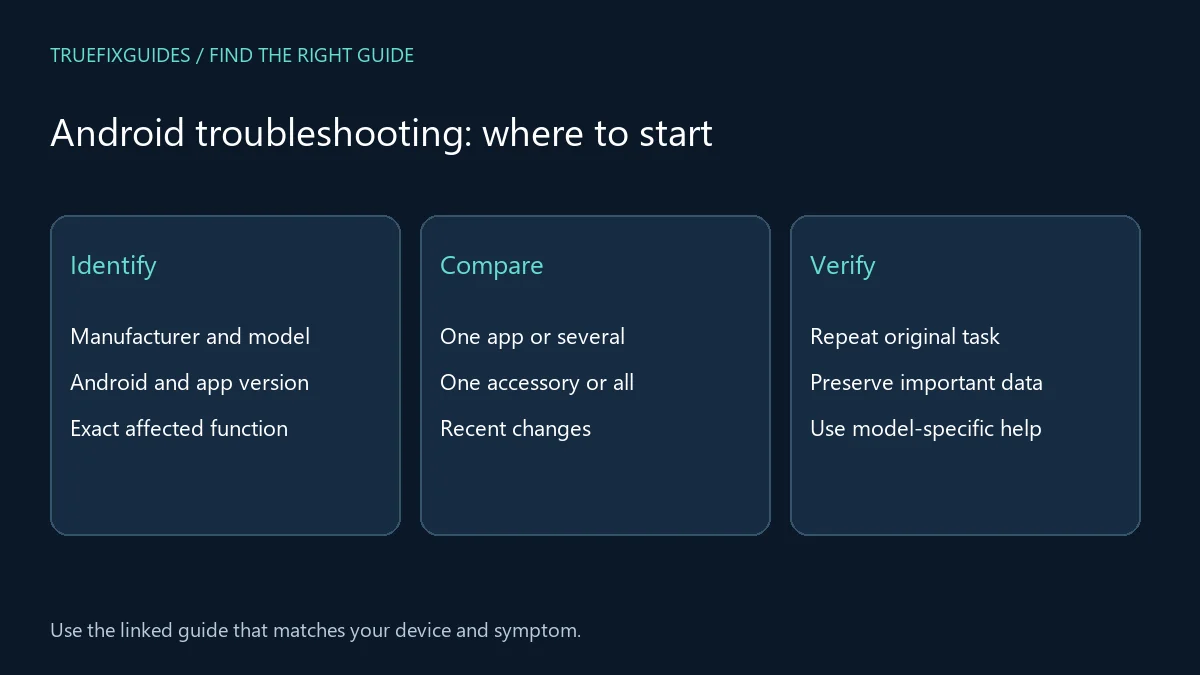
1. Choose your Android troubleshooting guide
Start with the closest observable symptom. Each link below has a different purpose; you do not need to work through every article in order.
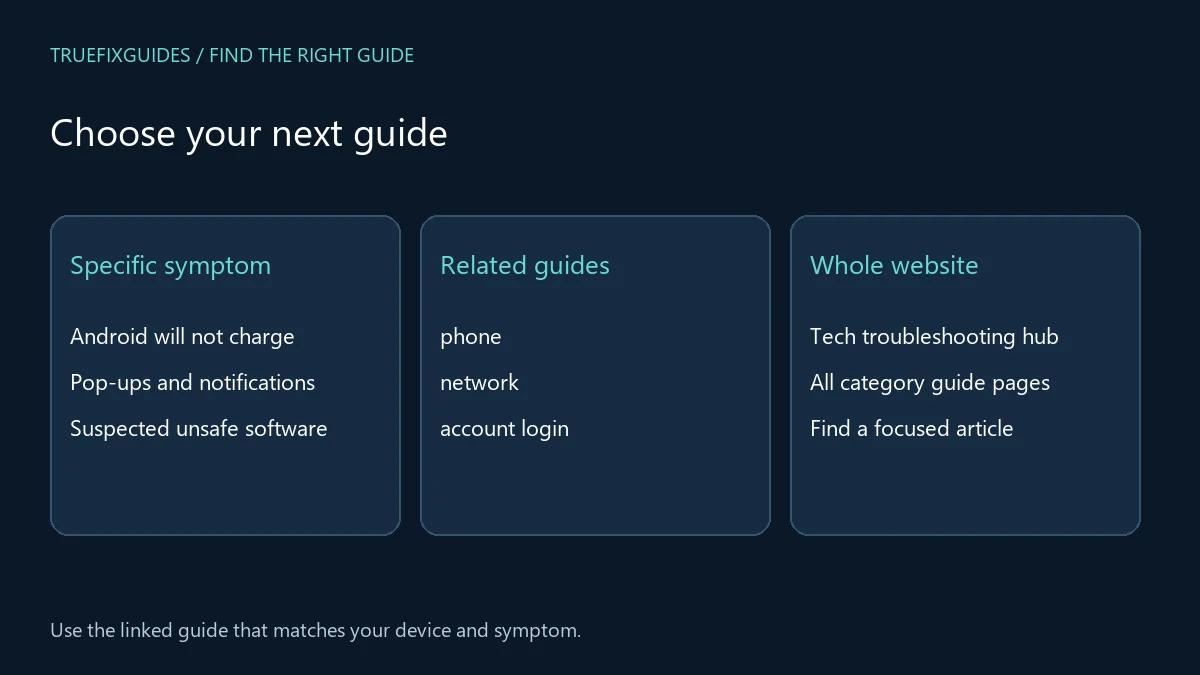
- Android will not charge — Use a charging-specific investigation and record the accessory combination that produces the symptom.
- Pop-ups and notifications — Identify the source of unwanted content before assuming a system-wide infection.
- Suspected unsafe software — Follow a focused security investigation rather than installing tools advertised by a warning pop-up.
- Apps keep closing — Compare one failing application with unrelated applications and preserve local data before resets.
- Grainy camera images — Separate capture conditions from image sharing and display quality.
- Touchscreen does not respond — Check whether the issue is limited to one app, one part of the screen, or the entire device.
2. Record the device and the affected function
Write down the manufacturer, model, Android version, and app version when relevant. Describe what happens immediately before the problem. A screen that stops responding inside one application differs from a touchscreen that fails everywhere. Note recent updates, new accessories, drops, or configuration changes without assuming that the last event is necessarily the cause.
3. Separate app behavior from device behavior
Compare the affected task with a simple alternative on the same device. If only one app fails, keep the investigation focused on that app and its data. If several unrelated functions fail, document the broader pattern. Android troubleshooting should preserve useful comparisons. Clearing an app’s data or reinstalling it can remove local information, so understand what is stored before taking that step.
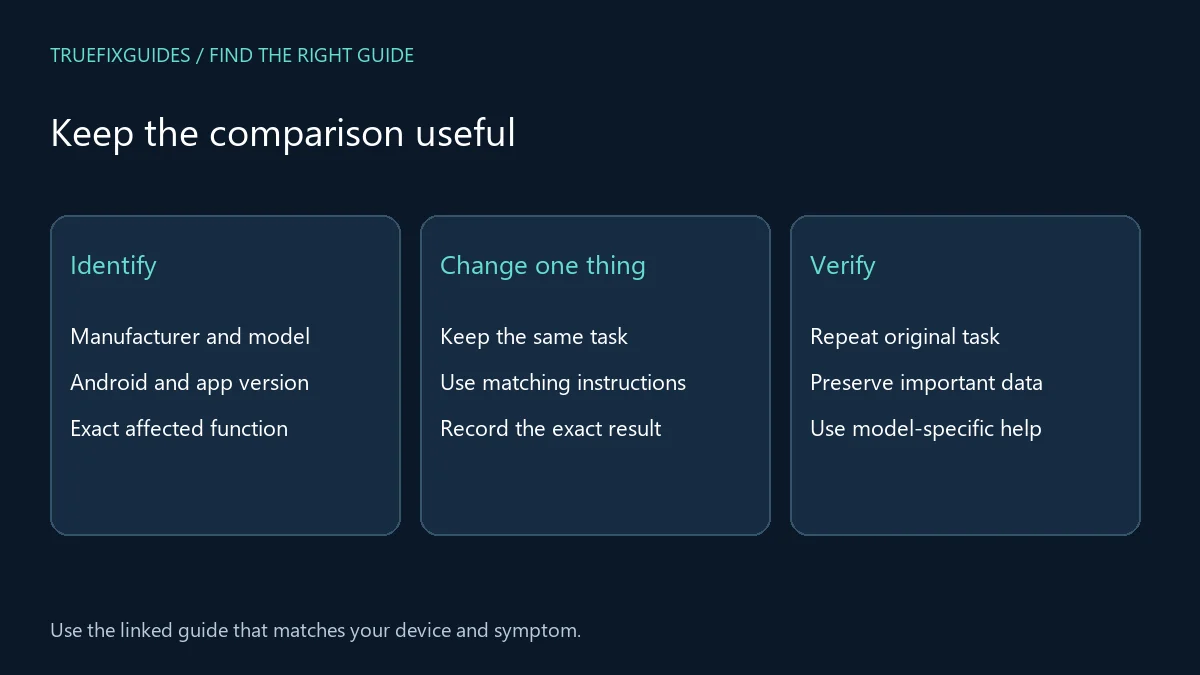
4. Classify unwanted ads and security symptoms
A browser notification, an advertisement inside an app, and an unauthorized account change are different observations. Identify where the content appears and what action preceded it. Avoid installing a cleaner simply because a pop-up recommends one. Use the relevant guide below and the manufacturer’s support information. For account compromise, follow the account recovery route as well as investigating the device.
5. Match physical symptoms to model-specific support
For charging, display, or unusual heat, record the cable, adapter, environment, and whether the symptom occurs with a particular accessory. Stop if a device or battery appears damaged or unsafe to handle. Do not improvise internal repairs from a generic guide. Google’s Android Help links to manufacturer support because settings and repair procedures vary across devices.
6. Verify your Android troubleshooting result
Repeat the task that originally failed and record the outcome. Keep the device model, relevant versions, and changes attempted for support. Android troubleshooting should explain whether the issue is app-specific, account-related, network-related, or physical, even when a repair or provider response is still needed.
For the relevant official reference, use Google Android Help and manufacturer support links. Match the product and version before applying a procedure.
More specific troubleshooting guides
Choose the article that matches the failing task. These guides cover narrower problems within this topic.
Related guide pages and complete article list
For a symptom that belongs to another layer, continue with phone troubleshooting guide, network troubleshooting guide, account login troubleshooting guide. Return to the main tech troubleshooting guide when you are unsure which category fits.
The Android archive lists all published articles in this category. This guide provides the starting paths; the archive is useful for finding additional or newly published topics.
Frequently asked question
Are all Android settings in the same place?
No. Names and locations vary by manufacturer and version. Match instructions to your device and use the manufacturer’s documentation when a menu or behavior differs.
Guide directory reviewed October 24, 2026. Prepared with AI assistance and linked source review. Diagrams are explanatory, not screenshots or evidence of hands-on testing.
New troubleshooting guide: Pixel Keyboard Not Showing: 7 Easy, Proven Fixes
New troubleshooting guide: Pixel Lag After Android 17 QPR1: 7 Easy, Proven Fixes
New troubleshooting guide: Pixel Wi-Fi and Bluetooth Won’t Turn On: 7 Easy Fixes