Windows troubleshooting works best when the exact error, Windows version, and failed operation are recorded together. A missing DLL message, an installer failure, an incompatible application, and a network warning need different investigations. This guide helps you choose a focused article and keep operating-system work separate from hardware, account, and application problems.
Part of the complete tech troubleshooting guide. Use this page to select a path, then follow the article that matches your exact symptom.

1. Choose your Windows troubleshooting guide
Start with the closest observable symptom. Each link below has a different purpose; you do not need to work through every article in order.
- Missing DLL message — Identify the application and component context instead of downloading an arbitrary replacement file.
- Application will not run — Check the application requirements, installer source, and device environment.
- Installer error 1603 — Follow the installer-specific investigation and preserve the relevant error details.
- Windows feature-update checks — Review the dated rollout guide, then verify the current offer and official known-issue information.
- Limited-connectivity warning — Separate Windows’s status indication from tests of the actual network and services.
2. Record the Windows version and exact message
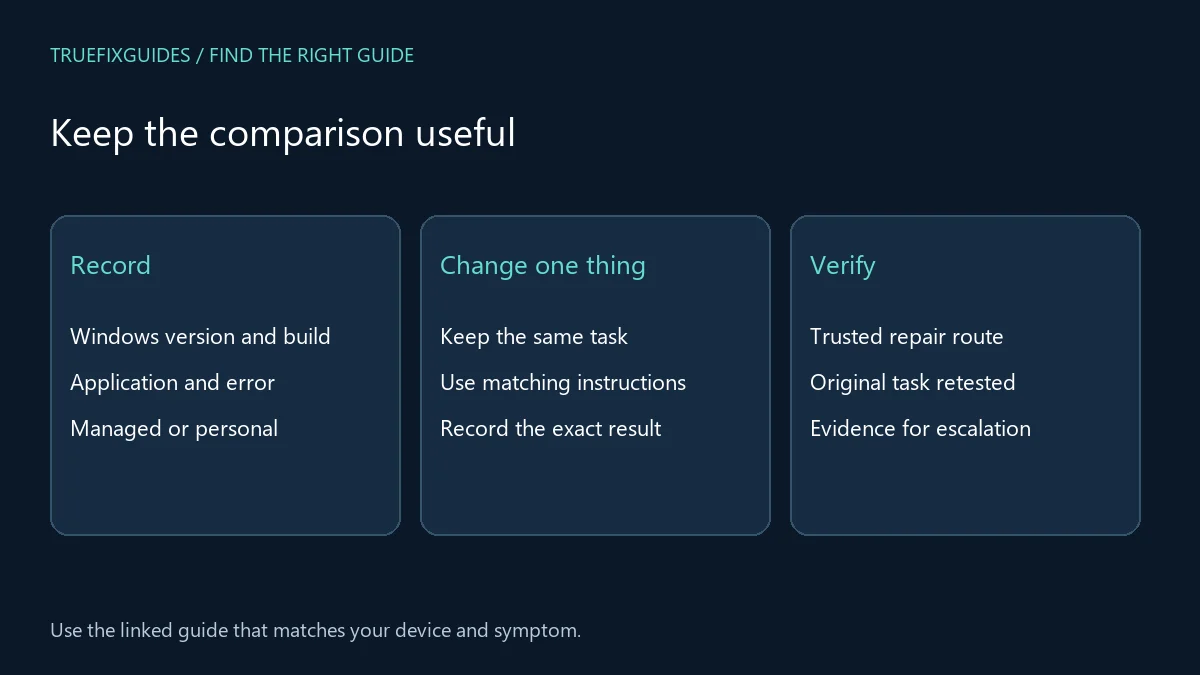
Note the Windows edition, version, and build when accessible, along with the application name and version. Copy the error text exactly and record the action that produced it. Include whether the device is personally managed or controlled by an organization. Those details help support match the problem to the right documentation and avoid instructions for a different environment.
3. Separate application installation from system startup
An installer error does not automatically mean Windows itself is damaged. Check whether other applications run and whether the failure belongs to one installer. Windows troubleshooting should use logs and the specific failure stage. If the entire machine cannot start or display an image, use the computer and hardware guides instead of applying application-level repairs.
4. Use trusted sources for components and updates
Obtain software through the publisher’s normal distribution route or the organization’s approved deployment process. Do not download an individual DLL from an unfamiliar library site simply because its filename appears in an error. For Windows updates, check the actual offer and relevant release-health information. A feature-update headline alone does not establish that every device should bypass its current management settings.
5. Test the original workflow and preserve evidence
After a change, confirm the running version or installation status and repeat the action that failed. Check a small, non-sensitive file or task first. Microsoft’s Windows help and learning provides official product support routes. Keep the error, timestamp, and changes attempted if escalation is necessary, and avoid making unrelated registry or security changes while the cause remains unclear.
6. Verify your Windows troubleshooting result
Windows troubleshooting is complete when the original task works and the system’s relevant state is verified. Record the version, successful test, and any unresolved symptoms. If only one application remains affected, keep the follow-up focused there. If the problem spans startup, storage, or several devices, use the related guide to investigate the broader layer.
For the relevant official reference, use Microsoft’s official Windows support. Match the product and version before applying a procedure.
Related guide pages and complete article list
For a symptom that belongs to another layer, continue with software troubleshooting guide, computer troubleshooting guide, network troubleshooting guide. Return to the main tech troubleshooting guide when you are unsure which category fits.
The Windows PC archive lists all published articles in this category. This guide provides the starting paths; the archive is useful for finding additional or newly published topics.

Frequently asked question
Does a missing DLL mean I should replace the file manually?
Not necessarily. Identify the owning application and follow its supported repair or installation process. A filename alone does not tell you the correct version, origin, or underlying cause.
Guide directory reviewed October 24, 2026. Prepared with AI assistance and linked source review. Diagrams are explanatory, not screenshots or evidence of hands-on testing.
New troubleshooting guide: Windows USB Audio Code 10: 7 Easy, Proven Fixes
New troubleshooting guide: Windows 11 Black Screen After Login: 7 Easy, Proven Fixes
New troubleshooting guide: Windows AC-3 Apps Crashing: 5 Easy, Proven Fixes
New troubleshooting guide: Remote Desktop Error 0xC000000D: 5 Easy, Proven Fixes
New troubleshooting guide: Windows Installer Service Could Not Be Accessed: 7 Proven Fixes