Android mobile data not working? Turn Wi-Fi off for one controlled test, confirm that mobile data is enabled for the intended SIM, and try a website in the browser. If calls work but data does not, check your carrier’s coverage and account before changing APN settings or resetting the phone. The steps below separate a carrier outage, a phone-wide connection failure, and a restriction affecting only one app.
What does “Android mobile data not working” mean?
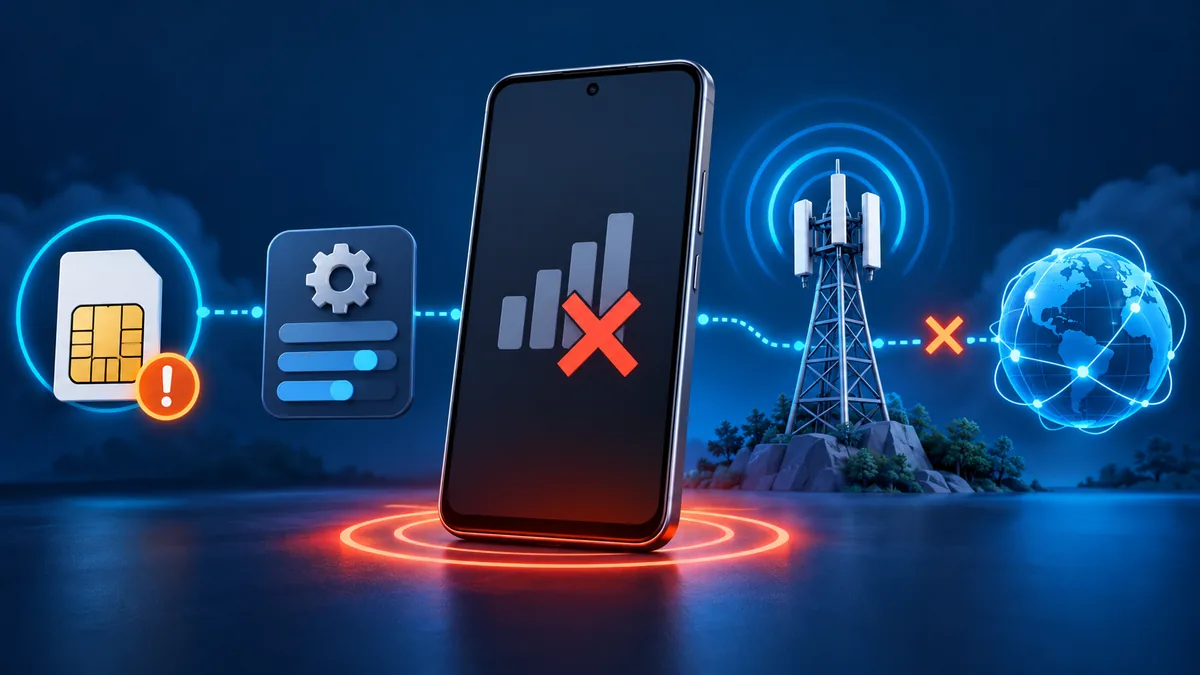
Mobile data requires an active account, coverage, a provisioned SIM or eSIM, the correct data line and a usable network configuration. Signal bars show radio reception; they do not prove that the phone has an internet session. Wi-Fi can also hide a cellular problem, so switch Wi-Fi off while testing. Google’s Android connection guide recommends comparing Wi-Fi and mobile data before changing settings.
Write down exactly what fails. Can the browser open a simple website? Do calls and SMS still work? Is there a 4G, LTE or 5G indicator? Does the failure affect both SIMs, one SIM or only one app? Did it start after travel, a new plan, an update or a SIM change? These distinctions determine whether a phone setting is likely to help.
| What you observe | Likely layer to check first | Useful next test |
|---|---|---|
| No signal or no data indicator | Coverage, SIM activation or network registration | Move to a covered area and check carrier status |
| Calls work, but no website opens | Data plan, selected SIM, APN or carrier data service | Check plan and data line before APN changes |
| Browser works, one app fails | That app’s data access, VPN or service | Test another app on cellular |
| Data fails only while abroad | Roaming support, plan and fees | Confirm international service with carrier |
A failed speed test is not the same as no connectivity; congestion or a weak signal can make data slow while basic browsing still works. If the browser loads and only one app fails, use that app’s own troubleshooting path. Our app-closing guide is relevant when the app crashes rather than when the whole cellular connection is down.
Quick checks before changing network settings
- Turn Wi-Fi off temporarily. Open a browser and load a page you have not recently visited. Re-enable Wi-Fi after the test if you need it for work or emergency contact.
- Look at the status bar. Note signal strength and whether a mobile-network indicator appears. A full signal display with no data is useful information for your carrier, but it is not a diagnosis by itself.
- Check the carrier’s outage page and plan. If several people on the same network and in the same area have the problem, local service may be down. Confirm that the line is active and data has not been suspended or exhausted.
- Keep a working contact path. Before a reset or eSIM change, make sure you have Wi-Fi or another phone available and know how to contact your carrier. Do not delete an eSIM profile as a generic troubleshooting step.
Android menus vary by manufacturer. On Pixel, Google documents mobile network controls under Settings → Network & internet → SIMs; other devices may label this section Connections or SIM manager. Follow the names on your device rather than forcing a menu path from a different brand.
Android mobile data not working: eight targeted checks
1. Confirm coverage, account status and plan allowance
Check the carrier’s official status page for your area and review your account’s remaining data. Test outdoors or in another known covered location if indoor reception is weak. Ask the carrier whether the line and data feature are provisioned when a new SIM, eSIM or plan has just been activated. A suspended line or tower outage cannot be fixed by clearing an app cache.
Expected result: you identify an external outage or confirm the account should have data. If service is down, stop changing the phone and retry after the carrier restores it.
2. Toggle mobile data and airplane mode, then restart
Verify mobile data is on. If it already is, switch it off and on once. Next enable Airplane mode, wait around ten seconds and switch it off. Let the phone register before opening a browser again. Google lists this sequence in its Android connection instructions. Restart once if registration does not recover; repeated toggling during a known carrier outage adds little information.
Expected result: the status indicator returns and a browser page opens. If the phone never registers, move to the SIM and coverage checks rather than changing an APN blindly.
3. Select the intended SIM or eSIM for data
Dual-SIM phones can use one line for calls and another for data. Open SIM settings, verify that the intended line is enabled, and select it as the default for mobile data. If you recently transferred an eSIM, check that the new line is active with the carrier before disabling the old one. Google’s Pixel mobile-network guide describes separate data choices for multiple SIMs; labels differ on Samsung and other phones.
Expected result: the active plan provides a data connection. Switching to another line may use a different allowance or cause charges, so confirm which plan is selected.
4. Check data limits, Data Saver and per-app access
Review your billing-cycle data warning and hard limit. A device-set hard limit can turn off data even when the carrier plan still has allowance. If only one app fails, check that app’s mobile-data and background-data permissions. Temporarily test with Data Saver off, then restore it if it is important to your plan. Do not turn on unrestricted background access for every app just to fix one failure.
Expected result: a restriction explains the failure or the same browser test still fails, pointing you to a device-wide or carrier issue.
5. Check network selection and roaming
Use the carrier-supported preferred network type and automatic network selection unless your carrier instructs otherwise. If the phone shows service but data fails while traveling, confirm whether your plan supports data roaming and what it costs before enabling it. Roaming is not a routine fix at home. In an area with unstable 5G, testing a supported 4G/LTE option may help identify a local radio problem, but restore the original setting if it makes no difference.
Expected result: the phone registers on a supported data network. Note which setting worked so you can report the issue accurately if it returns.
6. Restore the carrier APN only when evidence points there
An access point name, or APN, helps the phone connect to the carrier’s data network. A wrong APN matters most after a SIM swap, manual edit or carrier change. Capture the current APN values before altering them. If your phone offers Reset to default, use that first. Enter manual values only from your carrier’s official instructions; copying a forum APN can break data or messaging. Google lists APN as a mobile-network setting, but the correct values are carrier-specific.
Expected result: a valid profile permits a data session. If the default already matches the carrier’s settings, continue with carrier provisioning rather than trying random profiles.
7. Install relevant stable updates
While connected to trusted Wi-Fi, check for stable Android system and carrier-related updates offered through your phone’s normal update paths. Back up important data before a major operating-system upgrade. An update may resolve a known modem compatibility issue, but do not promise that it will fix a carrier-side outage. Avoid third-party “network repair” apps and unofficial firmware packages.
Expected result: the phone registers and data works after reboot. If the issue began immediately after an update, record the build number for the manufacturer or carrier.
8. Reset mobile network settings only after the narrower tests
On supported Pixel phones, Google documents Settings → System → Reset options → Reset Mobile Network Settings. Other makers may combine this with Wi-Fi and Bluetooth reset. Read the confirmation screen carefully: a combined reset may remove saved Wi-Fi networks, Bluetooth pairings or VPN-related settings, and menu wording differs by model. It will not reactivate a suspended carrier account. Keep your carrier login and a second connection available before proceeding.
After the reset, reconnect the intended SIM, turn Wi-Fi off and repeat the browser test. If data still fails, collect the time, location, exact status indicators, Android version and the steps already tried. Ask the carrier to check SIM or eSIM provisioning and local service. Do not factory-reset the entire phone without a more specific diagnosis and a verified backup.
Decision table: what should you do next?
| Result after a test | Next action | What to avoid |
|---|---|---|
| Other users on the same carrier are also offline | Wait for status update or contact carrier | Factory-resetting the phone |
| Second SIM works; first does not | Check first line’s plan and provisioning | Assuming the phone radio is broken |
| Browser works; one app fails | Check that app’s data permissions and service status | Resetting all mobile settings first |
| No data after a new eSIM transfer | Contact carrier about activation and line assignment | Deleting the eSIM before recovery is arranged |
| Data works in another location | Report the local coverage or tower issue | Changing APN values repeatedly |
When these fixes will not help
A carrier outage, inactive plan, blocked account or unprovisioned SIM requires the carrier. Physical SIM damage or a phone radio fault may require a replacement or service after the account is confirmed good. If the phone was dropped, exposed to liquid or shows SIM-not-detected errors, use the device maker’s diagnostic path rather than assuming a software reset will repair it.
For managed work phones, company policy may control APNs, VPNs and mobile-data access. Ask the administrator before removing management profiles. If you have an urgent need to communicate, switch to a known working Wi-Fi connection or another phone while the carrier investigates.
Frequently asked questions
Why are there signal bars but no internet?
Bars indicate radio reception, not a confirmed data session. Check the data indicator, carrier plan, selected SIM and local outage status. If calls work but data still fails, ask the carrier to verify provisioning.
Should I enable roaming to make data work?
Only if you are outside your home network and your plan supports it. Roaming can create charges. Confirm the terms before turning it on.
Will resetting mobile network settings delete photos?
A network reset is different from a factory reset, but its exact effects vary by device. Read the confirmation screen and save Wi-Fi, Bluetooth and VPN details that might be removed. It should not be used as the first check.
Can a VPN make mobile data appear broken?
Yes, if the phone has a mobile connection but the VPN tunnel fails. Disconnect the VPN for one controlled browser test, then reconnect it. If browsing resumes only with the VPN off, investigate that service rather than changing the carrier APN.
Why does data work on Wi-Fi but not cellular?
Wi-Fi uses a different network path. Turn Wi-Fi off to reproduce the cellular failure, then check the line, coverage, plan and mobile-data setting in that order.
Conclusion
To fix Android mobile data not working, establish whether the problem affects the whole phone or one app, then confirm coverage and account status before changing settings. Select the right SIM, check restrictions, and use your carrier’s APN information only when needed. Keep network reset as the last phone-side step. The Android troubleshooting hub covers related phone problems, while the Wi-Fi connection guide applies when cellular data works but the Wi-Fi path fails.